
Watch Dogs 2 Guide Training Part 5: World And Activities
Nudle Maps and GPS
You can view Nudle Maps in minimap view in the screen’s bottom-left corner. Open the app or press the Map button to open a full-screen version. Any current objective you are undertaking in an operation is listed in the top-left corner.
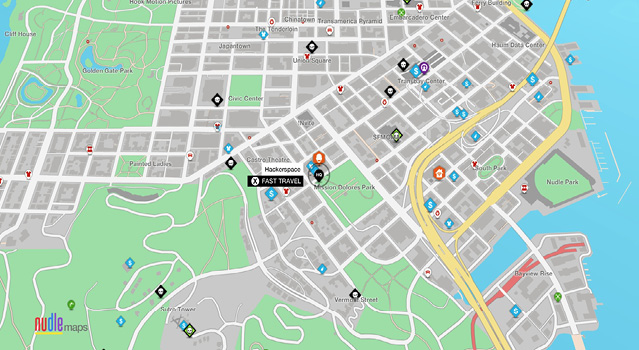
Fast-Travel: Use Fast-Travel to reach shops, kiosks, restaurants, bars, and some missions and activities in an instant. Simply hover your cursor over a location, and Fast-Travel there instead of driving. It’s much quicker, though it doesn’t allow you to learn the shortcuts of the city. Fast-Traveling isn’t available when an operation is active.
Waypoints and Tracking: Hovering your cursor over a destination (or anywhere you like on land) and pressing the Track button allows you to track a destination with a GPS route or add a waypoint with a GPS route. Note that a GPS allows you to easily find a location you seek, but it isn’t always the quickest route, especially if that location is remote, as a more direct, off-road route is sometimes quicker. In the main, though, following a GPS can be trusted.
Filtering: You can also toggle off and on all operations, online missions, activities, locations, and items if your map becomes cluttered or if you’re only interested in one set of filters (such as collectibles).
Nudle World View: The in-game map has a regular view of the Bay Area. However, this guide comes with a special “Nudle World” view, which picks out locations in much greater detail. Consult the “Nudle World: Atlas” chapter near the end of this book for more knowledge.