
Super Smash Bros. Ultimate Guide Super Smash!
Options
Find Options in the Dashboard accessed with ZR, alongside Local Wireless multiplayer and Game News, among other useful at-a-glance selections.
In the Options menu you can adjust various general game settings. Set custom rulesets and balance, how Echo Fighters are displayed on select screens, the size of the game’s radar for offscreen fighters, and whether teammates are highlighted in online or local play. Options for the game’s audio, brightness, online play, and language settings are also here.
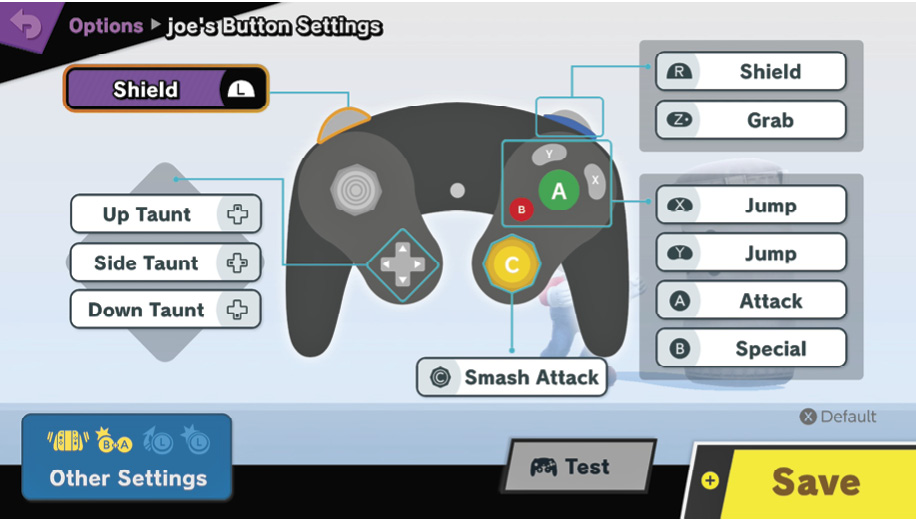
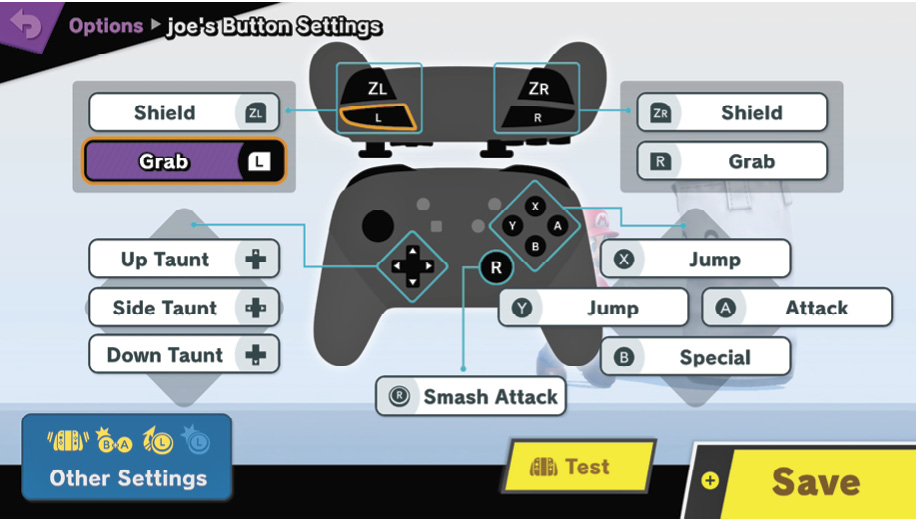
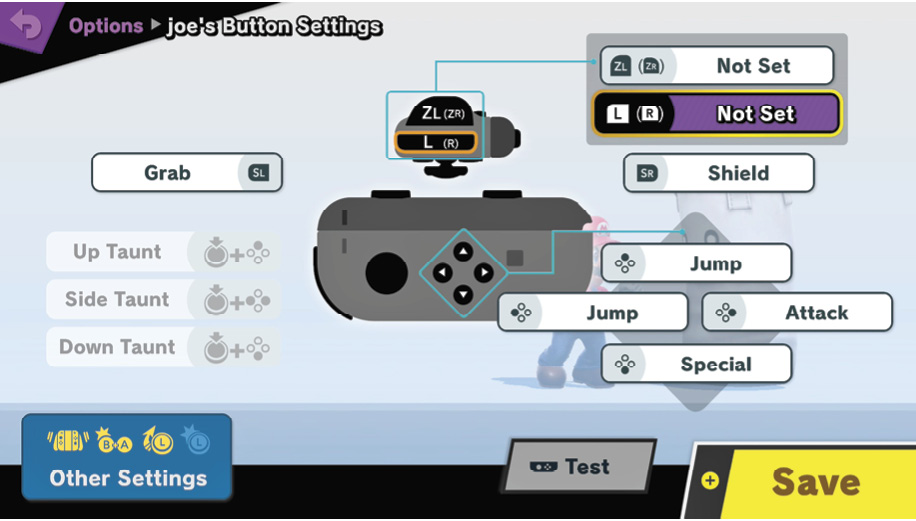
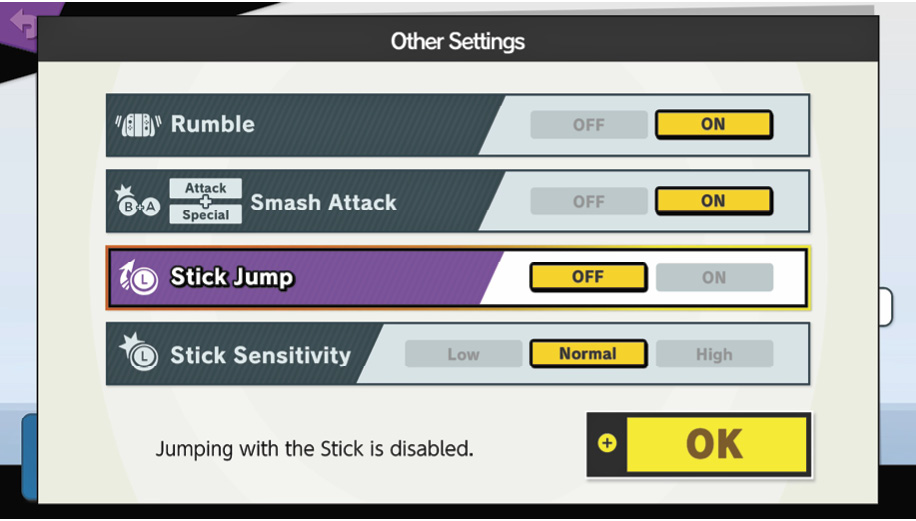
Controls are the most important part of Options though. Here you can configure everything about controls, down to different setups for different pads—adjust depending on whether you’re using Joy-Con, a Pro Controller, or a GameCube pad (which works whether it’s a new Switch GameCube pad emulating the classic console’s controls, or it’s an actual GameCube pad, using a GameCube controller adapter for Switch).
Adjust anything about the default scheme you like. Beyond the obvious question of where you want your buttons, some less obvious things to consider, which will be highly personal:
How sensitive you want the control stick to be when registering controller flicks—how fast you have to tilt the stick fully to the side to register dashes, smashes, and smash-like item throws and specials, versus nudging it for walking, tilts, and slower item throws.
What you want to use the C-stick (or right analog stick) for. By default it’s set to activate smash attacks on the ground. If you have difficulty pulling off tilt moves in a pinch, but no trouble with smash moves, for example, then setting this to tilt instead covers up an execution gap in your game. In either case, the C-stick will also work in midair to produce air moves, which can also be very useful to make execution more consistent. Considering how important the control stick is just for moving your fighter around precisely, offloading both the need for a control stick direction and an Attack button input to the C-stick makes some things much easier to do consistently.
Whether you want an upward control stick input to jump. In general, it’s cleaner to disable this, so you don’t get errant jumps going for up tilts and up smashes, and errant midair jumps going for up air attacks. You’ll almost certainly have a jump button assigned, making this redundant anyway.
The option to make lots of different controller profiles exists, so if you get a group together everyone can make sure they get their preferred settings no matter which controller they end up with.