
Mobile Gaming Guide — Tips, Tricks, and Strategies for Today's Hottest Mobile Games Make Hexa Puzzle
What You Need to Know
The Game Board Interface
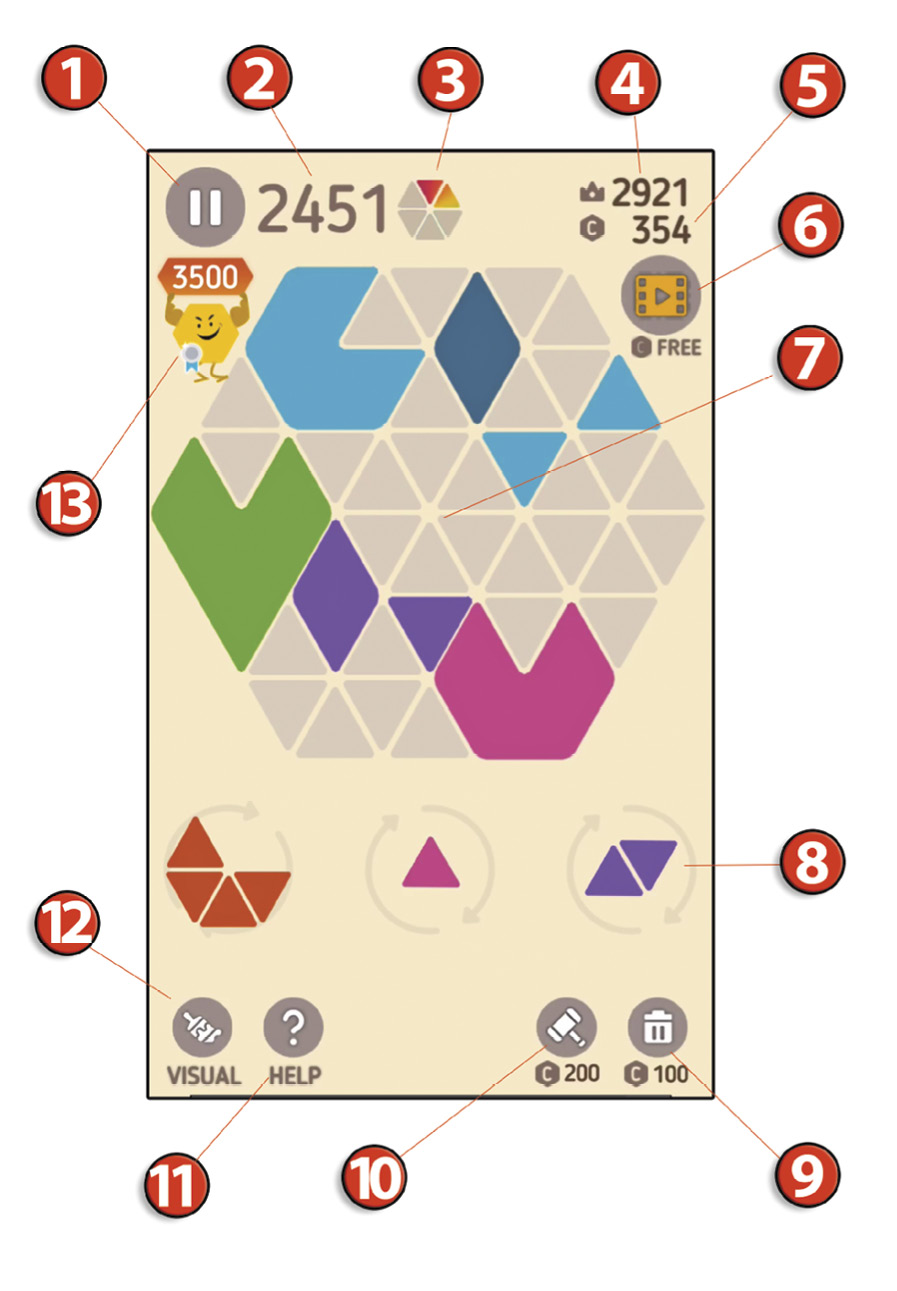
1. Pause Menu
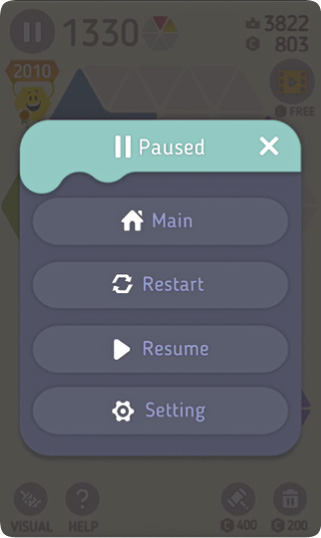
The pausebutton brings up the Pause menu, where you can return to the main menu, restart the board, resume your game, or enter the Settings menu.
2. Score
This displays your current score. Each time you place a shape on the board and and each time you complete a hexagon, points are added here.
3. Rainbow Block Display
Each time you create a double-hexa, two of the six sections of the hexagon fill. You earn a rainbow block once all six sections are filled. The larger the special hexagon you make, the more quickly you fill the rainbow block display.
4. High Score
This displays your all-time high score. The main goal in the game is to continually strive to try to beat your own high score.
5. Coins
This is your coin total. You earn coins by watching ads. You use coins to hammer shapes on the board or trash pieces in queue. You can also purchase bundles of coins from the store.
6. Watch Ads (Free Coins)
Click on this movie clip icon to see an ad. Each ad earns you 40 coins. You can watch four ads back-to-back until the option to watch ads no longer appears for a period of time.
7. Hexagon Puzzle Board
This is where you place pieces (which appear in the queue at the bottom of the screen) to create hexagons. This is the game board.
8. Game Pieces
Three game pieces (triangles and shapes formed from triangles) appear in play at the bottom of the screen. When you drag one to the board it is immediately replaced with a new game piece. There are always three pieces to choose from.
9. Bin
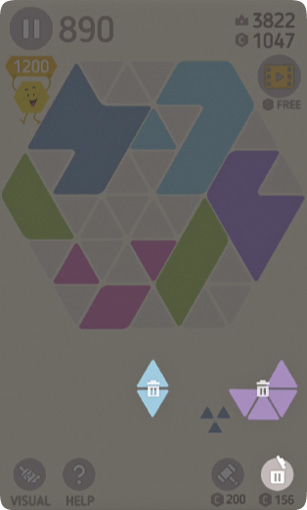
Click on the trash can icon to delete a game piece from the selection of three at the bottom of the screen. Using the bin costs coins. Each time you use it the cost increases. Using the bin allows you take out a piece that is causing you problems, and that piece is then replaced by a new piece.
10. Hammer
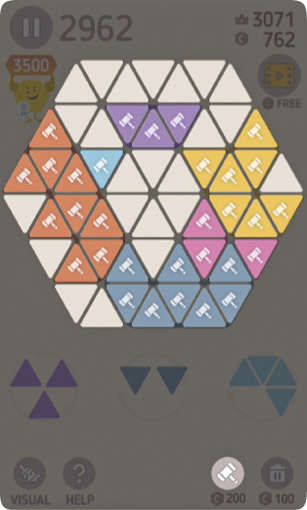
The hammer is similar to the trash can, only this allows you to smash any one triangle piece that has been placed on the board already to make room for a piece that otherwise would not fit on the board. This also costs coins, and once used the price to use it again increases.
11. Help
Pressing help opens a short, interactive tutorial on the basic moves in the game. Here you can learn about making hexagons with pieces of the same color; making doubles to get rainbow blocks and bonuses; how to use the rainbow block to remove pieces; and how to use the hammer and the bin.
12. Visual
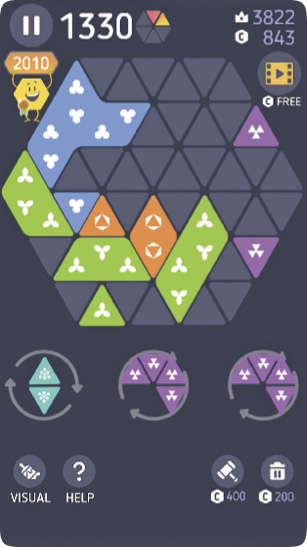
Press the paintbrush icon to bring up visual options. Press the triangle icon that comes up to paint color-specific graphics on each piece. Press it again to turn this off. Press the sun icon to put the screen in a night-mode color scheme. Touch it again to turn this feature off.
13. Hexti
The Make Hexa character, Hexti, jumps out to show you intervals of scores to remind you what the next number goal is. This breaks gameplay up into stages and earns you achievements when each stage of points is reached.
The Main Menu Interface
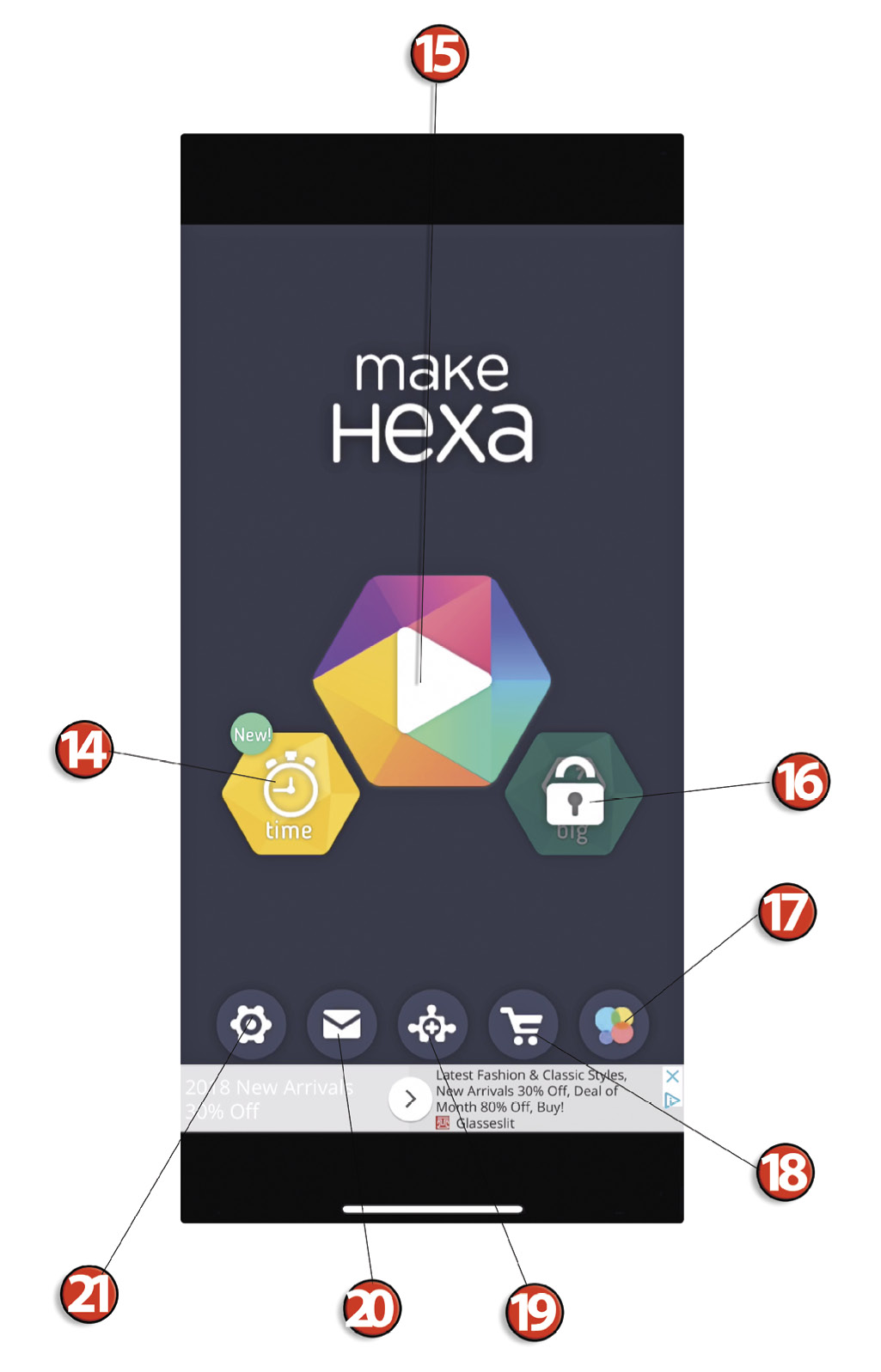
14. Time (Mode)
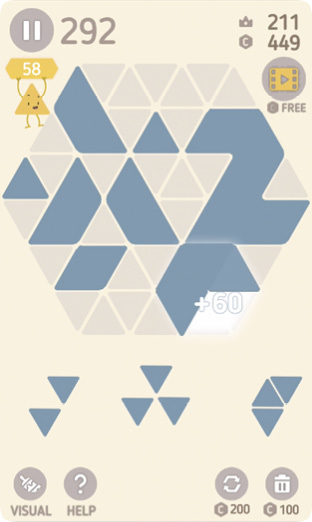
If the game isn’t challenging enough, click on this option to play a similar game with a time limit. In this mode, you have 100 seconds to get as many points as possible. They make it manageable by only giving you one color to deal with, but the caveat is that you cannot freely rotate your pieces. If you wish to rotate a piece it costs you coins, and each time you use the rotate option it becomes increasingly expensive. Create specials (doubles, triples, quadras, etc.) to add a little more time to the clock.
15. Make Hexa Puzzle Mode
Tap on this icon to enter the normal Make Hexa Puzzle mode.
16. Big Size Board
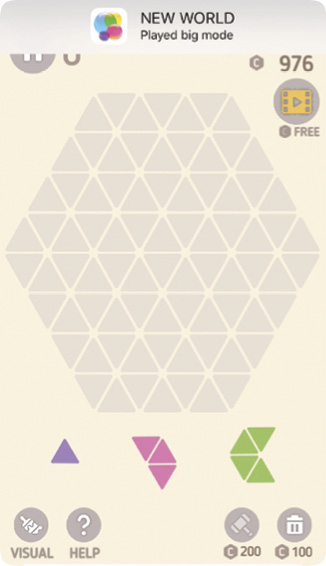
To unlock the big size board, you must first earn and save up 2,000 coins. Once it is unlocked you get to play on a board that is larger than normal. The board is two rows taller and two rows wider, but the top and bottom rows are the same width as the old board. Gameplay is the same but could last longer because you have more room to work with.
17. Game Center
This is where you go to check your achievements and leaderboard. Both links take you to the same screen, where you can toggle back and forth between these two menus.
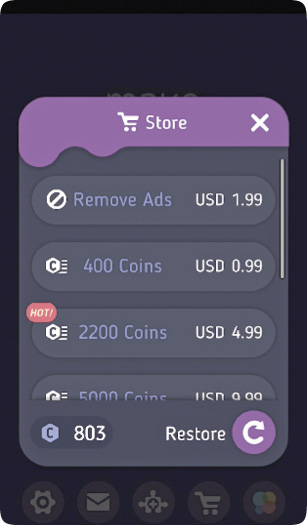
18. Shop
Click here to enter the shop, where you can purchase a Remove Ads option and multiple bundles that include increasing amounts of coins (from 400 to 10,000 coins for $0.99 to $16.99).
19. BitMango
This will take you directly to BitMango in the App Store or Google Play store depending on your device. Here you can download their library of games.
20. BitMango Help
This will take you directly to BitMango’s help page on their website.
21. Settings
Click here to adjust sound effects volume and background music (BGM) volume, to toggle on and off the notifications, and to play the tutorial (which earns you an achievement).