Assassin's Creed Syndicate Guide The Essentials
On screen Display
The On screen display or HUD (Heads Up Display) provides the player with all the information they need to survive on the harsh streets of London.
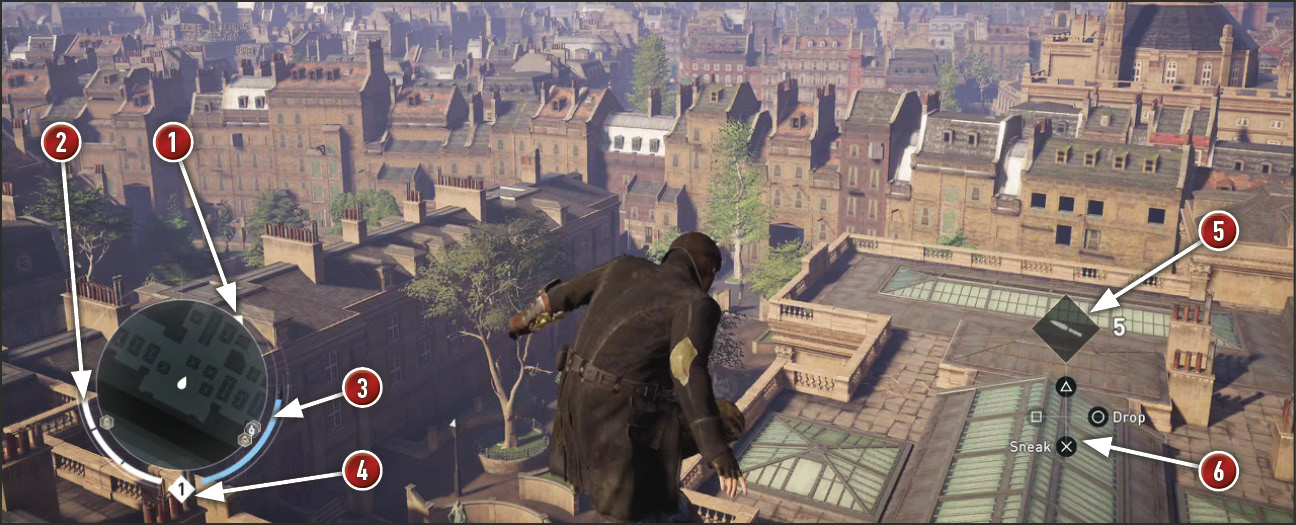
 Mini-Map: The Mini-Map is found at the bottom left of the screen. It displays a top view of the surrounding environment, as well as the compass direction at which the player is looking with the small triangle being north. Different icons and feedback are displayed as you discover them through exploration and the use of Eagle Vision. To unfog the Mini-Map, reach a Viewpoint and synchronize. The Mini-Map changes colors during combat situations with yellow showing enemies who are alerted, and red representing open conflict.
 Health Bar: At the bottom left corner of the Mini-Map is the Health Bar. It can be upgraded in the Skills menu.
 Experience Bar: This meter shows the current amount of experience gained towards the next Skill Point. Once the meter is full, it grants a Skill Point and resets.
 Level: Underneath the Mini-Map is a number showing your current Level. This makes for a good quick reference before attempting or entering high level activities.
 Equipment Indicator: This shows the current equipped tool and its remaining ammunition. Pressing DPAD LEFT / DPAD RIGHT opens the equipment selector. It is located above the Puppeteer.
 Puppeteer: At the bottom right, the Puppeteer shows the available interaction for each button. The instructions update to match the Assassin’s current available actions.
Marked Enemies
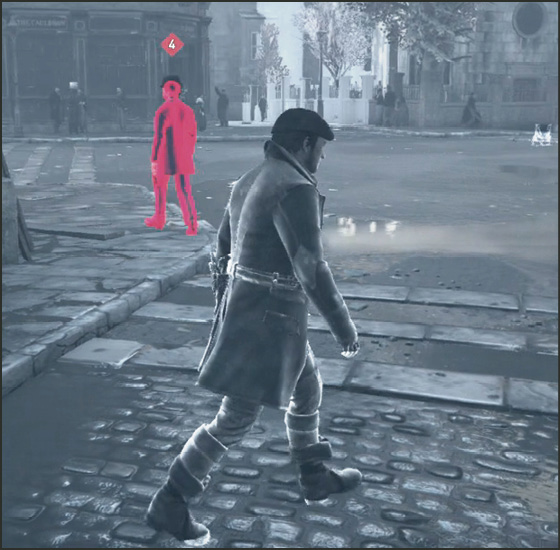
To Mark an enemy, Activate Eagle Vision and move the camera so that the enemy is in the center of the screen for a short time. Once you mark an enemy, their level and faction is displayed above their head, even when not in Eagle Vision.
GPS
When driving a vehicle, the GPS appears as a line on both the Mini-Map and on the road, showing the fastest route to your destination. It is only visible if you have set a marker on the map, or if your current objective requires you to travel to a destination.