
The Legend of Zelda Majora's Mask 3D Guide How to Play
Touch Screen
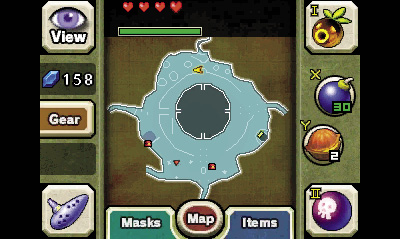
The Touch Screen (bottom screen) of your 3DS handles all of the subscreens. The map of the current area appears in the middle of the Touch Screen. Tap the map to zoom in and out. Tap any of the buttons below or to the left of the map to bring up the various subscreens: Gear, Items, Masks, and Map.
Gear Subscreen
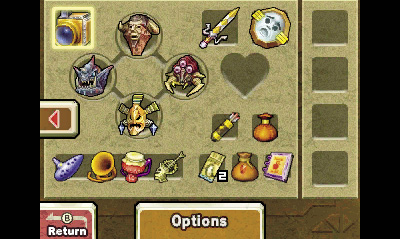
Tap the Gear button on the left to bring up the Gear subscreen. This screen shows all of the vital items that Link has acquired during his quest. This includes Link’s current sword and shield, along with any other special quest items.
Items Subscreen
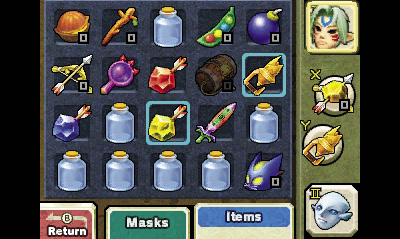
The Items subscreen displays all of the various items and tools that Link can equip and use with  ,
,  , and the other Touch Screen buttons. Tap and slide an item over to one of the buttons on the right to equip it, then tap that button (or press
  or
or  ) to use the item. Items that require ammo (like bombs and Deku Nuts) can’t be used when the ammo runs out. Look around for more!
Masks Subscreen
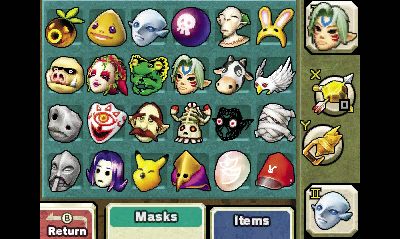
All of the wearable masks that Link has found during the adventure appear on the Masks subscreen. Masks grant Link special powers, and they must be equipped and used just like items. Tap and slide a mask over to one of the buttons on the right to equip it, then tap that button (or press  or
or  ) to make Link put on the mask and gain its effects.
Map Subscreen
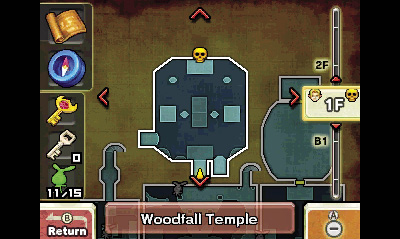
Tap the Map button beneath the Touch Screen map to call up the Map subscreen. Here, you have even more map-based options. Tap the bar on the right, and slide it up and down to view different floors (this is particularly handy for confusing places like dungeons). Any items pertaining to the area (dungeon items like the Compass, for example) are also shown on the left side of the Map subscreen.
Options Menu
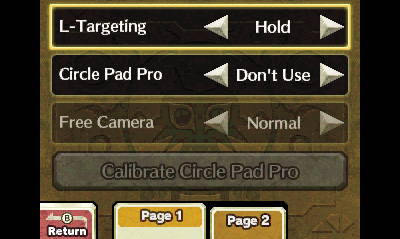
Tap “Options” at the bottom of the Gear subscreen to view the Options menu. Here, you can view and adjust a variety of game options, including the targeting mode, the motion and swimming controls, the volume, and more. Check out both pages of options, and fiddle with them to create your ideal gaming experience.
Bombers’ Notebook
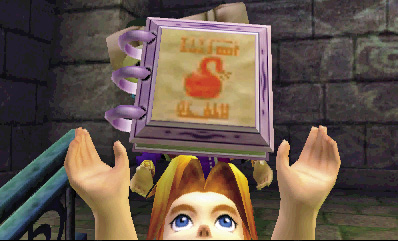
Shortly after reclaiming the Ocarina of Time from the Skull Kid, Link receives the Bombers’ Notebook. Every member of the local Bombers club has one of these special notebooks, and you’ll find it very helpful for keeping track of your accomplishments around Termina. The Bombers’ Notebook has two main sections: the Event Notes and the Schedule.
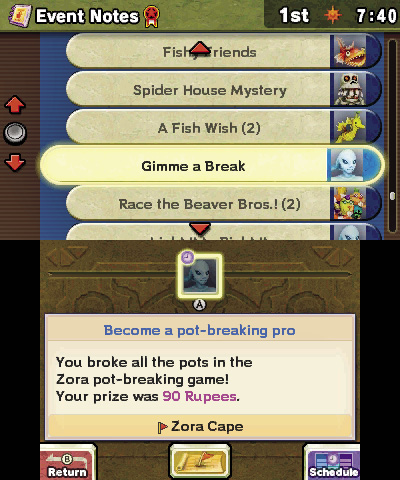
The Event Notes screen records all of your deeds and accomplishments around Termina. Depending on an event’s current state, it might appear under Rumored Events, Ongoing Events, or Completed Events.
- Rumored Events: Talking to people (especially members of the Bombers) is a good way to hear rumors. Any interesting gossip that catches Link’s ear appears here.
- Ongoing Events: Once you’ve started working on a Rumored Event, it moves to the Ongoing Events section. These are events that Link is working on but hasn’t yet completed. It’s entirely possible to stumble upon an event and start an Ongoing Event without first hearing the rumor.
- Completed Events: All of the good deeds that Link has accomplished around Termina are listed here. Take a moment to pat yourself on the back, hero!
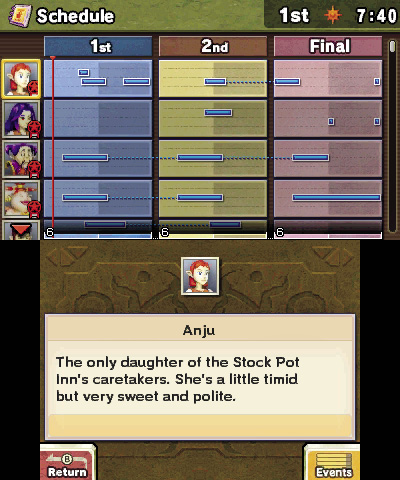
The Schedule screen shows all of the characters that you’ve met and noted in your Bombers’ Notebook. It gives an informative description about each one and breaks down their individual schedules. All of this information can help you figure out what the character is up to, or what sort of help they might need. If you’re stuck on a certain event, try searching for the involved parties under the Schedule screen, and see if you can’t deduce some sort of clue or lead. If all else fails, refer to the walkthrough or the checklists at the back of this book.