
Evolve Official Strategy Guide BASICS
Menus
From the main menu, select from the following: Multiplayer, Solo, Switch User (on Xbox One), Profile, Extras, Options, and Store.
Multiplayer
Multiplayer connects you to the game servers, allowing you to participate in a game online with other players or hook up with friends in a Custom game. Selecting Skirmish or Evacuation for the first time gives you an opportunity to set up your role preference. Rank the four Hunter positions and Monster in the order that you would prefer to play. It will attempt to place you in a game starting with your first option, then your second, etc. You may also select No Preference to randomly be placed in a role.
Skirmish matches you with four other players in a game of Hunt. It cycles through the maps as you continue to play in the same mode.
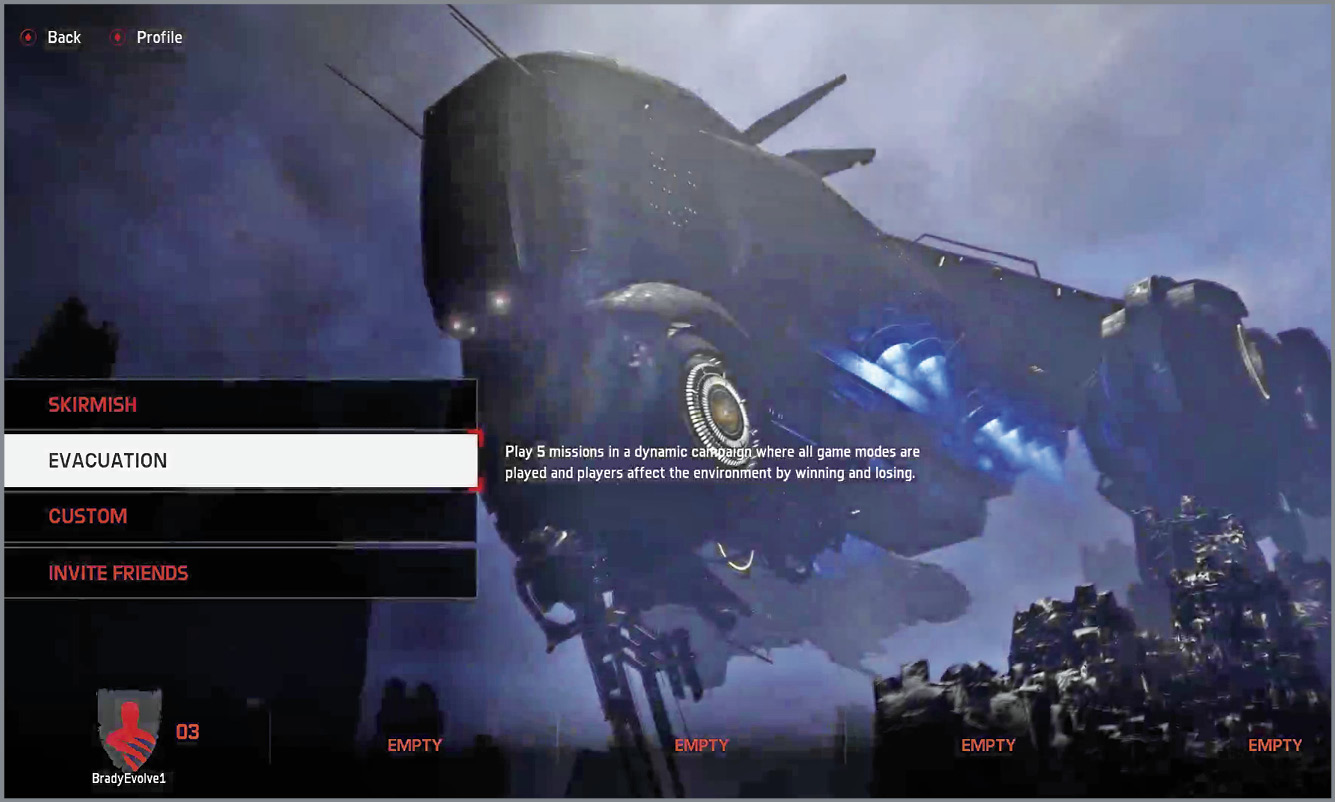
Evacuation is a game of five rounds, which take place in any of the four modes. For more information on Evacuation, refer to the Game Modes chapter. At the Evacuation menu, you can select to play Co-op, where 2-4 player-controlled Hunters take on an AI-controlled Monster, or PVP, where all five characters are player-controlled.
Custom gives you full control of the setup, with only friends involved. From there, you can select from all of the modes, maps, and map effects. You also have a number of extras that can be modified to change the way the game is played. These are listed in the following table:
In each of these modes, you can select Invite Friends to bring a friend into your game. These players will follow you into whichever mode you select until you return to the main menu.
| Skirmish | Play one round at a time, matchmaking and cycling maps in Hunt mode. |
| Evacuation | Play five missions in a dynamic campaign where all game modes are played. Players affect the environment by winning and losing. |
| Custom | Play a private game with one or more of your friends using modified rules. |
| Invite Friends | Invite friends to join your game. |
| Difficulty | Increase the damage output of one team. | Favors Hunters, Balanced, Favors Monster |
| Wildlife Population | Adjust the amount of wildlife found in the map. | Low, Normal, High |
| Round Length | Set the duration of the round. The default length varies depending on the game mode chosen. | Default or 5:00–40:00 |
| Round Robin | Enable/disable cycling the Monster role from one player to the next. | On or Off |
| Reinforcement Time | The amount of time for dropship reinforcements to arrive. The default length varies depending on the game mode chosen. | Default or 0:15–2:00 |
| Strikes | The number of times Hunters can be incapacitated before dying. The default is 2. | 0, 2, Infinite |
| Character Perks | Enable/disable character Perk selection before the match begins. Elite wildlife Buffs are still available. | On or Off |
| Mastery Bonuses | Enable/disable all item, weapon, and ability mastery bonuses. | On or Off |
| Elite Wildlife | Enable/Disable elite wildlife spawning. | On or Off |
| Voice Chat | Switch between team and open chat. | Team Only, Open Chat |
Solo
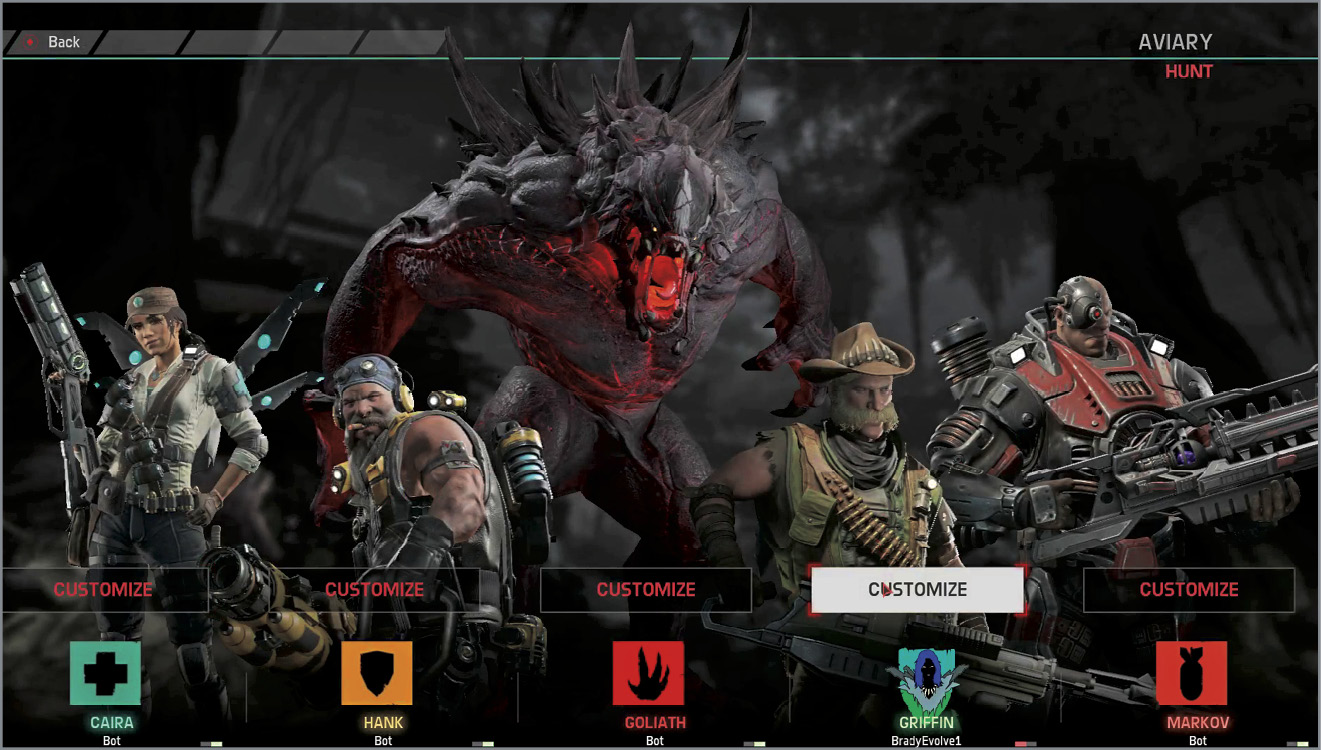
Select Solo to only play with computer-controlled bots. The options here are very similar to Multiplayer, except for Quick Play and Replay Tutorial. Quick Play selects a random mode and map. Replay Tutorial allows you to try the Goliath and Markov tutorials again to better your time or perhaps refresh your memory on the basics.
Another difference in Solo from Multiplayer is that you can customize the other characters. After selecting your character, you can choose which Monster and/or Hunters you play with and against.
Profile
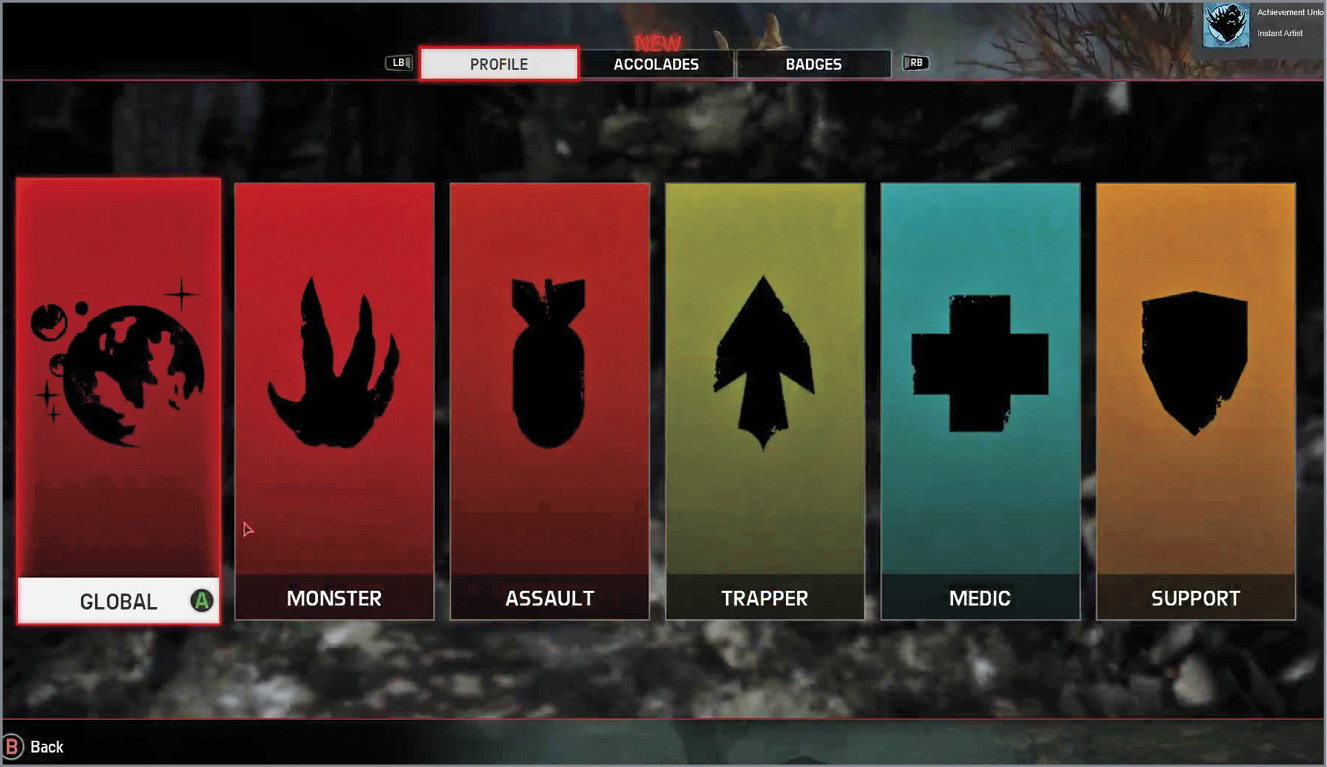
Profile allows you to see how you are doing in the game and create a custom Badge. Three tabs along the top grant access to your Profile, Accolades, and Badges. You can also access this information from most menus by clicking the button shown along the top of the screen.
The Profile tab allows you to check your progress and the leaderboards. See how you rank with the rest of the world or just your friends. Select the Monster or one of the Hunters to get more specific leaderboards, as well as progress toward Character Mastery and Awards earned.
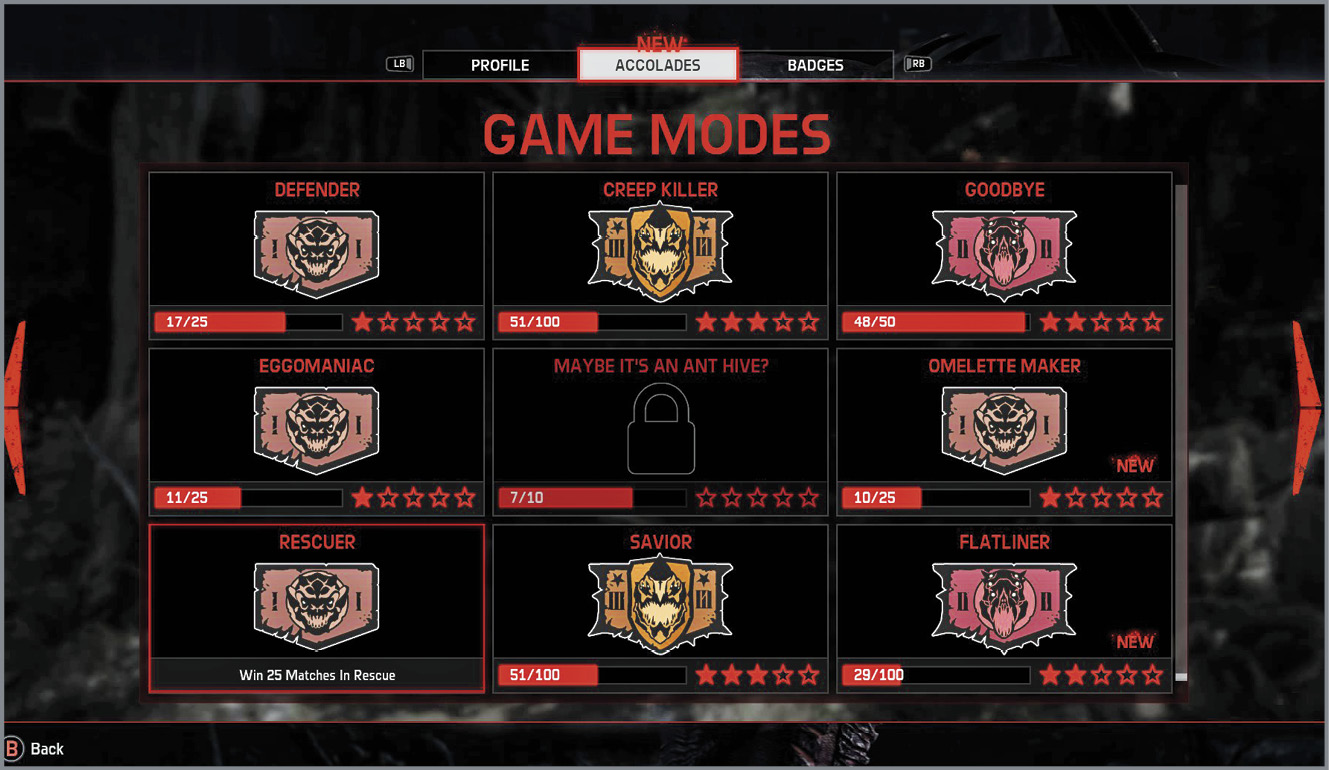
Accolades are earned as you complete specific objectives. These Accolades have five stars that increase in difficulty as you proceed, earning you XP for each one. Refer to the Accolades chapter for full details.
Select the Badges tab to customize your emblem to your liking. As you level up, you unlock foregrounds and backgrounds. The colors in these pieces can all be altered and saved once you are happy with your design.
Extras
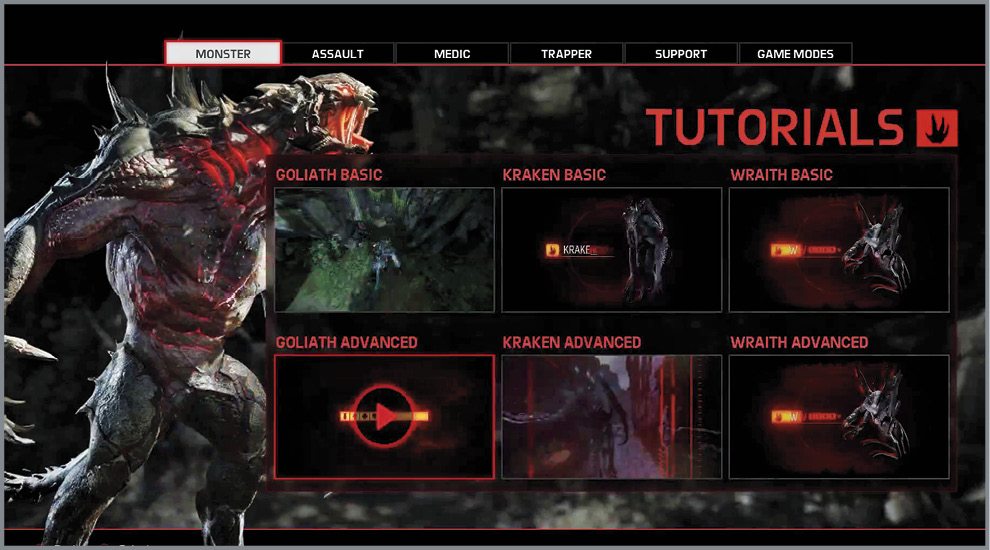
The Extras menu gives you access to the Credits, my2K, the Video Gallery, and Help (on Xbox One, also accessible from the Pause menu in a Solo game). The Video Gallery has many basic and advanced tutorials that are worth checking out to get the most out of the game.
Options
Select Options from the main menu or pause menu to make adjustments in Gameplay, Video, Controller Settings, Audio, and Language.
Gameplay
In Gameplay, four options allow you to adjust the way you play.
| Head Bobbing | Toggles up and down motion of the camera as the Hunter moves. | Normal or Minimal |
| Aim Toggle | Toggle iron sights with a button press instead of a hold. | On or Off |
| Automatic Sprint | Automatic Sprint allows you to sprint without needing to press the button. | On or Off |
| Reset Help Text | Reset Help Text so that it goes through the original lessons. | N/A |
Video
On PC, a few options allow you to adjust the graphical detail of the game. You can modify these settings if your game is not performing well enough.
| Display Mode (PC) | Change how the game is displayed, either using up the entire screen or played within a window. Note that Windowed modes may decrease performance. | Fullscreen, Windowed, Windowed [Fullscreen] |
| Resolution (PC) | Change the screen resolution that the game is played in. Available settings depend on your monitor and GPU. Higher resolutions may affect performance. | 800 x 600 up to 1920 x 1080 |
| GraphicsQuality (PC) | This sets advanced graphic options. Note that this greatly affects how well the game plays. If the game is not playing smoothly enough, lower this setting. | Low, Medium, High, Very High |
| adjust gamma | Set the overall brightness of the game. | Adjustment slider ranging from .08-1w.25 |
| AdvancedGraphics (PC) | Select this to configure several advanced graphic options: Texture Detail, Shader Detail, Model Detail, Shadow Quality, Particle Quality, Anti-aliasing, Tessellation, and VSYNC. Each of these options can have an effect on game performance. | Various options, Low, Medium, High, Very High |
| Apply Changes | Apply any video changes. If you have made any changes in the Video Settings, click this to accept them. | N/A |
| adjust screen edges (xbox one) | This brings up the option to adjust the edge of the screen so no HUD elements are hidden from view. | N/A |
Keyboard/Mouse Settings
These settings allow you to modify the controls when using a keyboard and mouse.
| Mouse Sensitivity | Higher mouse sensitivity increases mouse movement. Increase this setting to the highest that you can handle, as this allows you to turn around quicker, giving you an edge against other players. | 0–100 |
| Look Inversion | Reverses the up/down directional mouse look. Toggle this on if you prefer to look up when you pull the mouse down and vice versa. | On or Off |
| Key Bindings | Modify which keyboard/mouse buttons the listed actions are bound to. Change any of the controls if you do not like the defaults. | See the Controls section in this chapter for default key bindings. |
| Monster Ability Trigger | Choose between releasing the button/trigger to fire an ability or priming an ability before firing it with a second press. | Release to Fire or Toggle to Fire |
Audio
| Subtitles | Control how subtitles are displayed. Turn on if you want text to appear when characters talk. | On or Off |
| Push to Talk (PC) | Enable to manually transmit your voice by pushing down a key, or disable to have an open mic. You can rebind this command in the Keyboard/Mouse Settings menu. | On or Off |
| Music Volume | Adjust overall in-game music. | — |
| Effects and Cinematics Volume | Adjust volume of sound effects and cinematic movies. | — |
| Dialog Volume | Adjust volume of characters’ speech. | — |
| Voice ChatVolume (PC) | Adjust volume of in-game chat. | — |
Language
There are several languages that you can select for the spoken audio and written text.
Controller Settings
This allows you to select from a few controller layouts, as well as modify some options specific to the game controller.
| Controller Icons (PC) | Replaces the current bullet icons with an image of the corresponding controller button. | On or Off |
| Hunter Controls | Modify the Hunter controller layout. Allows you to choose between five layouts. | Default, Undead, Aftershock, Radioactive, or Sprocket |
| Monster Controls | Modify the Monster controller layout. Allows you to choose between four layouts. | Default, Joyous, Division, or Bumped |
| Left Stick/Right Stick Layout | Modify the Left Stick/Right Stick layout. | Default, Southpaw, Legacy, or Legacy Southpaw |
| Look Sensitivity | A higher look sensitivity will rotate the view more quickly. Increase this setting to the highest that you can handle, as this allows you to turn around quicker, giving you an edge against other players. | 0-100 |
| Look Inversion | Look inversion will invert look up and look down on the controller. | On or Off |
| Vibration | Enable the controller vibration. | On or Off |
| Aim Assist | Adjust whether your weapon soft-locks on to targets you aim at. | On or Off |
Pause Menu
During a Solo game, press the Pause button to bring up the following options:
| Resume | Continue the game. |
| Restart | Restart the game. |
| Options | Modify Gameplay, Video, Controller, and Audio settings. |
| Difficulty | Change difficulty to Favors Hunters, Balanced, or Favors Monster. |
| Leave Game | Quit the game. |
Store
Select the Store when you are ready to purchase downloadable content. New Hunters, Monsters, and skins will be available down the road.