
The HUD
The HUD or Heads Up Display, is home to all the information you need while fighting through the demon hordes of DOOM. For extra objective information while playing, press (D-PAD DOWN) to reveal the current objective and challenges for the level.
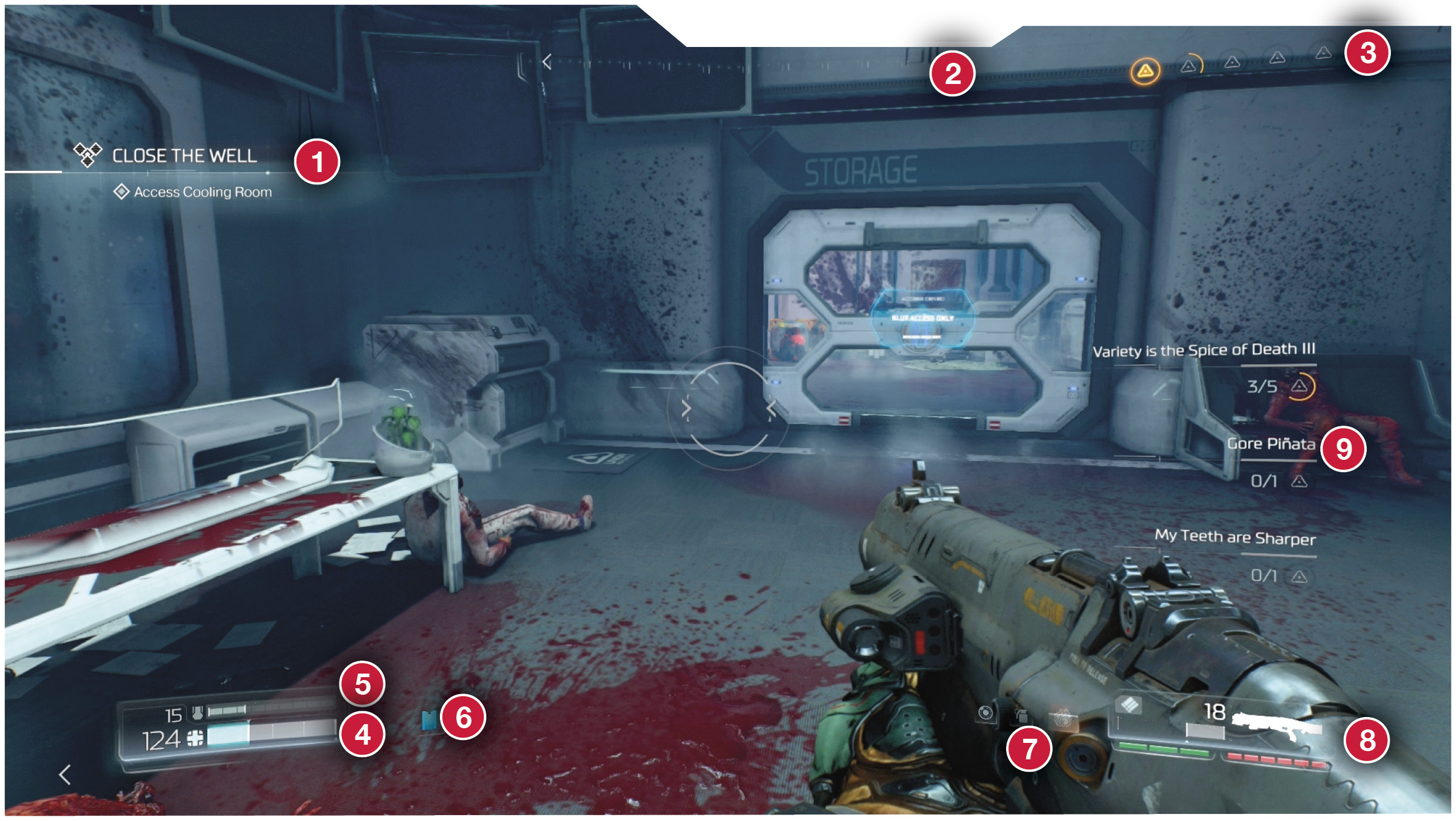
 Current Objective: This marks the current objective that you need to complete in order to progress in the level.
 Navigation: Navigation stays at the top of the screen at all times. Acting much like a compass, it helps give you the general direction of objectives.
 Combat Rating: This shows your overall progress to more weapon upgrade points. Killing demons adds progress to the meter.
 Health: Your health appears on the bottom-left of the screen below your current amount of armor.
 Armor: Armor is indicated above your health. If you have no armor, the meter is grayed out until you get more.
 Acquired Keys: Your currently acquired keys are located to the right of your health and armor bars. Depending on the level, these are represented by key cards or skulls.
 Equipment: Your equipment is located on the bottom-right of the screen to the left of your active gun. The currently equipped item is highlighted, while any other available option is grayed out.
 Ammo: All ammo is located on the bottom-right of the screen next to your equipped weapon. The number and white bar next to your weapon represent the amount of ammo remaining for that specific weapon. A red set of bars below the weapon indicates the amount of Chainsaw ammo you have, while a green set of bars shows the amount of BFG ammo remaining.
 Mission Challenges: To quickly view the challenges, press (D-PAD Down) and they all appear on the right side of the screen. This is an extremely helpful tool for quickly checking your progress for each challenge in a level.