
World of Warcraft: Warlords of Draenor Signature Series Strategy Guide Introduction
Taking Your First Steps
With your character created, it’s time to get into the real game. It seems pretty complex when you first log in; however, you’re free to take as much time as needed to get comfortable before you start adventuring. The following pages introduce you to many aspects of gameplay experienced during your first time in World of Warcraft. Each of the topics is covered in more detail later in this guide, but what you learn in this chapter will get you started.
After the opening movie ends, you are given control of your character. The first things to do are skim the Beginner Tooltips that appear and take a look at the minimap in the top-right corner of your screen.
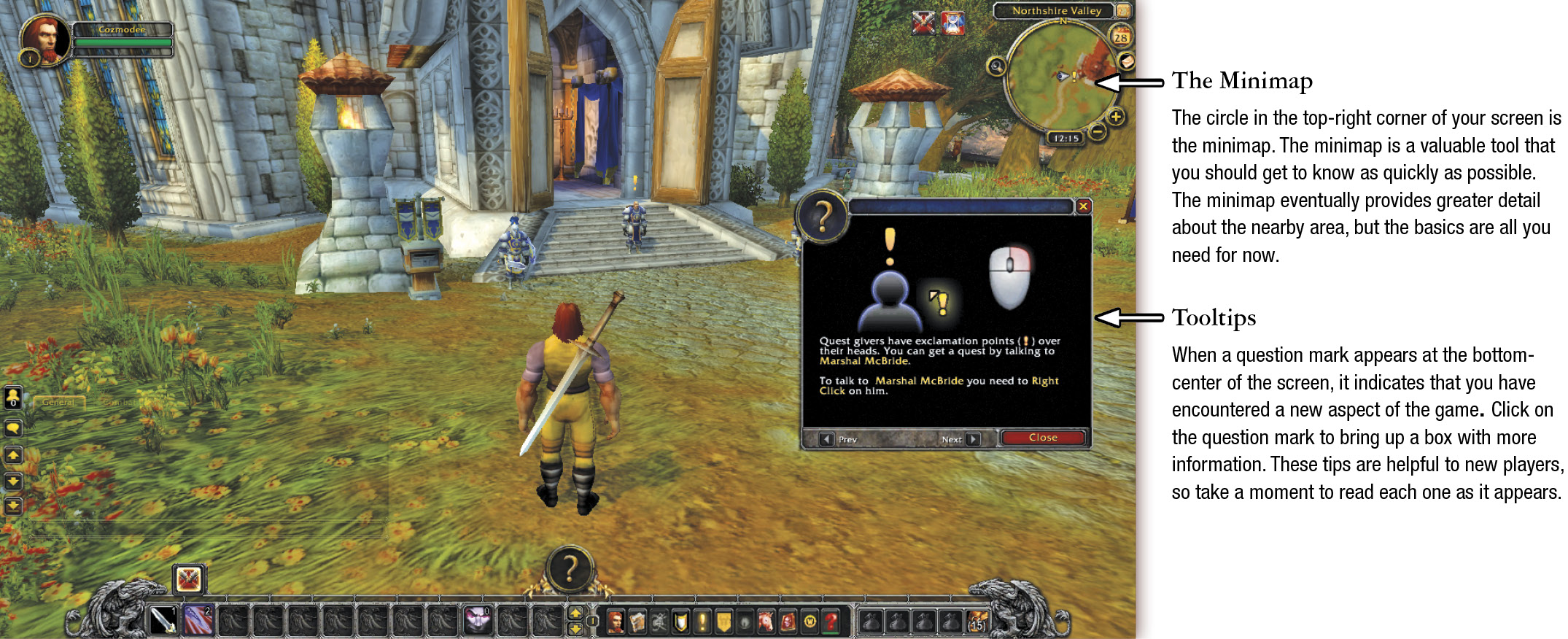
Your character is indicated by an arrow. It points in the same direction that your character faces. For now, look for the nearby quest giver (marked with a yellow exclamation point). That’s your first destination.
Move Your Character
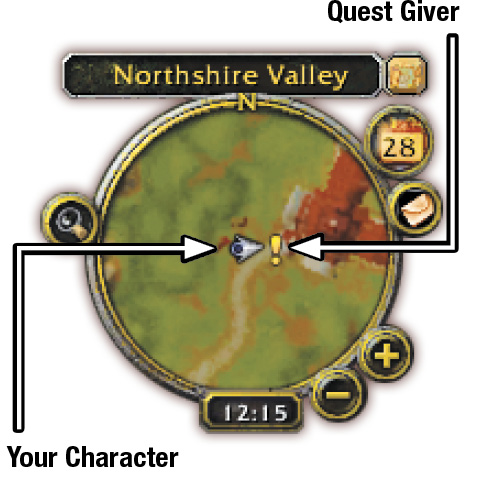
There are three ways to control the movement of your character: with your keyboard, with the on-screen Move Pad, or with your mouse. If you prefer to use your keyboard, use the W, A, S, and D keys. W and S move your character forward and backward; A and D turn your character left and right. To turn, press W to move forward, then press A/S (while still holding down W). Pressing just A or S spins the character in place.
The Move Pad is a mouse-clickable UI frame. To display it, click on the red question mark near the bottom-right of the screen. Select Interface, then Help. Check the box next to Show Move Pad. Click on the arrows to move in a direction, or the larger arrow in the middle to jump. Click on a different arrow to change directions, or the same arrow to stop.
To control your character’s movement with the mouse, press the left and right mouse buttons simultaneously to move forward. Your character continues to move forward as long as you hold down both mouse buttons. Slide the mouse to the left or right to turn your character in that direction.
Chat Log
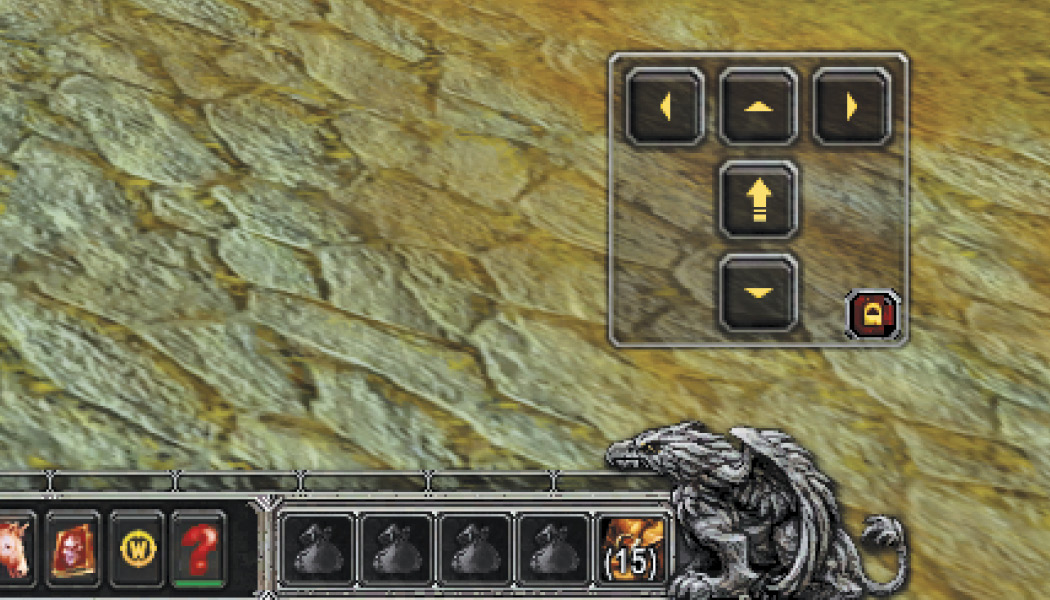
The chat log is in the bottom-left corner of your screen. Whenever the game or other players want to communicate with you, the text appears here. Two tabs are available (General and Combat Log), but the General tab is all you need to focus on for now.
To say something to anyone nearby, hit Enter. If the screen doesn’t read “Say”, then hit enter and type “/say”. Type the message you want to share with anyone standing nearby, then press Enter.
For a private message, use “/whisper” to talk with a specific person. Just type in “/w” along with the name of the person. Then type your private message. If someone whispered you first, press “r” to respond to that whisper.
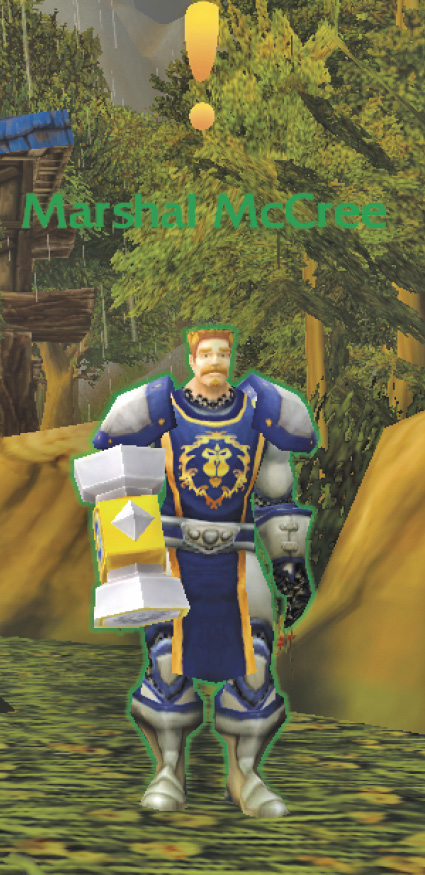
Interact with a Quest Giver
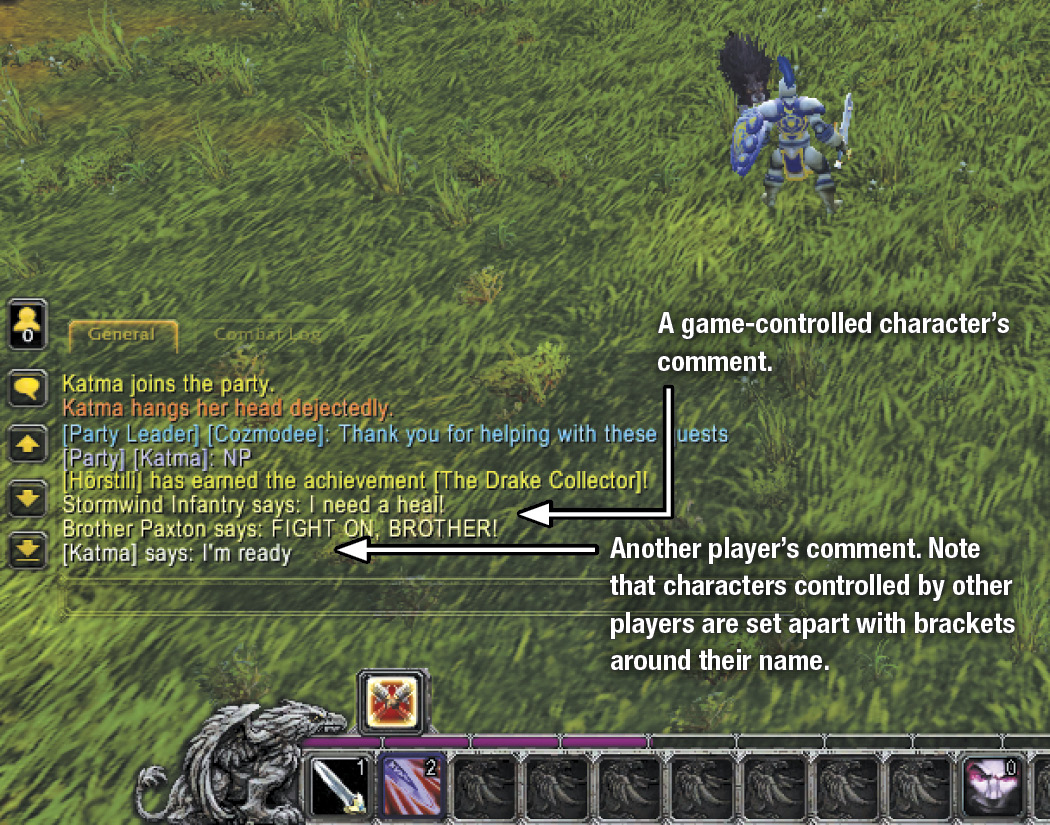
No matter where you start, there’s a nearby character with a yellow exclamation point over his head. These characters have tasks for you to perform. These tasks are called quests, and they are an integral part of your gaming experience.
Right-click on the quest giver to speak with him. The quest giver describes a task and offers compensation in the form of money and items. In addition to the listed rewards, you earn Experience Points for completing quests.
Completing Quests
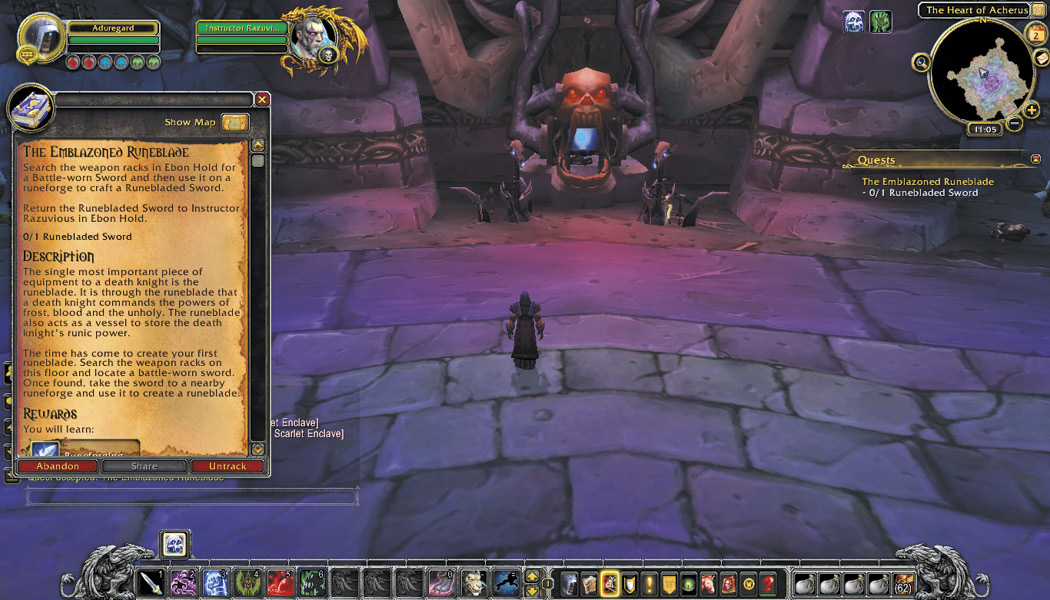
After you accept a quest, it is tracked on the screen under your minimap. The minimap is updated as well. A thick, golden arrow points in the direction you need to travel for the quest. To review a quest in greater detail, click on the quest’s title. The quest summary states what is expected of you to complete a given quest.
Enemies
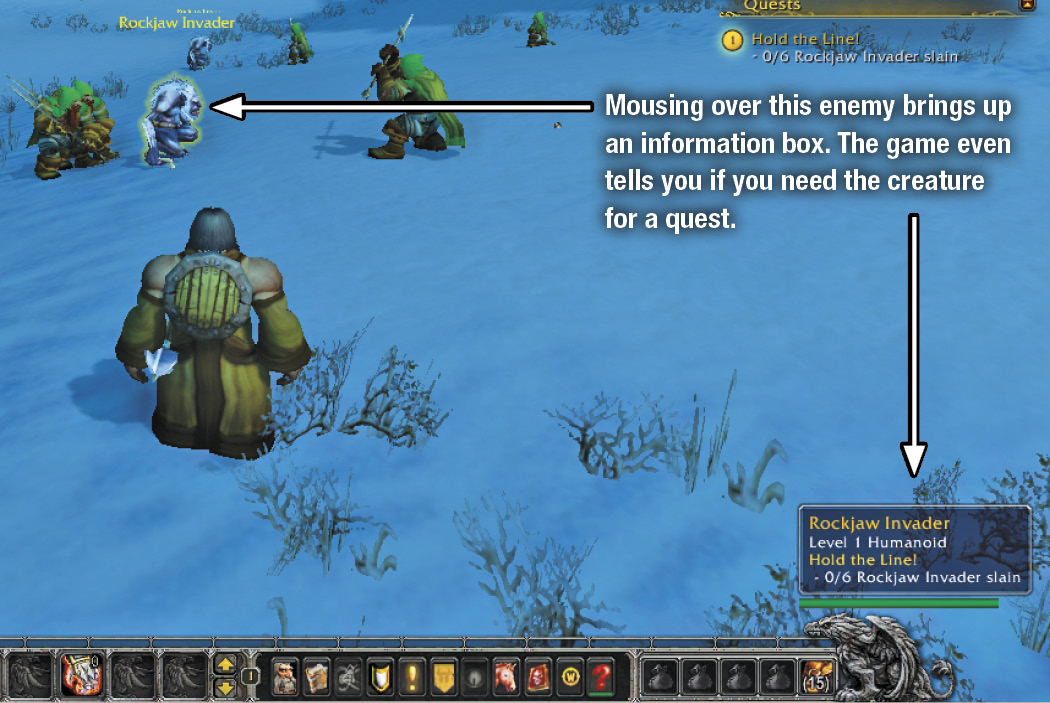
Do some exploring and put your mouse cursor over the different creatures. Look near the bottom-right corner of the screen for a small information box to appear. If the enemy is one you need for a quest, target it and start attacking!
Combat
To start fighting a creature, you must first select it by left-clicking while your mouse pointer is on it. For your first fight, move close to your target and attack with your melee weapon by placing your pointer over the enemy and right-clicking your mouse one time. Hunters start with a ranged weapon, so they should attack from a few yards away. If you already selected the enemy with a left-click, press the number 1 on your keyboard to start attacking. In the starting area, you can defeat any enemy with this basic technique. But in future fights, you should start to use your character’s class abilities to make things go much faster.
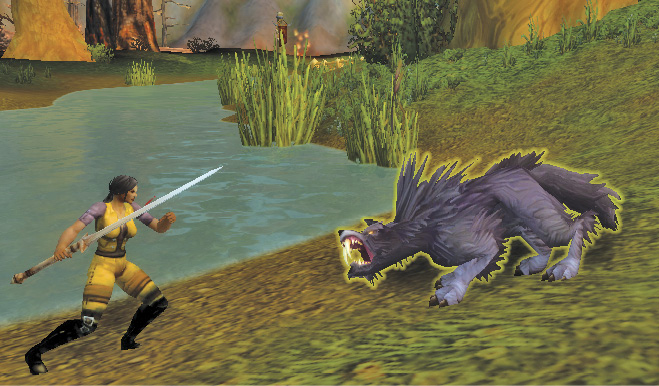
If you’re at close range, the first attack triggers what is known as your auto-attack. This means that your character will continue to strike the enemy again and again with no further action on your part. Every character can do much more than this when you’re actively fighting and using abilities, but auto-attacks are good enough to bring down early enemies.
Action Bar
Your Action Bar appears at the bottom of the screen. At low levels, you won’t have many abilities here, but that will change as you get further into the game. All characters begin with the number 1 initiating either the starting attack for your class or a simple melee attack. There are other abilities on your Action Bar, but they are different depending on the class and race of your character.

Loot
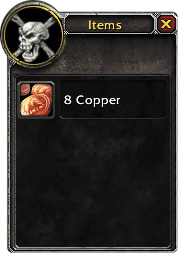
Almost all enemies offer some kind of loot. When you have loot waiting, your dead enemy sparkles. Right-click to open the enemy loot box; then click on each item to put it into your inventory. If you press Shift and right-click at the same time, each item is sent directly to your backpack.
Some quests also award items when you complete them. These items go directly to your backpack. Any money you collect (just coppers at this point) are also stored in your backpack.
Inventory
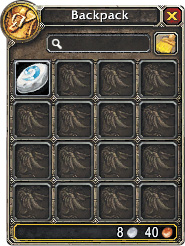
Everything that your character owns will either be equipped, which means wearing it, or it will be stored in your backpack. Press the letter “b” to open your backpack and see what’s inside.
As you collect items (either from killed enemies or quests), they go to your backpack. Every character starts the game with a Hearthstone, which is the blue and white item in the first slot.