World of Warcraft: Warlords of Draenor Signature Series Strategy Guide Introduction
Controlling Your Character
In this section, you learn more about controlling your field of vision in the game and moving your character around the environment.
Basic Movement
There are three ways to control the movement of your character: your keyboard, the on-screen move pad, or your mouse. By default, your character moves at a run. To switch between running speed and walking speed, press the forward slash key, which is found on the number pad.
Jump to It!
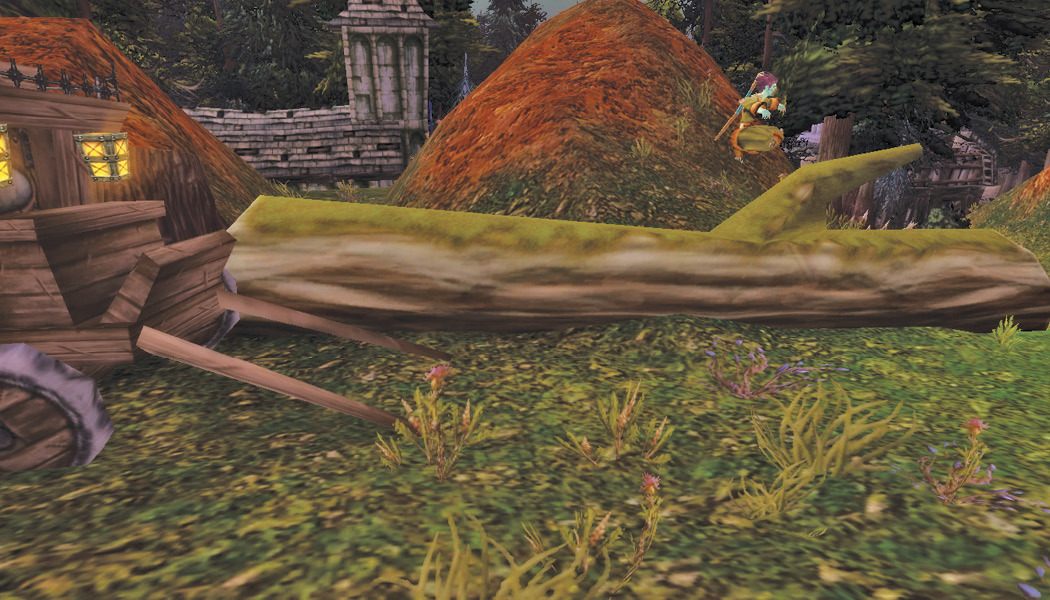
To start out, hit your space bar; it’s a big target, so it’s a natural place to begin. The space bar causes your character to jump. Jumping is often the quickest way to avoid low obstacles, and it won’t slow you down if you’re running somewhere.
Keyboard Commands
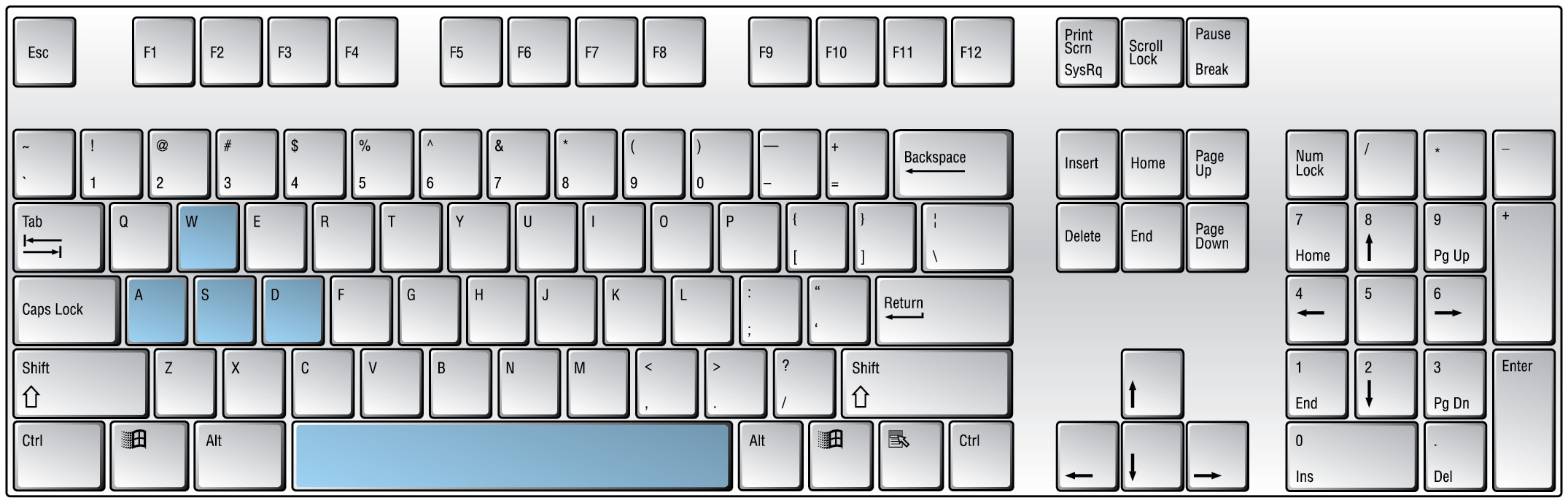
If you prefer using your keyboard to move your character, try to use the W, A, S, and D keys. The arrow keys move your character as well, but using WASD leaves your fingers closer to the number keys used to activate your character’s abilities. Of course, there’s nothing wrong with using the arrow keys. If you’re more comfortable with those keys, use them while you’re playing.
Mouse Control
To control your character’s movement with the mouse, press both mouse buttons simultaneously to move forward. Your character continues to move forward as long as you hold down both mouse buttons. Slide the mouse to the left or right to turn your character in that direction.
The move pad also relies on your mouse to move your character. Click on the arrows to move in a direction, or the larger arrow in the middle of the controls to jump. Click on a different arrow to change directions, or the same arrow to stop.
Strafing
Strafing is a way to move left or right while barely changing what you see on screen. If you’re not familiar with strafing, take some time now to try it out. Press the Q key to strafe to the left, and press the E key to strafe to the right. Strafing does not cancel Auto-Run.
Auto-Run
If you press the Num Lock key, your character starts to run and continues to run until you cancel it. The following are the quickest ways to cancel Auto-Run:
You retain control of your character when Auto-Run is active. Pressing the keys to turn your character left or right still turns your character and does not cancel Auto-Run. If you want to use your mouse to turn your character, press the right mouse button and slide the mouse left or right.
The Camera
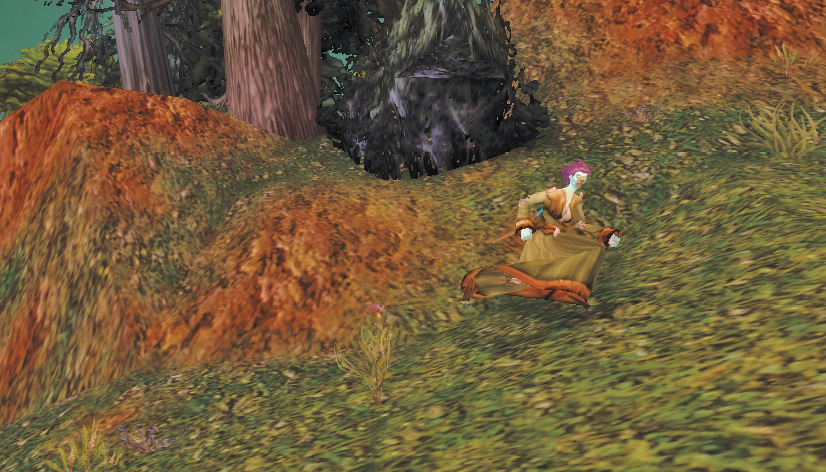
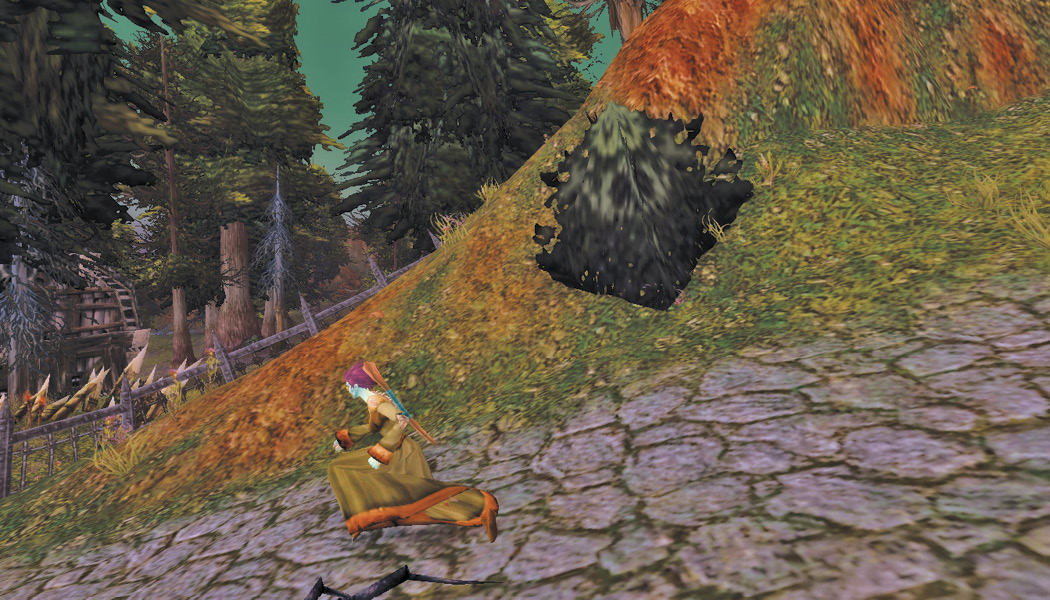
In most games, “camera” refers to your field of view of the gaming world. In World of Warcraft, the default camera view shows a small area, with your character in the middle of the screen. The smoothest way to change what you see is to press the left button on your mouse, and hold it down while you move the mouse. Your character stays in place, but what you see changes. Be careful when moving your mouse forward or back. You may end up staring at the ground or straight upward!
After you get comfortable looking around, do it while your character is in motion. It may be disorienting at first, but try to get the hang of it. It’s a big help when you’re on the lookout for enemies.
You can also change how far the camera is from your character. Some players like to zoom in tight on their characters; others like to zoom out for a broader view of the game.
To zoom in, press the Home key multiple times or roll your mouse wheel forward. Once you are in first-person perspective (meaning you are looking through the eyes of your character), you can’t zoom in anymore.
To zoom out, press the End key multiple times or roll your mouse wheel backward. There is a limit to how far you can pull back the view, and it always centers on your character.