
World of Warcraft: Warlords of Draenor Signature Series Strategy Guide Introduction
Communicating With Other Players
Like everything else in the game, you can control how much communicating and socializing you want to do with other players. This chapter covers how to talk to other players, how to ask for help, and how to make in-game friends.
The most basic way to communicate in the game is to press the Enter key, which opens the Say prompt. You can type in your comment and press Enter. This message is sent to everyone in your general vicinity.
Who Can Hear Me?
The different speech commands are in place to let you communicate selectively. You wouldn’t want to shout everything to the entire world, right?
Say:
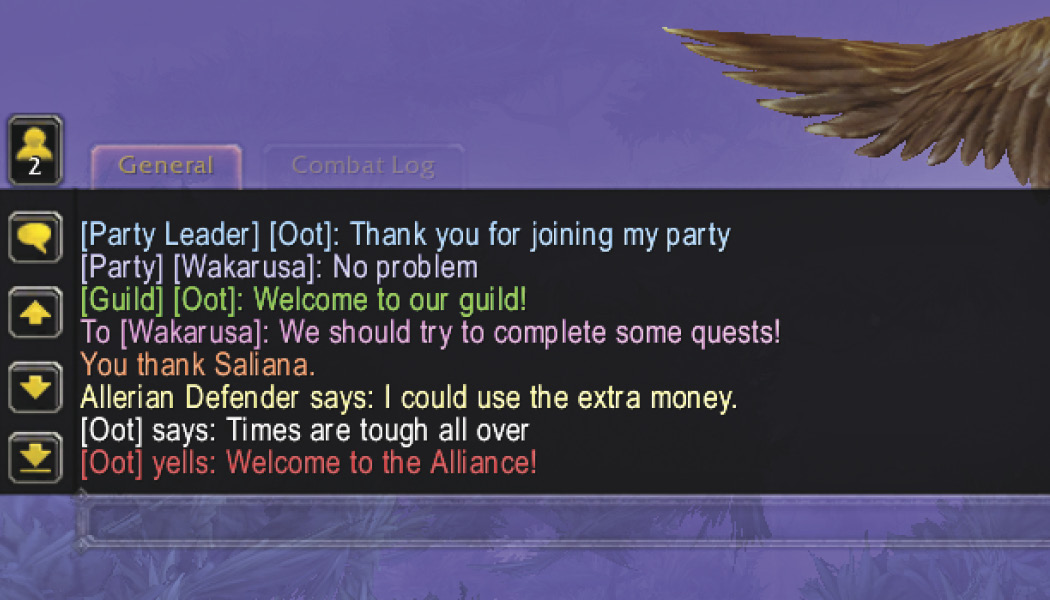
/say goes to anyone nearby. Speak to players in your vicinity. By default, you see a speech bubble over your head. As long as people nearby are in the same faction as your character, they see what you type (players from the opposite faction see what appears to be gibberish). Because this is public, avoid saying anything awkward or inappropriate.
Whisper:
/whisper (/tell works as well) is a private message for one other player. You must include the character’s name after the /whisper. There is no distance limit on these messages.
Try it out for yourself! Hit Enter, then type “/whisper” followed by your character’s name. When you hit space, the prompt changes, and whatever you type next becomes the message you send to yourself after you hit Enter again.
Reply:
Use /r (or just r) to reply to whoever last whispered to you.
Yell:
/yell is a broadcast message to all players in your region. This is the most awkward communication method in World of Warcraft. It’s similar to /say in that it displays your text to anyone within its radius; however, the distance covered is much wider than /say.
Party Chat:
/party is a private message that lets you communicate with everyone in your current group at the same time. No one outside of your group can hear this chat even if they’re standing in the middle of your party.
Guild Chat:
/guild sends a message to anyone in the same guild as you. No one else can hear you, and members see what you’re typing even if they’re half a world away from you.
The Chat Menu
All of these same commands are available through the Chat menu. Click on the desired option from the Chat menu (it looks like a speech bubble), and select from the list.
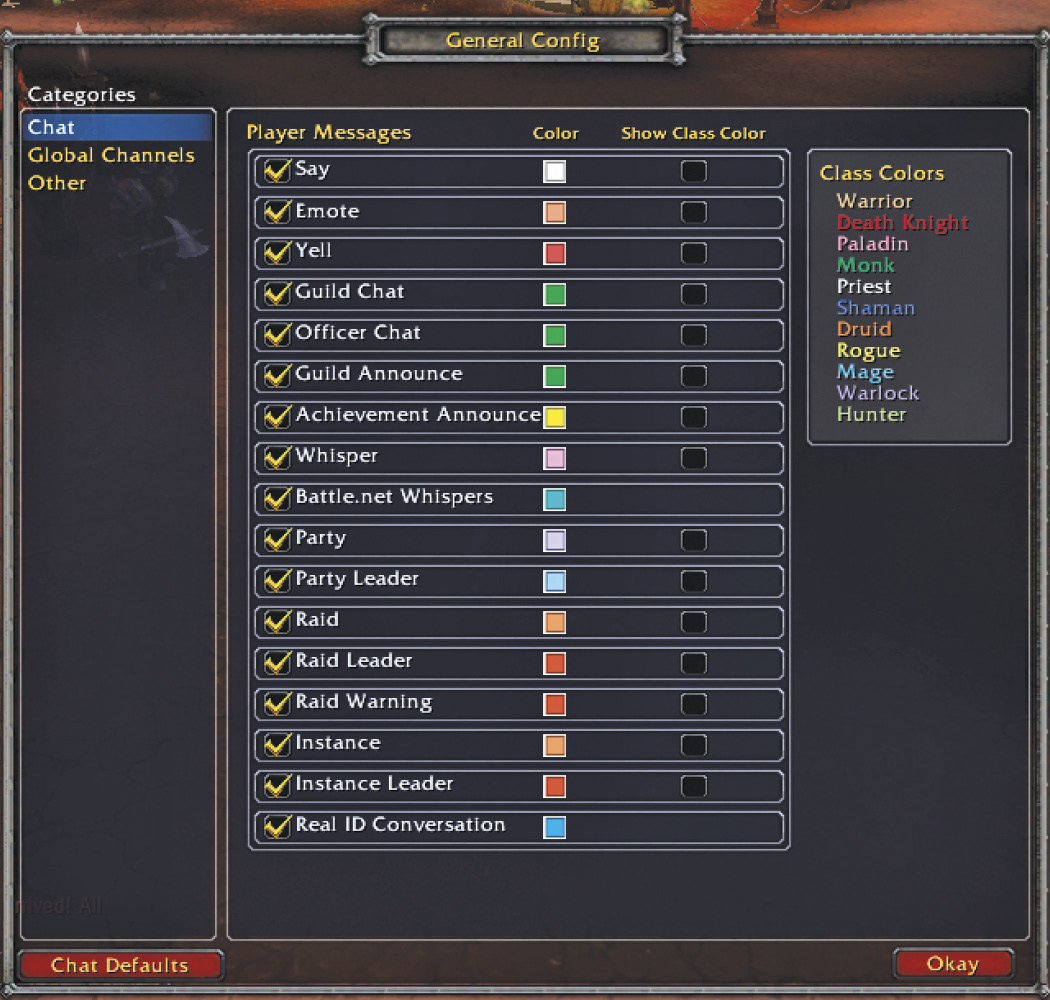
All of the sent and received messages appear in your General chat log. To see older messages, use the up and down arrows. To see the most recent messages, use the end arrow. Right-click on the General tab to customize everything that appears in the chat log, including the background (transparent to solid black) and filters (including text color).
Using Voice Emotes
Voice emotes are in-game expressions that your character (not you) can say. Voice emotes have nominal benefit in group situations. You can see a list of them by clicking on the Chat menu (speech bubble) and then mousing over Voice Emote. Click one of the voice emotes to make your character speak.
Using the Channels
Each time you log into the game or enter a new region, a reminder appears in your General chat log about what channels are available. A list of the various common chat channels is included on this page.
Channels are used to communicate with all players in the same channel. By default, you join the General Chat and LocalDefense channels; you also join the Trade channel, but that only becomes active when you enter one of the big cities found throughout World of Warcraft.
You can leave each of these channels at any time by typing /leave #, where # is the number of the channel.
Channel Commands
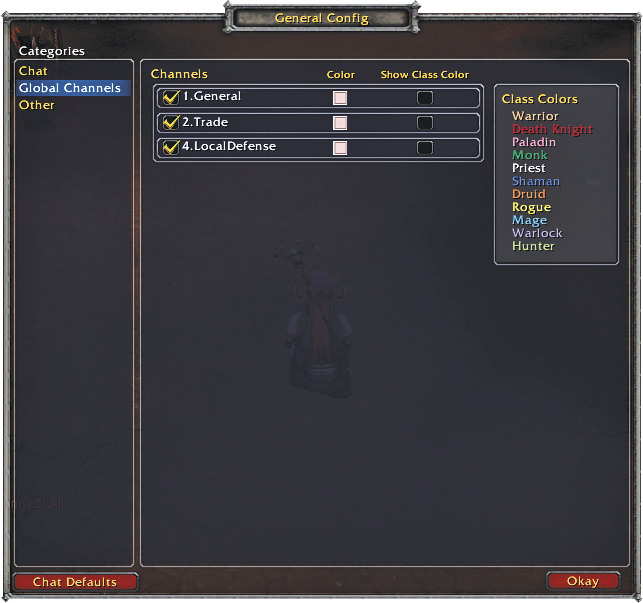
To see which channels are available, press the letter “o” for the Social menu and click the Chat tab. In this page, you can see all the channels available in your current location. If you’re on a channel, it’s white; if you’re not on a channel, it’s gray. Click on a white channel, and the game shows all of the other characters currently on the channel too.
For all the / shortcuts, press the space bar after the command word. Then type in your message.
|
Command |
Example | |
|---|---|---|
| Joining a channel | /join <fullnameofchannel> | /join guildrecruitment |
| Speaking on a channel | /# <Your question or comment goes here> | /3 Seeking guild of mature players to run dungeons. |
| Leaving a channel | /leave <# of channel> | /leave 3 |
There is absolutely no need to stay on any of the in-game channels. If you find them overwhelming, /leave them.
If you enjoy a quiet playing experience, leave the chat channels as soon as possible. The game becomes amazingly calm once you do this. If you like constant banter, look for a guild and/or keep yourself in as many channels as you like.

Custom Channels
| Example |
|---|
| /join Friendschat |
Did you know that you can create your own chat channels? This is a powerful ability for people just starting on a server. Maybe you don’t have a guild yet, but you want your friends to be able to speak to you as soon as they arrive. Let them know to /join “Custom Channel Name” as soon as they come on.
This puts you in the Friendschat channel, even if there wasn’t one already open. Other people who type that command are thrown in with you. It’s yet another way to have buddies stay in touch. You can even have a guild within a guild this way, or even a group within a group, and dissolve the temporary chat system when the current task is completed.
Asking for Help
There are several ways to seek assistance. The most effective way to get a real answer to a specific question is to find another player in your current area who is doing or has done something similar to your current task. You can then use /say if you’re in the same area or /whisper if they’re too far away to ask a question directly.
A broader way to go about asking for help is sending your query out on the General channel. There are more people on the channel, but they may not be able or willing to help. The General channel is sometimes very helpful; at other times, it’s full of chatting players being silly.
Here’s the command for asking a question on the General channel:
| /# (Your question or comment goes here) |
By either method, the best way to ensure a helpful response is to ask a specific question, and avoid being vague or demanding.
| Bad Example: “I can’t find the barrow key!!!” |
| Good Example: “Is anyone else looking for the barrow key?” |
| Better Example: “I’m having trouble finding the barrow key. Any hints out there?” |
An Internet search can be surprisingly powerful for getting a fast response as well. Odds are that if you’re having a problem, someone else has bumped into the exact same thing. Searching with “WoW where is the barrow key” would likely get you answers if people in game are just as stumped as you are.
Sending & Receiving Mail
Use the mail system to send messages, items, or money to other players. Mailboxes are found in all big cities and most towns and villages. They take on various appearances, depending upon their locale.
Any guard in a major area will point you toward a mailbox if you ask them about it.
Receiving Mail
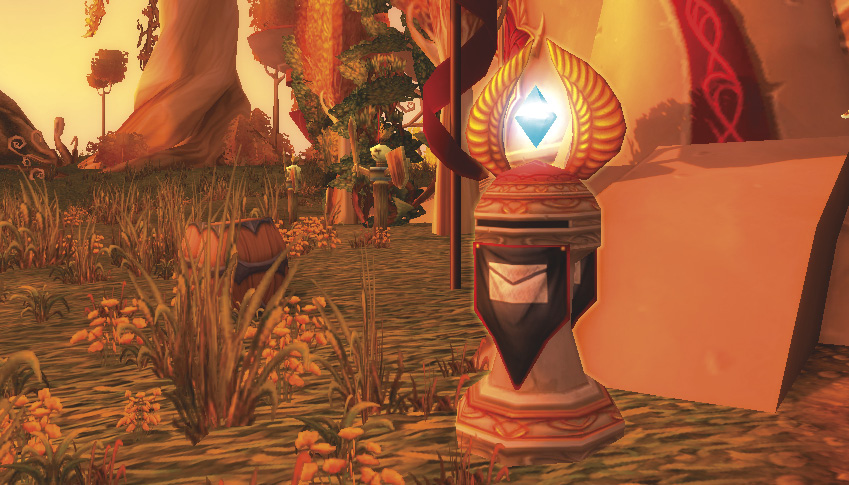
Anytime you have mail waiting, the game shows a letter envelope icon near your minimap.
To get your mail, right-click when you approach and target a mailbox. The first tab that opens is your Inbox. Left-click to open any messages, and click on any items to send them to your backpack. When an attachment is removed from a piece of mail that doesn’t have a message, the mail itself is deleted.
If you read a piece of mail but leave it in your Inbox, the letter turns gray and can remain in your Inbox for 30 days. When mail expires, it is automatically deleted, including any attachments.
If someone sends you an item by mistake, you can click on Return to immediately send it back. You can also Reply to the sender.
Buyer Beware
Sending Mail
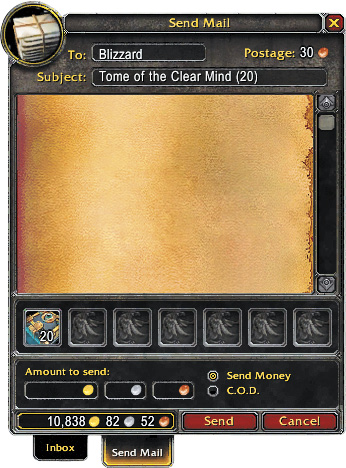
The second tab in the mail system is the interface to send mail. Type in the recipient’s name very carefully (the game autocompletes names from your friend list or from people in your guild), and include a subject line if you wish. You cannot send mail to yourself or to players in the opposing faction. You can, however, send mail to other characters that you control that are on the same server. The only mail you can mail directly to your characters of different factions are Bind on Account items, such as Heirloom equipment.
You decide whether to write a message, send an item, or send money. To attach an item, right-click on anything in your backpack or grab and drag the item to your letter. To send money, type in the number of gold, silver, or copper coins you wish to send. Then press Send. The game will ask for your approval.
Each sent message costs 30 copper (plus 30 copper for each attachment), unless you use the C.O.D. option. C.O.D. is for players selling and buying items. By choosing this option, the mail system sends the item, but the transaction only completes when the recipient agrees to pay. Then one player gets money and the other gets gear. C.O.D. items expire after only 3 days.
Letters arrive immediately. Items and money can take one hour to arrive unless you’re sending messages between members of an older guild. One perk of these guilds is that they can send things through the mail at lightning speed.

Using the Social Window
You can use the Social Window to track new friends and find other players in your current region.
Using the Friends List
The first tab of the social window is your Friends List. If you’ve enjoyed chatting or questing with someone, add them to your Friends List so you can find them again. To add a new name, click Add Friend, type in the name, and click Accept. That player is now added to your Friends List. Anytime you open this window, you immediately see whether they are online, as well as their current location. From the same window, you can send a message, invite them to a group, or remove their name.
For Private Time
World of Warcraft is a social game, but there are times when you may not want to be disturbed, such as during a tricky fight or while in a battleground that demands concentration. There are tools built into the game to cover these instances.
If you type /dnd (meaning Do Not Disturb), any player who tries to use a /whisper to contact you gets a message saying that you’re busy. Typing /dnd again turns off the Do Not Disturb notice and people can contact you normally.
You can’t like everyone all of the time. If you want to pretend that someone doesn’t exist, click the Ignore tab on the Friends List. Click Ignore Player, type their name, and click Accept. You can always go back and remove players from this list at a later time.
When someone is on your Ignore List, they won’t be able to send you messages. Their text is invisible to you, so grouping with someone in this situation is suboptimal. They could be shouting warnings to everyone while you’re happily pulling away, ignorant of the trouble. If you’re going to /ignore someone, please avoid them entirely!
Battle.net and Real ID
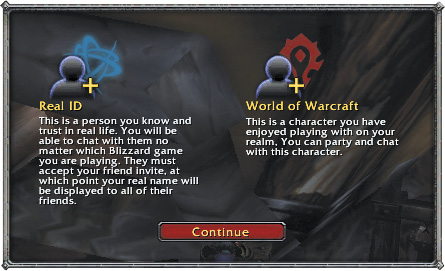
Blizzard has been expanding the things you can do between accounts. You can now share your Real ID with another player, giving them the ability to contact you even when you’re off on another server. This is a nice feature, but you can certainly see why you wouldn’t want to give this access to everyone in the game world.
To start a Real ID friend request, type in a person’s account name in the friend section and wait for them to accept. Your request appears in the Pending tab of this window, and they can choose to accept or deny the request whenever they see it.
Please consider reserving this power to people that you’re close with. Just because someone is in your guild doesn’t mean they’re your friend in real life. Real ID is certainly for people that you trust.
Scroll of Resurrection
Another feature is the ability to send friends Scrolls of Resurrection. Click the scroll icon in the top-right corner of your friends list to get this process started.
Scrolls of Resurrection are used to bring a friend back to World of Warcraft. If you know someone who let their account lapse for any reason, you can use this function to give them a bit of free play. Should that friend purchase additional game time, you (and they) earn some nice bonuses, like mounts, and the ability to bump a character to a higher level.
However, the inactive account must have been made before March 2012, and they can only accept one scroll from anyone on that account. If you have any friends who used to play, consider using a Scroll of Resurrection to tempt them to come back and help you in your World of Warcraft adventures.