
World of Warcraft: Warlords of Draenor Signature Series Strategy Guide Introduction
Banks and Auction Houses
This section discusses your in-game money and how to use banks and auction houses. There’s also an introduction to the in-game economy and how to buy and sell items from other players. Making money is not a key focus for new players, but it becomes more important as you advance in the game.
Money
You carry your money in your backpack at all times, and there’s an extremely high limit on how much personal gold you can carry. Unless you’re approaching a quarter of a million gold, it’s not worth worrying about.
At early levels, you won’t have much money, so you may be shocked by the cost of many items and what other players are willing to pay. However, the game offers you higher rewards as you complete more difficult quests and as you pursue new ways to earn money.
Here’s a quick list of a few ways to earn money:
- Loot the corpses of humanoid enemies.
- Sell your old Soulbound items or gray items to vendors.
- Sell items directly to other players.
- Sell items through the auction house.
- Use your profession skills to collect or create items for sale.
You can make the most money using your professions. Other players may have access to guilds with extensive treasuries, or they might play higher level characters who are capable of earning hundreds of gold in a single play session. Thus, they’re able to pay far more than you for the same amount of work. Use that to your advantage.
Banks
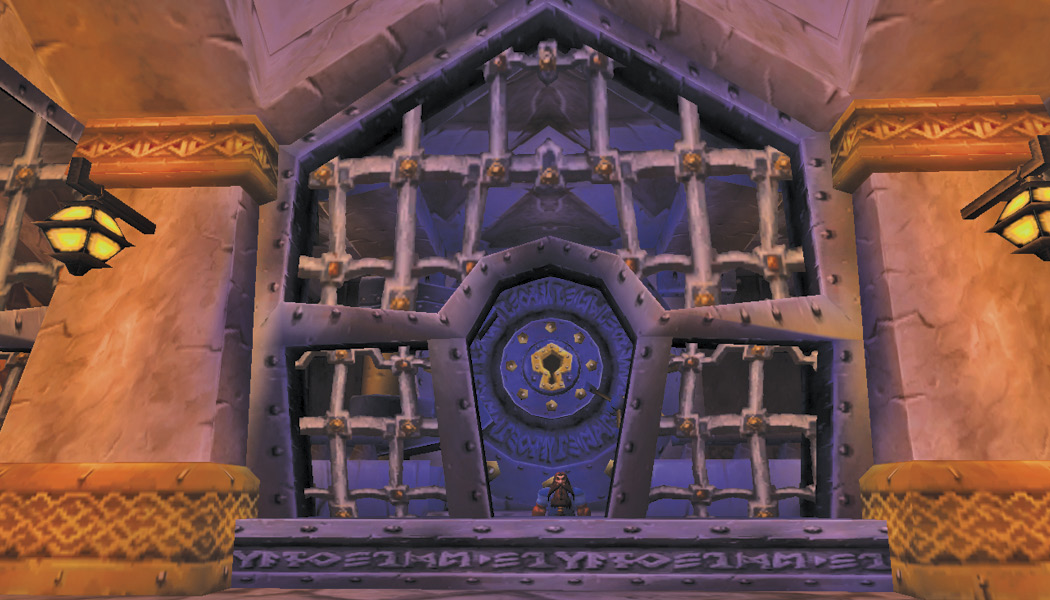
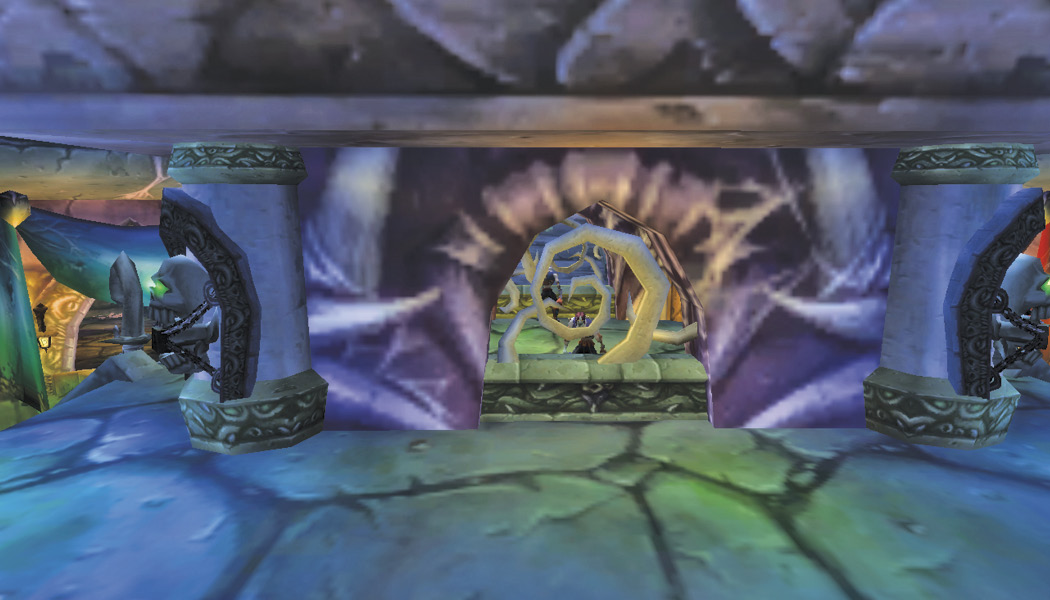
Each major city has at least one bank. Talk to a city guard for help finding one. Inside are bankers with whom you can interact (right-click). Banks really function as vaults for storing items—not money. Using a bank is a way to free up your bag space and store items not needed on a moment-to-moment basis.
Right-clicking on a banker opens your personal vault. The first thing most people notice is that the bank vault is quite large. You have more personal space in there than you would with just your backpack and a few tiny bags. This gets even better!
With a bit of extra money, you can purchase bag slots for your bank vault. These increase in cost dramatically after your first few slots are unlocked, but it’s still a wise way to spend money if you’re running out of space.
Collect spare bags for the bank vault; taking away ones from your character is foolhardy because it reduces the amount of items you can carry around. Thus, it limits your income from looting and gathering! Always invest in high-quality bags. They pay for themselves better than many alternatives. They also make your life easier.
All banks are linked by their faction. Even though you deposit your items in one bank, you can access them from any other bank.
Reagent Bank
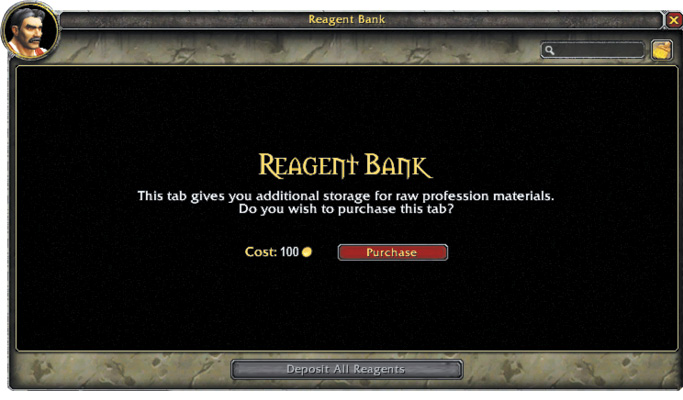
For 100 gold, you can buy an extra bank tab dedicated to crafting Reagents. Crafting Reagents include anything used by crafting and secondary professions. As you learn more recipes, the variety of items you need increases. This bank tab allows you to store all the items in one spot, making searching through it much easier.
Guild Vaults
Guilds have their own bank vaults. These groups store money and items to keep them accessible to their guild members. The Guild Master sets a list of permissions that control access to the guild items. Ask members of your guild for details.
Auction Houses
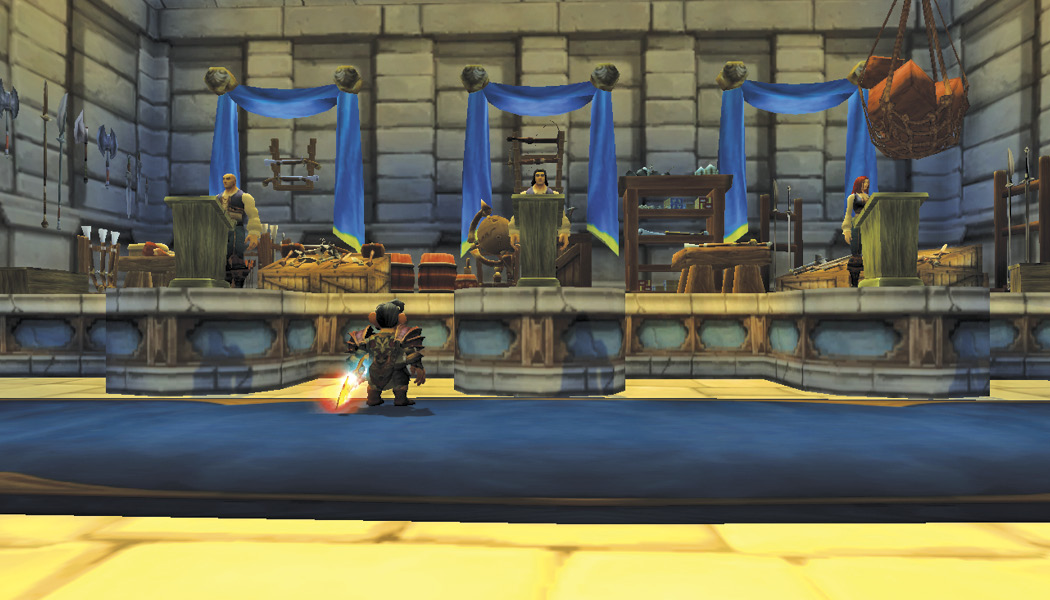
Auction houses are located in all major cities. You can access the same auctions from any auction house in any city. All auctions are visible to all players, regardless of the faction of the person placing the auction or the person bidding on an auction.
The auction houses in World of Warcraft work like real-life online auction sites. You set up a timed auction with a minimum starting price that sells to the highest bidder; you can also set a Buyout price that enables players to purchase the item immediately. And, if you find an item you want, you can place a bid or Buyout the item immediately.
Right-clicking on any Auctioneer opens the auction interface. It has three tabs: Browse, Bids, and Auctions.
Browsing
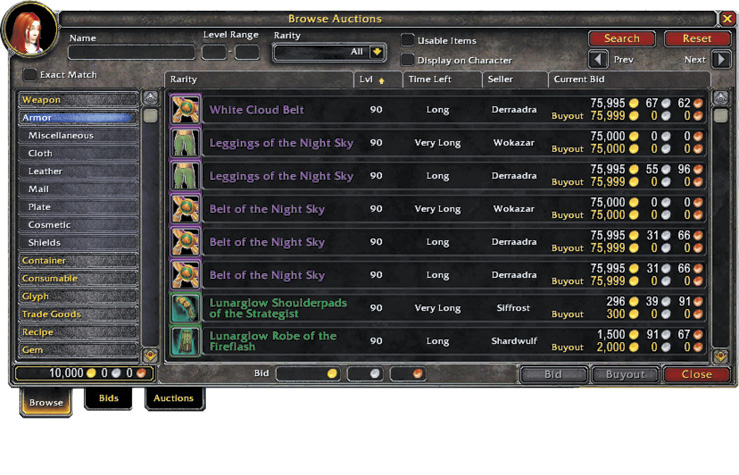
The Browse tab enables you to search through all current auctions. Because there are thousands of available items, you need to use specific criteria to narrow your search.
For example, suppose you’re looking for a nice, new piece of armor. Using the category pane on the left side of the Auction House window, you can open a series of menus that help refine your search. Once you’re happy with the category of search, hit the “Search” button to return a list of everything for sale in the auction house.
Buttons along the top of the search results screen allow you to sort the presented list of items by Rarity, Level required to use, Time left on the auction, the Seller, and the Current Bid. Use these to help narrow your search for the perfect item.
If you know exactly what you’re looking for, enter its name in the “Name” field at the top of the auction house window. Again, a list of available items appears in the search results pane. If you use your cursor to mouse over the icon for each item, the game returns detailed information about the item.
Additional filters are available for use in the Auction House window. The Level Range boxes allow you to filter the results for the desired level range. For example, a level 12 character may enter a level range from 10 to 12, ensuring they see only items they can use and haven’t outgrown. Finally, the Useable Items box can be checked, filtering search results to display only items that your character can use.
Bids
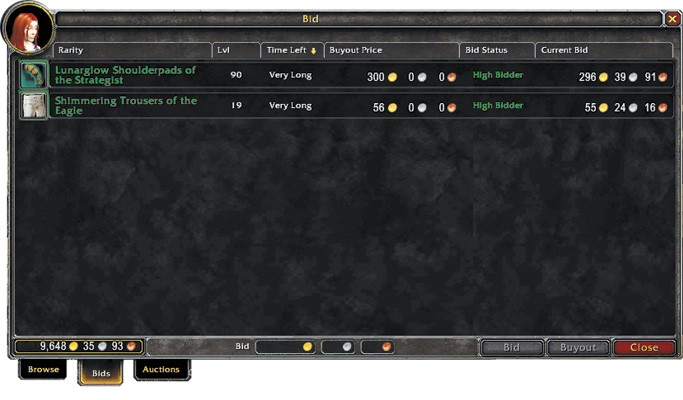
To make a bid, click on the desired item, enter your bid, and click Bid. You won’t need to stay online for your bid to remain active. Auctions can last for a very long time, so it’s a good idea to go and do other things. The auction house mails your items if you win the bid, so the system is quite simple.
The Bids tab enables you to keep track of your auctions. If you are outbid while online, a message appears in your General chat log. If you’ve been offline for a while, check the status of these sales by opening the Bids tab. If someone else is the highest bidder, their name appears in red. This gives you an opportunity to bid again if you wish.
Buyout
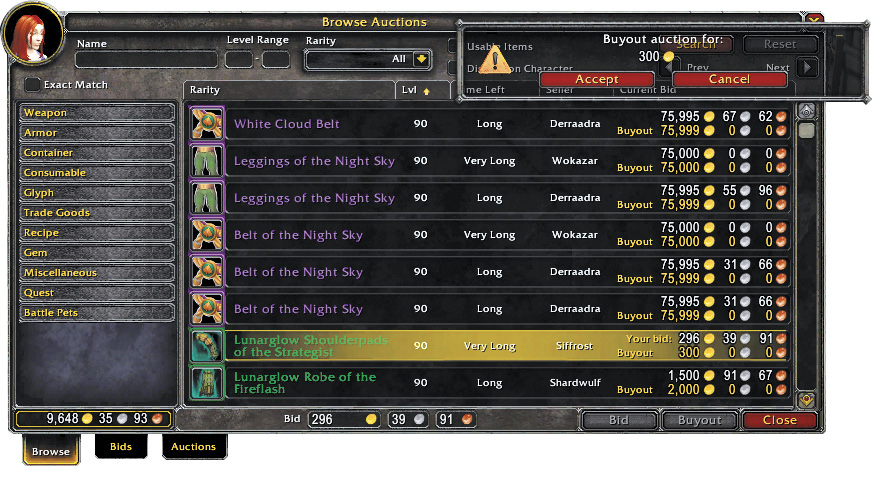
Using the Buyout option works the same way, except that you must meet the Buyout price. Like other online options, the benefit is that you immediately get the item, but you are likely to pay more when using this option.
Because the Buyout option is final, the game asks you to confirm payment. Click Accept. As soon as the transaction is complete, you receive a mail flag on your minimap, indicating that your auction item is already in your mailbox. Retrieve it as you would regular mail.
Always Sell With a Buyout Price
Auctions
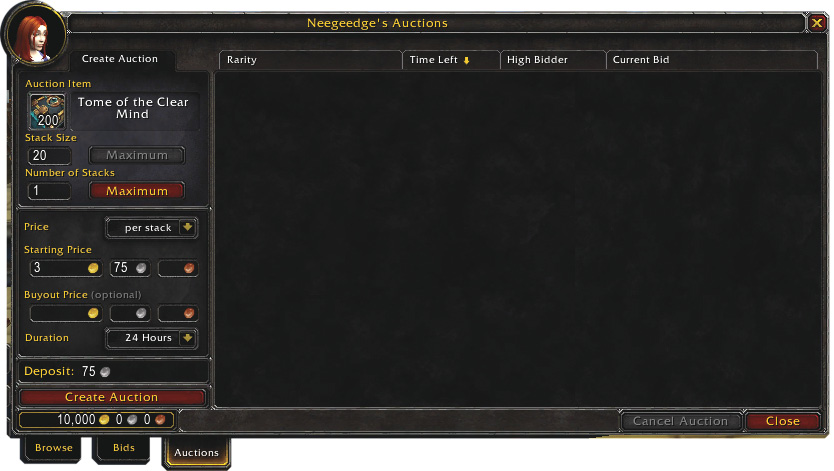
To create an auction of your own, use the Auctions tab. Start by left-clicking and dragging the designated item into the Auction Item slot. By default, the game enters a common Starting Price for the item. The given starting price may or may not work for your purposes, so feel free to change it. You can also change the duration of the auction and include a Buyout price. Notice the deposit fee. This goes to the auction house, and you cannot get it back. Once you’ve set up the parameters, click the Create Auction button.
The item appears as an auction listing for your character. Regardless of whether your item sells, you don’t have to do anything more. If the item sells, you receive confirmation and payment through the mail. If your item doesn’t sell, the auction house mails the item back to you, minus their cut.
Using the Trade Channel
Using the Trade channel to buy and sell is a much less structured way to conduct business. Although the Trade channel is designed to discuss trade, bored players frequently discuss other game topics, world events, player issues, and other trivial matters.
If you can get past the din of the crowd, you can get good feedback about the price or availability of an item, and maybe make a decent purchase or sale. In order to show an item on the Trade channel, Shift and left-click the item to make a link of it appear in the channel. To do this, you need to use the command to speak on the channel and then Shift and left-click your item:
/Trade Want to sell <Hold down Shift and left-click the item in question>
That way, players can click the link for details. Likewise, if someone posts a link in the channel, click it to see the item’s stats. You can do this for any sort of item, including one that you are seeking for a quest.
Most players use communication shorthand for buying and selling in the Trade channel. Here are a few of the most common abbreviations:
|
Abbreviation |
What it Means |
|---|---|
| LF | Looking For |
| WTB | Want To Buy |
| WTS | Want To Sell |
| LFW | Looking For Work (someone is offering their professional services) |
| PST | Please Send Tell (please whisper to them privately to get more information or to haggle) |
The Black Market Auction House
The Black Market is different than other auction houses in the game. The Black Market offers rare and exotic items, unavailable to purchase anywhere else. It offers players the opportunity to buy items that normally come with potentially hundreds of hours of gameplay, or items that normally require being a member of the best of the best guilds in the game.
The Black Market caters to every whim, offering mounts, companion pets, crafting recipes, and gear. These items can make you the talk of the town—for a price.
Players cannot create auctions at the Black Market, and there are no Buyout options; it’s a cut-throat, winner-take-all bidding style that will make most players reel at the prices these items fetch (potentially hundreds of thousands of gold).
Items appear for sale randomly, placed on the block by notable NPCs. Many of these NPCs have a story or two tied to them—more than enough to interest those players who want to delve the depths of the game’s lore.
.jpg)