
Disney Infinity 2014 Revised Edition Guide Toy Box
Creating in the Toy Box
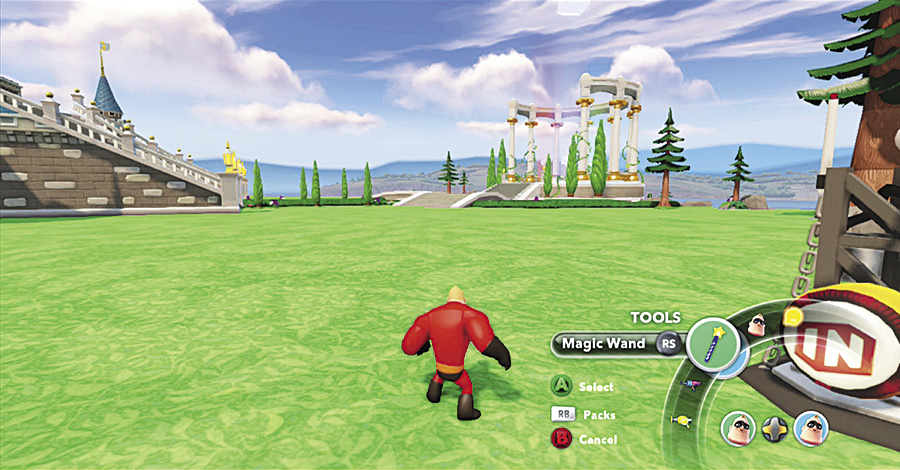
While you can do Adventures and play around in the Toy Box, the main feature of Disney Infinity is the ability to create within a Toy Box World a land of your very own that is only limited by your imagination—and the toys you have unlocked. After going to a Toy Box World, your main tool is the Magic Wand. Open up the Tools/Packs menu and select the Magic Wand. It will be your best friend in the Toy Box.
Changing the Theme

You can change the look of a Toy Box World with just a few steps and not even have to build anything new. The default theme for most of the Pre-Built Toy Box Worlds, with the exception of the Play Set Toy Boxes, is Fairytale Kingdom. This theme affects the ground. To change it, select the ground of any part of the world and then press the button corresponding to the art palette icon. A menu pops up along the bottom and allows you to select from all of the themes you have unlocked. Then you can either change just the theme of the block you have selected, or change the theme for the entire world. One of the ways to get new themes is to unlock them within the Play Sets so you can theme your world like those Play Sets.
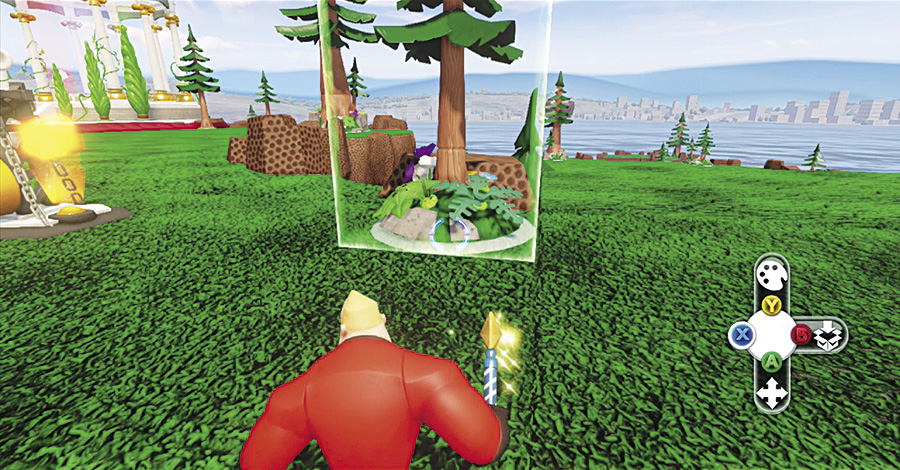
You can also change the theme of some of the decorations. Select a tree or group of terrain with your Magic Wand and, if it is themed terrain, you will have the option of editing the theme. Another menu pops up and now you can change the theme of just that one piece of terrain, or all themed terrain in the entire world. Once again, this is a powerful feature and allows you to change the look of a world very easily.


The area surrounding the land of your Toy Box World is called the Sky Theme. It is the backdrop or background to your world. It too can be customized to fit your theme. To do this, go into the editor and, within the Basic Toys category, select the Sky Changer. Place it anywhere in the world. When you hit the large button on the side of the Sky Changer, the Sky Theme changes to a different theme. It can change the sky to night or make the Sky Theme look like it something from one of the Play Sets. Keep hitting the button on the Sky Changer to cycle through your choices. Sky Themes are not only visual effects, but also have audio. The background sounds and music change with some Sky Themes, thus adding even more to the experience.
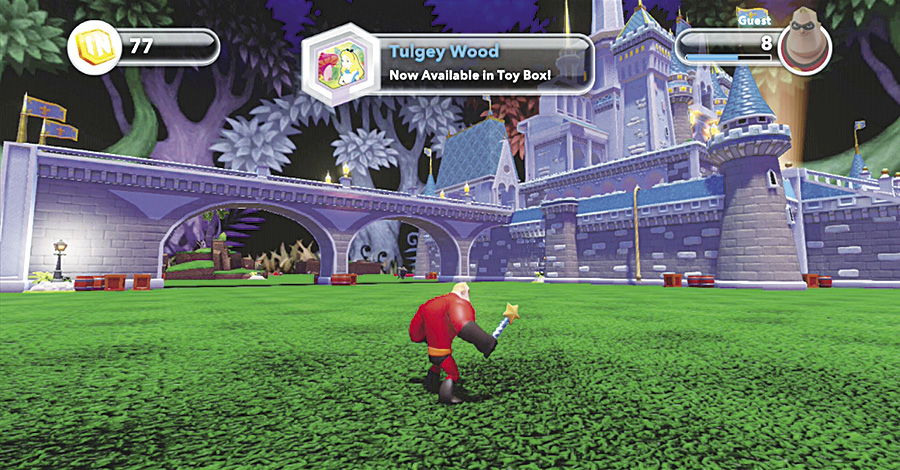
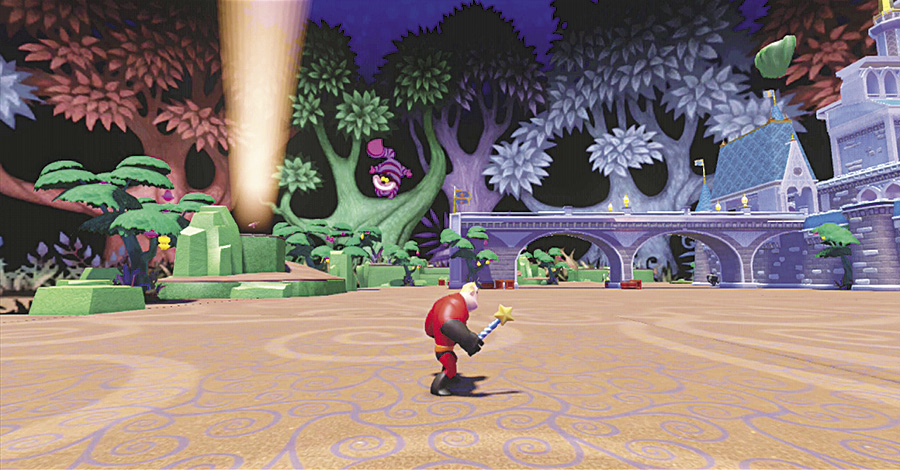
Another way to change themes is through the use of Power Discs. There are two different types of Power Discs that affect theme. The Terrain Theme changes the ground and themed terrain to the new theme, while the Sky Theme changes the sky to the new theme. For example, if you want to change the theme of your world to Alice in Wonderland, you would need two Power Discs—one for the Terrain Theme and one for the Sky Theme. Then if you want to change it back to your original theme, just use the steps above to change the land, the terrain, and the Sky Theme.
Categories of Toys
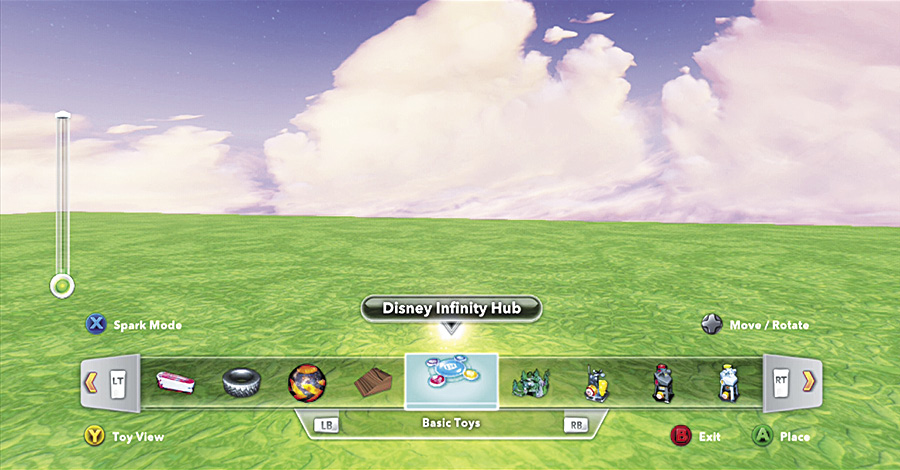
Before you start building, it is important to understand that there are several different categories of toys within the Toy Box. When you first open the editor, you are presented with the “Pick a Toy…” screen. Here you can cycle through every toy that you have unlocked. However, when building in a world, it is easier to use the build view. Switch to this view by pressing the button shown on the screen. As you unlock more and more toys, the “Pick a Toy…” screen can be overwhelming. The build view, on the other hand, organizes the toys into 18 different categories. Let’s take a look at each category and what you can expect from them.
Terrain

Terrain is the ground for your Toy Box Worlds. You can use it to expand the size of your worlds or to create features on your worlds. Build slopes and hills or even underground caves. When building a world, you usually want to start out with the terrain first, since it is on this terrain that you will build all your structures. Experiment with different levels of terrain to create some interesting features. For example, create a cave system or canyon through which you can have a horse race.
Building Sets


Building sets are unlocked through the Disney Infinity Vault and within the Play Sets. These toys consist of several different parts that can be put together to create one type of building. For example, you can unlock parts to build a Disney-style castle or the Agrabah Palace. There are several different parts for each, so you can really create a custom castle or palace with lots of different features. Use these toys to build stadiums or cities. If you are going to be using Building Sets toys, it is a good idea to start with them, since they can make some very large structures.
Buildings
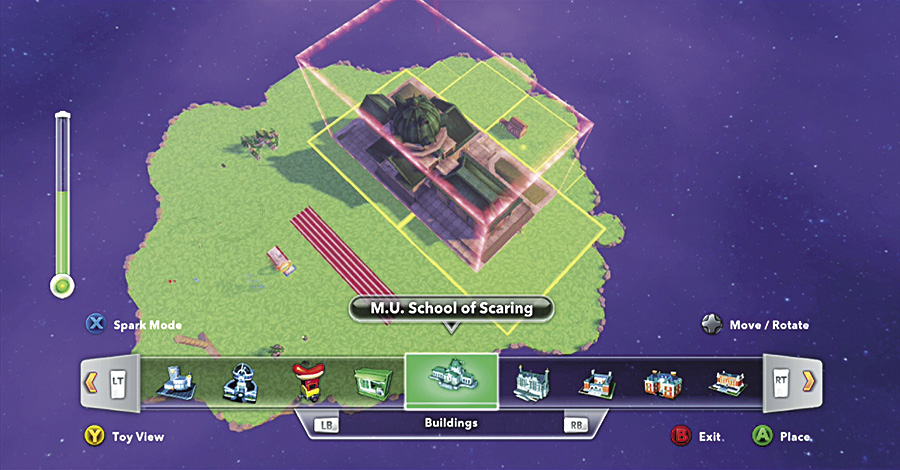
Buildings are complete structures. You pick one, place it, and you are done. You don’t have to assemble a bunch of pieces like the Building Sets. Some are unlocked in the Play Sets—and have the theme of that Play Set—while others are unlocked through the Disney Infinity Vault. They range in size from the very small Hotdog Stand to the large buildings from the Monsters University Play Set.
Set Pieces
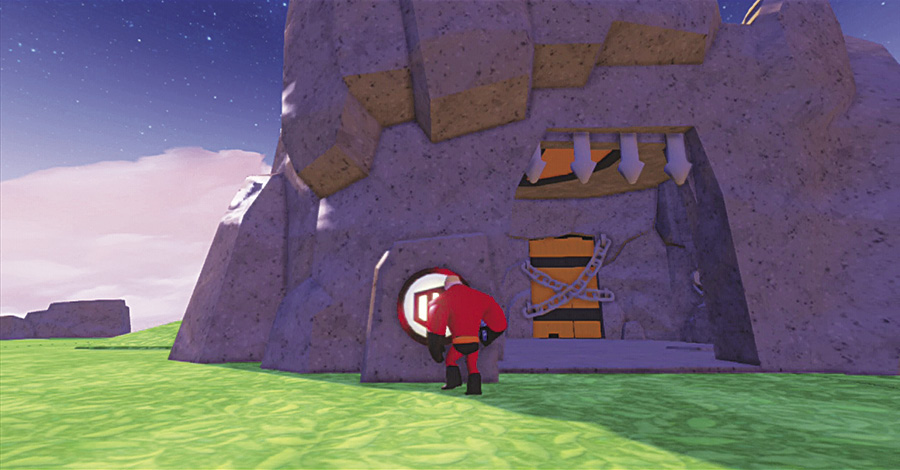

Set Pieces, for the most part, are very large toys. Many are from the sets of Disney movies, shows, or theme parks, or they have some type of interactive features. These are fun to use and can add a major talking point to your worlds when you invite your friends. Be sure to show them your very own Pride Rock, Matterhorn, or Dungeon—all right next to each other. Only in Disney Infinity.
Basic Toys

The Basic Toys contain a variety of different toys such as the Disney Infinity Hub, the Sky Changer, the Enemy Creator, and several other items. Many are interactive in some way and don’t necessarily fit into one of the other categories. Be sure to check out these toys, since most can be fun to use in your world no matter what the theme.
Action Toys

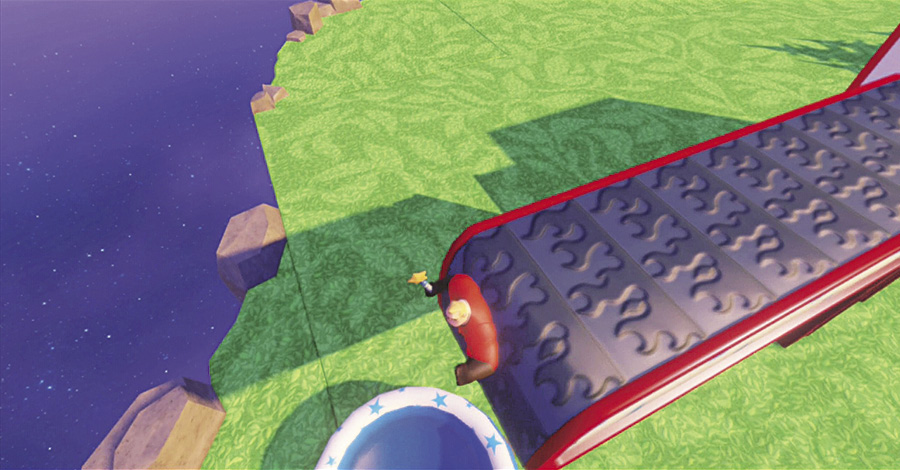
If you think the Basic Toys can be fun, wait until you try out the Action Toys. These all move or do some action—hence the name. Use Action Toys to create your own games or adventures and challenge your friends to visit your worlds and try them out. Set up a series of Action Toys and then try them out. Action Toys work great for platforming-type games. Combine them with Creativi-Toys for even more options and fun.
Creativi-Toys
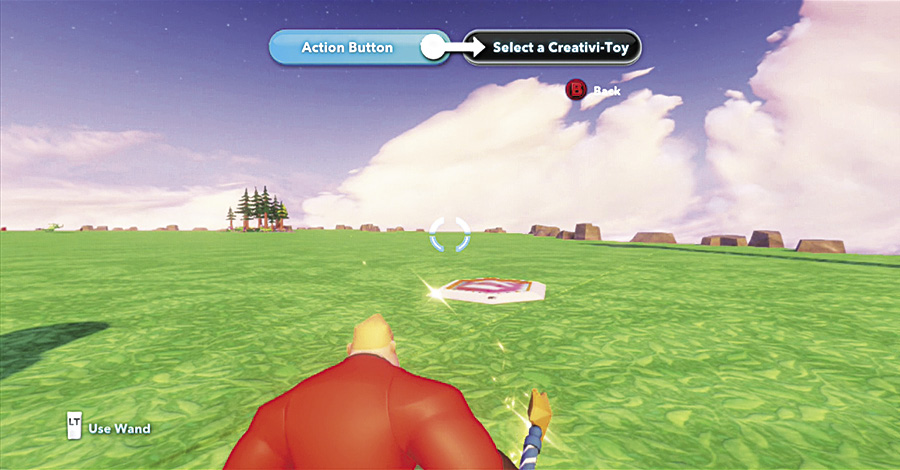
Creativi-Toys are the thinking or logic toys of the Toy Box. They can be programmed with functions to be triggers or reactions. You can even link several of these toys in series or parallel so that one action or trigger can result in several different reactions. We have included a section devoted entirely to Creativi-Toys later in this chapter. Be sure to check it out. And the best way to learn about these toys is to put them in your Toy Box Worlds and play with them. Creativi-Toys can be unlocked in the Disney Infinity Vault and by completing Creativi-Toys Mastery Adventures part 1 and 2. Creativi-Toys can interact with some toys in other categories as well.
Blocks

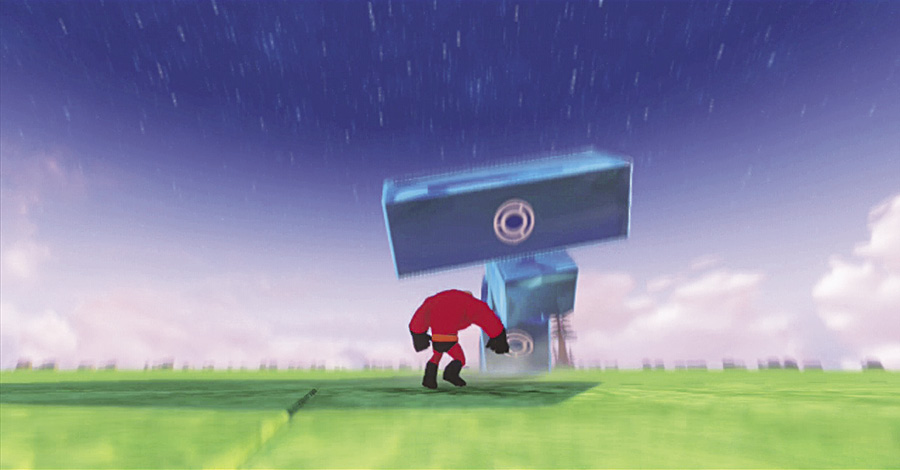
Blocks are just that—blocks. They come in very many different shapes and sizes. Use them to build things just like you might with a box of wooden blocks in real life. You can even change the theme of the blocks from their default stone look to a variety of themes that you can unlock. In addition to the standard blocks, there are also blip blocks that are destroyed when you hit them. Physics blocks behave following the laws of physics and some of them, such as the glass and wood ones, can be destroyed. There are even explosive blocks—which blow up when you hit them—and lava blocks.
Track Pieces


Track Pieces include road track as well as grinding rails and even barriers that you can set up around your tracks. The key to assembling a track is to ensure that each piece connects to the adjacent pieces, otherwise you have trouble racing or grinding on them. Once you have used the pieces to create a track, try changing the theme. While the slot car track is the default, there are several themes that can be unlocked in the Play Sets or the Disney Infinity Vault. You can even make your track look like a running track by using the ESPN Sports theme. Track pieces also include ramps and other toys for doing stunts.
Sports Toys

These toys are great for creating games you can play with other players. Several of the goals can be linked to Creativi-Toys to keep score or do other functions. The balls and puck all react according to the laws of physics. It is a good idea to include some barriers when building with Sports Toys. It is no fun when your soccer ball rolls off the edge of the world.
Plants

Your world can always benefit from some green and the Plants category has you covered. Pick from trees, flowers, shrubs, and even some non-organic toys such as light poles to give your world some color and flora. Some of the toys in the Plant category are themed. This can be helpful when you want to change the theme of your entire world. Select one of your plants and edit the theme for all plants and, with one action, every themed Plant toy will change to the new theme. Some plants, such as those unlocked in the Play Sets, cannot change themes.
Decorations
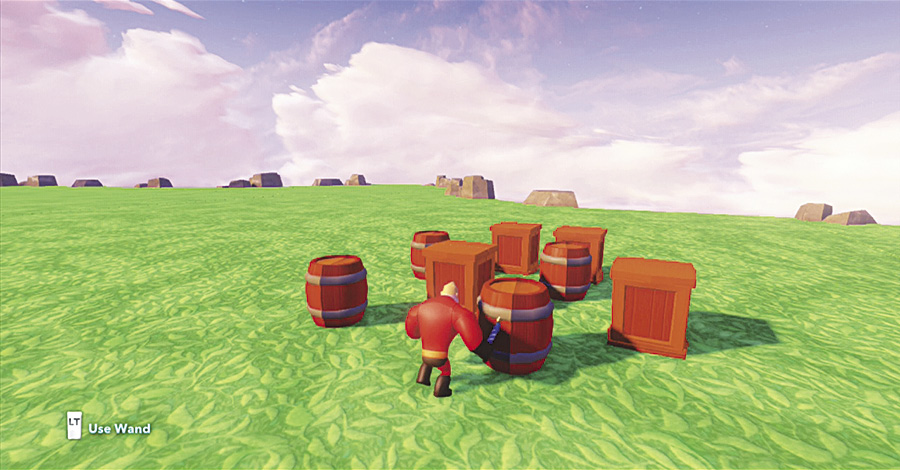
While you have some large toys with which to play, Decorations are much smaller. However, they can be just as important. Decorations fill in empty spaces and provide continuity for your world. Some decorations can be destroyed, while others are static and just stay there.
Vehicles and Mounts

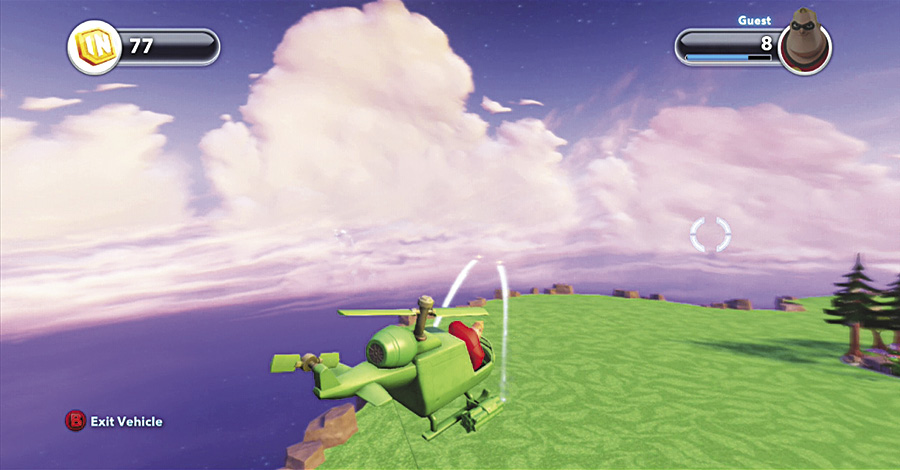
Your characters need a way to get around the Toy Box Worlds you create. That is where Vehicles and Mounts come in. A Mount is an animal you can ride—usually a horse, mule, or even an elephant. Vehicles come in two types—ground or air. Ground vehicles can drive along the ground and stay on the ground—unless you drive off a cliff or do some stunts. Air vehicles, on the other hand, can fly through the air. You can use both vehicles and mounts for races as well as transportation. Some vehicles also include weapons, such as the Attack Copter or The Incredicar. You can use these for games where you have to destroy a number of targets or even for getting hits on opponents’ vehicles.
Enemies

What would a Disney movie be without villains or enemies? Add some spice and conflict to your world by including Enemies. While you start out with only a few, you can unlock lots more in the Play Sets as well as at the Disney Infinity Vault. You can keep a theme for your Enemies, or mix and match them for a battle royale. In a Toy Box World, Enemies will attack any players (unless you use a Creativi-Toy to assign teams). They do this automatically and will actually seek out players as they wander around the world. Of course it is always fun to let loose a few Enemies when visiting a friend’s world as well.
Cast Members

Cast Members are unlocked in the Play Sets. They are the characters in the Play Sets that give you missions to complete. Cast Members will walk around a Play Set on their own. They do not interact with you, do not attack you, and can’t be harmed or defeated. They are there to add personalities to your world. Don’t be shy about mixing up these toys. It is always fun to see monsters roaming the streets of an Old West town. Remember, this is your world.
Toy Box Townspeople
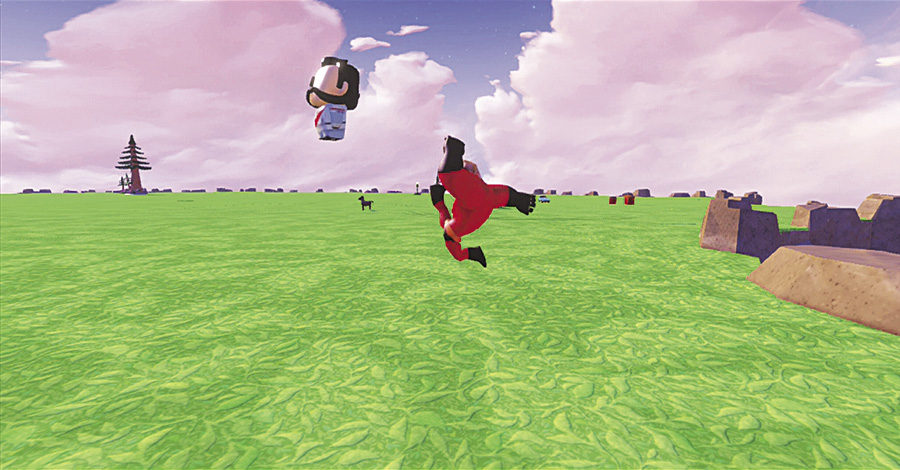
These little townspeople like to dress up in costumes from various Disney movies or related features. They will scoot around the world not causing any harm. They are great for populating a town in your world to give it some more personality and life. While they don’t attack, you can pick them up and even throw them. Try picking them up and drop kicking them by jumping and then pressing the alternate attack button. You can make a game where you have to punt Townspeople through a goal post. (Only in your Toy Box World. Please do not attempt this in the real world.) These toys can be unlocked from the Disney Infinity Vault.
Play Set Townspeople

These Townspeople are just like the Toy Box Townspeople. The only difference is that they are unlocked through the Play Sets rather than spending Spins in the Disney Infinity Vault.
Critters

Critters are just like Townspeople—except they are not people. They are animals. While you may want to put Townspeople near your buildings and towns in your worlds, place Critters out in the forests. You can pick up Critters just like the Townspeople. However, Critters are skittish and tougher to catch. You need to move slow if you want to catch them. Rush at them and they tend to run away.
Getting Started
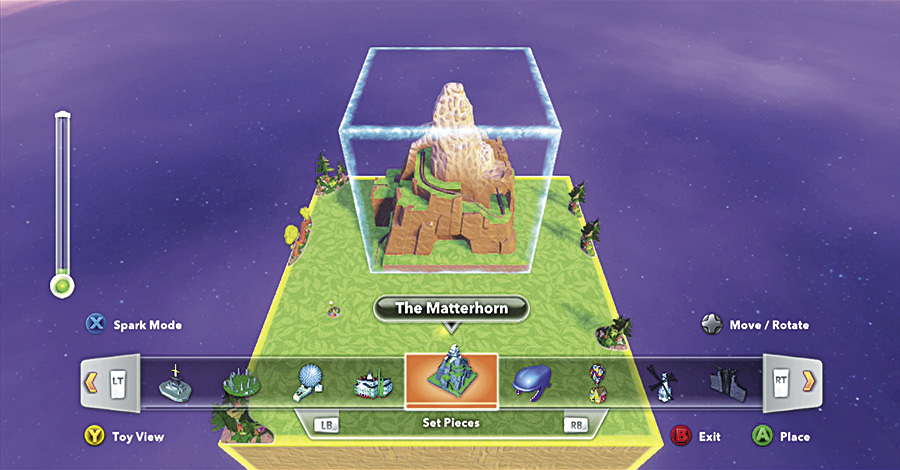
So you want to try your hand at building in the Toy Box? Here is a sample of the process you might go through with just the basics. You can take this and add a lot more to it, however the basic procedures are the same. Start off with a Pre-Built Toy Box World. For this we chose a blank one. Make sure you have your Wand handy, since it is the tool for building and modifying your Toy Box World. This tiny world is going to be centered around the Matterhorn. Select this toy from the Set Pieces category and place it on the terrain. You can also add some plants to the corners of the land now or later.

If you noticed, the Matterhorn has some grinding rails built into it. These are the tracks for the bobsleds. However, in this world, the characters can take a ride by grinding the rails going through the Matterhorn. Switch to the Track Pieces category and select rails. Be careful that they connect to the existing rails by changing the view so you can check from all angles. Add some bending rails to go down and some curved rails to make turns.

The rails are a bit high for characters to jump onto. Therefore, switch to the Blocks category and put in a couple Long Wedge Blocks to serve as ramps for your characters to get up to the rails.

Now that you have completed the rails and ramps, try it out. Walk your character up one of the ramps and jump onto the rail to begin a ride through the scenic Alpine Matterhorn. This was just a simple example of how easy it is to create in the Toy Box Worlds. You can then add more terrain and create a complete theme park of your own. Just remember, the best way to learn about building is to build. Hands-on experience is a great teacher.
Using Creativi-Toys in the Toy Box

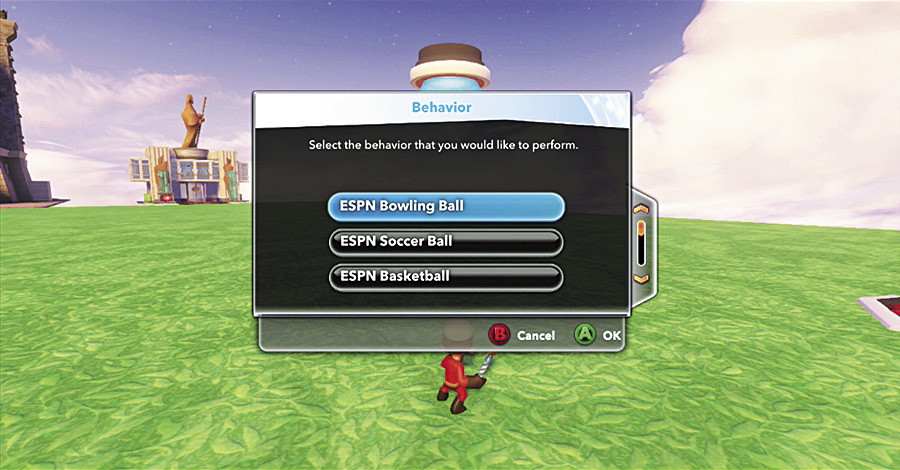
Most of the toys are straightforward in their use. You place them in the Toy Box World and there they are. Creativi-Toys, on the other hand, require a bit more effort, since you have to program them in order to make full use of them. The key to understanding these toys is learning their two main functions. First, they can act as a trigger. Remember those “If (or when) and then” logic equations you might have learned in math? The trigger is the “when”. For example, when a player steps on this pad. Or it could be something like “when the elevator reaches the top of its path”. These triggers set the conditions for another action or behavior. That is the second function of a Creativi-Toy—to cause a behavior effect. This is the “then” part of the equation. It could be something like “then the door opens” or “the pad spawns a blaster”. A quick setup uses a Trigger and a Falling Object Generator. Select the Trigger by pressing the connect button and choose a trigger action such as “stepped on”. Then select the Falling Object Generator with the connect button and select a behavior such as “ESPN Soccer Ball”. Now if your character walks onto the Trigger, a soccer ball will drop from the Falling Object Generator.
Some Creativi-Toys can only be a trigger or an effect and some can be both. Let’s take a look at all of the different Creativi-Toys available in the Toy Box.
Trigger

The Trigger is a pressure pad and one of the simplest Creativi-Toys. In order for it to have an effect, it must be connected to another toy. There are four different ways you can set the Trigger.
| Trigger Action | Description |
|---|---|
| Stepped On | When the Trigger is stepped on by a player or AI |
| Stepped Off | When a player or AI steps off of the Trigger |
| Player Stepped On | When the Trigger is stepped on only by a human player |
| Player Stepped Off | When only a human player steps off the Trigger |
Trigger Area

The Trigger Area acts like a trigger. However, instead of stepping on a pad, it triggers when something walks through an area that is invisible in the Toy Box World (but visible in the editor mode). There are several different ways you can set the Trigger Area, including for specific players. This works great when creating games to play against other players.
| Trigger Action | Description |
|---|---|
| Entered | When a player or AI enters the Trigger Area |
| Exited | When a player or AI leaves the Trigger Area |
| Player Entered | When any player enters the Trigger Area |
| Player Exited | When any player leaves the Trigger Area |
| Player 1 Entered | When only player 1 enters the Trigger Area |
| Player 2 Entered | When only player 2 enters the Trigger Area |
| Player 3 Entered | When only player 3 enters the Trigger Area |
| Player 4 Entered | When only player 4 enters the Trigger Area |
| Player 1 Exited | When only player 1 leaves the Trigger Area |
| Player 2 Exited | When only player 2 leaves the Trigger Area |
| Player 3 Exited | When only player 3 leaves the Trigger Area |
| Player 4 Exited | When only player 4 leaves the Trigger Area |
Action Button

The Action Button can be a trigger as well as a behavior. You could have another trigger cause the Action Button to be pressed as the behavior, so something else could trigger the Action Button to be pressed.
| Trigger Action | Description | Behavior | Description |
|---|---|---|---|
| Pressed | When the Action Button is pressed | Press Button | The Action Button’s button to be pressed. |
Target
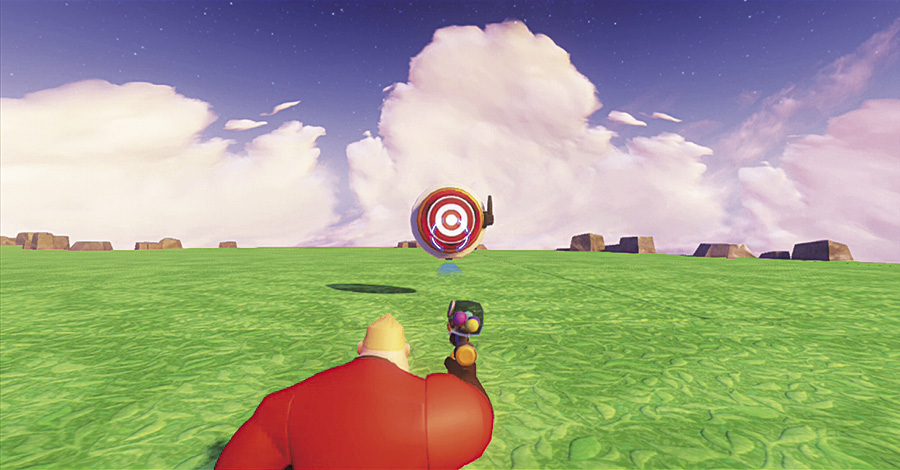
This trigger device can be activated several ways including shooting it, throw something at it, or hitting it with a melee attack if it is within reach. This is best utilized in shooting games.
| Trigger Action | Description |
|---|---|
| Hit | When the Target is hit by any weapon or tool |
Power Switch

The Power Switch is a toggle. By stepping on the red side you turn it on. Step on the yellow side to turn it off. You can assign different triggers to both the on and off triggers. In addition, you can have it as a behavior in response to another trigger.
| Trigger Action | Description | Behavior | Description |
|---|---|---|---|
| On | When the Power Switch gets stepped on and the Power Switch gets turned on (red part of switch is down), the output is supposed to happen | On | The power switch to turn on (red = down) |
| Off | When the Power Switch gets stepped on and the Power Switch gets turned off (red part of switch is up), the output is supposed to happen | Off | The power switch to turn off (red = up) |
| Output | When the Power Switch receives an “Input” behavior and the Power Switch is in the on position | Input | The Power Switch to send an “Output” action if it is in the on position |
Dual Action Trigger

The Dual Action Trigger requires two inputs in order to activate the trigger function. To use it, you would first select two different triggering actions and connect them to the Dual Action Trigger as input 1 and input 2. Then select the Dual Action Trigger and select for what it will act as the trigger. An example of this could be you have to walk through a Trigger Area and hit a Target, then the Dual Action Trigger will cause a light to turn on.
| Trigger Action | Description | Behavior | Description |
|---|---|---|---|
| Complete | When the Dual Action Trigger completes both inputs | Input 1 | The Dual Action Trigger’s input 1 to turn on |
| Input 2 | The Dual Action Trigger’s input 2 to turn on | ||
| Reset | The Dual Action Trigger to reset (both inputs return to off) |
Racing Gate
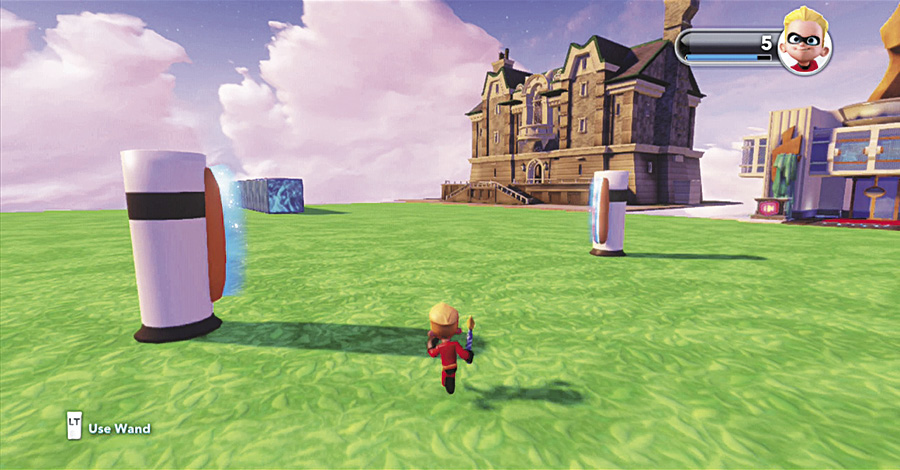
This is similar to a Trigger Area. However, the Racing Gate works better for tracks and is also visible so players can see a visual end or finish line to a race.
| Trigger Action | Description |
|---|---|
| Crossed by Player | When a player runs/drives/flies through the Racing Gate |
Collection Pen

This toy acts as a trigger. However, you can distinguish different triggers depending on what you put into the pen. For example, you could cause one counter to advance if an enemy is placed into the Collection Pen and another counter to advance when a friend is put into the pen. This can be a lot of fun for creating your own games.
| Trigger Action | Description |
|---|---|
| Enemy Entered | When an enemy enters the Collection Pen |
| Friend Entered | When an NPC/Critter enters the Collection Pen |
| Ball Entered | When a ESPN/Action Toy Ball enters the Collection Pen |
Checkpoint
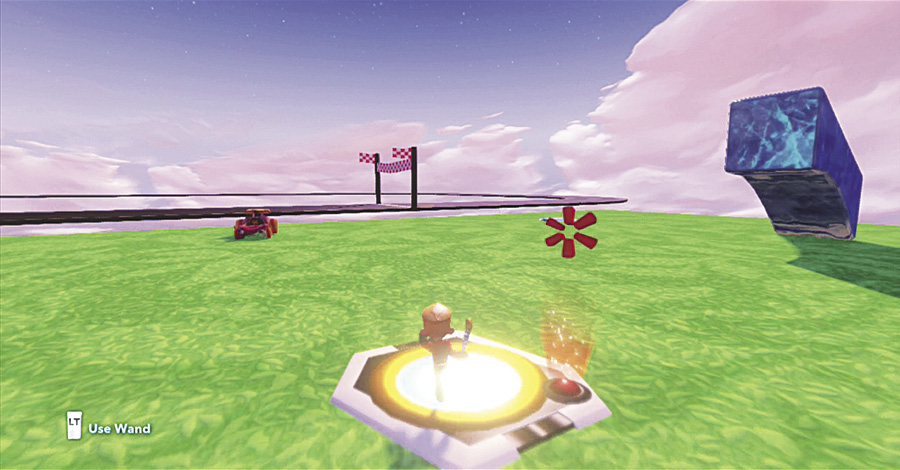
The Checkpoint is a bit different than a Trigger. It keeps track of the fact that it has been triggered and can only be used once.
Use Checkpoints for races or other games where you want a player to go to different spots and so they only get one point for each Checkpoint. Once a Checkpoint is activated, it cannot send out another trigger.
| Trigger Action | Description | Behavior | Description |
|---|---|---|---|
| Checkpoint Set | When the Checkpoint is set (stepping on the checkpoint can set the Checkpoint) | Set Checkpoint | The Checkpoint to be set |
Object Generator
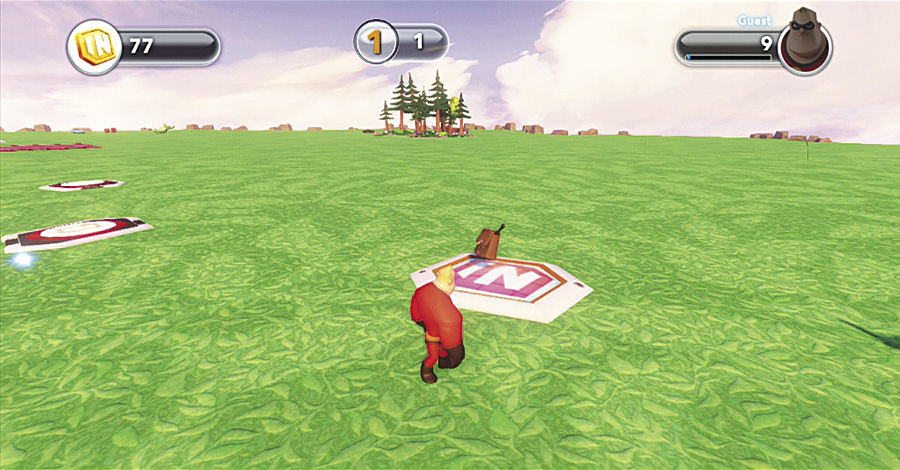
The Object Generator usually is the behavior as a result of another trigger. You can select from a variety of objects you want to appear on this toy. However, you can also use this as a trigger for when this toy spawns an object or for when an object that is spawned is destroyed. These can be fun for lots of different types of games. (Note: You must have already unlocked an object in order to have it generated by this toy.)
| Trigger Action | Description | Behavior | Description |
|---|---|---|---|
| Spawned | When the Object Generator spawns an object | Buzz Lightyear’s Jetpack | The Object Generator to spawn a Buzz Lightyear’s Jetpack |
| Killed Spawned Toy | When the spawned object is killed | Star Command Boost Pack | The Object Generator to spawn a Star Command Boost Pack. |
| Pirate Bombs | The Object Generator to spawn Pirate Bombs | ||
| Frying Pan | The Object Generator to spawn a Frying Pan | ||
| Mania Blaster | The Object Generator to spawn a Mania Blaster | ||
| Toilet Paper Launcher | The Object Generator to spawn a Toilet Paper Launcher | ||
| Paintball Gun | The Object Generator to spawn a Paintball Gun | ||
| Zero Point Energy Gauntlet | The Object Generator to spawn a Zero Point Energy Gauntlet | ||
| Goo Grower | The Object Generator to spawn a Goo Grower | ||
| Goo Shrinker | The Object Generator to spawn a Goo Shrinker | ||
| Hover Board | The Object Generator to spawn a Hover Board | ||
| Glide Pack | The Object Generator to spawn a Glide Pack | ||
| Surfboard | The Object Generator to spawn a Surfboard | ||
| Flamingo Mallet | The Object Generator to spawn a Flamingo Mallet | ||
| Blunderbuss | The Object Generator to spawn a Blunderbuss | ||
| Grappling Hook | The Object Generator to spawn a Grappling Hook | ||
| Star Command Blaster | The Object Generator to spawn a Star Command Blaster | ||
| Elasti-Hand | The Object Generator to spawn an Elasti-Hand | ||
| Invisibility Device | The Object Generator to spawn an Invisibility Device | ||
| Medicine Ball | The Object Generator to spawn a Medicine Ball | ||
| Glow Urchin | The Object Generator to spawn a Glow Urchin | ||
| Sword | The Object Generator to spawn a Sword | ||
| Crow Wing Pack | The Object Generator to spawn a Crow Wing Pack | ||
| TNT Pack | The Object Generator to spawn a TNT Pack | ||
| Thundering Hooves Pack | The Object Generator to spawn a Thundering Hooves Pack | ||
| Silent Warrior Pack | The Object Generator to spawn a Silent Warrior Pack | ||
| Kill All | All objects spawned by the Object Generator to be removed |
Falling Object Generator
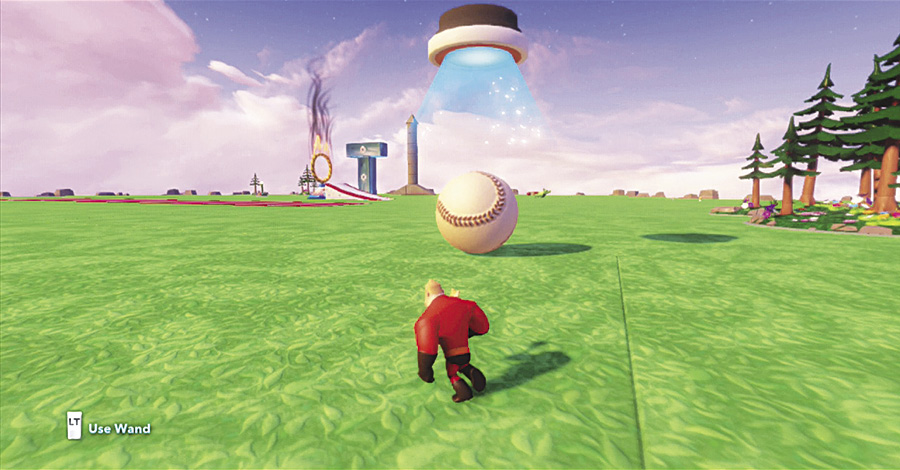
This toy drops balls or a puck down into your world. You can also set its behavior to destroy all of the objects it spawns as a behavior to a trigger. It can also act as a trigger if one of the objects it drops is killed.
| Trigger Action | Description | Behavior | Description |
|---|---|---|---|
| Spawned | When the Falling Object Generator spawns an object | ESPN Bowling Ball | When the Falling Object Generator spawns a Bowling Ball |
| Killed Spawned Toy | When the spawned object is killed | ESPN Soccer Ball | When the Falling Object Generator spawns a Soccer Ball |
| ESPN Basketball | When the Falling Object Generator spawns a Basketball | ||
| ESPN Baseball | When the Falling Object Generator spawns a Baseball | ||
| ESPN Football | When the Falling Object Generator spawns a Football | ||
| ESPN Tennis Ball | When the Falling Object Generator spawns a Tennis Ball | ||
| ESPN Golf Ball | When the Falling Object Generator spawns a Golf Ball | ||
| ESPN Hockey Puck | When the Falling Object Generator spawns a Hockey Puck | ||
| Kill All | All the objects spawned from the Falling Object Generator to be removed |
Friend Generator

This is similar to the Object Generator except that it spawns friendly toys.
| Trigger Action | Description | Behavior | Description |
|---|---|---|---|
| Spawned | When the Friend Generator spawns a Friend | Spawn Bullseye | The Friend Generator to spawn Bullseye |
| Killed Spawned Toy | When the spawned Friend is killed | Spawn Snow White | The Friend Generator to spawn Snow White |
| Spawn Hulk | The Friend Generator to spawn Hulk | ||
| Kill All | All the Friends spawned from the Friend Generator to be removed |
Enemy Generator

This functions just like the Friend Generator, but this spawns Enemies. It also offers lots of options for the types of Enemies you can spawn. Use this toy for combat games.
| Trigger Action | Description | Behavior | Description |
|---|---|---|---|
| Spawned | When the Enemy Generator spawns an Enemy | Soldier of Clubs Costume | The Enemy Generator to spawn a Soldier of Clubs Costume |
| Killed Spawned Toy | When the spawned Enemy is killed | Soldier of Hearts Costume | The Enemy Generator to spawn a Soldier of Hearts Costume |
| Sorcerer’s Broom Costume | The Enemy Generator to spawn a Sorcerer’s Broom Costume | ||
| The King’s Guard | The Enemy Generator to spawn a The King’s Guard | ||
| Agrabah Guard | The Enemy Generator to spawn an Agrabah Guard | ||
| Rhino Guard | The Enemy Generator to spawn a Rhino Guard | ||
| Omnidroid | The Enemy Generator to spawn an Omnidroid | ||
| Melee Omnidroid | The Enemy Generator to spawn a Melee Omnidroid | ||
| Ranged Omnidroid | The Enemy Generator to spawn a Ranged Omnidroid | ||
| Tank Omnidroid | The Enemy Generator to spawn a Tank Omnidroid | ||
| Mini Zurgbot | The Enemy Generator to spawn a Mini Zurgbot | ||
| Zurgbot | The Enemy Generator to spawn a Zurgbot | ||
| Giant Zurgbot | The Enemy Generator to spawn a Giant Zurgbot | ||
| Mini Blasting Zurgbot | The Enemy Generator to spawn a Mini Blasting Zurgbot | ||
| Blasting Zurgbot | The Enemy Generator to spawn a Blasting Zurgbot | ||
| Giant Blasting Zurgbot | The Enemy Generator to spawn a Giant Blasting Zurgbot | ||
| Goo Bot | The Enemy Generator to spawn a Goo Bot | ||
| Cavendish’s Pistol Man | The Enemy Generator to spawn a Cavendish’s Pistol Man | ||
| Cavendish’s TNT Man | The Enemy Generator to spawn a Cavendish’s TNT Man | ||
| Cavendish’s Shotgun Man | The Enemy Generator to spawn a Cavendish’s Shotgun Man | ||
| Clam Pirate | The Enemy Generator to spawn a Clam Pirate | ||
| Driftwood Pirate | The Enemy Generator to spawn a Driftwood Pirate | ||
| Maccus | The Enemy Generator to spawn a Maccus | ||
| Turtle Pirate | The Enemy Generator to spawn a Turtle Pirate | ||
| Fear Tech Paintball Player 1 | The Enemy Generator to spawn a Fear Tech Paintball Player 1 | ||
| Fear Tech Paintball Player 2 | The Enemy Generator to spawn a Fear Tech Paintball Player 2 | ||
| Fear Tech Paintball Player 3 | The Enemy Generator to spawn a Fear Tech Paintball Player 3 | ||
| Fear Tech Student 1 | The Enemy Generator to spawn a Fear Tech Student 1 | ||
| Fear Tech Student 2 | The Enemy Generator to spawn a Fear Tech Student 2 | ||
| Fear Tech Student 3 | The Enemy Generator to spawn a Fear Tech Student 3 | ||
| Fear Tech Student Patrol 1 | The Enemy Generator to spawn a Fear Tech Student Patrol 1 | ||
| Fear Tech Student Patrol 2 | The Enemy Generator to spawn a Fear Tech Student Patrol 2 | ||
| Fear Tech Student Patrol 3 | The Enemy Generator to spawn a Fear Tech Student Patrol 3 | ||
| Kill All | All the Enemies spawned from the Enemy Generator to be removed |
Vehicle Weapon Generator

Similar to the other generator toys, this spawns random vehicle weapons. Place these on your race tracks to add a battle element to races.
| Trigger Action | Description | Behavior | Description |
|---|---|---|---|
| Item Collected | When a player collects the Vehicle Weapon | Spawn Item | The Vehicle Weapon Generator to spawn a vehicle weapon |
| Item Spawned | When a Vehicle Weapon spawns |
Party Cannon
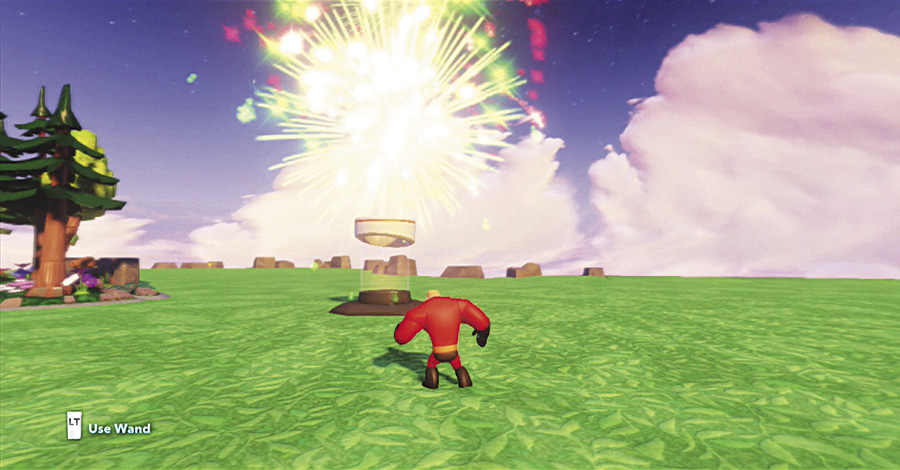
The Party Cannon is usually used as a behavior for another toy’s trigger. However, you can also use this toy to trigger behaviors in other toys. Set these up at the end of a race or as a victory celebration at the end of a game.
| Trigger Action | Description | Behavior | Description |
|---|---|---|---|
| Explode | When the Party Cannon shoots something out | Fireworks | The Party Cannon to shoot Fireworks |
| Confetti | The Party Cannon to shoot Confetti | ||
| Grand Finale | The Party Cannon to shoot Grand Finale |
Safety Dome

The Safety Dome is great to use as an objective to either try to destroy or to try to defend. It can be used as both a trigger and a behavior.
| Trigger Action | Description | Behavior | Description |
|---|---|---|---|
| Started | When the Safety Dome starts (need another toy to Start the Safety Dome) | Start | The Safety Dome to start (an NPC spawns in the Dome) |
| Destroyed | When the Safety Dome is destroyed | End | The Safety Dome to end (the NPC in the Dome disappears) |
Marching Orders

This is a cool toy. It sets up an area. Any NPC or enemy that moves (or is thrown into) the area of the Marching Orders toy will begin walking in the direction the toy is pointing—even after they exit the toy area. You can position several of these toys around a world and set up patrol paths. While Marching Orders is visible in the editor, it can not be seen out in the Toy Box World. This is a fun toy to play around with.
| Trigger Action | Description |
|---|---|
| Entered | When the Marching Orders is entered by an NPC/Enemy |
| Exited | When an NPC/Enemy leaves the Marching Orders |
Teleporter
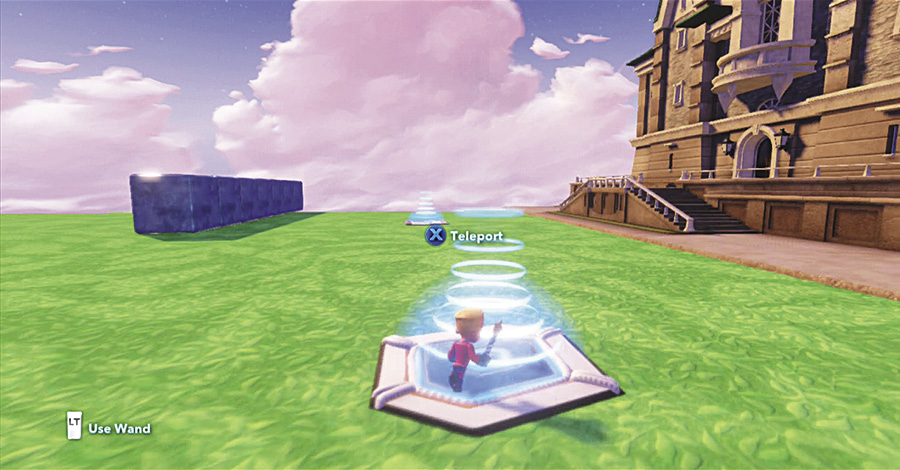
Teleporters require two or more of this type of toy in order to work. They are a quick way to transport players around the Toy Box World. You can program them to go from one to another if you have more than two. Otherwise, they just teleport the player between the two Teleporters.
| Trigger Action | Description | Behavior | Description |
|---|---|---|---|
| Teleport (can only go to another teleporter) | When a player steps on the Teleporter | Teleport Here (can only activate from another teleporter) | The player to be teleported from the starting teleporter to this destination |
Stopwatch
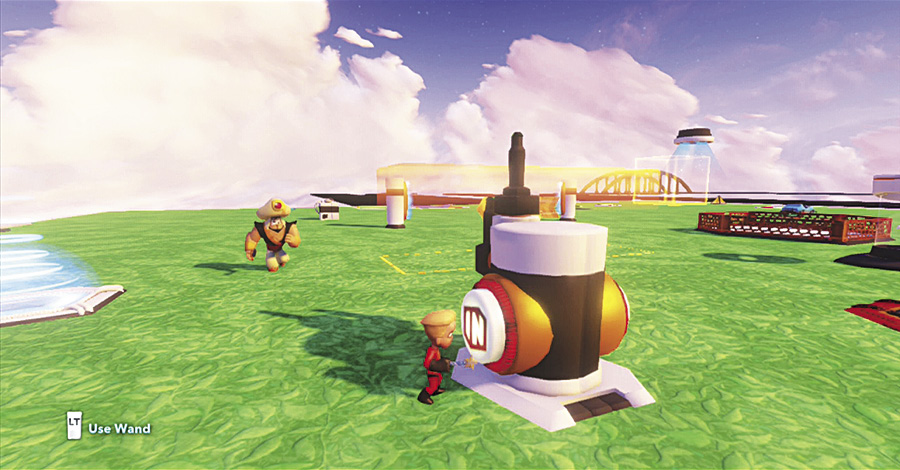
The Stopwatch is a toy that when activated will stop all enemies and NPCs. You can hit the button to start and stop it or set is as either a trigger or even a behavior.
| Trigger Action | Description | Behavior | Description |
|---|---|---|---|
| Stopwatch Started | When the Stopwatch starts | Start Stopwatch | The Stopwatch to start |
| Stopwatch Stopped | When the Stopwatch stops | Stop Stopwatch | The Stopwatch to stop |
Replayer

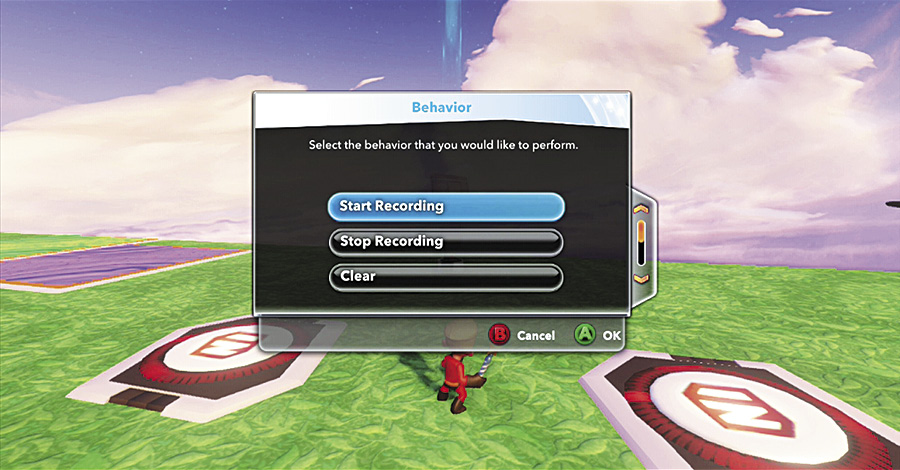
The Replayer is one of the more powerful tools you can use in the Toy Box. An easy way to use it is to connect it to several Triggers that you can then use as your buttons for recording, stopping, and playing back. When the Replayer is recording, it will save all the actions you do in the editor, such as building things. Stop the recording after you exit the editor and then play. You will then see your building efforts appear right before you. The Replayer can be used to actually create a game where the course appears before you as you move. Be sure to play around with it and you will be impressed with what you can do.
| Trigger Action | Description | Behavior | Description |
|---|---|---|---|
| Recording Started | When the recording starts | Start Recording | The Replayer to start recording |
| Recording Stopped | When the recording stops | Stop Recording | The Replayer to stop recording |
| Clear | When the recording is cleared | Clear | The Replayer to clear everything it has recorded so far |
| Playback | When the recording is played back | Playback | The Replayer to play back everything that was placed into the world |
| Reverse Playback | When the recording is played back in reverse | Reverse Playback | The Replayer to play back everything that was placed into the world in reverse |
| Reset | When the recording is reset | Reset | The Replayer to remove all the objects it has played back into the world |
Repeater

The Repeater is a toy you can use to make another toy do the same thing over and over. For example, connect it to a Falling Object Generator and it will continue to drop objects. You can even adjust the amount of time between each trigger that the Repeater sends out.
| Trigger Action | Description | Behavior | Description |
|---|---|---|---|
| On | When the Repeater is turned on (the player can now repeat an action) | On | The Repeater to turn on |
| Off | When the Repeater is turned off (the player can no longer repeat an action) | Off | The Repeater to turn off |
| Repeat | Every time the Repeater repeats an action |
Time Delay

If you want to create a series of behaviors from one trigger, but do not want them all to occur at the same time, use the Time Delay. It lets you set a delay between the trigger and the behavior. Try this with a row of Party Cannons so they go off one at a time rather than all at once.
| Trigger Action | Description | Behavior | Description |
|---|---|---|---|
| Delay Completed | When the amount of time the player set in the Properties to delay an action is completed | Start Delay | The Time Delay to start the delay |
Timer
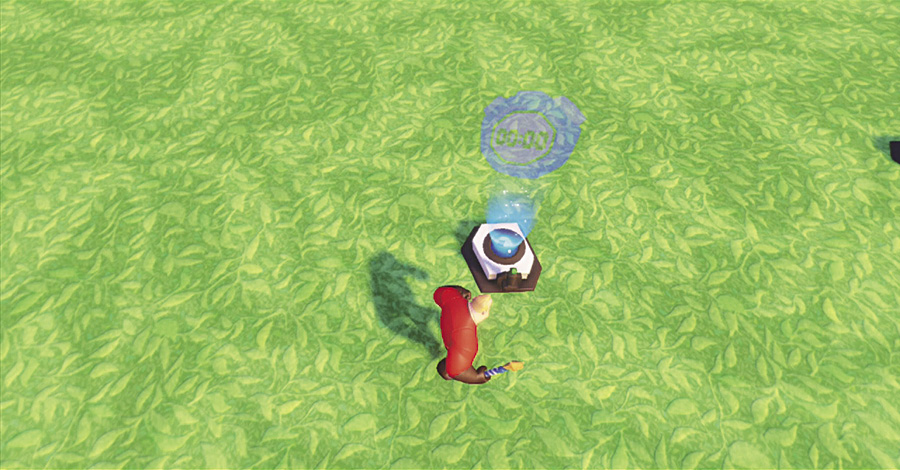
This toy actually creates a timer at the top of the screen when it is activated, so you can time players during a game. Connect it to one Racing Gate to start and another Racing Gate to stop. Or you can even set it to be a countdown timer.
| Trigger Action | Description | Behavior | Description |
|---|---|---|---|
| Started | When the Timer starts timing something | Start | The Timer to start timing |
| Stopped | When the Timer stops timing something | Stop | The Timer to stop timing |
| Timer Expired | When the amount of time the player sets up in the Properties expires |
Counter

Like the Timer, this puts some numbers at the top of the screen. However, this time it counts signals from a trigger as its behavior. Connect this to a goal in the Sports toys to keep track of how many goals you score.
| Trigger Action | Description | Behavior | Description |
|---|---|---|---|
| Target Reached | When the Counter reaches the limit the player sets up in the Properties | Reset | The Counter to reset (return to 0) |
| Zero Reached | When the Counter reaches zero | Increment | The Counter to increase by 1 |
| Decrement | The Counter to decrease by 1 |
Scoreboard

The Scoreboard is like a bit counter, except instead of counting just one action, it can keep track of scores for four different players.
| Trigger Action | Description | Behavior | Description |
|---|---|---|---|
| Increment Score 1 | When the scoreboard increases the score for Player 1 | Increment Score 1 | The Scoreboard to increase by 1 |
| Increment Score 2 | When the scoreboard increases the score for Player 2 | Increment Score 2 | The Scoreboard to increase by 2 |
| Increment Score 3 | When the scoreboard increases the score for Player 3 | Increment Score 3 | The Scoreboard to increase by 3 |
| Increment Score 4 | When the scoreboard increases the score for Player 4 | Increment Score 4 | The Scoreboard to increase by 4 |
| Reset | The Scoreboard to reset the score | Reset | When the Scoreboard is reset to 0 |
| Remove Display | The Scoreboard to remove the score at the top of the screen | ||
| Player 1 Wins | When player 1 is declared the winner | ||
| Player 2 Wins | When player 2 is declared the winner | ||
| Player 3 Wins | When player 3 is declared the winner | ||
| Player 4 Wins | When player 4 is declared the winner |
Bird’s Eye Camera
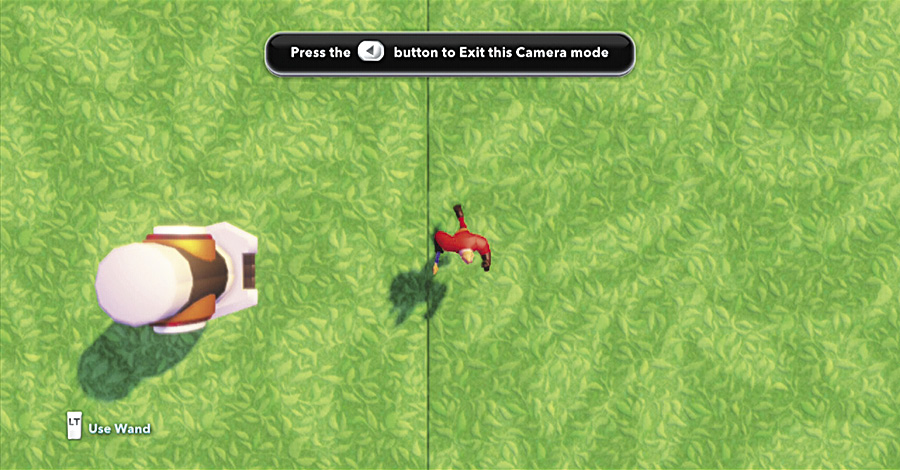
When activated, the Bird’s Eye Camera changes the view of the Toy Box to a top-down angle. This can be great for some types of games you can create to play against your friends.
| Trigger Action | Description | Behavior | Description |
|---|---|---|---|
| Started | When the camera first becomes active | Start | The camera to become active |
| Ended | When the camera ends | End | The camera to stop |
Side-Step Camera
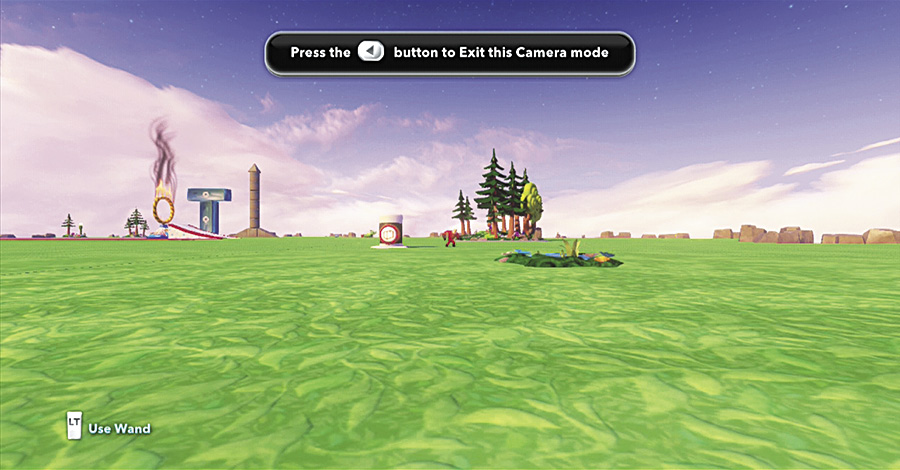
This functions just like the Bird’s Eye Camera, except the view is from this side. Use this when making platforming type games.
| Trigger Action | Description | Behavior | Description |
|---|---|---|---|
| Started | When the camera first becomes active | Start | The camera to become active |
| Ended | When the camera ends | End | The camera to stop |
Area Light
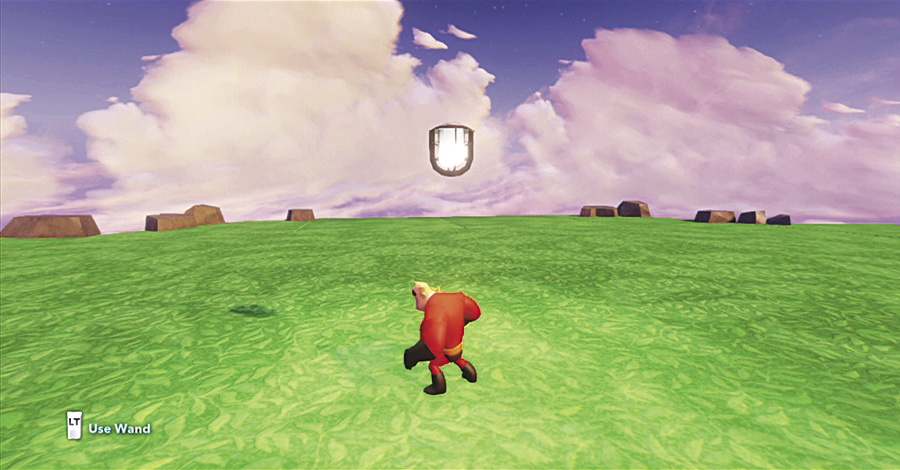
This toy allows you to light up an area. It can be programmed to turn on, off, or toggle in response to a trigger or even be a trigger itself.
| Trigger Action | Description | Behavior | Description |
|---|---|---|---|
| Turn On | When the light turns on | Turn Light On | The light to turn on |
| Turn Off | When the light turns off | Turn Light Off | The light to turn off |
| Toggle | When the light turns on or off | Toggle Light | The light to toggle to the next state |
Sound Effects

You can select from a variety of sounds that emanate from this toy as a behavior. For example, connect it to a goal for a sound effect when a player moves a ball into the goal. This just adds more fun to games.
| Trigger Action | Description | Behavior | Description |
|---|---|---|---|
| Started | When the sound effects start playing | Alarm | The Sound Effects toy to play an alarm sound |
| Horn | The Sound Effects toy to play a horn sound | ||
| Cheering | The Sound Effects toy to play a crowd cheering sound | ||
| Cash Register | The Sound Effects toy to play a cash register sound | ||
| Charge! | The Sound Effects toy to play a trumpet playing the “Charge!” theme | ||
| Countdown | The Sound Effects toy to play the narrator counting down from 3 to 1 | ||
| Destruction | The Sound Effects toy to play an explosion sound | ||
| Success | The Sound Effects toy to play the narrator to say “What a performance” | ||
| Awesome! | The Sound Effects toy to play the narrator to say “Awesome!” | ||
| Fantastic! | The Sound Effects toy to play the narrator to say “Fantastic!” |
Boom Box

This is similar to the Sound Effects toy. However, the Boom Box plays music instead of just sound effects.
| Trigger Action | Description | Behavior | Description |
|---|---|---|---|
| Started | When the Boom Box is activated | Off | |
| Stopped | When the Boom Box becomes inactivate | Mickey Mouse | The Boom Box to play the Mickey Mouse song |
| Cinderella’s Castle | The Boom Box to play the Cinderella’s Castle song | ||
| Peter Pan’s Flight | The Boom Box to play the Peter Pan’s Flight song | ||
| Alice in Wonderland | The Boom Box to play the Alice in Wonderland song | ||
| Tangled | The Boom Box to play the Tangled song | ||
| Sugar Rush | The Boom Box to play the Sugar Rush song | ||
| Vanellope | The Boom Box to play Vanellope’s song | ||
| Jessie | The Boom Box to play Jessie’s song | ||
| Alien Emperor Zurg | The Boom Box to play the Alien Emperor Zurg song | ||
| Metroville | The Boom Box to play the Metroville song | ||
| Finding Nemo | The Boom Box to play the Finding Nemo song | ||
| WALL-E | The Boom Box to play the WALL-E song | ||
| The Nightmare Before Christmas | The Boom Box to play The Nightmare Before Christmas song | ||
| Frankenweenie | The Boom Box to play the Frankenweenie song | ||
| Phineas and Ferb | The Boom Box to play the Phineas and Ferb song | ||
| Recognizer | The Boom Box to play the Recognizer song | ||
| Tron | The Boom Box to play the Tron song | ||
| Condorman | The Boom Box to play the Condorman song |
Invulnerability Beacon
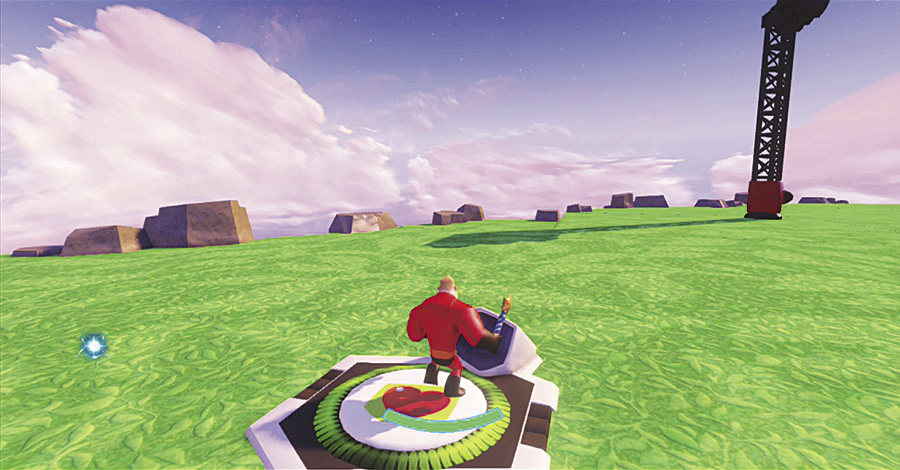
Normally your characters in the Toy Box Worlds are invulnerable. However, this toy can turn on a health bar that shows how much damage a character is taking and allows them to be defeated. This can be good for combat games where a kill or defeat can be used for scoring or another reason.
| Trigger Action | Description | Behavior | Description |
|---|---|---|---|
| Health Bar On | When the health bar is turned on, on the small screen | Health Bar on | The Health Bar on the screen to turn on |
| Health Bar Off | When the health bar is turned off, on the small screen | Health Bar off | The Health Bar on the screen to turn off |
Kill Switch

The Kill Switch is a way to get rid of something in the game. It can be a trigger, but its main function is a behavior. For example, you could set it to when a player enters a Target Area over a lava block, the player dies.
| Trigger Action | Description | Behavior | Description |
|---|---|---|---|
| Killed | When something is killed by the Kill Switch | Kill | The Kill Switch to kill the entity that triggered this behavior (i.e., step on a button that tells the Kill Switch to kill whatever just stepped on the button) |
Blue and Orange Team Activators


These two toys are a lot of fun. They can set players and enemies into two teams. Set Marching Orders toys to move enemies into these team activators and create team fighting games. If you have also walked through the activator, you will have a color as well. Enemies on your team will not attack you. Instead they will attack players and other enemies on the opposing team. This is a lot of fun to try out.
| Trigger Action | Description |
|---|---|
| Team Set | When an entity is set to the blue (or orange) team |
Victory Tracker
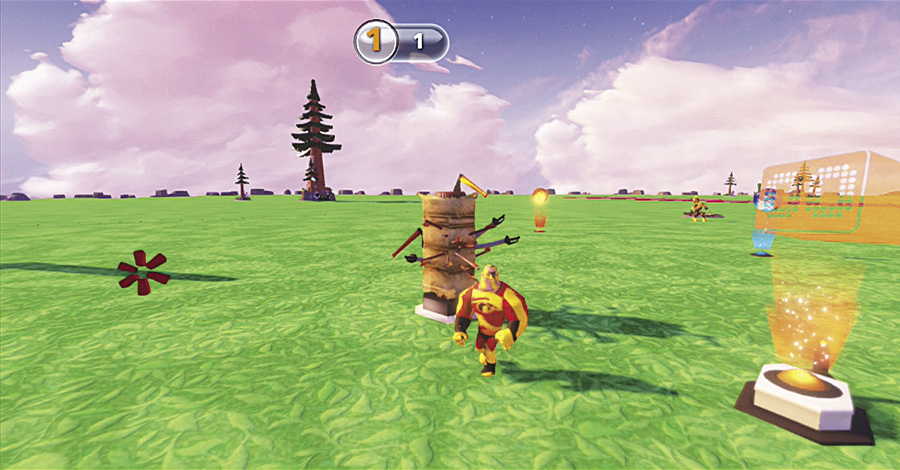
While this toy can seem complex, it is just a trigger that is activated by players being killed, killing other players, killing enemies, or getting hit by something. You will usually connect this to a Scoreboard or Counter to keep track of the score.
| Trigger Action | Description |
|---|---|
| Player 1 was Killed | When player 1 is killed |
| Player 2 was Killed | When player 2 is killed |
| Player 3 was Killed | When player 3 is killed |
| Player 4 was Killed | When player 4 is killed |
| Player 1 Killed Enemy | When player 1 kills an enemy |
| Player 2 Killed Enemy | When player 2 kills an enemy |
| Player 3 Killed Enemy | When player 3 kills an enemy |
| Player 4 Killed Enemy | When player 4 kills an enemy |
| Player 1 Killed Player | When player 1 kills another player |
| Player 2 Killed Player | When player 2 kills another player |
| Player 3 Killed Player | When player 3 kills another player |
| Player 4 Killed Player | When player 4 kills another player |
| Player 1 was Hit | When player 1 gets hit by something |
| Player 2 was Hit | When player 2 gets hit by something |
| Player 3 was Hit | When player 3 gets hit by something |
| Player 4 was Hit | When player 4 gets hit by something |
Other Toys That Interact
In addition to the Creativi-Toys, there are also several other different toys that can be used as a trigger or a behavior. The following is a list of these toys and the trigger and/or behaviors for which they can be connected.
| Toy | Trigger Action | Description | Behavior | Descritption |
|---|---|---|---|---|
| Automatic Door | Opened | When the Automatic Door opens | Open | The Automatic Door to open |
| Closed | When the Automatic Door closes | Close | The Automatic Door to close | |
| Query | The Automatic Door to send an output based on the door’s current state (opened if currently open and closed if currently closed) | |||
| Automatic Double Door | Opened | When the Automatic Double Door opens | Open | The Automatic Double Door to open |
| Closed | When the Automatic Double Door closes | Close | The Automatic Double Door to close | |
| Query | The Automatic Double Door to send an output based on the door’s current state (opened if currently open and closed if currently closed) | |||
| The Big Spinner | Off | When The Big Spinner turns off | Off | The Big Spinner to turn off |
| On | When The Big Spinner turns on | On | The Big Spinner to turn on | |
| Speed Up | When The Big Spinner speeds up | Speed Up | The Big Spinner to start spinning faster | |
| Slow Down | When The Big Spinner slows down | Slow Down | The Big Spinner to start spinning slower | |
| Boost Pad | Used | When the player drives over the Boost Pad | On | When something causes the Boost Pad to turn on |
| Off | When something causes the Boost Pad to turn off | |||
| Cars | Entered | When the Car is entered | None | |
| Exited | When the Car is exited | |||
| Boost | When boost is activated in the car | |||
| Trick Completed | When a trick is completed with a Car | |||
| Elevator Platform | Off | When the Elevator Platform turns off | Off | The Elevator Platform to turn off |
| On | When the Elevator Platform turns on | On | The Elevator Platform to turn on | |
| At Top | When the Elevator Platform reaches the top of the path | Move Up | The Elevator Platform to move up | |
| At Bottom | When the Elevator Platform reaches the bottom of the path | Move Down | The Elevator Platform to move down | |
| Exploding Mine | Exploded | When the Exploding Mine explodes | Reset | The Exploding Mine to return to its initial state (mine is not exploded) |
| Fan | Stopped | When the Fan stops | Off | The Fan to turn off |
| Started | When the Fan starts | On | The Fan to turn on | |
| Entered | When a player enters the Fan | |||
| The Flipper | Started | When The Flipper gets started | On | The Flipper to turn on |
| Stopped | When The Flipper gets stopped | Off | The Flipper to turn off | |
| Floor Spikes | Spikes Engaged | When the Floor Spikes pop out of the pad | Activate Spikes | The Floor Spikes to pop out of the pad |
| Spikes Retracted | When the Floor Spikes return to the pad | |||
| Killed Player | When the Floor Spikes kill a player | |||
| Helicopters | Entered | When the Helicopter is entered | None | |
| Exited | When the Helicopter is exited | |||
| Hop Over Gate | Broken | When a player breaks the Hop Over Gate | Reset | The Hop Over Gate to return to its intial state (unbroken) |
| Cleared | When a player jumps over the Hop Over Gate | |||
| Invisinator | Invised | When the player turns invisible | Off | The Invisinator to turn off (standing on the Invisinator will not turn the player invisible) |
| Expired | When the invisible turns visible | On | The Invisinator to turn on (standing on the Invisinator will turn the player invisible) | |
| Masher | Triggered | When the Masher’s stamping mechanism slams down | Action | The Masher’s stamping mechanism to slam down |
| Reset | When the Masher’s stamping mechanism returns to the Masher | |||
| Killed Player | When the Masher’s stamping mechanism kills a player | |||
| Mounts | Mounted | When the player gets on the Mount | None | |
| Dismounted | When the player gets off the Mount | |||
| Sprint | When the player uses sprint while on the Mount | |||
| Jump | When the player jumps while on the Mount | |||
| Moving Wall | Off | When the Moving Wall gets turned off | Off | The Moving Wall to turn off |
| On | When the Moving Wall gets turned on | On | The Moving Wall to turn on | |
| Pendulum | Off | When the Pendulum stops swinging | Off | The Pendulum to stop swinging |
| On | When the Pendulum starts swinging | On | The Pendulum to start swinging | |
| Pop Up Turret | Activated | When the Pop Up Turret pops up and shoots | Off | The Pop Up Turret to turn off (the turret will not shoot at the player when standing near it) |
| Deactivated | When the Pop Up Turret goes down and stops shooting | On | The Pop Up Turret to turn on (the turret will shoot at the player when standing near it) | |
| Reset-o-Matic | Reset | When the toy is reset | Reset | The Reset-o-Matic to reset physics toys |
| Start | When the toy starts its action | Start | The Reset-o-Matic to start | |
| Ring of Fire | Go Through | When something goes through the ring | Stop Spinning | The Ring of Fire to stop spinning |
| Start Spinning | The Ring of Fire to start spinning | |||
| The Spinner | Off | When The Spinner turns off | Off | The Spinner to turn off |
| On | When The Spinner turns on | On | The Spinner to turn on | |
| Splash Pool | Entered | When a player enters the Splash Pool | N/A | |
| Super Cannon | Tilted Complete | When the Super Cannon finishes a tilt | Turn Off | The Super Cannon to turn off |
| Launched | When a player gets launched from the Super Cannon | Turn On | The Super Cannon to turn on | |
| Tilt | The Super Cannon’s angle to tilt | |||
| Tall Automatic Door | Opened | When the Tall Automatic Door Opens | Open | The Tall Automatic Door to open |
| Closed | When the Tall Automatic Door Closes | Close | The Tall Automatic Door to close | |
| Tar Trap | Player Entered | When a player enters the Tar Trap | N/A | |
| Player Exited | When a player leaves the Tar Trap | |||
| Object Entered | When on object enters the Tar Trap | |||
| Object Exited | When an object enters the Tar Trap | |||
| Tripwire | Tripped | When a player trips on the Tripwire | On | The tripwire to turn on (be able to trip a player) |
| Off | The tripwire to turn off (not be able to trip a player) |