
Mass Effect 2 Guide Essentials TRAINING
Mission Computer & HUD
Before diving into character creation and combat tactics, you need to understand a couple of constants for your mission: the mission computer that you use whenever you pause the adventure and the heads-up display you see as you play.
Mission Computer
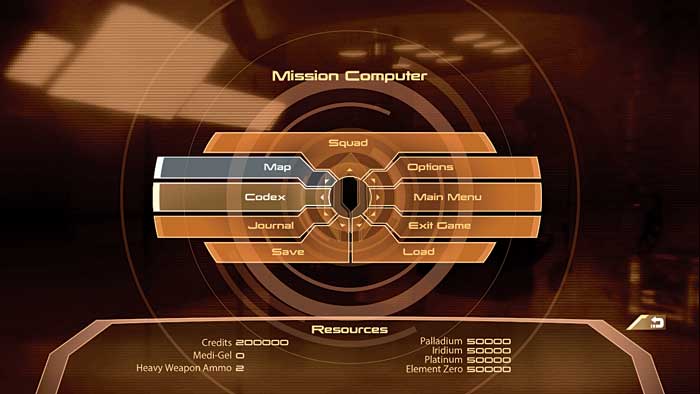
When you pause the game, you bring up the mission computer.
From here, you can access a wealth of information and updates, save your game, or load a previously saved game. (If you load a previously saved game while playing, you will lose any unsaved progress.)
There are other options in the computer, too, such as a journal and a codex.
Journal: Use the journal to keep track of the task at hand as well as all extra assignments you uncover while exploring the galaxy. The journal is split into two sections—missions and assignments.
Missions directly related to the main story are listed in the missions section. Browse through each primary mission to see the list of uncovered objectives in that mission.
You can have multiple primary missions at one time, such as when you are tasked to recruit additional squad members.
The assignments tab of the journal is where you keep track of all small jobs you pick up while on main missions or exploring cities.
You will also pick up assignments from your private terminal on your ship and discover short missions when scanning worlds.
Codex: The codex stores the wealth of information about the galaxy you uncover while on your missions. You receive new codex entries all of the time, such as after speaking to somebody or scanning an object.
The codex is divided into primary and secondary tabs. The primary tab is where you store information about subjects directly related to your mission.
The secondary tab is background information about various aspects of the galaxy, such as planets you scan or aliens you have little contact with.
Squad: If you want to get a close look at Shepard or any of the members of the commander’s team, access the squad here.
You bring up a portrait of Shepard and an overview of important information, such as current level and all powers purchased with squad points (more on powers later in this chapter).
If you have squad points to spend on new powers, you can do so from this screen. While on a mission, you can only access profiles for current members of the away team.
On board your ship, you can access the entire squad through your private terminal to check out their current state and to allocate points toward powers.
The squad screen also has the face code that you can use to share with your friends.
Map: Select this to see a map of the current area. The map option only works when you are in cities or on your ship. The map option is grayed out when you are on a mission.
However, this guide contains a number of useful maps for locations visited on missions, with useful notations, such as the locations of important items.
Options: The options menu lets you adjust video and sound options within the game, adjust controls or online settings, or quit your game.
HUD
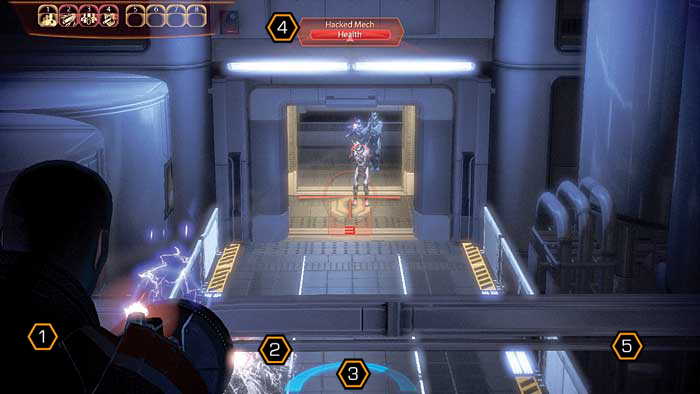
While on a mission, you have several critical pieces of information on your screen in the heads-up display, or HUD. Pay attention to the meters and intel featured on the HUD, especially in combat situations—it may just save your life.
Here are all of the features of the HUD when in combat:
1. Current Weapon: This is your currently selected weapon and the amount of ammo in the current clip as well as the total amount of ammo you have for that specific weapon.
2. Shields: If you have shields up, their current condition is displayed here. When this meter empties, you are unprotected. Getting shot or smashed will inflict damage.
When you take a critical amount of damage, the edges of the screen redden. Immediately seek cover!
3. Squad: Your current squad is here. Next to the portraits is a meter that shows their shield strength. If the squad member has biotic capabilities, the current state of cooldown is also shown here.
When a portrait turns red, that squad member is without shields and being attacked. When it is gray, the squad member has fallen.
4. Enemy: When you train your weapon on an enemy, the current state of your foe appears here. You can see how much shielding, barrier, armor, or health the enemy currently has.
5. New Intel: When you receive a new object, discover a new object, or learn a new codex entry, a small notice appears down here.