
Mass Effect (PC) Guide Essentials Spectre Orientation Department
Mission Computer
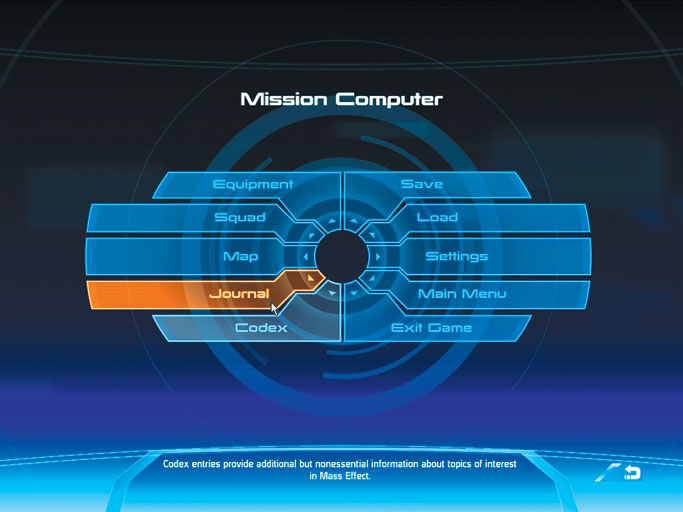
Agents can access their Mission Computer while on the Normandy, or during away missions by pressing [Esc].
The Mission Computer is specifically programmed to handle all of your in-game needs including your Journal, Codex, Equipment, Squad, Load, Save, Map, and Options.
Journal
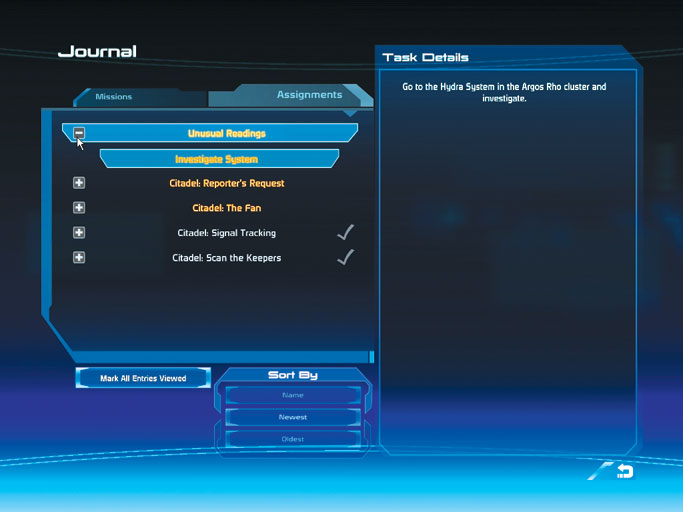
A Spectre’s responsibilities lie primarily with the fulfillment of missions, as presented in the Journal’s Mission tab. It tracks all the critical path missions required to complete the ultimate task of saving mankind from utter extinction.
However, agents can choose to undertake many assignments (varying from very easy to extremely difficult) to assist in building their intragalactic reputation and increase personal experience.
Taking these assignments earns agents tons of extra credits to assist in the procurement of some really big guns! Assignments are separate from the main story; they are purely optional but provide a deep experience for those agents who want to explore all the systems in the known galaxy.
Codex
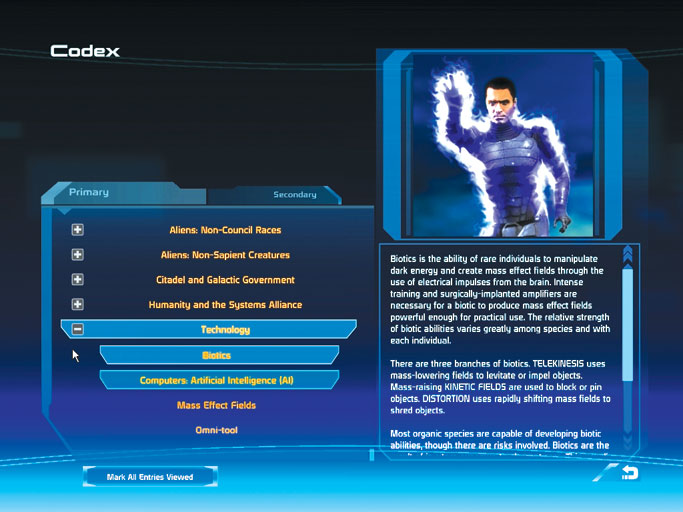
Agents who travel widely across the galaxy and readily investigate their surroundings collect a vast array of new knowledge on topics ranging from extinct alien races to FTL drives to distant planetary systems.
Each time the agent encounters a new subject, the Codex icon flashes briefly on the right side of the HUD, indicating that a new entry is now viewable in the Codex.
Equipment
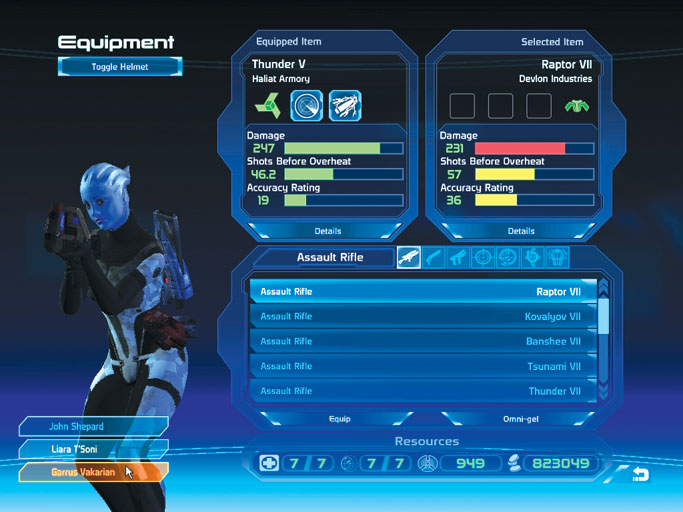
Agents will use the Equipment screen to outfit themselves and their squad members with any gear that was either bought from stores or collected as the spoils of war.
There are two main parts to this screen: the Equipped Item box and the Selected Item box. The latter is linked directly to the list of available items currently displayed.
The Equipped Item Box shows context-sensitive attributes of the item currently on the agent. Icons for installed upgrades and the item’s attributes (weapons, for example, always list damage, overheating limits, and accuracy near the top).
The lower section of the box shows the Upgrade command, toggle command for the armor’s helmet, and also the the command to view the item’s text description.
The Selected Item box and its associated item list on the screen’s right side shows all the items of a particular class (i.e., armor, shotguns, etc.) you’ve obtained and the relevant stats of each object in the list when it is highlighted.
Squad
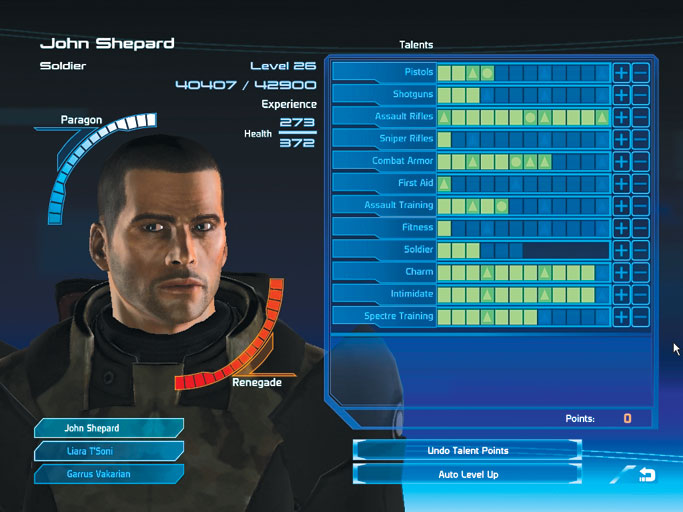
Use the Squad screen to view one of the three agents in the current squad. Only the main character has the Paragon and Renegade bars but the rest of the display is the same. View the agent’s current health, level, and experience point breakdown.
But most importantly, this screen is where Talent Points are assigned their slots in the Talent tree.
Each time a character levels up, points are awarded to improve the class-specific talents. If a Talent bar is grayed out, it means you haven’t spent enough points in an associated talent to unlock it.
Note that each locked Talent bar is unlocked by spending enough points in the talent right above it in the list. Initially only the first few ranks in each talent will be available; the rest will be grayed out. Every time you gain a level, one more rank becomes available.
During point assignment, if you mistakenly assign a point or change your mind, click the minus button to remove the last point placed.
You may then allocate it elsewhere. Be warned, though: once you finalize point allocation by leaving the Squad screen, those points are set for the rest of the character’s current career.
Map
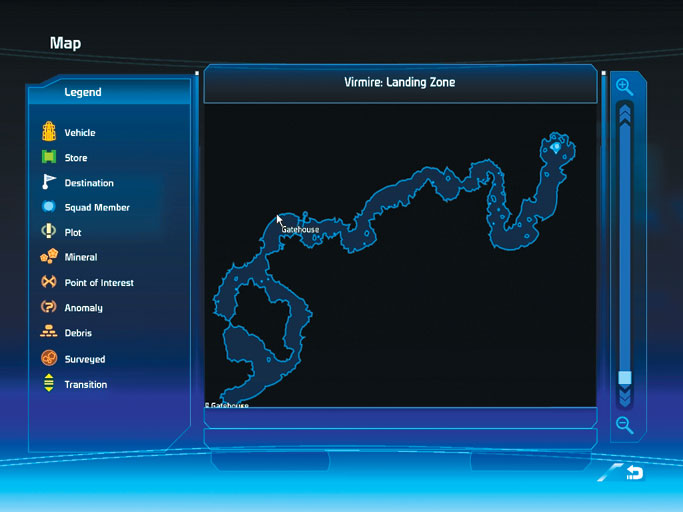
Shepard’s position can be viewed on the Map screen. Only the current level is displayed, so you can’t switch to upper or lower levels that you’re not currently standing on.
A complete legend is displayed on the left side of the screen and zoom controls are activated by using the mouse wheel or scroll bar on the right side of the map.
To help you find your way around, flag a destination anywhere on the current map by locating it with the movable targeting cursor and pressing [1]. The destination marker is a toggle, so when you’re done with the marked location, press [1] again to clear the flag.
Load
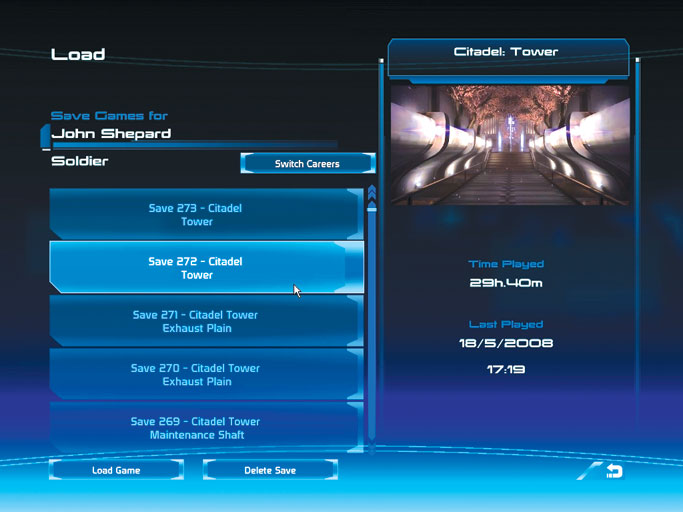
The Load screen tracks your previously saved games from the current career. When selected, each save file displays the physical location the squad was in, game time played so far at that save point, plus a last played date to track your progress.
Settings
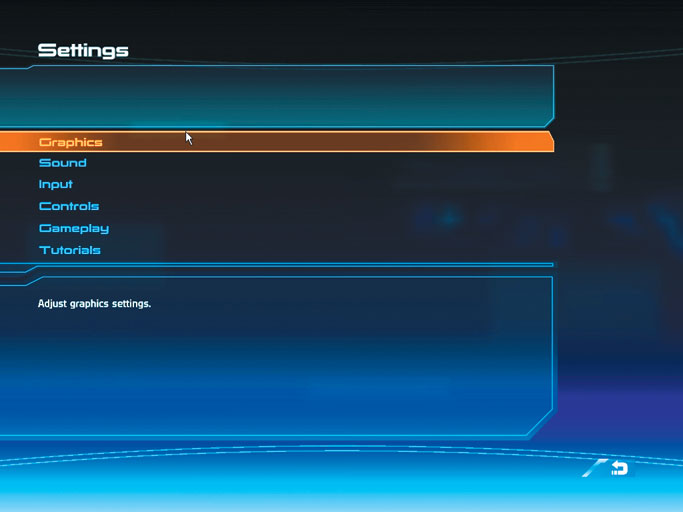
The Settings screen provides the ability to change the settings or career options as discussed in a previous section. Other settings sets include:
Graphics
Sound
Input
Controls
Gameplay
Tutorials
Default settings are recommended for most users, however, more experienced players can use some settings to fine-tune their experiences in Mass Effect, such as adjusting music volume in relation to sound effect volume, increasing the sensitivity of camera and sighting movement for experienced FPS gamers, even adjusting graphic effects such as film grain to change the way the video looks on your monitor.
Test the various video settings on your display to ensure you’re getting the best possible look into the world of Mass Effect.
Save
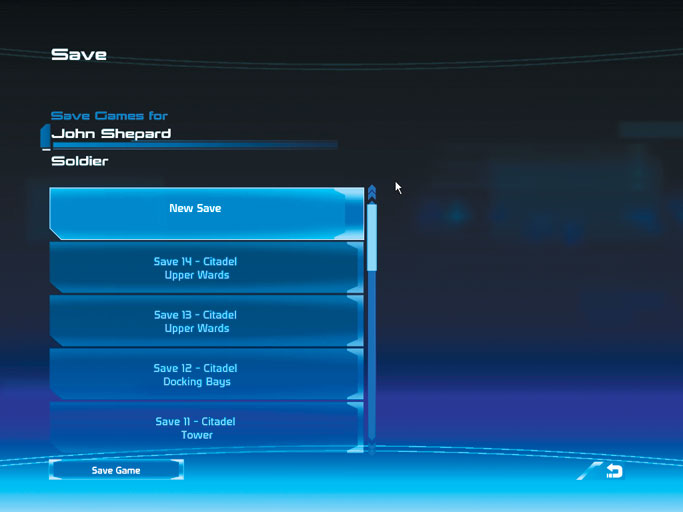
You can save your game at practically any point, with a few exceptions: You cannot save during combat, nor can you save when you are in an elevator or any other transition point between two maps. In either of these cases, the "Save" option is grayed out on the Mission Computer.