Gears of War 2 Guide Multiplayer Warfare
Playing With Others
The addition of multiplayer gaming makes a great game like Gears of War 2 that much better, giving you the chance to test your skills against players from around the world—or those sitting next to you. Whether you want to play split-screen with a friend, set up a System Link party, or go online with Xbox Live, this section has you covered. Keep reading for explanations of the gameplay options, what the different modes allow you to do, and for information on setting up playlists and more.
Server Options
tracking stats
If you want your stats tracked, play on either Public or Private Xbox Live. Choosing Local does not save your score to a leaderboard.
Public Xbox Live
Create a party of up to five players, set up a Playlist and enter a match against another team of five based on the team’s composite TruSkill rank. You can also filter for mode types that you specify in the Playlist settings. Players vote on which gameplay mode and map to play once a match is set up. This is a marked departure—and improvement—from the way ranked matches were handled in Gears of War. Now you can move from match to match as a team and return to the Multiplayer Party Lobby as a unit after each map. Take on other teams comparable to your team’s skill and earn up to five different ranking icons. Keep in mind that Public Matches are akin to “Ranked Matches” and you will suffer a penalty for exiting a match prematurely, so man up and finish what you start!
The Playlists group gameplay modes in the following manner (Playlists can change at any time; this is the layout at game release):
- Players Choice: Allow the players to vote on any of the modes, not including Horde or Wingman.
- Elimination: Warzone, Execution, and Guardian.
- Territories: Annex, King of the Hill, and Submission.
- Horde: Horde.
- Wingman: Wingman.
- Downloadable Content: Any gameplay mode, played on maps available for download through Xbox Live. All players must have the downloadable maps.
- Flashback Players’ Choice: Contains the five remake maps from the original Gears of War game.
Private Xbox Live
This mode functions the same way a private, unranked match in the original Gears of War, except with added functionality and increased user-friendliness. For those new to Gears of War, a Private Match is one you limit to people on your Friends list who you then invite to form the party. It doesn’t show up on the Public servers and cannot be joined by anyone you don’t invite. Form a group of up to 10 players in the Multiplayer Party Lobby, pick your settings, have a single host make the selections (or put the map up to a vote), and use bots to fill out the teams if you want to.
System Link
Select this option if you have multiple Xbox 360 consoles connected directly to one another for System Link play. This is also the LAN method of playing.You can have up to two players on each console. For full instructions, consult the user’s manual included with your copy of the game.
Local
Local has all the same functionality as a Private Xbox Live match, except that you play offline with bots. It’s possible to add a second player to the lobby in split-screen, but that person must sign in with his or her profile on the main menu screen. Stats are not saved in Local matches.
Gameplay Settings
- Total Rounds: Set the match length to last between 1 and 15 rounds. This is not a “best of” scenario, nor is there a mercy rule. Shutouts are possible. The total number of rounds selected is the number you play, so make sure everyone in the lobby is committed to playing however long it takes—nobody likes a quitter, so leave before the match begins or see it through to the end.
- Number of Bots: Use between 0 and 9 bots to fill out the teams with AI-controlled characters. There are no bots on Public Xbox Live matches.
- Bot Difficulty: Choose between Casual, Normal, Hardcore, or Insane difficulty settings for the bots in your match. Bot AI settings in Multiplayer affect actual intelligence, accuracy, and so forth—they always play by the same rules as humans regardless of difficulty.
- Bleed-Out Time: Choose how long it takes downed players to bleed out (or get back up in Execution or Wingman matches). Choose between 5, 10, 15, 20, 30, and 60 seconds. We recommend a bleed-out time of 10 seconds, but it’s strictly your call.
- Friendly Fire: Turn this setting on if you want teammatess to be able to damage each other with their weapons. Friendly fire adds a realistic quality to competition that can be fun. However, it can also be abused by people who purposely perform team-kills to grief other players. Turn this setting on with caution.
- Map Selection: Either the host can pick the map or the choice is opened up to player vote. The map with the most votes gets played. If there is a tie, a map that didn’t receive votes is chosen at random.
- Weapon Swapping: The default setting has weapons cycle between an initial and an alternate weapon assigned to each weapon spawn location (some don’t alternate). However, you can lock the weapons into a non-cycling mode or even customize the gameplay by swapping the weapons any way you like.
weapon selection
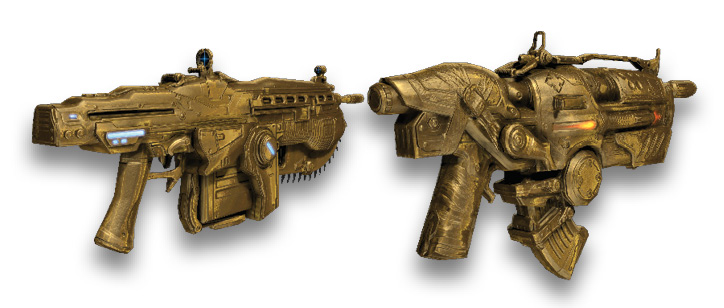
One big change from Gears of War is that players can now select the weapon with which they start. Also, note that gold versions of the Lancer (only in the Limited Edition of the game) and Hammerburst (accessed from a token given at Midnight Madness events on launch day) are also available.
Character Selection
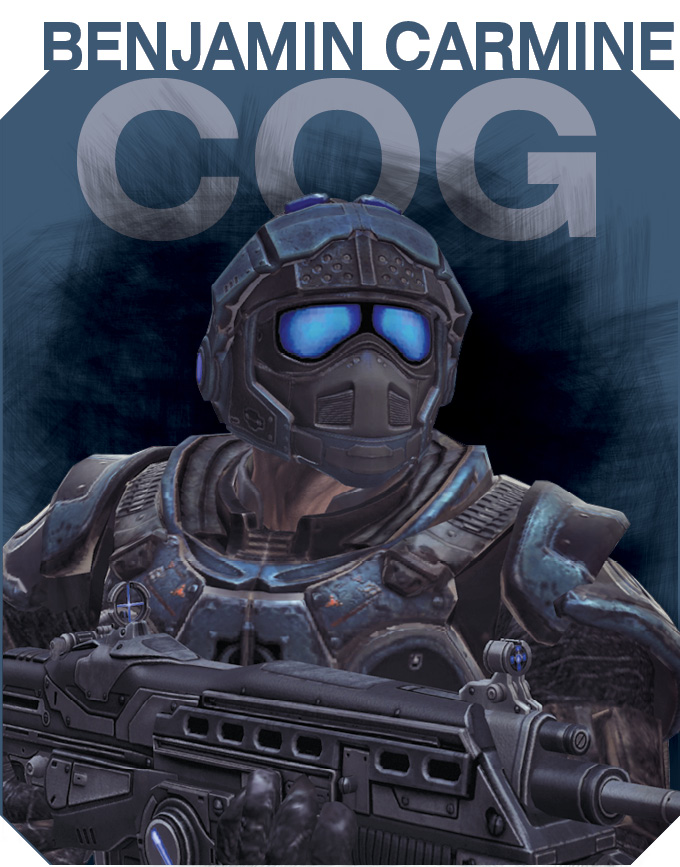
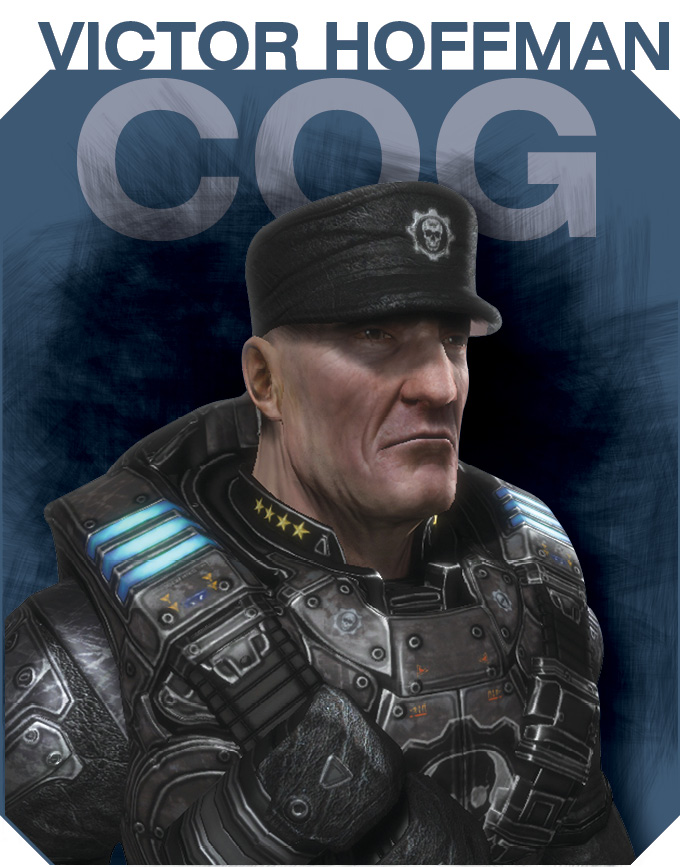
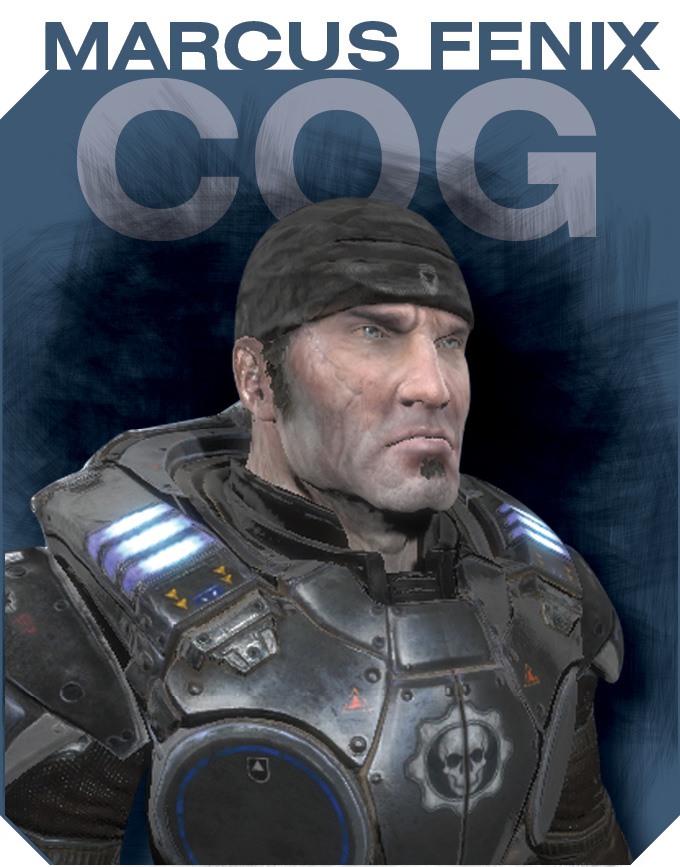
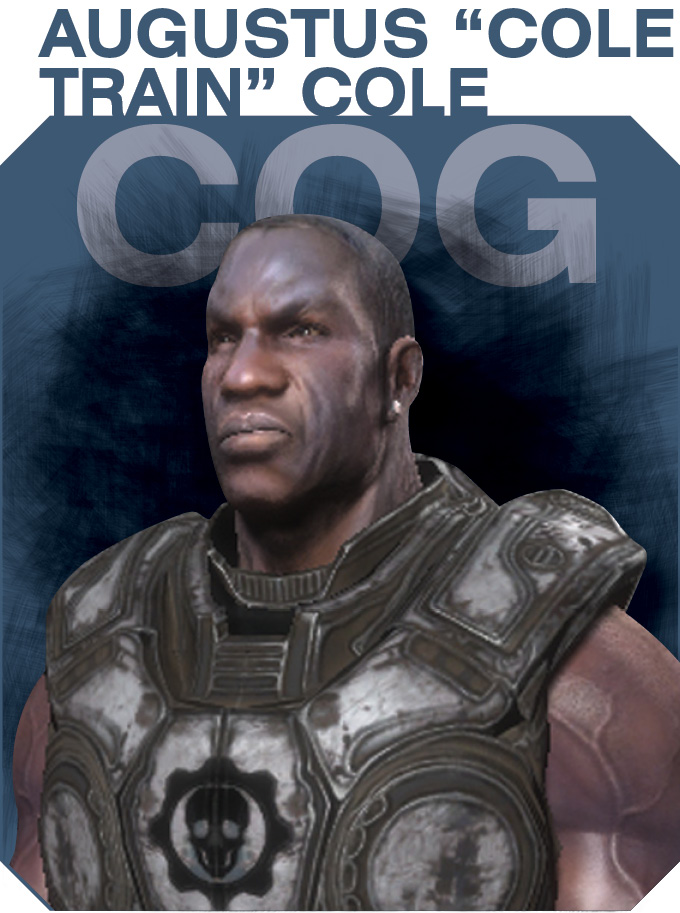
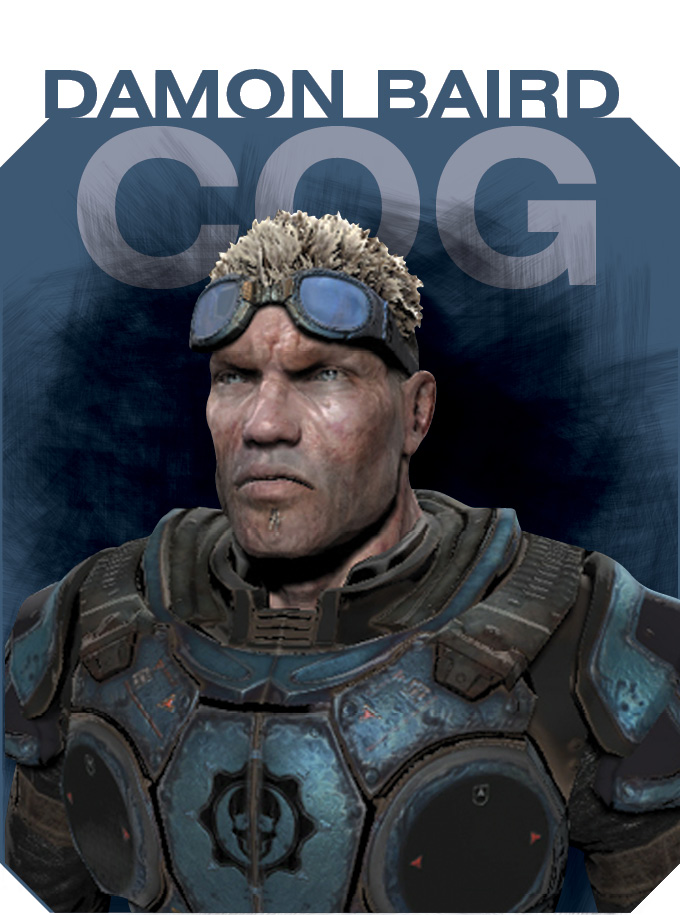
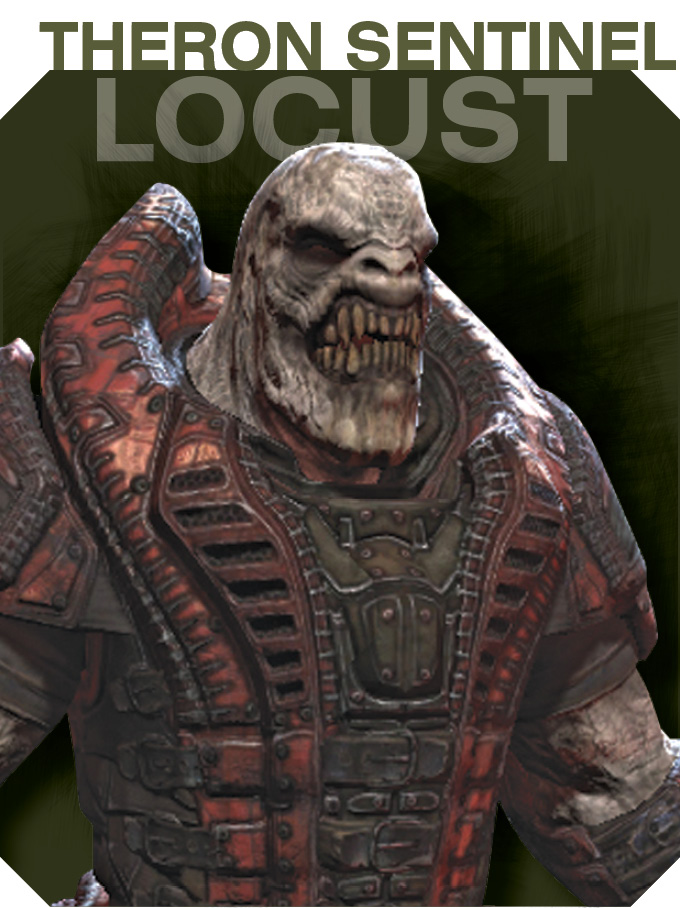
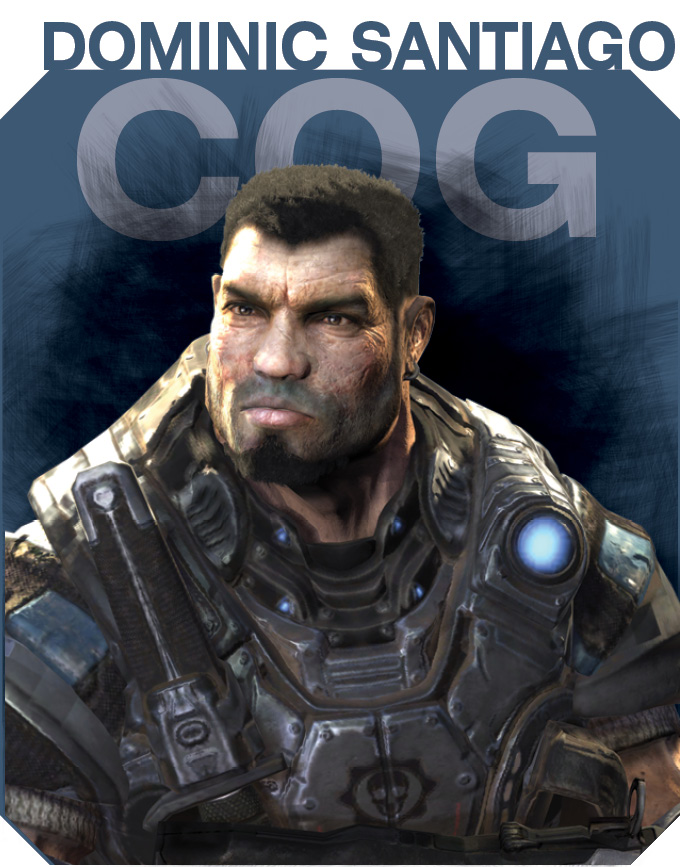
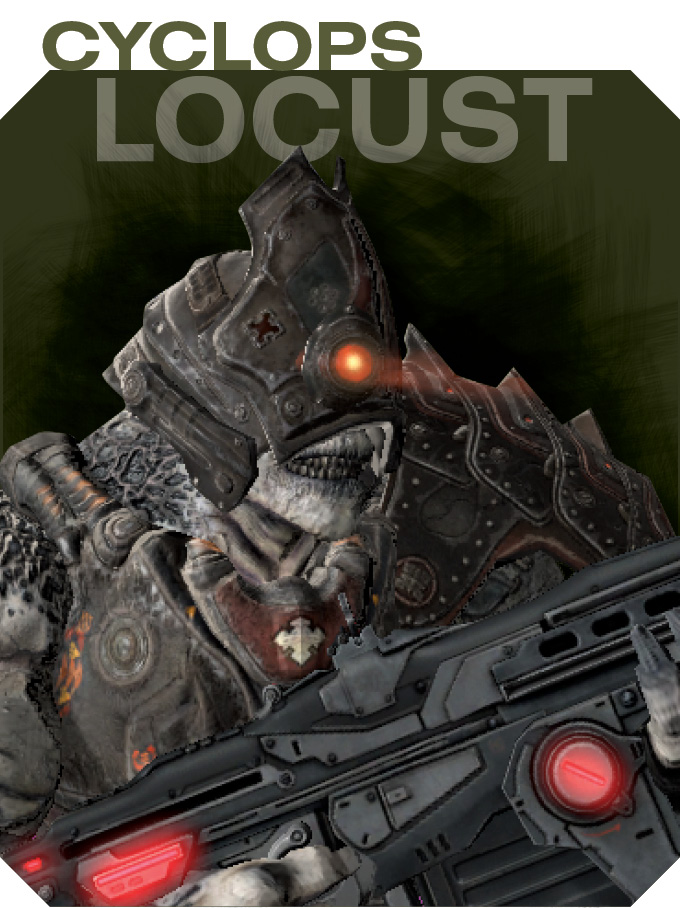
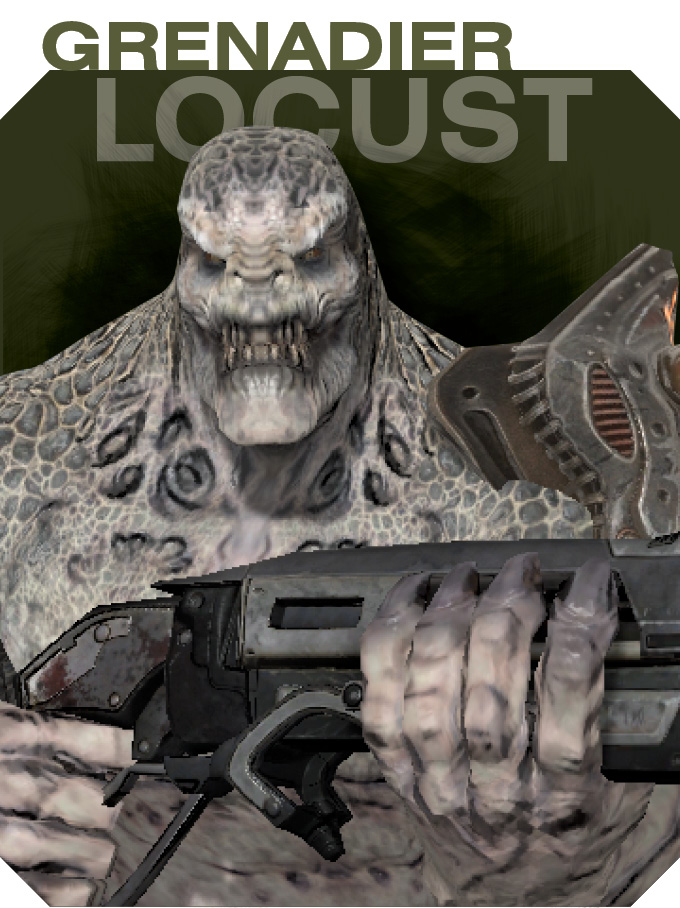
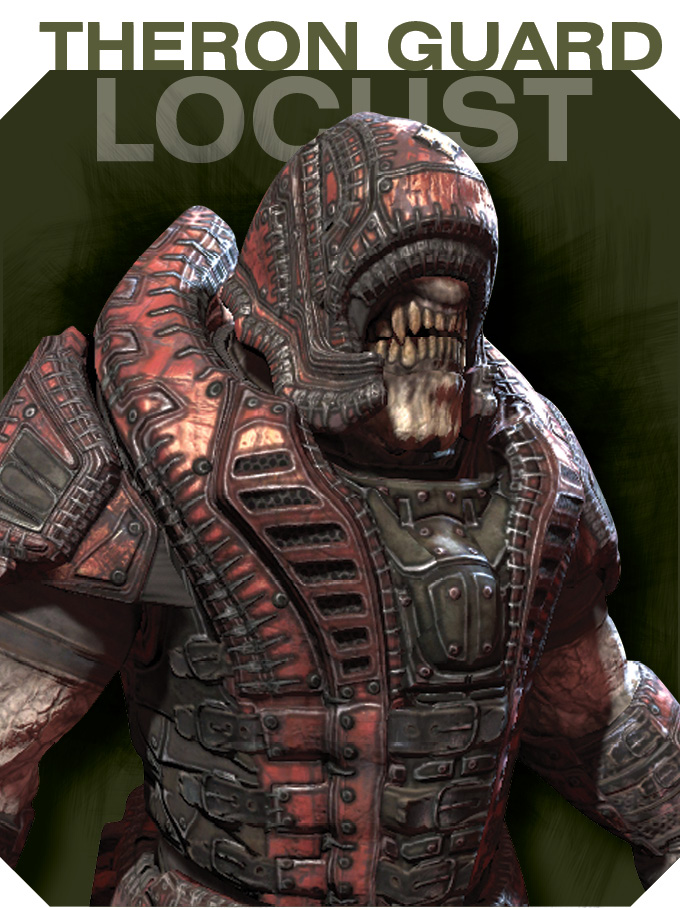
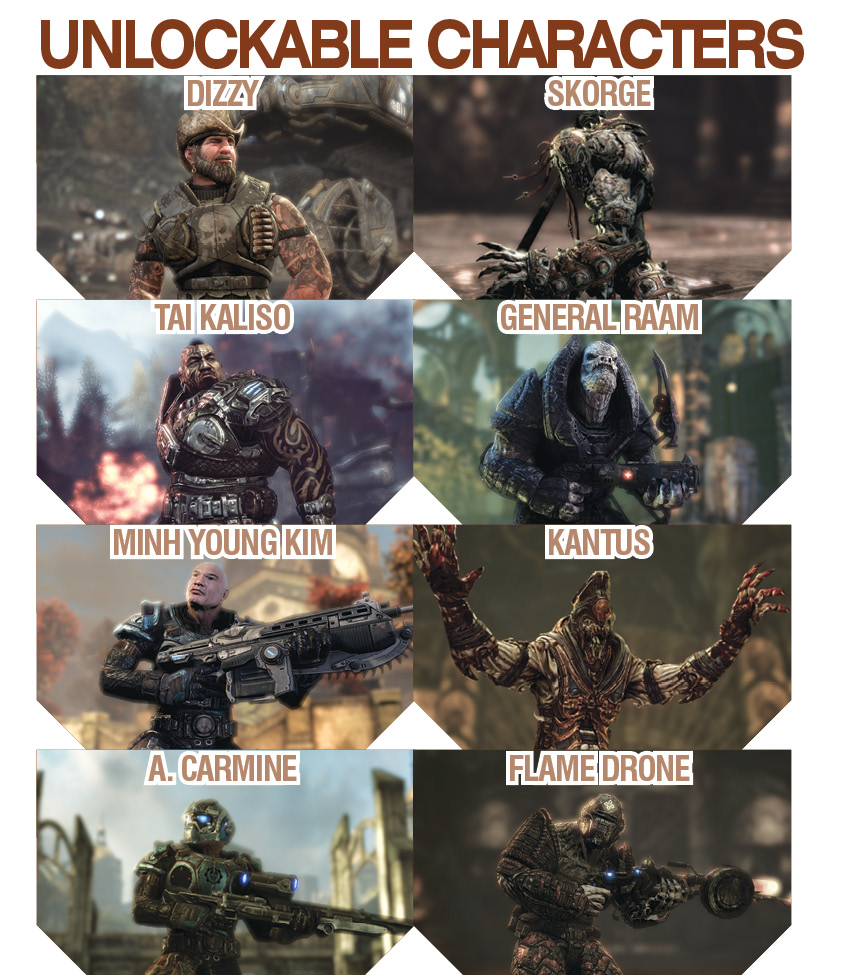
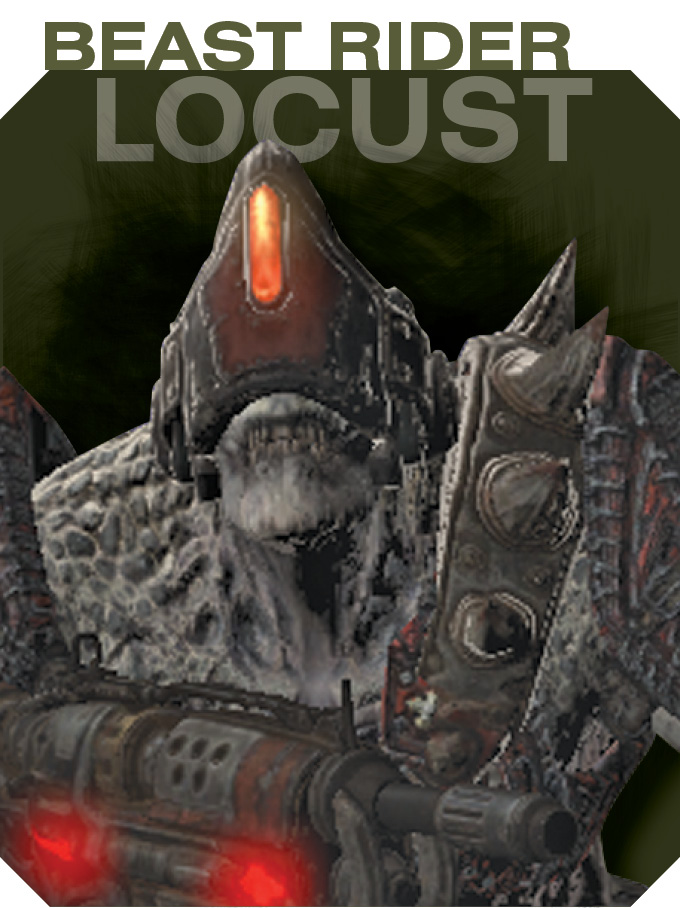
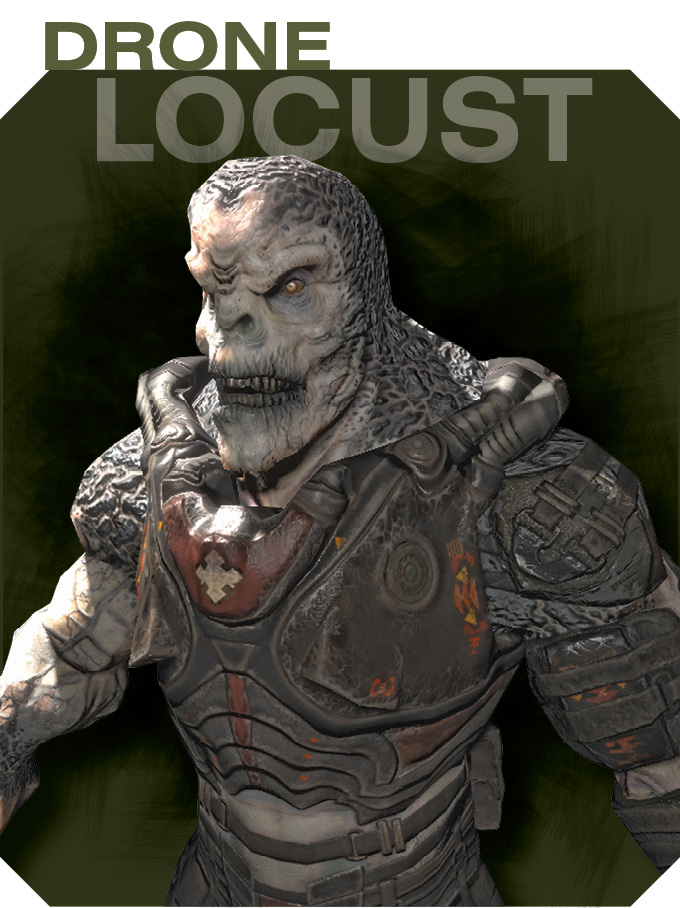
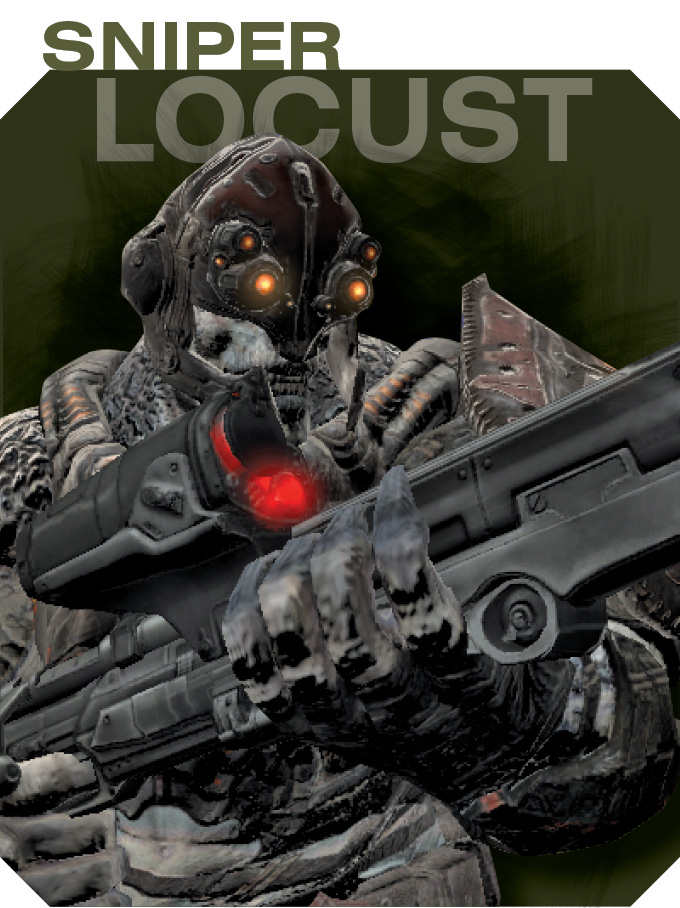
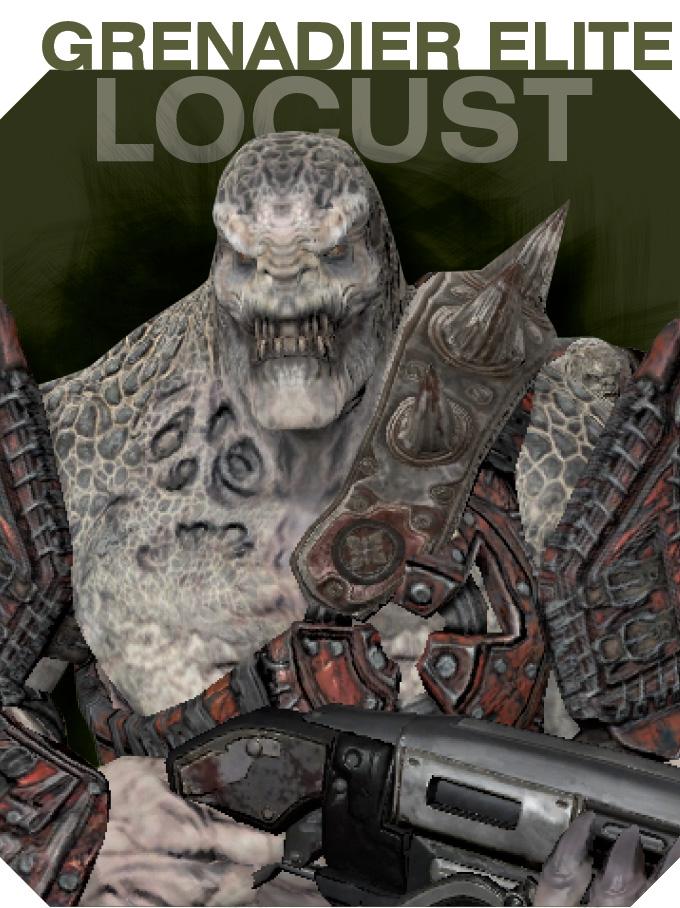
Players can select from a number of COG and Locust skins for their onscreen character. Use the Multiplayer Settings within the Options screen to customize your preferences, saving you from cycling to it each time you play.