
STAR WARS™ Battlefront™ Guide Introduction
Getting Started
What kind of gamer are you? Are you new to shooters? Maybe you’re a Star Wars fan, and you want to get into Battlefront to get the full Star Wars experience. Either way, there’s nothing to worry about because this official strategy guide will help you through both the basics and the advanced tactics of Star Wars Battlefront. Get a feel for the game by playing through the training missions, and you will have a grasp on the mechanics in no time.
This guide teaches you everything from how to navigate the menus to how to use your weapons and special characters in ways that will give you the advantage over other players. Live the full experience that is Star Wars Battlefront, and look through these tactics and strategies to gain the upper hand and the opportunity to learn each piece of this game efficiently and effectively. Whether you’re a brand-new player to first-person or third-person shooters or practically an expert, this guide will show you some things you might never have known. Read carefully, don’t be afraid to practice some of these tactics in trial runs, and most of all, remember to have fun. May the Force be with you!
Interface
Game Screen—On Foot
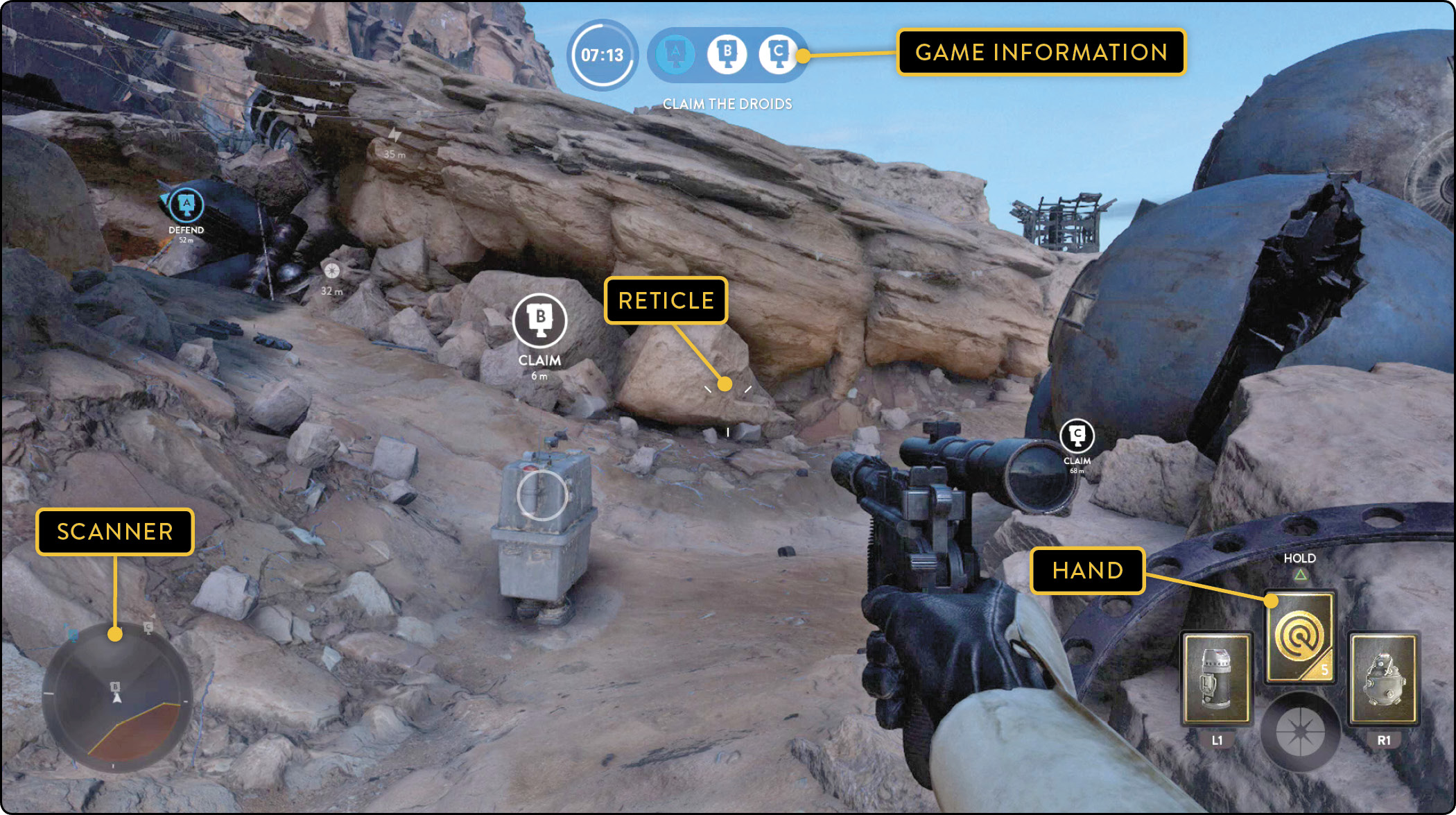
Game Information
The top area of the screen in reserved for relevant game information, such as scores, time, or remaining lives, depending on your current game mode.
Reticle
The reticle in the center of the screen indicates where you are aiming. Its appearance changes depending on the type of weapon you have equipped.
Heat Gauge
As you fire your blaster, a Heat Gauge appears under the reticle. As you continue firing, the gauge grows and turns red in color. Ceasing fire for a short period of time automatically reduces the heat. Fire for too long, and your blaster overheats, preventing you from firing until it cools back down. If your weapon overheats, an active yellow sequence is triggered. Press the button indicated on the screen when the falling dot reaches the yellow area of the gauge to cool down your weapon. Should you succeed, this sequence increases in difficulty for each consecutive overheat. However if you fail, your blaster will fill with extreme heat and render the weapon completely useless for an even longer period of time.
Hand
This shows your current hand of Star Cards. The background of a Star Card empties when used and gradually fills as the cool-down time of the Star Card passes. Some cards require charges before you can use them; you can find Charge pick-ups in various levels.
Health
As you take damage from enemy attacks, your health decreases. It regenerates if you avoid taking damage for a short time.
Scanner
The scanner shows the locations of both enemies and allies. Blue objects are allies, a yellow dot indicates your partner, and red objects are enemy forces. Sections of the scanner flash red to indicate an adversary in that direction. As the foe gets closer to your location, these red flashes move toward the center of the scanner. Objectives appear on the scanner as white dots when neutral or as blue or red, depending on which team controls it.
Game Screen—In Vehicles
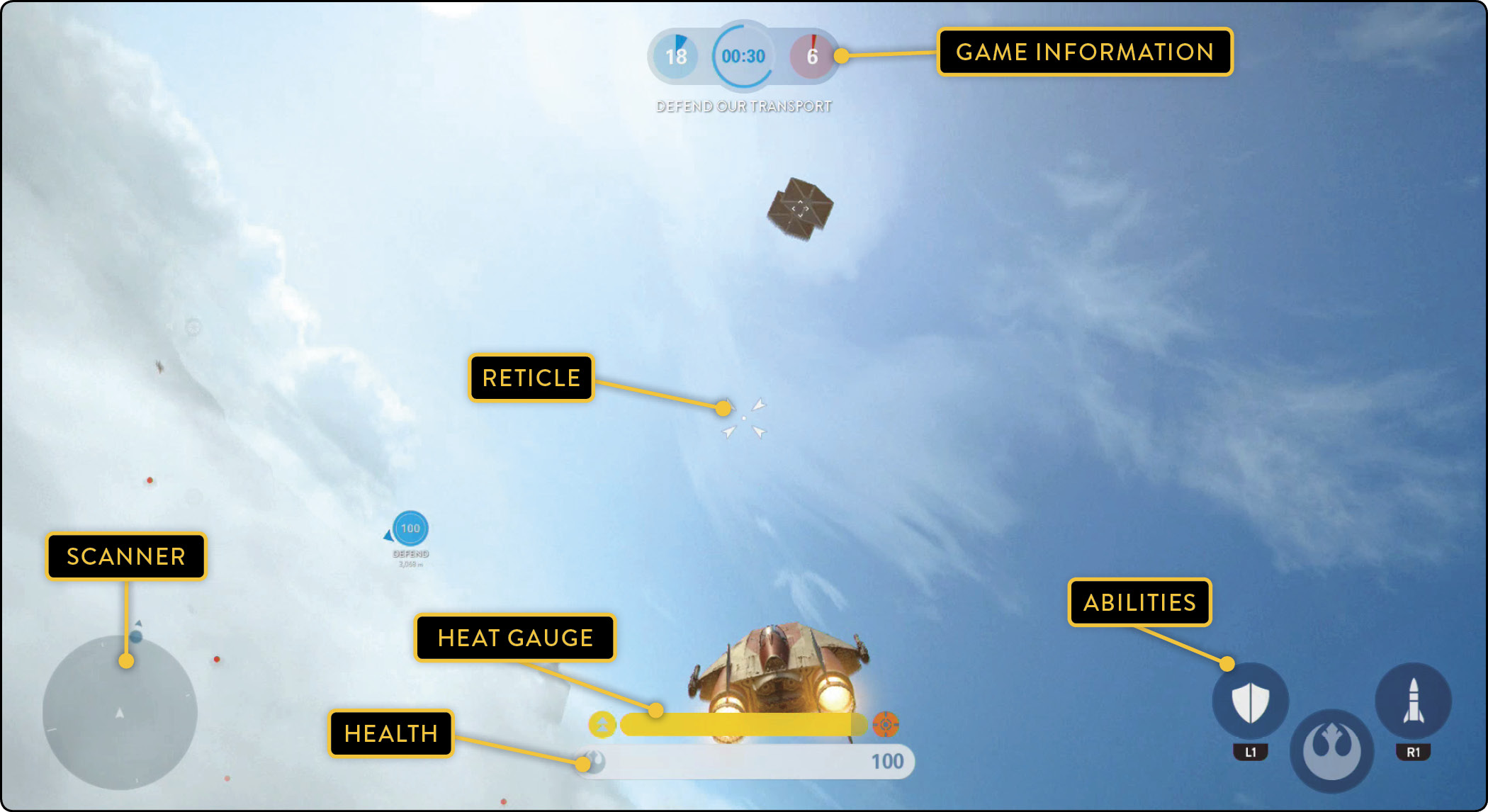
Abilities
These icons represent your vehicle’s unique offensive and defensive abilities. Press the left button to activate the left ability, press the right button to activate the right ability, and press the top button to activate the middle ability. Each ability requires a brief cool-down time before you can use it again.
Throttle (Air Vehicles Only)
This indicates your current speed. Move the throttle stick or keys up or down to increase or decrease your speed.
Note that increasing the throttle channels power from the weapon systems to the engines, reducing the damage your weapons can inflict. Inversely, decreasing the throttle channels power from the engines to the weapon systems and increases the damage of your weapons.
Health
Your health decreases as you take damage from enemy attacks. To refill your health during Fighter Squadron and Mission game modes, find and collect a Vehicle Repair pick-up.
Scanner
The scanner shows the locations of both enemies and allies. A yellow object is your partner, blue objects are allies, and red objects are enemy forces. Sections of the scanner flash red to indicate enemy infantry, while enemy heroes and vehicles are displayed as red dots. Your allies appear as blue circles, regardless of distance.
Note that in Fighter Squadron, enemy ships appear only as red directional flashes on the scanner.
Collectibles (Missions Only)
In single-player game modes, these icons indicate the total number of collectibles hidden in a mission and how many you have collected.
Evasive Cool-down (Air Vehicles Only)
You can perform Evasive Maneuvers in certain air vehicles, such as X-wings or TIE fighters, by pressing the left directional or function button, the up directional or function button, or the right directional or function button. This icon represents the cool-down time until you can perform another Evasive Maneuver.
Star Cards
Star Cards assembled into a hand represent different weapons and equipment you can take into battle. A hand consists of two Star Cards and one Charged Star Card.
To view your Star Card collection or purchase new Star Cards, enter the COLLECT menu, select UNLOCKS, and then select STAR CARDS. Highlight a card to view its effects, unlock cost, and upgrade cost (if available).
You can use the left and right Star Cards repeatedly during a battle, as they are limited only by their cool-down time.
The center Star Card slot is reserved for powerful cards that require you to find a Charge token on the battlefield before you can use them.
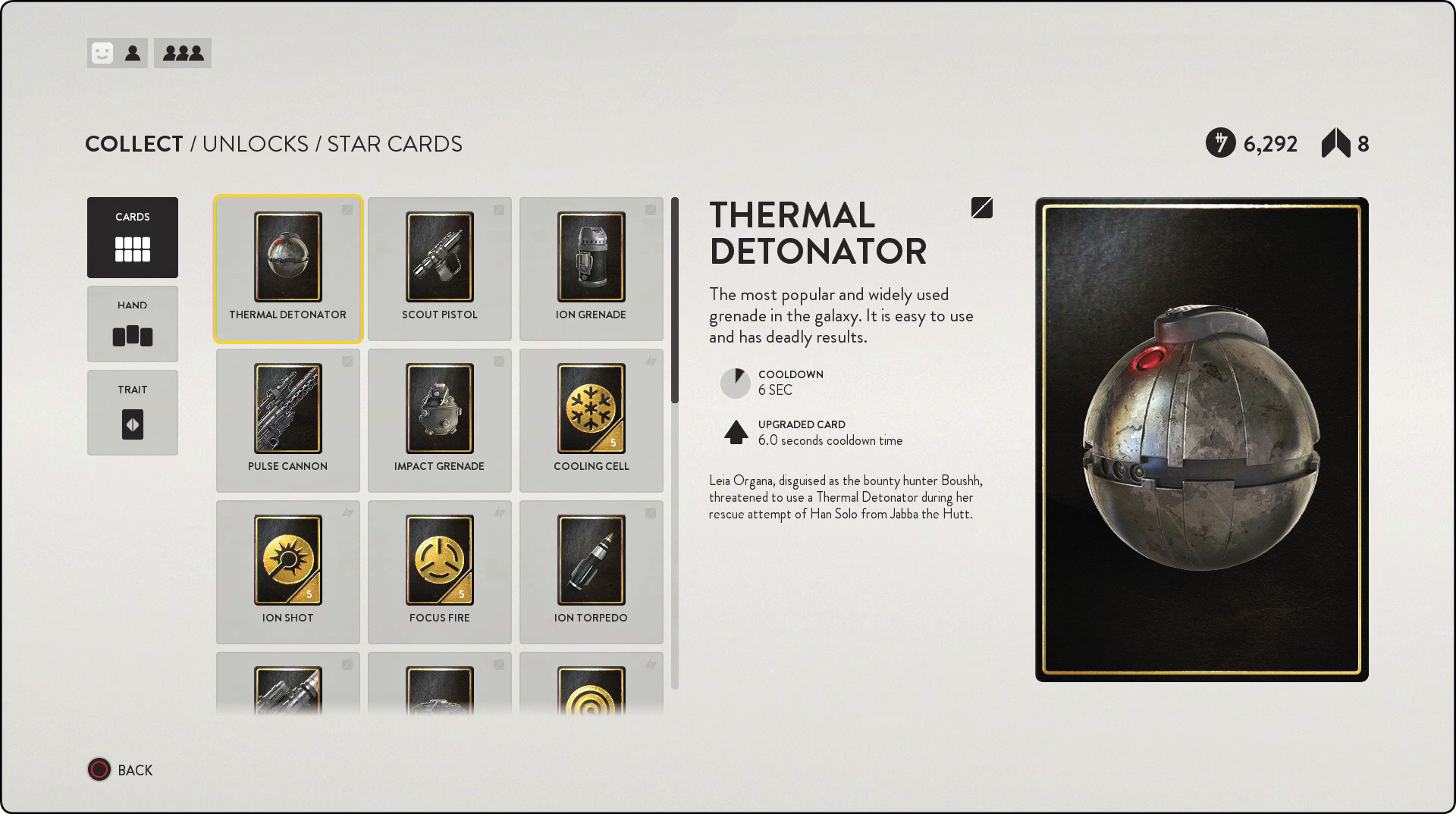
Unlocking Star Cards
Each Star Card requires a certain amount number of credits to unlock.
Upgrades
Certain Star Cards can be upgraded. Upgrading a Star Card increases the benefits in some way, such as decreasing its cool-down time, increasing the time it is active, or increasing its damage potential.
Creating Hands
Select HAND from the Star Cards menu, and then select a slot to assign any unlocked Star Cards to your hand. You can create two sets of cards to bring into battle. If you have a partner, you also have the option of selecting his or her chosen hand and potentially trying out Star Cards you have yet to unlock.
Forming a Party
Select the three-person icon in the upper-left corner of the menu screen to bring up a list of your friends currently online, and then select their names to invite them to your party. A party can contain up to eight players.
Partners
You can set one of your party members as your partner by selecting the single-person icon in the upper-left corner of the screen, located immediately to the right of your player icon.
If a player dies, his or her character can spawn near their partner if the partner is alive and not in an immediate firefight. Partners also share their first hands with one another, potentially allowing access to Star Cards you have yet to unlock.