
Atari Flashback: The Essential Companion Guide 1980
Video Checkers

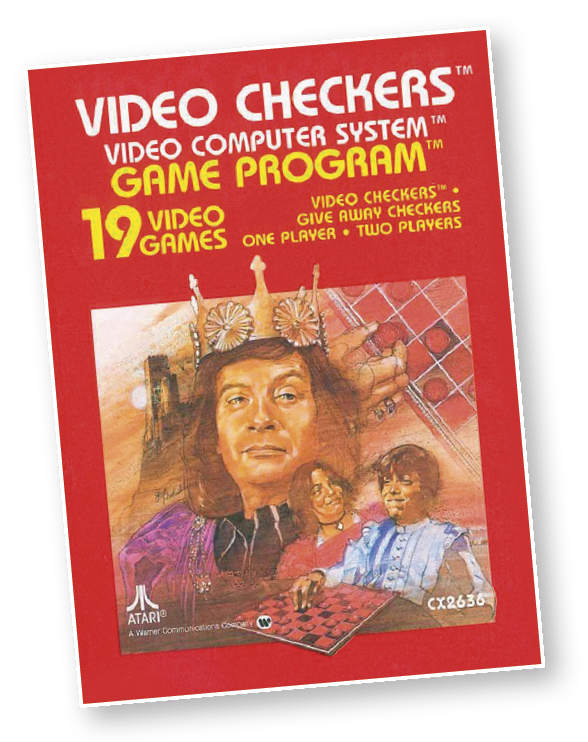
Learn winning checkers. Video Checkers offers you nine levels of difficulty in a game that has challenged young and old for centuries. At level one, the computer plays beginning checkers. At level nine, you’re playing a master of the game.
About the Game
Video Checkers wasn’t just an algorithmically advanced electronic version of the popular board game, it offered a new game mode, giveaway checkers, and an optional color scheme used in professional games. Developed at Atari by Carol Shaw, one of the industry’s first female video game designers, Video Checkers could outplay the competition. One of those competitors was Activision’s version for the Atari 2600 created independently by Al Miller. Al Miller was a familiar name to Carol. Al interviewed Carol for her job at Atari!
Object of the Game
Capture all your opponent’s pieces before your pieces get captured.
How to Play
The computer plays by the standard rules of checkers. The most important rules are:
- A player must jump when able.
- A piece that jumps into the king row and is promoted to a king cannot continue jumping on the same turn.
- The game ends when one player cannot move. This could occur because the player is blocked, or because the player has no pieces left.
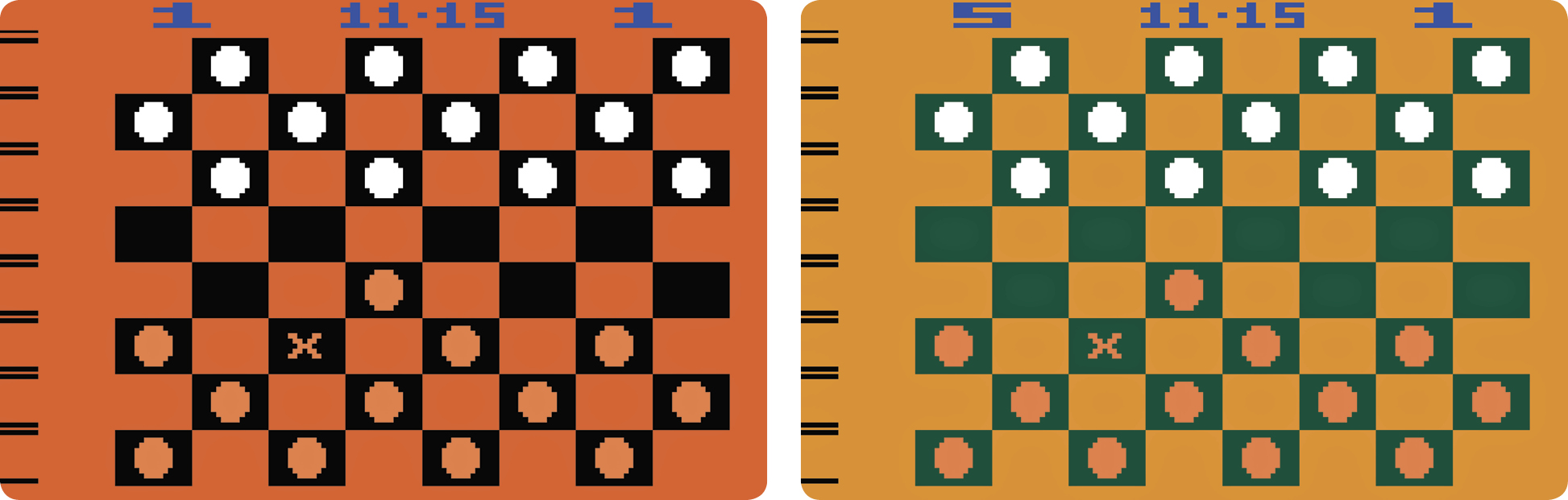
The checkers are usually referred to as “black” and “white”, regardless of their actual colors. In Video Checkers, the pieces are red and white. In amateur games (level 1 through 4), the board has black and red squares. In pro games (level 5 through 9), the official colors of green and buff are used. Buff is normally referred to as a moderate orange-yellow or a light to moderate yellow. The joystick is used to move the cursor and/or the checkers around the board. The cursor is a red or white “X.” The color of the cursor indicates whose turn it is. The cursor can only be moved diagonally on the black squares.

To move one of your checkers, push the red controller button when the cursor is in the same square as the piece you wish to move; this “picks up” the piece. Next, move the checker to the square you wish to occupy. To complete the move, push the controller button again. This “drops” the piece. Before you drop the piece, though, the computer will allow you to return it to the square from which it came and move a different piece. While it is your move, you may use the set-up mode to take back moves or rearrange the board. After you make your move, the computer will make its move.
To perform a jump, pick up the piece to be moved as described previously. After doing so, move the piece over the piece being jumped to the next empty square and push the controller button. For a multiple jump, continue jumping by moving to the appropriate square and pushing the button again.
The computer will not allow you to pick up a piece that cannot make a legal move or move a piece to the wrong square. Instead, it will make a buzzing or “razzing” sound. If you must jump, the letters “JP” for jump will flash at the top of the screen.
When the left difficulty button is set to the A position (set-up mode), the left controller button is used to select the piece to be placed in each square. First, move the cursor to the desired square. Next, hold the controller button down or press it several times until the desired piece appears.
Difficulty Options
Left Difficulty Button
Use the B position for normal gameplay; use the A position to set up the board. In set-up mode, use the left joystick to place pieces on the board wherever you want. Move the cursor to the square where you want to place a piece; it does not matter if the square is empty or occupied. Press the button on the joystick and the pieces of each color will flash in that square. When the piece you want is flashing in the square, release the button. To continue gameplay, change the left difficulty button to the B position.
The left difficulty button is not “checked” while the computer is working on the next move. This means that changing the button when the computer is computing a move has no immediate impact on the move.
Right Difficulty Button
In the B position, the left player in a two-player game, or a single player in a one-player game, is “black” and starts the game. In the A position, the right player in a two-player game or the computer player in a one-player game is “black” and starts.
Changing the right difficulty button when it is your turn to play will cause you to trade sides with the computer. The computer will take over your pieces and make the next move.
Computer Move
The length of time the computer takes to move depends on the difficulty level and the number of possible moves. The times given in the Game Table are approximate. The actual time for a move varies, depending on the current situation.
While the next move is being computed, the board will disappear from the television screen and different colors will flash on-screen. When the computer completes its move, the board reappears. The computer’s move is indicated by a blinking “X” of the computer’s color and a blinking computer piece. The jumped pieces, if any, will also blink. Your cursor will appear in your color. As soon as you move the joystick or press the controller button, the computer’s piece will stop blinking and the jumped pieces will disappear.
Game Options
In Games 1-9, the computer plays regular checkers. The computer’s skill level increases as the game number increases. Game 10 is for two players. The number of players for each game is displayed in the upper-right corner of the screen.
Games 11-19 are losing, or “giveaway,” checkers. As in Games 1-9, the skill level increases as the game number increases. The object of giveaway checkers is to be the first player to be unable to move by losing all of your pieces or by being blocked.
The game select button can be used in the middle of a game. When this occurs, the computer will continue to play using the new game difficulty level or variation. When the computer is computing its next move, the game select button has no effect.
Game Reset Button

Use this button to set up the checkers on the board for a new game or reset a game at any time. If the computer starts the game, it will pick its first move at random. To clear all pieces off the board, press the game reset button with the left difficulty button in the A position (set-up mode). Use the game reset button at any time, even while the computer is computing its next move.
Use the game select button to cycle through the games (displayed at the upper-left corner of the screen). If the game number is white, then the human player (or the left player) controls the white pieces on the board. If the game number is blue, then the human player is red.
|
Game Number |
Number of Players |
# of moves computer looks ahead |
Approximate Time for Move |
|
1 |
1 |
1 |
1.5 sec |
|
2 |
1 |
2 |
2 sec |
|
3 |
1 |
3 |
3 sec |
|
4 |
1 |
4 |
5 sec |
|
5 |
1 |
5 |
10 sec |
|
6 |
1 |
6 |
30 sec |
|
7 |
1 |
7 |
1 min |
|
8 |
1 |
8 |
4 min |
|
9 |
1 |
9 |
15 min |
|
10 |
2 |
-- |
-- |
|
11 |
1 |
1 |
1.5 sec |
|
12 |
1 |
2 |
2 sec |
|
13 |
1 |
3 |
3 sec |
|
14 |
1 |
4 |
4 sec |
|
15 |
1 |
5 |
6 sec |
|
16 |
1 |
6 |
14 sec |
|
17 |
1 |
7 |
30 sec |
|
18 |
1 |
8 |
2 min |
|
19 |
1 |
9 |
8 min |