
Atari Flashback: The Essential Companion Guide 1980
3D Tic-Tac-Toe

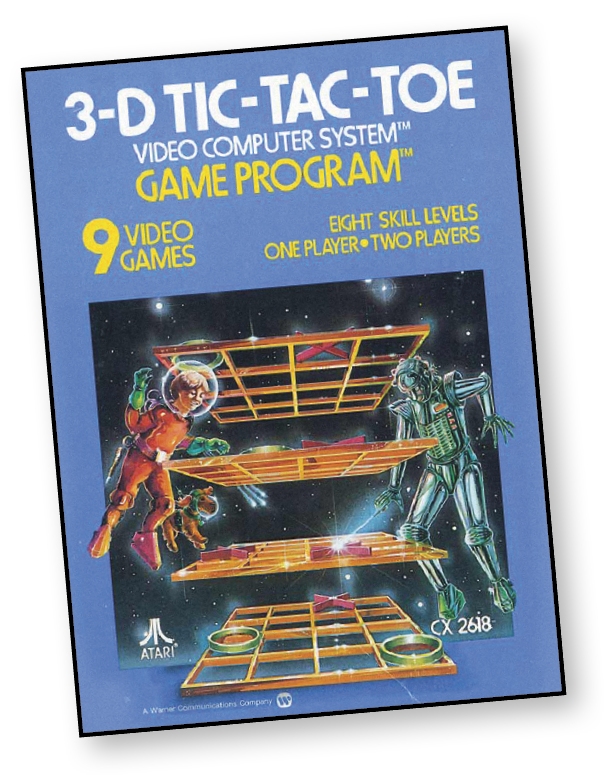
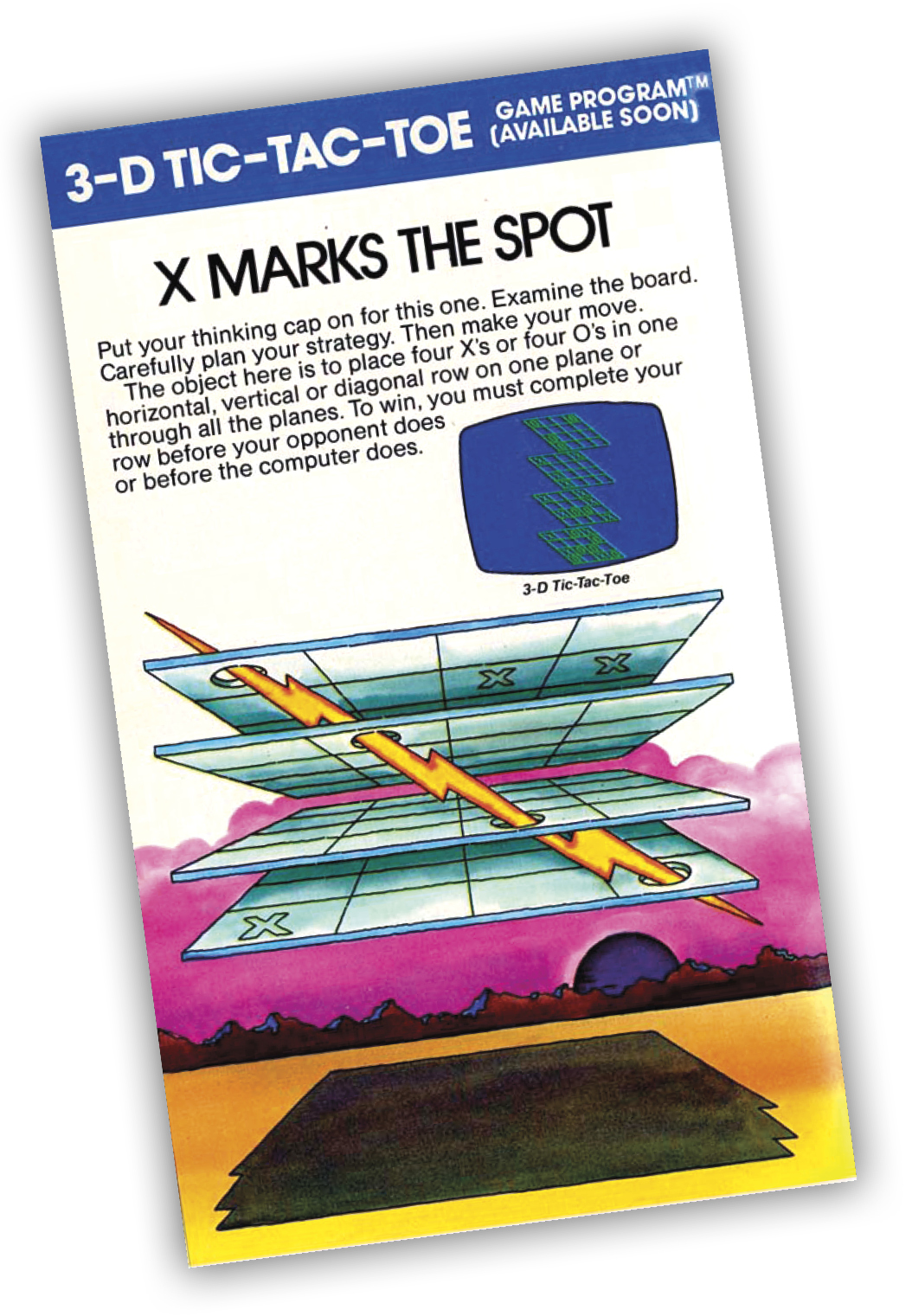
Put your thinking cap on for this one. Examine the board. Carefully plan your strategy. Then make your move. The object here is to place four Xs and four Os in one horizontal, vertical, or diagonal row on one plane or through all the planes. To win, you must complete your row before your opponent or the computer.
About the Game
Programmer Carol Shaw chose the superior 4x4x4 variation of 3D Tic-Tac-Toe over the original 3x3x3 variation. The former avoids the latter’s problem of the first player always winning if they choose a center square. Although not one of the Atari 2600’s more beloved titles, 3D Tic-Tac-Toe certainly ranks amongst its most distinctive.
Object of the Game
In this game, there is a perspective drawing of four square boards (or planes) displayed on-screen, which is intended to create a three-dimensional effect. Each board is a 4 x 4 grid. The object of the game is to place four Xs or four Os in one horizontal, vertical, or diagonal row. To do so, you can use one plane or all four planes. You must place four markers in a row before your opponent does (or before the computer) to win.
How to Play

To move the “cursor” (the blinking X or O) right or left, move the joystick right or left. This causes the cursor to wrap around (disappear on one side of the level or plane and appear on the other side). Move the joystick forward to move the cursor up from square to square, or to a new level as it reaches the top of a plane.
To move the cursor down in the same manner, move the joystick back. Put the joystick in a diagonal position and the cursor moves diagonally on the screen and from one level to another.
To place an X or an O on-screen, press the red controller button when the cursor is in the square you wish to occupy. The last move made is indicated by a blinking X or O in the appropriate square.
The computer will not allow a move to an occupied square. It will sound an error message when a player presses the controller button in an attempt to move into a square that is already occupied.
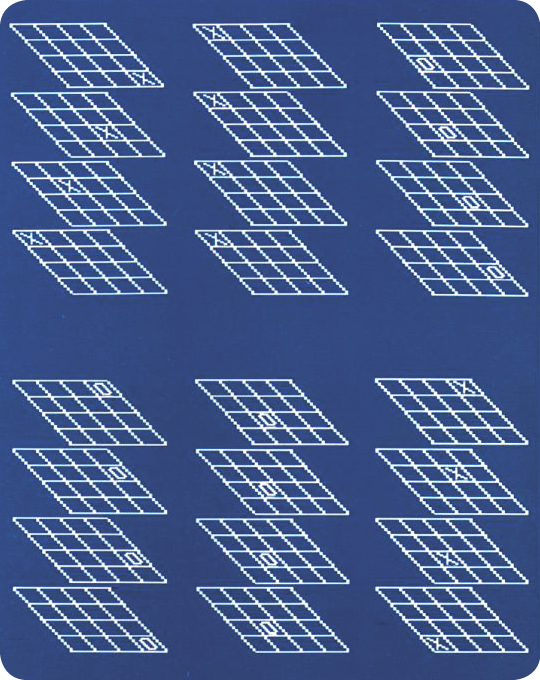
In total, there are 76 possible ways to win. It is not possible to win by using two or three planes, you must use one or all four.
Strategy
To beat the computer or another player, you must place two three-in-a-rows so that the opponent cannot block both of them. Occasionally, you may win when an opponent fails to see that you have three-in-a-row, but that method involves more luck than strategy.
At higher skill levels, placing three-in-a-row becomes difficult. One of the secrets to playing winning tic-tac-toe is to play in the 16 “strong” squares at the beginning of a game. The 16 strong squares are the eight outside corner squares and the eight inside center squares.
Try to take over or dominate planes. The four tic-tac-toe boards represent horizontal, vertical, and diagonal planes. When you place three or four markers in one plane and your opponent has none, you can probably win.
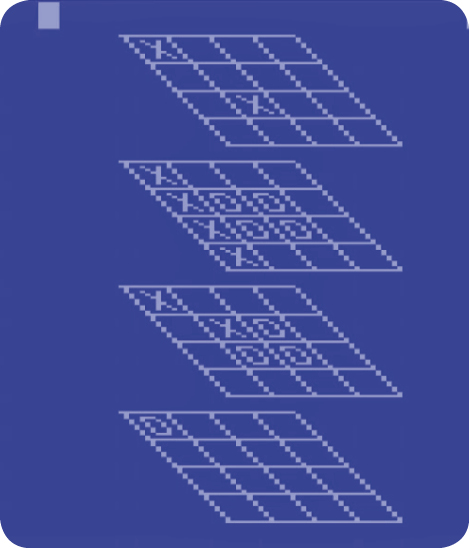
Continue to force the opponent to block until you have two three-in-a rows that cannot both be blocked in one move.
When planning your moves during a game, don’t lose sight of the fact that your opponent is doing the same. Blocking your opponent’s markers is equally as important to establishing your own strategy.
It has been proven that the first player to move can always
win, provided he or she plays a perfect game. The computer, on the other hand, has a degree of randomness programmed into its play, so it will not always play a perfect game, even at the highest skill level (8). This gives the opponent a chance to win, if he or she is a skillful player.
Difficulty Options
The right difficulty button determines who begins the game. For one-player games with the button set to the A position, you start; when the button is in the B position, the computer starts. In two-player games the right difficulty button determines whether X or O starts.
In the A position, the X player, or the player using the joystick plugged into the first controller port, starts. In the B position, the O player (using the second controller port) starts.
The left difficulty button can be used to create a “set up” mode on the screen. To do this, press the button to the A position. You may then use the joystick plugged into the first controller port to place Xs or Os anywhere on the screen. Press the controller button to place markers. Hold the button down and the cursor alternates between Xs, Os and blinks on the screen so that you can place whichever you wish in the desired square.
When you place the left difficulty button in the B position, tic-tac-toe is ready for normal gameplay. After using the set up mode, either X or O may play first. This is determined by the position of the right difficulty button, the same as at the start of the game.
Game Options
When the game starts, the display shows the four square boards (or planes) and the number 1 appears on each side of the top of the screen.
The left number 1 represents the game number (or skill level); to change it, press Select. Choose between game numbers 1 through 8, with each higher number a progressively higher skill level. Game 9 is a two-player variant.
The right number 1 corresponds to the number of players for each game. This number changes automatically to 2 when the ninth game is selected.
Press Reset to begin a new game. The game number remains the same when Reset is pressed. The game number only changes when the Select button is used, or when the power is turned on and off.
|
Difficulty Level |
Number of Moves the computer Looks Ahead |
Computer’s Approximate Move Time |
|
1 |
1 |
0.5 seconds |
|
2 |
2 |
3 seconds or less |
|
3 |
3 |
1 minute or less |
|
4 |
4 |
3 minutes or less |
|
5 |
5 |
10 minutes or less |
|
6 |
6 |
10 minutes or less |
|
7 |
9 |
10 minutes or less |
|
8 |
9 |
20 minutes or less |
The computer moves quickly and is fairly easy to beat at level 1. At level 8, the computer may think, or “compute,” for as long as 20 minutes before making its move. At this level, it is very difficult to beat.
When the computer is working on its next move, the tic-tac-toe boards are not displayed. Instead, various colors appear on-screen. Pressing Reset or changing the difficulty buttons when this occurs will have no effect on the game. However, pressing Select causes the computer to move almost immediately, without changing the game number.
If the computer is not computing its next move, the skill or game may be changed by pressing Select.