
Little Big Planet 3 Signature Series Strategy Guide Create Tools Quick Reference: The Tools Bag
Music
Sound Object
Music
 During that epic journey around the globe, your sack person listened and grooved to many tunes. Those same songs can now delight the ears of anyone playing your own level. Sample all of the tunes available by hovering over the icon in the Music section of the Tools bag. Once you have found that perfect piece for your level, select the icon, and place the music object anywhere you want it to be heard.
Music Adjustments
Adjustment Type |
Adjustment Name |
Effect |
|
Volume |
Track Volume |
Adjust the volume of the music object. Toggle between 0% and 100%. |
|
Start Point |
Start Point |
Choose the point where the music begins playback. |
|
Trigger |
Trigger Radius |
Establishes the radius a sack person must be in to activate music object. |
|
Layer Detection Range |
Establishes the maximum layer distance a sack person may be from the music object in order to activate it. Toggle between 0 and 16. |
|
|
Visuals |
Visible in Play Mode |
Determines whether or not the music object is visible in the level. |
Music-Interactive
 Among all the songs that grace LittleBigPlanet 3, the Creator Curator’s themes are special in their own right. Those generous denizens of Craftverse have allowed you to further tweak their trademark themes.
Music-Interactive Adjustments
Adjustment Type |
Adjustment Name |
Effect |
|
Mixer |
Various Instruments |
Adjust the volume for each instrument making up the music object. Toggle between 0% and 100%. |
|
Start Point |
Start point |
Choose the point where the music begins playback. |
|
Trigger |
Trigger Radius |
Establishes the radius a sack person must be in to activate music object. |
|
Layer Detection Range |
Establishes the maximum layer distance a sack person may be from the music object in order to activate it. Toggle between 0 and 16. |
|
|
Visuals |
Visible in Play Mode |
Determines whether or not the music object is visible in the level. |
Music-Cinematic
 It’s important to have the right music when letting your players sit back, relax, and relish a tastefully crafted cutscene. Cinematic tunes are perfect for such an occasion.
Music-Cinematic Adjustments
Adjustment Type |
Adjustment Name |
Effect |
|
Mixer |
Various Instruments |
Adjust the volume for each instrument making up the music object. Toggle between 0% and 100%. |
|
Start Point |
Start point |
Choose the point where the music begins playback. |
|
Trigger |
Trigger Radius |
Establishes the radius a sack person must be in to activate music object. |
|
Layer Detection Range |
Establishes the maximum layer distance a sack person may be from the music object in order to activate it. Toggle between 0 and 16. |
|
|
Visuals |
Visible in Play Mode |
Determines whether or not the music object is visible in the level. |
Music Sequencer
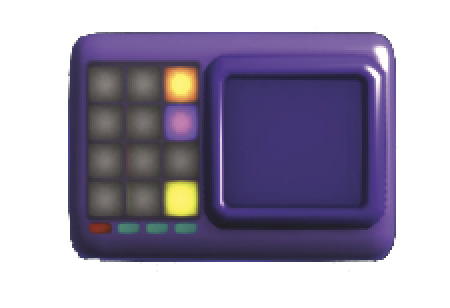 The LittleBigPlanet 3 song list is epic and all, but sometimes, even those masterpieces don’t mesh with every level you create. Why not take a crack at composing your own with the brand-new Music Sequencer? Simply place it into your level like you would with any other song to get your composition started.
Music Sequencer Adjustments
Adjustment Type |
Adjustment Name |
Effect |
|
Basic Settings |
Sequencer Name |
Enter a name for your tune. |
|
Volume |
Number of Volume Sliders |
Set the number of volume sliders. Toggle between 1 and 6. |
|
Channel # |
Adjust the volume slider for each channel. Toggle between 0% and 100%. |
|
|
Trigger |
Trigger Radius |
Establishes the radius a sack person must be in to activate the music object. |
|
Behavior |
Tempo |
Adjust the speed of the music. Toggle between 30bpm and 240bpm. |
|
Swing |
Determines the delay and movement of your notes. Toggle between 0% and 100%. |
|
|
Loop |
Toggle whether or not the track repeats. |
|
|
Effects |
Echo Time |
Change the length of echo time. Toggle between 1.0 and 16.0. |
|
Echo Feedback |
Set the amount of feedback in the echo. Toggle between 0% and 100%. |
|
|
Echo Mix |
Set the volume of the echo. Toggle between 0% and 100%. |
|
|
Reverb Setting |
Adjust the echo settings to mimic a room type (Small Room, Room, Bright Plate, Hall, Big Hall, Cathedral). |
|
|
Visuals |
Show Circuitboard |
Determines whether or not the Circuitboard is visible. |
|
Visible in Play Mode |
Determines whether or not the Music Sequencer can be seen in Play Mode. |
|
|
Color |
Set the color of the Music Sequencer to help keep track of it. |
Sequencer Instruments
 Want a twangy guitar riff for your Western level? How about some beep and bops for your classic arcade game? The Music Sequencer has many unique instruments to play around with. Select one or more instruments from the Music section of the Tools bag. Place the icon onto the Music Sequencer Circuitboard. Once placed, highlight the instrument, and press
  to bring up a piano roll. Lay down some notes on it, and voila! You have an epic theme song created just for your level.
Instrument Adjustments
Adjustment Type |
Adjustment Action |
Effect |
|
Keys |
Input notes |
After placing the Instrument on the Sequencer, press I in menu to access the Keys screen. Place notes on piano roll to form a melody or beat for a track. Press I again to access the Tweak menu. |
|
Sequencer Name |
Name your Instruments to distinguish between duplicates. |
|
|
Mix |
Level |
Adjust the Instrument’s volume level. Toggle between 0% and 100%. |
|
Pan |
Balance the Instrument audio between the left and right speakers. Toggle between 0% and 100%. |
|
|
Echo Adjust |
Determines the amount of Echo produced. Toggle between 0% and 100%. |
|
|
Reverb Send |
Determines the strength of the Instrument’s reverb. Toggle between 0% and 100%. |
|
|
Key |
Musical Scale |
Change the scale of the notes (Major, Minor, Pentatonic, Blues, Chromatic). |
|
Musical Key |
Change the tone of the notes. |
|
|
Visuals |
Color |
Set the color of the Instrument to help keep track of it. |