
Little Big Planet 3 Signature Series Strategy Guide Create Tools Quick Reference: The Tools Bag
Creatures and Characters
Creature Sensors
Player Sensor
 It’s been said that 90 percent of success is showing up. When making a level, the other 10 percent of that equation is the Player Sensor. When a sack person saunters into its trigger range, it activates whatever output it’s currently connected to.
Player Sensor Adjustments
Adjustment Type |
Adjustment Name |
Effect |
|
Range |
Minimum Detection Range |
0-∞. |
|
Maximum Detection Range |
0-∞. |
|
|
Trigger Angle Range |
0°-360°. |
|
|
Layer Range |
0-16. |
|
|
Count |
Number of Players Required |
1-4. |
|
Require All Players |
Yes/No. |
|
|
Detects Unspawned Players |
Yes/No. |
|
|
Character |
Character to Detect |
Select an adventurer. |
|
Reset |
Clear selections and rest to a sack person. |
|
|
Output |
Invert Output |
Yes/No. |
|
Display |
Show Radii in Play Mode |
Yes/No. |
|
Visuals |
Electronics and Cables Visibility |
No/Switch Visible/Switch and Cables Visible. |
|
Visible in Play Mode |
Yes/No. |
|
|
Color |
Select color. |
Sackpocket Item Sensor
 Bringing the correct tool to the job is always important. This Sensor was built to ensure just that. It detects which Adventure Items are in a sack person’s Sackpocket and reacts accordingly.
Sackpocket Item Sensor Adjustments
Adjustment Type |
Adjustment Name |
Effect |
|
Adventure Item |
Choose Adventure Item |
Select an Adventure Item, including any My Sackpocket Items you have created. |
|
Behavior |
Required Quantity |
1-100. |
|
Only When Equipped |
Yes/No. |
|
|
Range |
Minimum Detection Range |
0-∞. |
|
Maximum Detection Range |
0-∞. |
|
|
Trigger Angle Range |
0°-360°. |
|
|
Layer Range |
0-16. |
|
|
Output |
Invert Output |
Yes/No. |
|
Visuals |
Electronics and Cables Visibility |
No/Switch Visible/Switch and Cables Visible. |
|
Color |
Select color. |
Grab Sensor
 Use this gadget with grabbable materials. It activates when a sack person grips it with their tiny knit hands.
Grab Sensor Adjustments
Adjustment Type |
Adjustment Name |
Effect |
|
Behavior |
Require All Players |
Yes/No. |
|
Character |
Character to Detect |
Select an adventurer. |
|
Reset |
Clear selections and reset to a sack person. |
|
|
Movinator Cursor |
Cursor Detection |
Grabbing, No, Hovering Over Any Object, or Hovering Over Grabbable Objects. |
|
Require Tag |
Yes/No. |
|
|
Output |
Invert Output |
Yes/No. |
|
Visuals |
Electronics and Cables Visibility |
No/Switch Visible/Switch and Cables Visible. |
|
Visible in Play Mode |
Yes/No. |
|
|
Color |
Select color. |
Sticker Sensor
 Slap this Sensor on an object you expect players to put a particular sticker on. It activates when the target sticker of your choosing is applied to the same object.
Sticker Sensor Adjustments
Adjustment Type |
Adjustment Name |
Effect |
|
Item |
Item |
Choose Sticker, Decoration, or My Picture to activate Sensor. |
|
Range |
Sticker Detection Mode |
Range and Object, Object Only, or Range Only. |
|
Maximum Detection Range |
0-∞. |
|
|
Output |
Invert Output |
Yes/No. |
|
Visuals |
Electronics and Cables Visibility |
No/Switch Visible/Switch and Cables Visible. |
|
Visible in Play Mode |
Yes/No. |
|
|
Color |
Select color. |
State Sensor
 This Sensor takes surveillance to the next level. Its activation criteria go beyond a simple Player Sensor to include the type of action being performed within detection range.
State Sensor Adjustments
Adjustment Type |
Adjustment Name |
Effect |
|
State |
Choose State |
Select a state from the available list. |
|
Detect State of |
Creatures in Range or Creatures in Contact. |
|
|
Character |
Character to Detect |
Select an adventurer. |
|
Reset |
Clear selections and reset to a sack person. |
|
|
Range |
Minimum Detection Range |
0-∞. |
|
Maximum Detection Range |
0-∞. |
|
|
Trigger Angle Range |
0°-360°. |
|
|
Layer Range |
0-16. |
|
|
Count |
Number of Players Required |
1-4. |
|
Require All Players |
Yes/No. |
|
|
Detects Unspawned Players |
Yes/No. |
|
|
Output |
Invert Output |
Yes/No. |
|
Visuals |
Electronics and Cables Visibility |
No/Switch Visible/Switch and Cables Visible. |
|
Visible in Play Mode |
Yes/No. |
|
|
Color |
Select color. |
Powerups
Basic Powerup Adjustments
Adjustment Type |
Adjustment Name |
Effect |
|
Properties |
Physics Properties |
Dynamic Object/Static Object. |
|
Behavior |
Can Be Dropped |
Determines whether or not players can drop the item after it’s been equipped. |
Jetpack
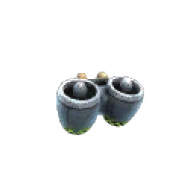 Accept no substitutes: this is the original Jetpack. It allows a sack person to fly within a defined tether range, giving players the power of flight without needing Swoop or making your level “fly out of” proof.
Unique Jetpack Adjustments
Adjustment Type |
Adjustment Name |
Effect |
|
Tether Length |
Tether Length |
0.0-∞. |
Tetherless Jetpack
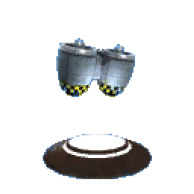 This Tetherless Jetpack has all the get up and go of its tethered buddy, with none of the distance restrictions. Let’s just see whether or not Swoop can keep up!
Grappling Hook
 Players don’t need to be the king of the jungle to swing with the best of them. The Grappling Hook provides countless hours of aerial acrobatic enjoyment as sack people swing through your level. Just make sure there are enough grapple points for them to swing from.
Hook Hat
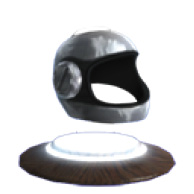 Created for occasions when using your head is better than using your feet, the Hook Hat connects to Bendy Rails to allow a sack person grinding privileges.
Boost Boots
 The single greatest video game trope is finally available to sack people. That’s right, the coveted double jump is now possible with this fancy footwear.
Grabinators
 Wearing these high-tech gloves gives a sack person extraordinary strength to pick up grabbable objects normally too massive for their tiny frame. Give these to players for a boost in upper sack body strength and a sizable uptick in objects thrown airborne.
Scuba Gear
 When you don’t want sack people desperately gasping for breath, Scuba Gear provides a limitless supply of oxygen to keep them swimming merrily. Place one in your level to give players ample breathing time to explore and soak up the craftsmanship that went into the level.
Creatinator
 Like Athena from Zeus, the Creatinator allows objects to spring forth from a sack person’s head fully formed. The speed and angle of these objects, as well as ammo supply, can be tailored to their purpose in your level. Think of them as portable Emitters—portable Emitters that can be aimed!
Creatinator Adjustments
Adjustment Type |
Adjustment Name |
Effect |
|
Basic Settings |
Object to Emit |
Set the object emitted by the Creatinator. |
|
Ammo |
Determines the amount of ammunition the Creatinator has. Toggle between 1 and 1,000, or set to ∞. |
|
|
Max Emitted At Once |
Set the maximum number of items the Creatinator can emit. |
|
|
Recycle Old Objects |
Determines whether or not the oldest objects are destroyed when the maximum number has been reached. |
|
|
Speed |
Linear Velocity |
Determines the speed at which the object emitted. Objects travel as soon as they are created. |
|
Angular Velocity |
Set spin rotation on emitted objects. |
|
|
Accuracy |
Set the accuracy of emitted objects. Toggle between 0% and 100%. |
|
|
Timing |
Rate of Fire |
Set how much time passes between each emitted object. |
|
Lifetime |
Set how long each emitted object exists before self-destructing. |
|
|
Visuals |
Visual Style |
Goggles or Creatinator. |
|
Effects |
Create Effect |
Determines the visual effect when the object is emitted (Appear, Expand, Fade). |
|
Destroy Effect |
Determines the visual effect when the object is destroyed (Dissolve, Shrink, Explode, Fade, Splat, Fall Apart, Disappear). |
Powerup Remover
 When a tool you’ve given players has served its purpose, it’s wise to pack up that plaything for the moment. An unavoidable Powerup Remover in a player’s path is certain to lighten the load.
Special Powerups
Popit Powerup
 The powers of Create Mode have been transplanted into Play Mode. Make no mistake—this is one of the most powerful Powerups to date. Use it carefully.
Popit Powerup Adjustments
Adjustment Type |
Adjustment Name |
Effect |
|
Properties |
Physics Properties |
Dynamic Object/Static Object. |
|
Inventory |
Choose Goodies |
Select Goodies bag items available in the Popit while the Powerup is active. |
|
Choose Tools |
Select Tools bag items available in the Popit while the Powerup is active. |
|
|
Controls |
Yes/No. |
|
|
VCR Controls |
Yes/No. |
|
|
Special Properties |
Grid Snap |
None, Small, Medium, or Big. |
|
Freeze Sackboy When Paused |
Yes/No. |
|
|
Layer Boundaries |
Front Layer |
1-17. |
|
Back Layer |
1-17. |
|
|
Behavior |
Can Be Dropped |
Determines whether or not players can drop the item after it’s been equipped. |
Popit Powerup Tweaker
 Given the immense power of the Popit Powerup, it is often necessary to augment the scope of what players can affect while using it. This Tweaker sets special rules to any object it is attached to.
Popit Powerup Tweaker Adjustments
Adjustment Type |
Adjustment Name |
Effect |
|
Properties |
Can Be Selected |
Determines whether or not the Popit Cursor can select an object. Yes/No. |
|
Inventory |
Choose Goodies |
Select Goodies bag items available in the Popit while the Powerup is active. |
|
Choose Tools |
Select Tools bag items available in the Popit while the Powerup is active. |
|
|
Editing |
Can Be |
Select whether a selected object can be Resized, Copied, or Deleted. Yes/No. |
|
Tweaking |
Can |
Select whether a player can Tweak Object, Tweak Logic, Tweak Connectors, or Hide. Yes/No. |
|
Merging |
Material Mergeable |
Yes/No. |
|
Behavior |
Include Rigid Connections |
Yes/No. |
|
Effects |
Highlight Strength |
0%-100%. |
|
Controls |
Yes/No. |
|
|
VCR Controls |
Yes/No. |
|
|
Visuals |
Visible in Play Mode |
Yes/No. |
Popit Cursor Sensor
 This Sensor is set to detect that creative tangle known as the Popit Cursor.
Popit Cursor Sensor Adjustments
Adjustment Type |
Adjustment Name |
Effect |
|
Trigger |
Trigger On |
Hover or Picked Up. |
|
Include Gadgets |
Nothing, Can Tweak Logic, Can Tweak Connectors, or Logic and Connectors. |
|
|
Behavior |
Include Rigid Connections |
Yes/No. |
|
Output |
Invert Output |
Yes/No. |
|
Visuals |
Visible in Play Mode |
Yes/No. |
Powerup and Sackpocket Pedestals
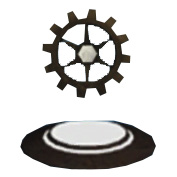 These two pedestals are so similar, they might as well be sisters. Both are here to grant sack folk one of the new Adventure Items; they just differ on how long the sack people can keep it. The Powerup Pedestal works like a standard Powerup, whereas the Sackpocket version adds the item to a sack person’s Sackpocket.
Pedestal Adjustments
Adjustment Type |
Adjustment Name |
Effect |
|
Properties |
Can Be Selected |
Determines whether or not the Popit Cursor can select an object. Yes/No. |
|
Adventure Item |
Choose Adventure Item |
Select from the Sackpocket Items or from My Sackpocket Items. |
|
Capture Sackpocket Item |
Use this capture tool to collect Blaster Hand custom Powerups. |
|
|
Display |
New Item Bubble |
Only available when gifting one of your My Sackpocket Items with the Sackpocket Pedestal. Yes/No. |
|
Behavior |
Can Be Dropped |
Yes/No (Powerup Pedestal only). |
Blaster Handle
 The Blaster Hand is the single most creative, amazing, unexpected Powerup ever to grace the worlds of LittleBigPlanet 3—at least it could be, assuming that you make something with it. This unique tool allows you to make and capture your own Powerups. Place the Blaster Hand onto an object to open a special Circuitboard where you can direct the function and use of your tool.
Once it is ready, use the Capture Sackpocket Item function in the Global Stuff menu to add it to your inventory.
Blaster Handle Adjustments
Adjustment Type |
Adjustment Name |
Effect |
|
Aiming |
Grip |
Blaster or Fist. |
|
Aiming Speed |
0%-100%. |
|
|
Behavior |
Allow Grabbing/Climbing |
Yes/No. |
|
Visuals |
Visible in Play Mode |
Yes/No. |
|
Audio |
Enable Sounds |
Yes/No. |
Sackbots
Sackbot
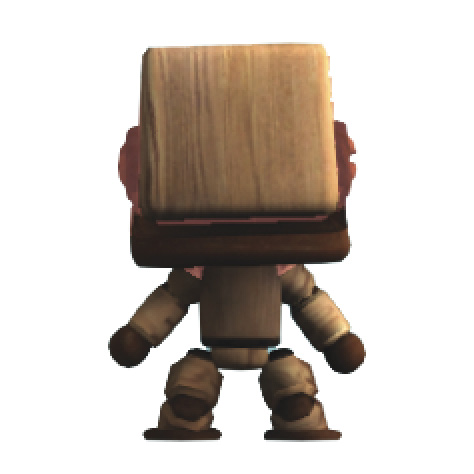 The Sackbot is a sack person’s best friend. Or enemy. Or anything else you choose to let them become. Sackbots are more advanced versions of ordinary creatures. They can look like anything (including characters from the Story levels), use a wide variety of animations, be decorated, and be made to act out an action you choose in one place or anywhere in the level (or just once). Best of all, Sackbots can be directly controlled with a Controlinator, and they even have room for multiple Behaviors on their Circuitboard.
Many Sackbot Tweaks actually affect their primary Behavior chip. Below are the primary Sackbot Tweaks only. See Behavior for the remaining items.
Sackbot Unique Adjustments
Adjustment Type |
Adjustment Name |
Effect |
|
Multiple Forms |
Is a Changeling |
Yes/No. |
|
Change |
Toggle Form Options of Changelings. |
|
|
Character or Main/Alternate Form (Changelings) |
Costume Selection |
Custom Costume (you select Sackbot form and costuming), Copy Player 1-4 (copy one of the players’ costuming options), or Copy Owner. |
|
Copy Form |
Sackbot copies Costume and character form of matching player. Yes/No. |
|
|
Choose Creature Type |
Set Sackbot form. Choose between a sack person, Toggle, Oddsock, or Swoop. |
|
|
Costume |
Set Costume. |
|
|
Funny Head Size |
Determines whether or not the Sackbot’s head size is amusingly disproportionate to its body. |
|
|
Display |
Show Circuitboard |
Determines whether or not the Circuitboard is visible. |
|
Stabilize Circuitboard |
Yes/No. |
Sackbot Behavior
 Not every actor needs a huge script. Sackbots can easily work autonomously based on some very simple criteria. Set them to be hostile, to follow or flee, and guide everything from their ability to use the same Powerups as a normal player to their ability to jump, brave heights, move between layers, and more.
Sackbot/Behavior Adjustments
Adjustment Type |
Adjustment Name |
Effect |
|
Visuals |
Animation Style |
Set the type of animations used by the Sackbot. |
|
Expression |
Expression Type |
Set the Sackbot’s mood (Happy, Sad, Scared, Angry, Neutral). |
|
Expression Level |
Determines the three levels of expression intensity. |
|
|
Behavior |
Walking Speed |
30%-150%. |
|
Behavior |
Determines the Sackbot’s behavior (Idle, Follow, Flee, Patrol, Act, Follow Waypoint). |
|
|
Players (Active on Behavior: Follow and Flee) |
Players |
Lead or All. |
|
Acting (Active on Behavior: Act) |
Record |
Record a custom acting animation for the Sackbot (Act Behavior only). |
|
Restart |
Restart any current custom acting animation. |
|
|
Playback Mode |
Determines whether the custom acting animation loops, and whether or not it resets its position in doing so (Loop Absolute, Play Once, Loop Relative). |
|
|
Recoded Sound |
Yes/No. |
|
|
Follow (Active on Behavior: Follow Waypoint) |
Follow Tag Color |
Set a Tag Color. |
|
Select or Tweak a Tag Label |
Choose from a list of available named Tags to follow. |
|
|
Trigger |
Awareness Radius |
Set the radius in which the Sackbot can detect players or Tags. |
|
Layer Detection |
0-16. |
|
|
AI Tweaks |
Can Change Layer |
Yes/No. |
|
Right-Handed |
Yes/No. |
|
|
Can Jump |
Yes/No. |
|
|
Can Swim |
Yes/No. |
|
|
Afraid of Danger |
Yes/No. |
|
|
Is Hostile |
Yes/No. |
|
|
Afraid of Heights |
Yes/No. |
|
|
Powerups |
Can Use Creatinator |
Yes/No. |
|
Can Use Grabinators |
Yes/No. |
|
|
Can Use Controlinator and Movinator |
Yes/No. |
|
|
Can Use Brain Crane |
Yes/No. |
|
|
Can Use Hero Cape |
Yes/No. |
|
|
Look At |
Looks Around |
Determines whether or not the Sackbot turns to look at the player. |
|
Looks at Tag |
Determines whether or not the Sackbot turns to look at Tags of the specified color. |
|
|
Looks Directly Toward Things |
Determines whether or not the Sackbot tracks objects and can look straight out. |
|
|
Target |
Tag Color |
Set the color of Tags the Sackbot tracks and interacts with. |
|
Select or Tweak a Tag Label |
Keep track of your Tags by labeling them. |
Magic Mouth
 Got a message for players in your level? Stick a Magic Mouth onto a surface or creature. As a sack person approaches, a speech bubble appears with a message of your choosing. You can also attach dramatic camera angles and even player-recorded messages when you are looking for something extra flashy.
Magic Mouth Adjustments
Adjustment Type |
Adjustment Name |
Effect |
|
Text |
Speech |
Set the text to be displayed in the Magic Mouth’s speech bubble. |
|
Display Subtitles |
Displays the text as subtitles when the Magic Mouth is used with a Sequencer. |
|
|
Display |
Display |
Sets the type of presentation for the Magic Mouth’s message. Switch between Bubble, Subtitle, and None. |
|
Bubble Style (Only Available with Display: Bubble) |
Speech, Thought, or Caption. |
|
|
Position On Screen |
Select the screen quadrant for the Bubble. |
|
|
Speech |
Voice Type |
Determines whether or not audio accompanies the Magic Mouth’s text bubble. Choose between the available voices, or record your own (None, Gibberish Voice, Recorded). |
|
Choose Voice (Speech: Gibberish Voice only) |
Select from available voices. |
|
|
Ducker |
Lowers the volume of any currently playing music during speech playback. |
|
|
Trigger |
Trigger Radius |
0.0-∞. |
|
Layer Detection Range |
0-16. |
|
|
Input Action |
Determines what effect a connected input has on the Magic Mouth (On/Off, One-Shot). |
|
|
Behavior |
Auto Close |
Yes/No. |
|
Skippable |
Yes/No. |
|
|
Camera |
Movie Camera |
Determines whether or not the camera switches to a letterboxed, cinematic view with the angle and zoom of your choice when the Magic Mouth is triggered. |
|
Visuals |
Visible in Play Mode |
Determines whether or not the Magic Mouth is visible in Play Mode. |
|
Actor Name |
Select or Tweak an Actor Name |
Choose or enter a name for the Magic Mouth. |
Character Tweakers
Character Tweaker
 The Character Tweaker has all the power of the Character Changer in a very small package. It is very useful when a change is mandatory, or as part of a Microchip flow.
Character Tweaker Adjustments
Adjustment Type |
Adjustment Name |
Effect |
|
Character |
Choose Creature Type |
Select a sack person, Toggle, Oddsock, or Swoop. |
|
Multiple Characters |
Yes/No. |
|
|
Character To Change Back To |
Select a sack person, Toggle, Oddsock, or Swoop. |
|
|
Reset |
Default back to a sack person. |
|
|
Visuals |
Visible in Play Mode |
Yes/No. |
Kill Tweaker
 The Kill Tweaker is not being coy in its naming. This thing is deadly! Be very careful in the Tweaks menu: the few options there hold devastating consequences to the players of your levels.
Kill Tweaker Adjustments
Adjustment Type |
Adjustment Name |
Effect |
|
Effect |
Death Effect |
Select from Confetti, Fire, Electricity, Spikes, Horrible Gas, Drowning, Plasma, and None. |
|
Affects |
Kills |
Owner (kills all players but the activating player), Activating Player, Everyone. |
|
Visuals |
Visible in Play Mode |
Yes/No. |
Sackpocket Tweaker
This tool is like a fickle pickpocket that can ply its trade to give or take away. Use the Sackpocket Tweaker to grant or remove items from a player’s Sackpocket.
Sackpocket Tweaker Adjustments
Adjustment Type |
Adjustment Name |
Effect |
|
Adventure Item |
Choose Adventure Item |
Select from Sackpocket items or My Sackpocket Items. |
|
Behavior |
Input Action |
Add, Remove, Add & Equip. |
|
Quantity |
Set between 1 and 1000, or ∞. |
|
|
Affects |
Activating Player or All. |
|
|
Display |
New Item Bubble |
Yes/No. |
|
Visuals |
Visible in Play Mode |
Yes/No. |
Gameplay Tweaker
 The building blocks of the Craftverse tremble before the raw possibilities of the Gameplay Tweaker. Seriously, just ask Cardboard—it’s utterly terrified! This Tweaker can override almost any standard gameplay element, so use it with care.
Gameplay Tweaker Adjustments
Adjustment Type |
Adjustment Name |
Effect |
|
Movement |
Movement Type |
All, Walking, or Swimming. |
|
Movement Modifier |
-1000%-1000%. |
|
|
Can Grab |
Yes/No. |
|
|
Can Climb |
Yes/No. |
|
|
Jumping |
Jump Modifier |
0%-1000%. |
|
Air Steering |
0%-1000%. |
|
|
Layers |
Disable Automatic Layer Change |
Yes/No. |
|
Disable Manual Layer Change |
Yes/No. |
|
|
Manual Jump Down |
Level Setting, Yes, No. |
|
|
Affects |
Owning Character, Activating Character, or All. |
|
|
Input Action |
Input Action |
On/Off, Movement Speed Scale, Jump Speed Scale. |
|
Vulnerability |
Set Vulnerability |
Yes/No to Fire, Electricity, Plasma, Crush, Spikes, Horrible Gas, Drowning, and Explosions. |
|
Visuals |
Visible in Play Mode |
Yes/No. |
Animators
Character Rotator
 Put a whole new spin on your characters by using this nifty rotator. It’s designed especially for making characters in a level rotate as quickly as you want on whichever axis you desire.
Character Rotator Adjustments
Adjustment Type |
Adjustment Name |
Effect |
|
Speed |
Yaw Speed |
Set the speed of rotation along the x-axis. Toggle between -1500 and 1500. |
|
Pitch Speed |
Set the speed of rotation along the y-axis. Toggle between -1500 and 1500. |
|
|
Roll Speed |
Set the speed of rotation along the z-axis. Toggle between -1500 and 1500. |
|
|
Input Action |
Input |
Determines what effect a connected input has on the Character Rotator (Start/Stop, Forwards/Backwards, Start playing forwards!, Start playing backwards!, Speed Scale, Positional). |
|
Actor Name |
Select or Tweak an Actor Name |
Choose the target character affected by the Character Rotator from the list of available Actor Names. |
|
Visuals |
Visible in Play Mode |
Determines whether or not the Character Rotator is visible in Play Mode. |
Character Animation Tweaker
 Nothing brings characters to life quite like animation. The Character Animation Tweaker gives you a large Circuitboard to work with, upon which you can construct animation sequences for your characters. After choosing a base animation to begin with, you can customize the sequencer Circuitboard to have the animations change as you see fit.
Character Animation Tweaker Adjustments
Adjustment Type |
Adjustment Name |
Effect |
|
Rotation |
Override Default Rotation? |
Determines whether the Character Animation Tweaker takes precedence over any existing character rotation. |
|
Yaw Angle |
When set to Override Default Rotation, specify the starting yaw value when the animation begins. |
|
|
Pitch Angle |
When set to Override Default Rotation, specify the starting pitch value when the animation begins. |
|
|
Roll Angle |
When set to Override Default Rotation, specify the starting roll value when the animation begins. |
|
|
Animation |
Animation |
Choose an animation from the numerous categories and sub-categories available. |
|
Behavior |
Animation Speed |
Set the speed of the chosen animation. Toggle between -1,000% and 1,000%. |
|
Animation Start |
Choose how far into the full animation cycle it should begin. |
|
|
Animation End |
Choose how far into the full animation cycle it should end. |
|
|
Loop |
Toggle whether or not the animations you set loop after they finish. |
|
|
Reset if Inactive |
When enabled, the animation resets when the character is not being animated. |
|
|
Input Action |
Input |
Determines what effect a connected input has on the Character Animation Tweaker (Start/Stop, Forwards/Backwards, Start playing forwards!, Start playing backwards!, Speed Scale, Positional). |
|
Blending |
Animation Blend Action |
Choose the manner of transitioning between different animations placed on a Character Animation Tweaker Circuitboard (Automatic Blend, Manual Blend, Sequencer Relative). |
|
Blend Time |
Specify the amount of type that elapses when blending between animations (Automatic Blend only). |
|
|
Actor Name |
Select or Tweak an Actor Name |
Choose the target character affected by the Character Animation Tweaker from the list of available Actor Names. |
|
Visuals |
Visible in Play Mode |
Determines whether or not the Character Animation Tweaker is visible in Play Mode. |
|
Show Circuitboard |
Determines whether or not the Circuitboard is visible. |
|
|
Color |
Set the color of the Character Animation Tweaker to help keep track of it. |
Object Animation Tweaker
 Objects don’t necessarily have to sit there like a still life painting. Like the Character Animation Tweaker, with the Object Animation Tweaker, you can access a large Circuitboard sequencer to program the animation of the object it’s attached to.
Object Animation Tweaker Adjustments
Adjustment Type |
Adjustment Name |
Effect |
|
Behavior |
Animation Speed |
Set the speed of the chosen animation. Toggle between -1,000% and 1,000%. |
|
Animation Start |
Choose how far into the full animation cycle it should begin. |
|
|
Animation End |
Choose how far into the full animation cycle it should end. |
|
|
Loop |
Toggle whether or not the animations you set loop after they finish. |
|
|
Reset if Inactive |
When enabled, the animation resets when the object is not being animated. |
|
|
Input Action |
Input |
Determines what effect a connected input has on the Object Animation Tweaker (Start/Stop, Forwards/Backwards, Start playing forwards!, Start playing backwards!, Speed Scale, Positional). |
|
Visuals |
Show Circuitboard |
Determines whether or not the Circuitboard is visible. |
|
Visible in Play Mode |
Determines whether or not the Object Animation Tweaker is visible in Play Mode. |
|
|
Color |
Set the color of the Object Animation Tweaker to help keep track of it. |
Decoration Mount
 There are some Decorations that are just too good-looking not to use. But sometimes, you might not necessarily want them attached to a material and weighed down. The Decoration Mount does that and more. Not only can you attach any Decoration to the invisible Decoration Mount, you can even tweak it to scale the attached Decorations either over time or permanently.
Decoration Mount Adjustments
Adjustment Type |
Adjustment Name |
Effect |
|
Properties |
Position in Layer |
Adjust the Decoration’s position within the layer. Toggle between -10 and 10. |
|
Left/Right |
Minimum X-Axis Scale |
Set the minimum dimension of the Decoration along the x-axis, relative to its normal size. Toggle between 0% and 400%. It cannot exceed the Maximum X-Axis Scale. |
|
Maximum X-Axis Scale |
Set the maximum dimension of the Decoration along the x-axis, relative to its normal size. Toggle between 0% and 400%. It cannot be lower than the Minimum X-Axis Scale. |
|
|
Up/Down |
Minimum Y-Axis Scale |
Set the minimum dimension of the Decoration along the y-axis, relative to its normal size. Toggle between 0% and 400%. It cannot exceed the Maximum Y-Axis Scale. |
|
Maximum Y-Axis Scale |
Set the maximum dimension of the Decoration along the y-axis, relative to its normal size. Toggle between 0% and 400%. It cannot be lower than the Minimum Y-Axis Scale. |
|
|
In/Out |
Minimum Z-Axis Scale |
Set the minimum dimension of the Decoration along the z-axis, relative to its normal size. Toggle between 0% and 400%. It cannot exceed the Maximum Z-Axis Scale. |
|
Maximum Z-Axis Scale |
Set the maximum dimension of the Decoration along the z-axis, relative to its normal size. Toggle between 0% and 400%. It cannot be lower than the Minimum Z-Axis Scale. |
|
|
Timing |
Time |
Set the amount of time it takes for the Decoration to go from the minimum axis values to the maximum. |
|
Pause |
Set how long a pause occurs after the span of time set under Time. |
|
|
Sync |
Use this value to synchronize the movement of the attached Decoration with other objects in your level that support it. |
|
|
Behavior |
Input Action |
Determines what effect a connected input has on the Decoration Mount (Start/Stop, Forwards/Backwards, Single Cycle, Speed Scale, Positional). |
|
Scale From Top |
Set whether the Decoration scaling starts at the normal 100%. |
|
|
Visuals |
Color |
Set the color of the Decoration Mount to help keep track of it. |
|
Brightness |
Determines how bright the Rotating Disc appears. Toggle between 0% and 100%. |
Rotating Disc
 Want players to get a good look at an object or Decoration from all angles? Attach it to a Rotating Disc. This tool turns any old room into a showroom to showcase whatever treasures you see fit to display.
Rotating Disc Adjustments
Adjustment Type |
Adjustment Name |
Effect |
|
Speed |
Rotation Speed |
Determines the speed at which the disc and any objects upon it spin. |
|
Input Action |
Input Action |
Determines what effect a connected input has on the Rotating Disc (On/Off, Speed Scale). |
|
Visuals |
Color |
Set the color of the Rotating Disc to help keep track of it. |
|
Brightness |
Determines how bright the Rotating Disc appears. Toggle between 0% and 100%. |
|
|
Visible in Play Mode |
Determines whether or not the Rotating Disc is visible in Play Mode. |
Simple Critters
Magic Eyes
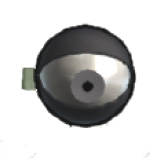
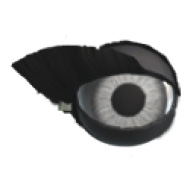

The Normal, Evil, and Cute varieties of Magic Eyes follow the movement of players passing by their watchful gazes. Attach them to surfaces or creatures to keep an eye (or several) on players.
Magic Eye Adjustments
Adjustment Type |
Adjustment Name |
Effect |
|
Color |
Color |
Set the color for the Magic Eye. |
Creature Brains
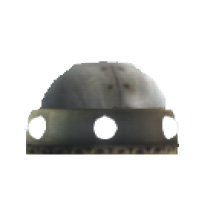
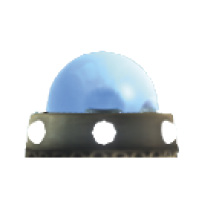
Give the gift of life to whatever object you attach the Creature Brain to. They come in two varieties, protected and unprotected, depending on if you want them vulnerable to being popped. Creatures brought to life with these can be instructed to follow, flee, or ignore a sack person. Additionally, you can also tweak their vulnerabilities, destroy effects, and movement.
Creature Brain (Protected/Unprotected) Adjustments
Adjustment Type |
Adjustment Name |
Effect |
|
Behavior |
Behavior |
Determines how the creature interacts with players (Ignore, Follow, Flee). |
|
Input Action |
Determines what effect a connected input has on the creature (On/Off, Kill!). |
|
|
Awareness Radius |
Set the radius in which the creature can detect players. |
|
|
Vulnerable? |
Vulnerable to Lethal Materials |
Determines whether or not creatures are destroyed when making contact with lethal materials. |
|
Destroy Effect |
Determines the visual effect when the creature is destroyed (Dissolve, Shrink, Explode, Fade, Splat, Fall Apart, Vaporise, Confetti, Disappear). |
|
|
Movement |
Movement Speed |
Determines the speed of the creature. Toggle between 0% and 400%. |
|
Jumping Strength |
Determines the strength of a legged creature’s jump. Toggle between 0% and 300%. |
|
|
Jump Interval |
Set the amount of time between jumps. |
|
|
Jump Phase |
Set a value to synchronize the movement of jumping creatures. |
Wheel
 For creatures that dwell on smooth paths and like to roll with the punches, wheels are an ideal way to get around. Attach a creature brain to give life to your creature and locomotion to its wheels.
Leg
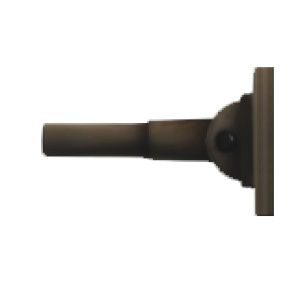 Your creatures haven’t got a leg to stand on until you attach one to it. Once a Creature Brain is attached, these stubby little appendages allow them to scurry about.
Creature Navigator
 As proud as you are of your customized creature, there are some places in a level where they simply have no place. Stick a Creature Navigator to any surface or object to cause approaching creatures to turn tail.