
Company of Heroes 2 Guide Essentials Introduction to Company of Heroes 2
Controls
Attack Ground
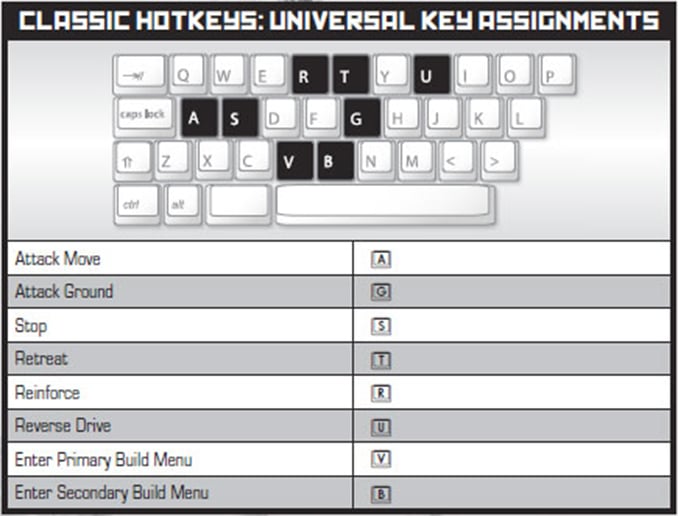
Attack Ground is an order that can be given to any unit with an area attack, causing the unit to fire at the targeted location. You can safely detonate mines from a distance by using Attack Ground with flamethrowers or any type of heavy weapon like tank cannons, mortars, and artillery. If you’re playing as Germans, your AT mines won’t normally be detonated by enemy infantry—you can use Attack Ground on your own AT mine to turn it into an anti-infantry weapon.
Attack Move
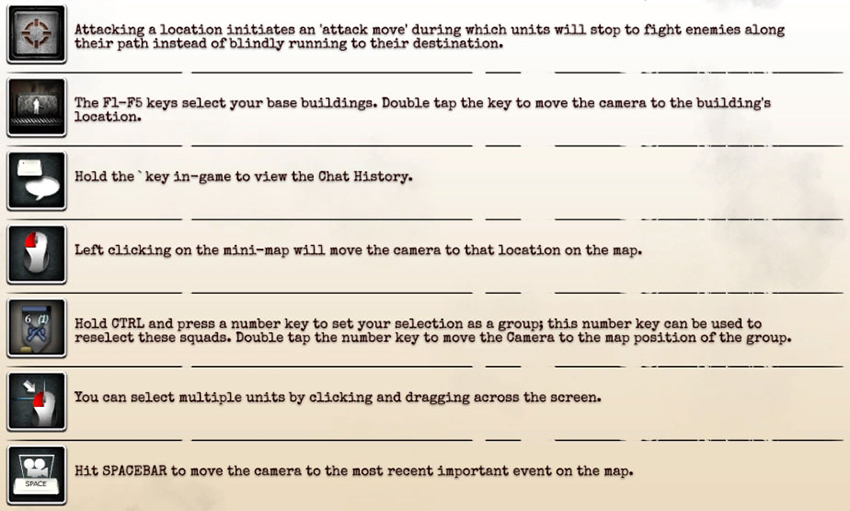
When given a standard Move order, units that can fire while moving will automatically engage when they’re in range of enemy units, but other units like Snipers, Mortars, AT guns, and HMGs will continue moving to their destination even if an enemy squad runs up and begins attacking. Attack Move avoids this problem by causing your squad to stop and begin firing when it comes into contact with an enemy unit. This is an especially useful hotkey to use with Snipers to ensure they don’t walk straight to their deaths when you aren’t paying attention.
Queuing Orders
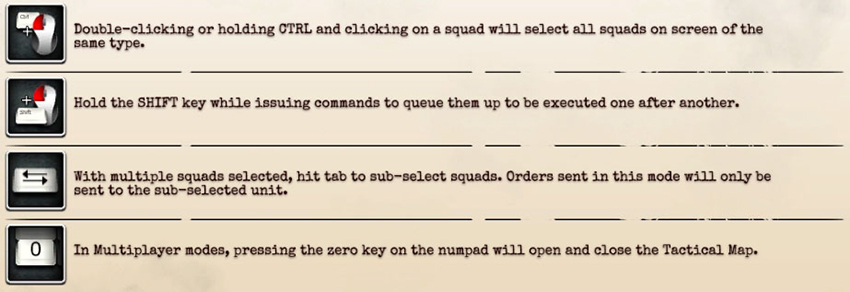
You can queue orders with Shift-Click. This is especially useful when giving a unit orders to capture a series of sectors or when building a series of field defenses like mines or barbed wire. You can also queue a retreat order if you want to finish capturing a sector or pick up a dropped weapon before your infantry squad runs back to the HQ.
Camera Control
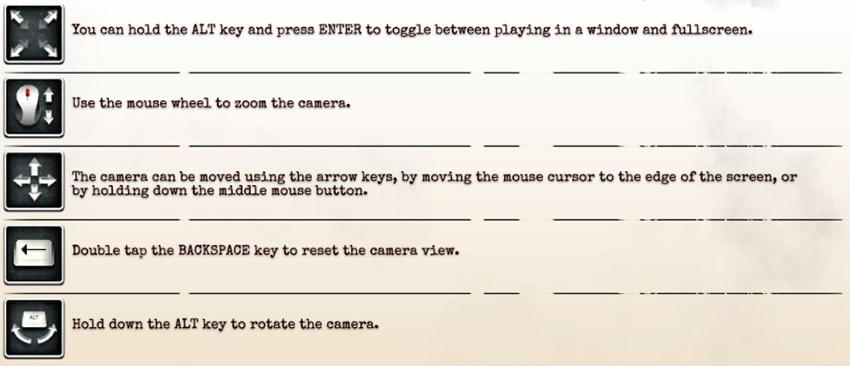
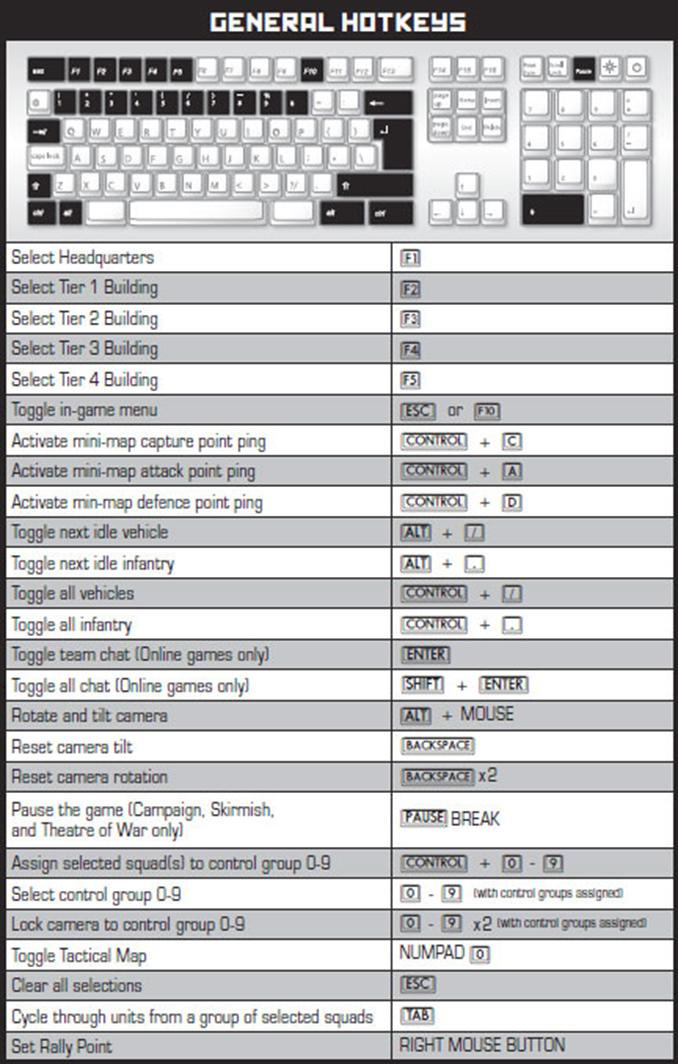
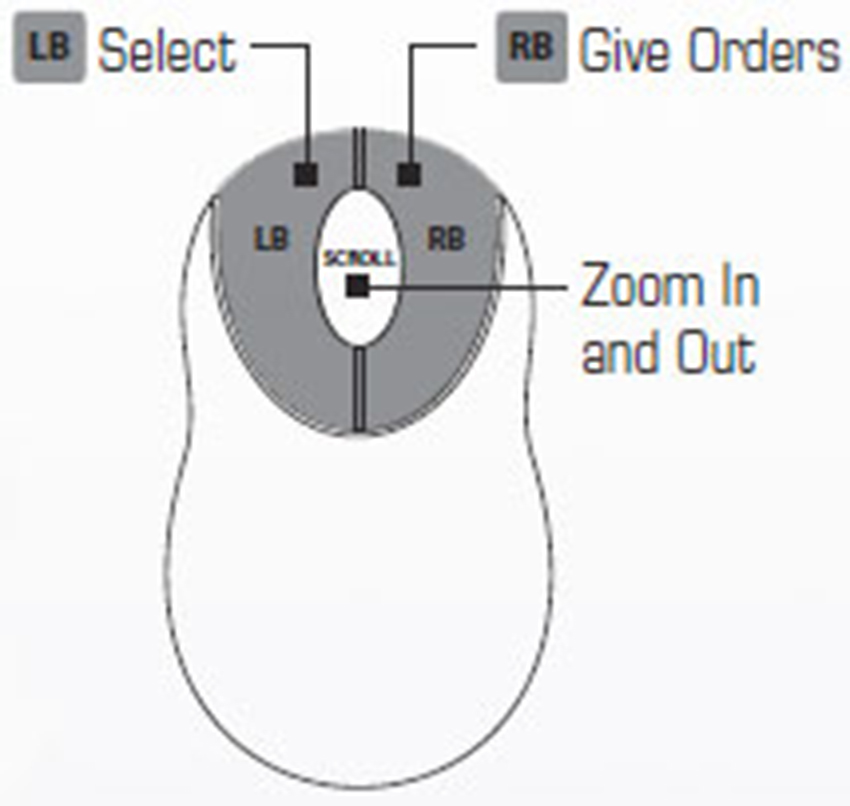
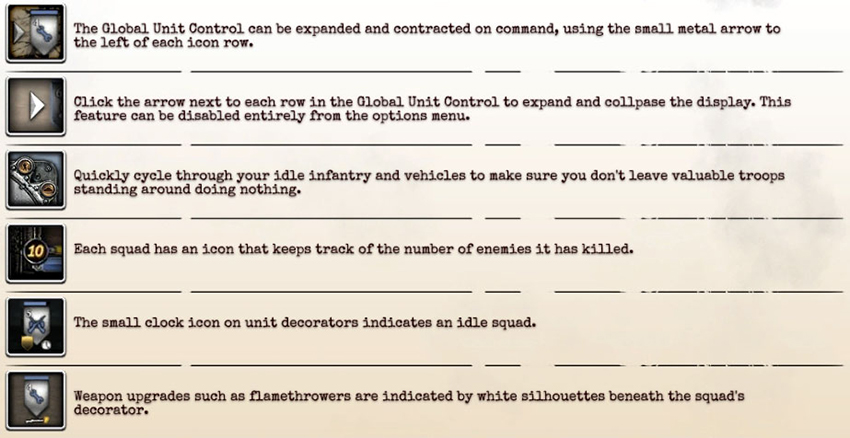
The best way to move your camera to a new area is by double-clicking on a unit in the Global Unit Control, at the top right of your screen, which will center the camera on that unit. This can also be done by pressing the number of a control group twice, such as “5, 5.” The next best way is to click on the minimap or use the tactical map. Only scroll using your mouse when you’re moving short distances while microing during a battle. You do not need to be looking at your base to build units. All of your unit construction should be done using hotkeys so that you do not have to return to your base to build a single unit.
Hotkeys
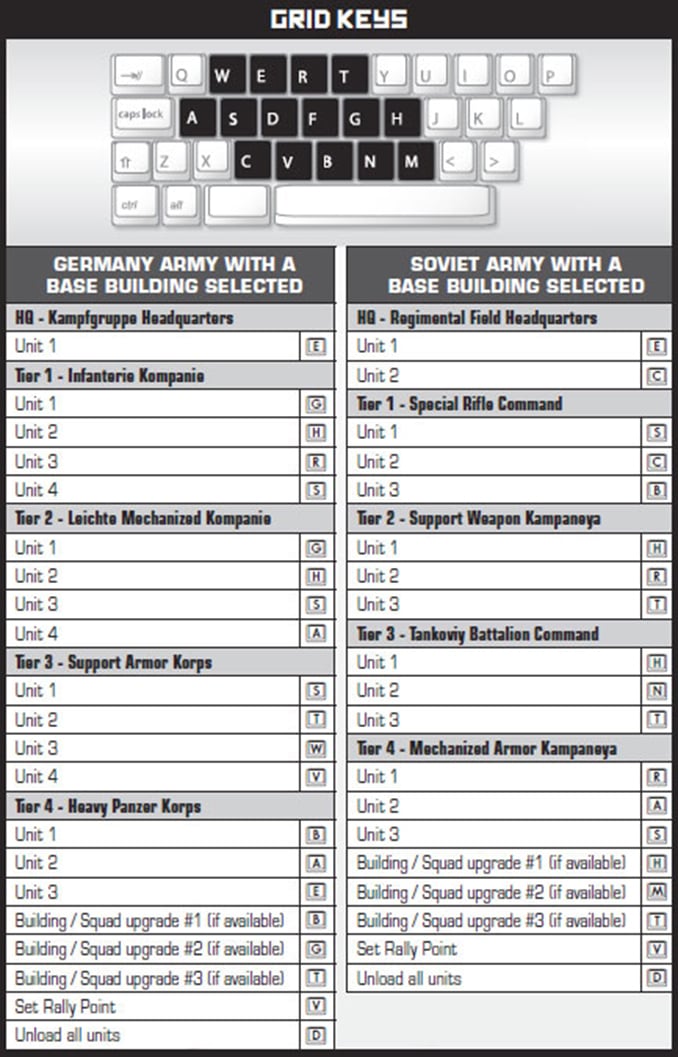
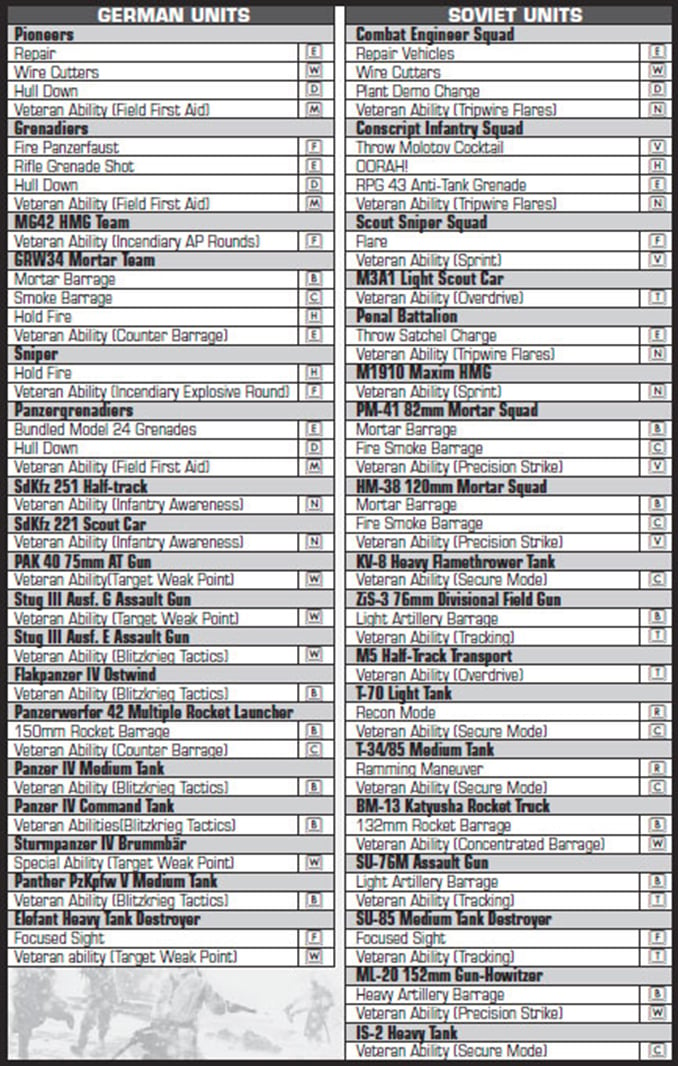
Hotkeys and Control Groups are essential to controlling your units as quickly as you would like. Use production building hotkeys (F1 through F5) for creating units and use grid-based hotkeys for unit actions (if you want to use a unit’s special ability, it’s always the same key).
Interface
Minimap
The minimap helps keep you aware of what is going on around the map. Information such as controlled territories, built Fuel and Munitions caches, unit locations, territories being captured by the enemy, and more can be seen on the minimap. Instead of having to constantly move the camera to know where your units are or if the enemy is attacking, you can simply look at the minimap.
How to use: Selected units can be given orders on the minimap to tell them to move long distances or to capture points. The minimap should be viewed as much as possible during any free time so that you can respond to any events that occur, such as the enemy capturing territory or a unit being shot at. Look at the minimap when you’re building units; look at the minimap when you don’t need to be microing; look at the minimap every few seconds even when you’re microing.
Tactical Map
The tactical map is an expanded version of the minimap that allows you to see the whole battlefield at once. Each unit is represented by an icon, and unlike on the minimap, you can both select units and give them orders on the tactical map. How much you use it is a matter of player preference: Some incorporate it closely into their playstyle while others rely more on the minimap instead.