
The Legend of Zelda: The Wind Waker Guide How to Play
Game Screens
Main Screen
All the action in The Wind Waker takes place in the game’s main screen. Important information appears in all four corners of the screen; this information changes depending on whether you’re in the overworld or in a dungeon.
Overworld (The Great Sea)
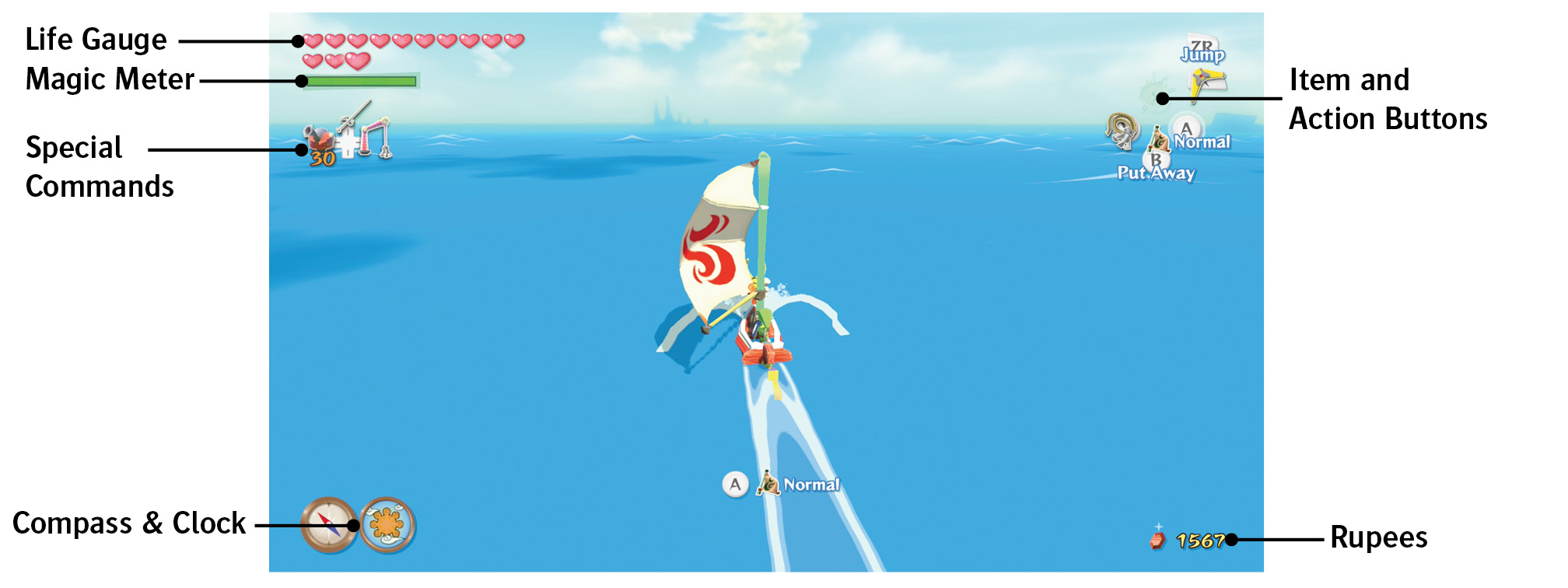
The Wind Waker’s overworld is known as the Great Sea, a grid of 49 islands in a vast body of water. Whenever Link is not in a dungeon, he is in the overworld. Let’s review the most common indicators that you’ll see onscreen:
- Life Gauge: This is the amount of stamina Link has remaining. Each time an enemy damages Link, he loses Hearts from the Life Gauge’s Heart Containers. If the Life Gauge is depleted (and you don’t have a Fairy in a Bottle to rescue Link), the game is over. You can refill the Life Gauge with Hearts, Fairies, or potions, and you can increase the size of the Life Gauge by finding Heart Containers and Pieces of Heart.
- Magic Meter: Some of Link’s items require magic energy to use. The Magic Meter represents how much magic energy Link has remaining. If you deplete this, Link can’t use magic items until he recovers some magic energy from potions or magic vials. Defeat the Big Octo near the Two-Eye Reef (D7) to rescue a Great Fairy and double the size of Link’s Magic Meter.
- Item Buttons and Action Buttons: These indicate the actions Link can perform. The
 ,
,  , and
, and  actions depend on which items you have assigned to the buttons. The
  ,
,  , and
, and  actions are determined by Link’s current position and abilities.
 - Special Commands:Once Link acquires the Wind Waker, he can ready it anytime by pressing
 . While sailing in the King of Red Lions, Link can equip the Cannon by pressing f and the Grappling Hook by pressing
  . The Cannon requires Bombs to use.
 - Compass and Clock: These indicators appear while you’re sailing in Link’s boat, the King of Red Lions. They display the current time of day and the direction in which you’re headed.
- Rupees: This indicates the number of Rupees Link has in his wallet. If the Rupee next to the number is green, Link can carry a maximum of 500 Rupees. If it is blue, he can carry up to 1,000. If it is orange, 5,000 is his limit. Visit Great Fairies in Outset Island (B7) and Northern Fairy Island (C1) to increase Link’s maximum Rupee capacity.
Dungeons
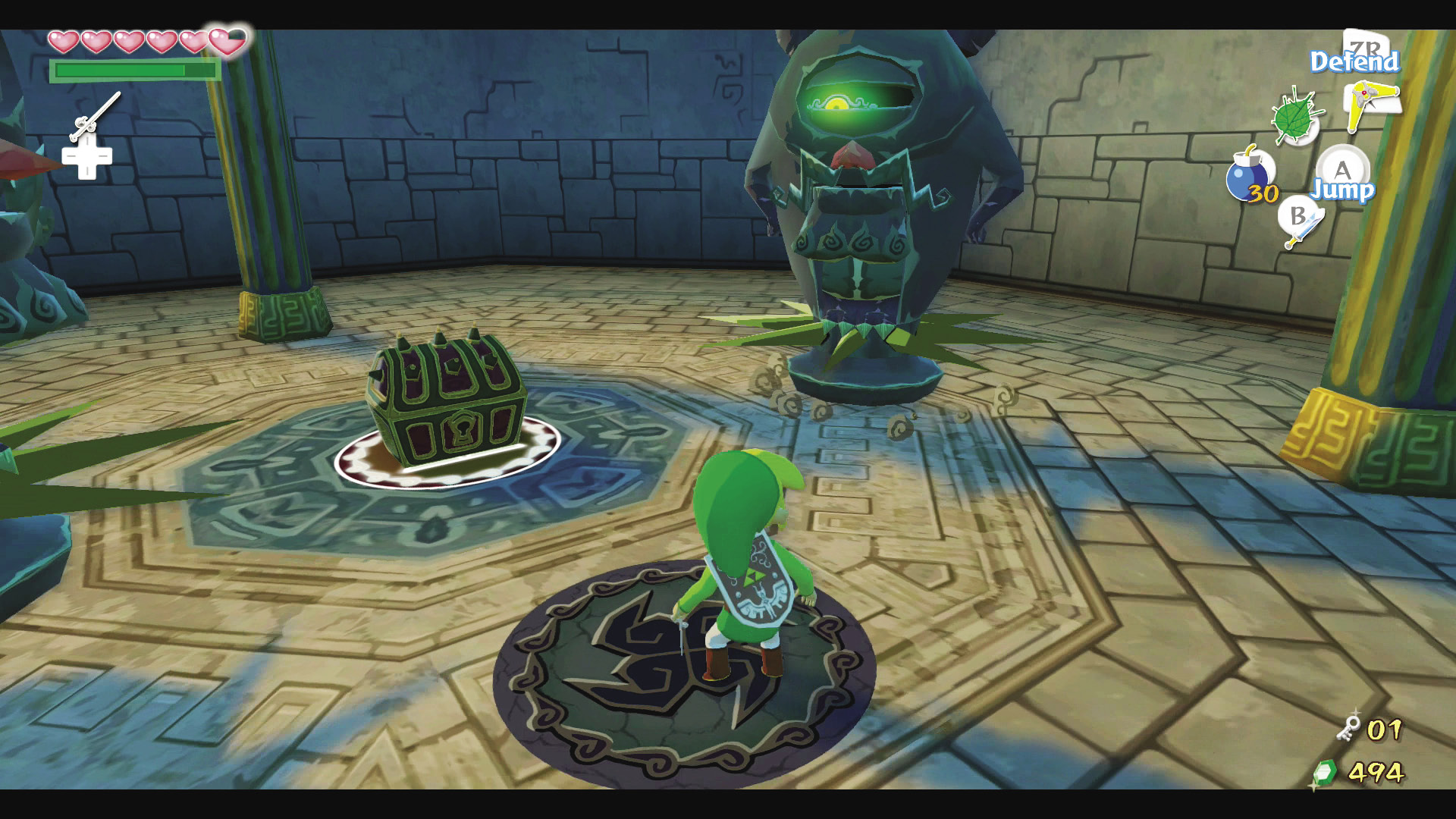
Dungeons are confounding, maze-like areas filled with traps, puzzles, and enemies. Most dungeons have a Dungeon Map and Compass to help you find your way through. Many dungeons also contain locked doors you can only open with Small Keys. Link’s Small Key total appears above his Rupee total, but only while he’s in a dungeon.
Subscreens
When displaying the game on TV, the Item subscreen and Quest Status subscreen are always shown on the Wii U GamePad. This means you don’t need to pause the action while checking Link’s inventory and equipping items. If you’re in a dangerous situation, press  to pause the action while inspecting the subscreens.
When you’re playing on the GamePad or when you’re using a Wii U Pro Controller, you must press  to pause the game and bring up the subscreens.
Item Subscreen
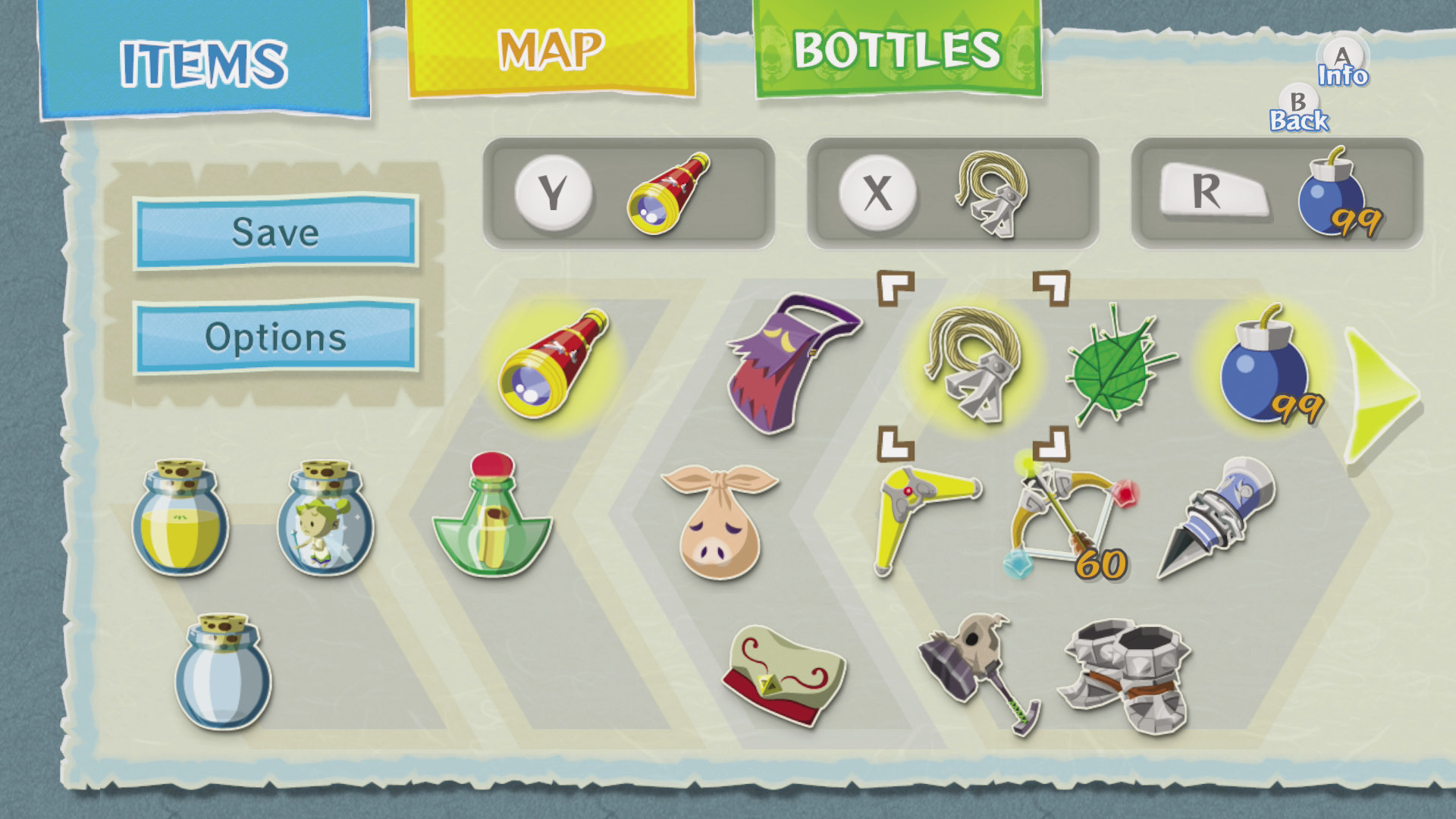
The Item subscreen displays Link’s quest items, which you can equip to  ,
,  , or
, or  by highlighting the item with S and pressing
  ,
,  , or
, or  . To view information about the item, highlight it and press
  .
.
Quest Status Subscreen
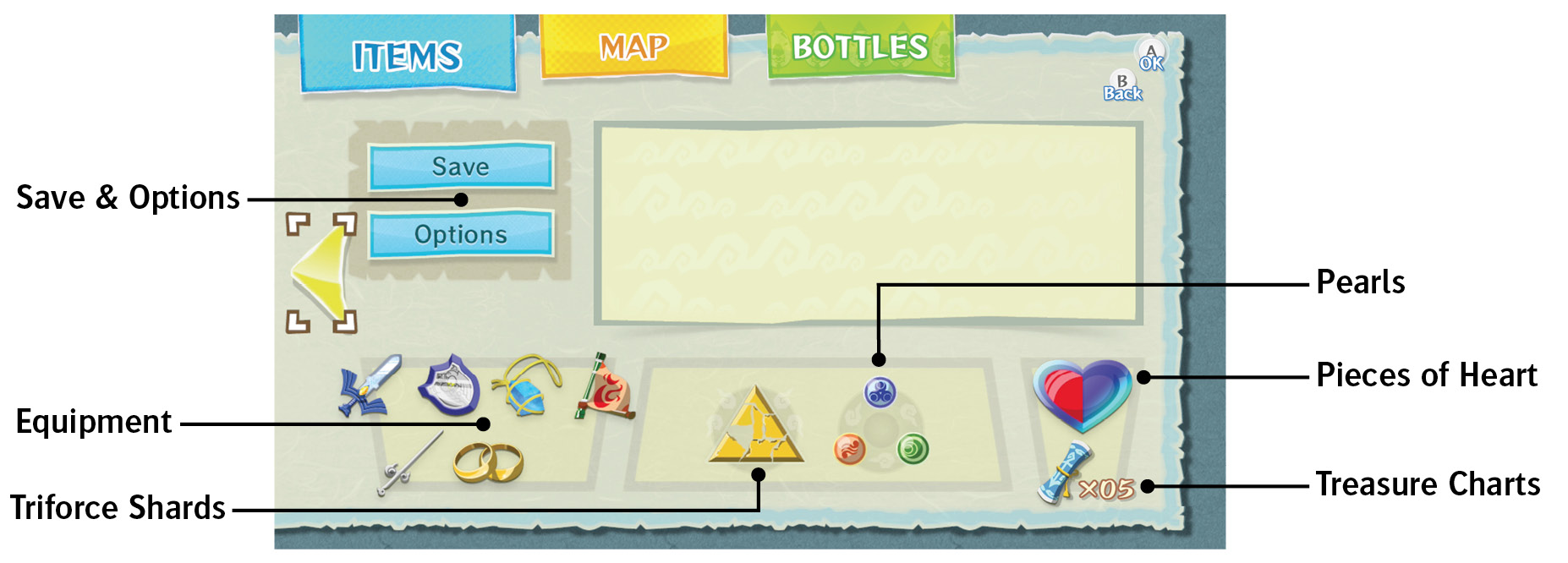
The Quest Status subscreen displays information about the quest objectives that Link has completed:
- Save and Options: Highlight these and press
 to save your game or change the game options (see the “Game Options” section).
 - Pieces of Heart: This shows how many Pieces of Heart you have toward your next Heart Container. Collect four Pieces of Heart to complete a new Heart Container and extend Link’s Life Gauge.
- Triforce Shards: Late in the game, Link must find the Triforce of Courage’s eight shards. This shows how many shards he’s found so far.
- Pearls: At the beginning of the game, Link must find Din’s Pearl, Farore’s Pearl, and Nayru’s Pearl. This shows how many pearls he’s found so far.
- Equipment: Unlike the items in the Items subscreen, the items in this column are automatically equipped and do not need to be set to
 ,
,  , or
, or  .
.
Game Options
Highlight Options on either subscreen and then press  to change the following game options:
- Target Type: Select between holding down
 to target (“Hold”) or pressing
  to switch targeting on/off (“Switch”).
 - Camera: Reverse the left/right directions for the camera controls.
- First-Person Camera: Invert up/down directions for camera controls during first-person camera movement.
- Controller: Set controller preferences between the Wii U GamePad and the Wii U Pro Controller.
- Gyroscope: Switch the gyroscope on the Wii U GamePad on or off. This will have no effect when you’re using the Wii U Pro Controller.
- UI Display: Choose whether to display action prompts and currently assigned items in the corner of the screen. You can turn these off when you become familiar with the game.
In-Game Maps
Sea Chart (Overworld Map Screen)
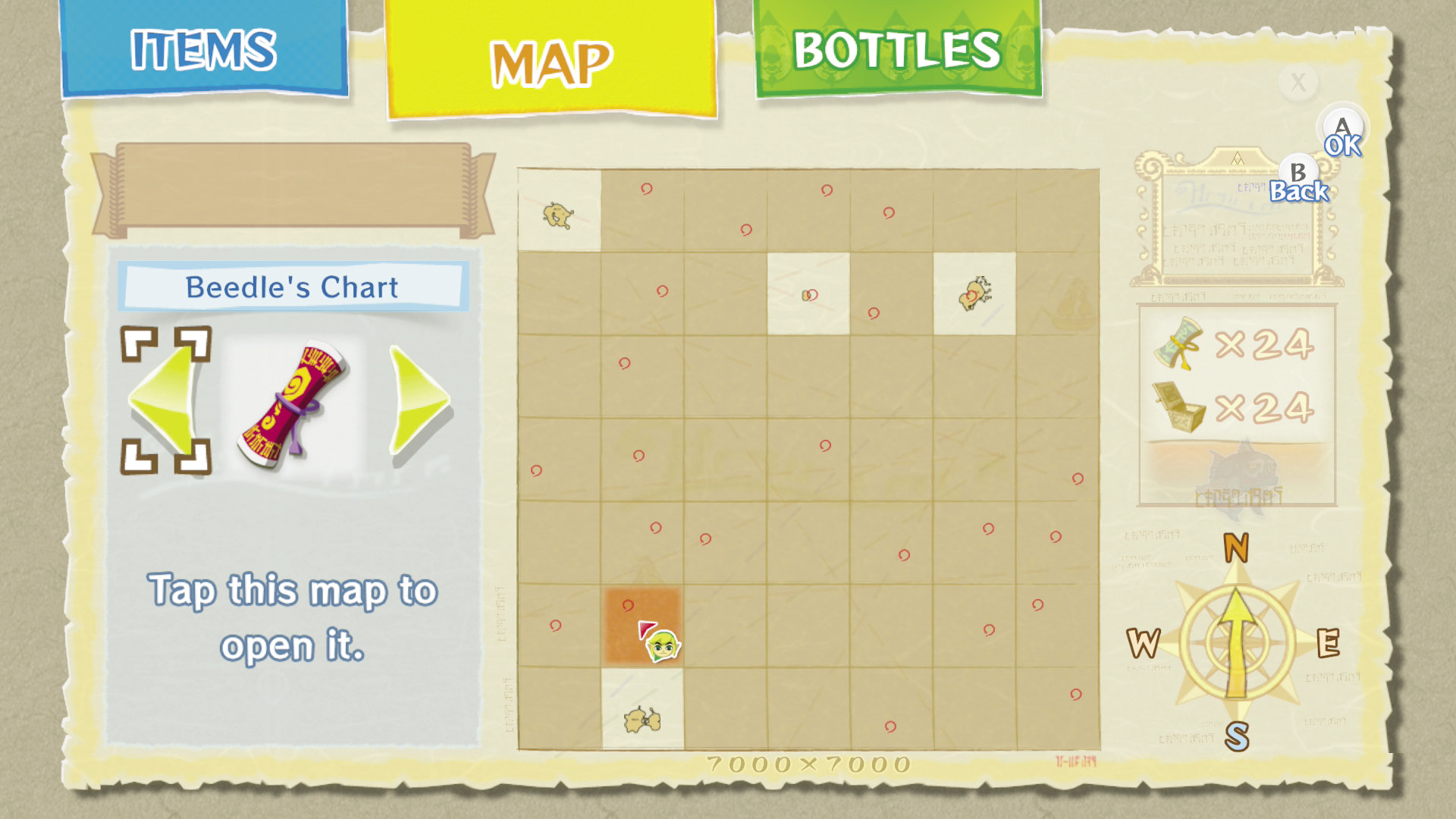
The Sea Chart displays Link’s position in the overworld. It has 49 island sectors, but many islands are not shown on the Sea Chart at first. Find a Fishman near each island as you explore the Great Sea and feed him some All-Purpose Bait. The Fishman will draw the nearby island onto your Sea Chart and will give you a bit of information. The name of the island then appears at the top of the screen while the sector is selected. For a closer view of the island, zoom in on the sector after the island has been charted.
The right side of the Sea Chart shows how many Treasure Charts you’ve found and how many of the Treasure Charts’ treasures you’ve salvaged from the Great Sea’s depths. The Treasure Charts are displayed on the left side of the Sea Chart; open each one and scroll through them to see where their treasure lies. The current wind direction also appears in the lower-right corner of the Sea Chart.
Treasure Charts
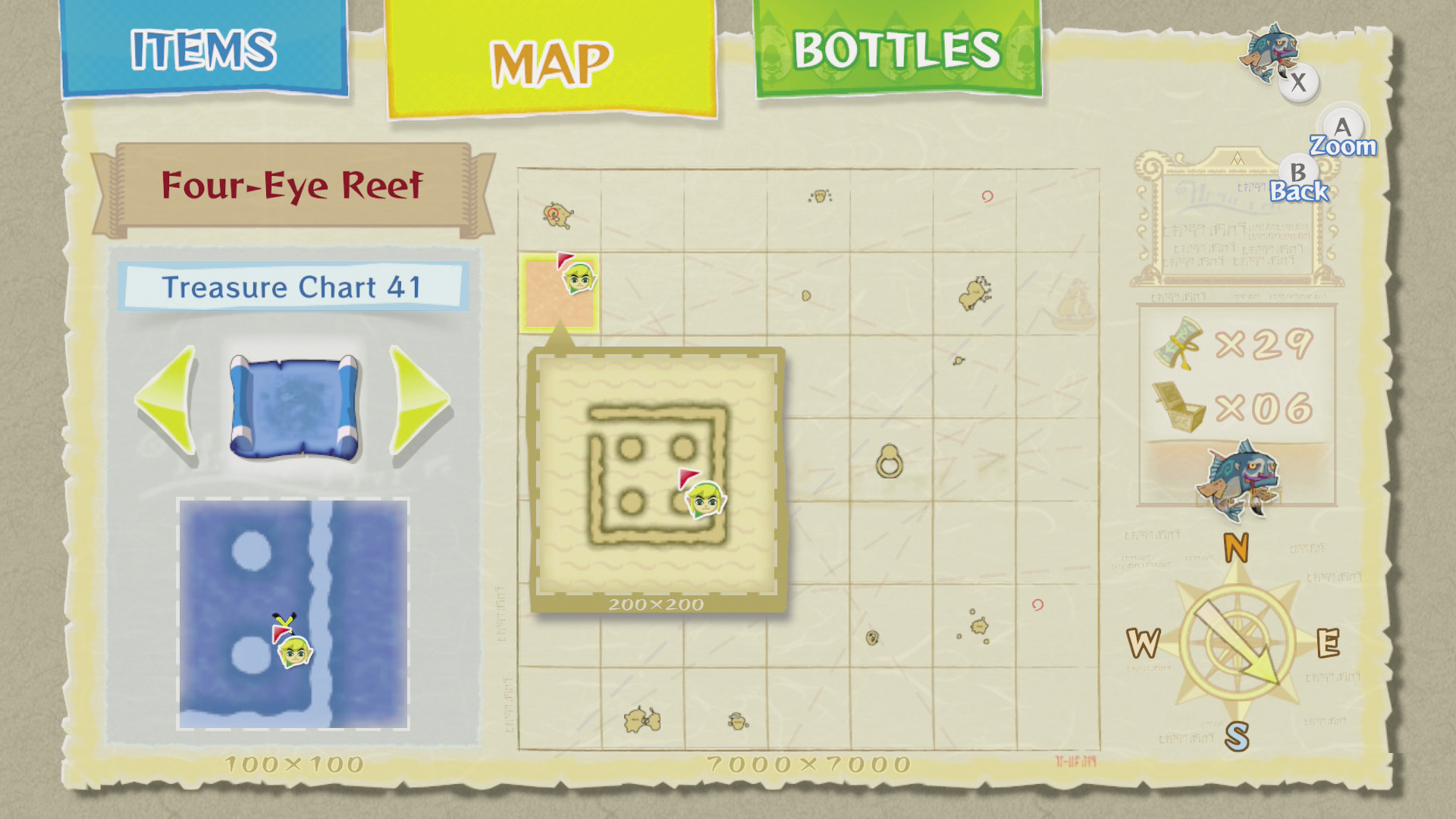
There are 46 Treasure Charts hidden across the islands of the Great Sea. When you find one, examine it on the Sea Chart (overworld map screen). To pinpoint a Treasure Chart’s sunken treasure, compare the islands you’ve charted with the Treasure Charts you’ve found. Match up the shapes of the islands to figure out the sector in which the treasure lies.
Dungeon Maps
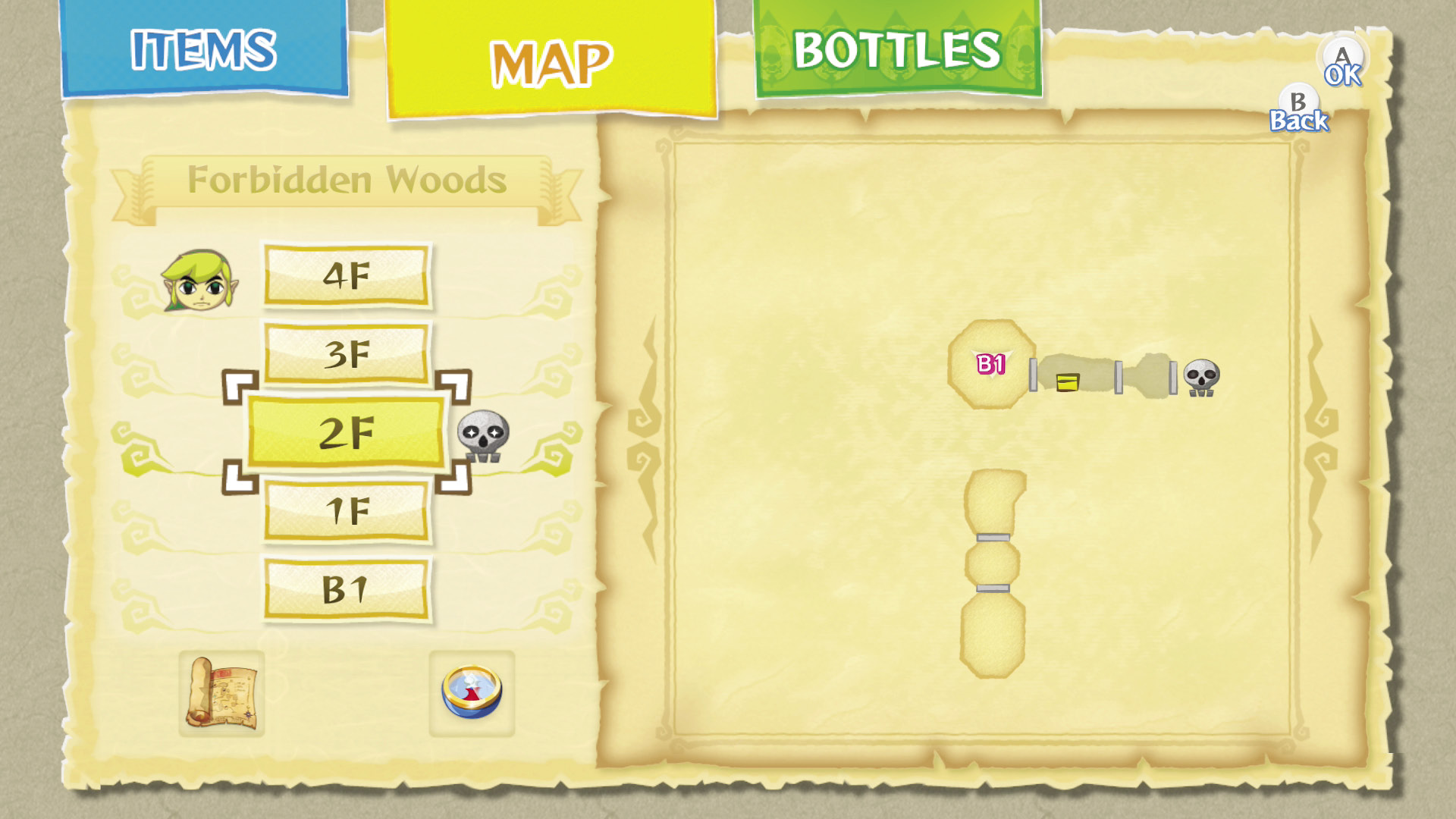
Whenever you’re in a dungeon, the Map screen displays a map of the dungeon instead of the Great Sea. Only the rooms you visit will appear on the in-game map until you find the Dungeon Map, after which the dungeon’s entire layout appears. Use the buttons on the left to select the dungeon’s different floors. Shaded rooms on your Dungeon Map have yet to be explored.
Loot Locator
When you find a dungeon’s Compass, the locations of the dungeon’s boss and the dungeon’s treasure chests appear on the Dungeon Map.