
SimCity Guide Essentials Roads
Road Construction
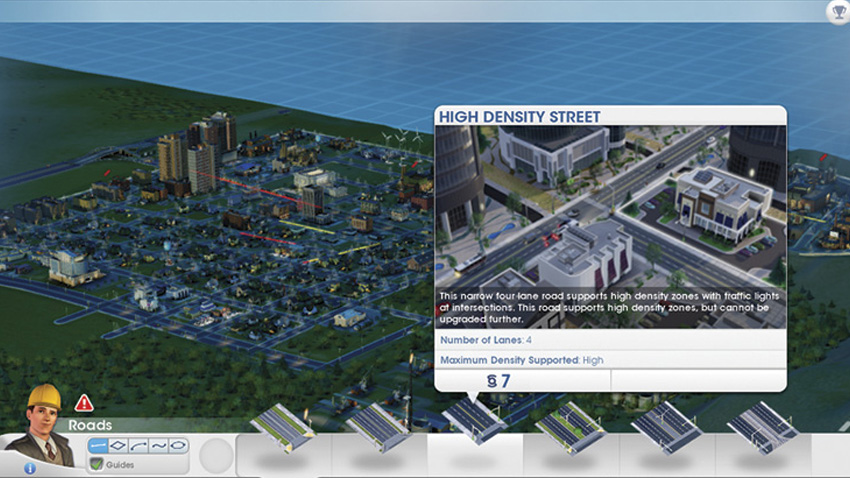
Select the desired road type from the Roads menu to begin construction. Make sure the selected road can accommodate the traffic and desired density for the area.
Roads are purchased from the Roads menu. There are several types of roads available, and each serves a purpose. Hover over each option to view its name, a description, and how many Simoleons it takes to lay a single stretch of road. Select your preferred road, and then click the left mouse button and drag the road to where you’d like to place it.
How much the total stretch of road costs is shown above your cursor. Release the left mouse button to build. Click the right mouse button to cancel. The type of road can drastically change the zoning density in the city. The wider the road, the more traffic it can handle, affecting how quickly your city can be populated.
The higher your population, the more money you can acquire. Keep in mind the value and density of each zone as you lay down roads.
Road Tools
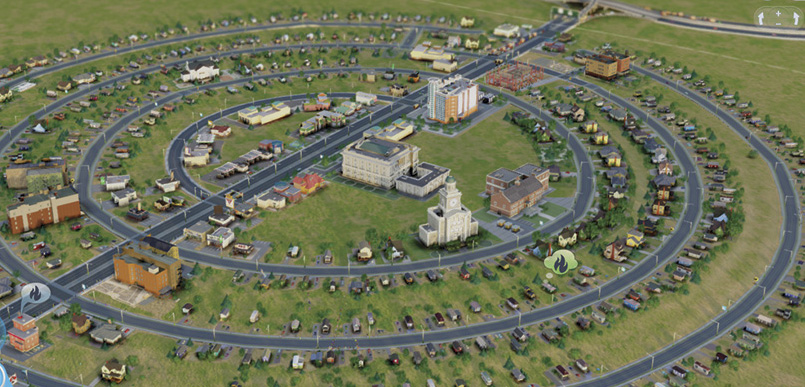
Use the Circle tool to create to create ring-shaped road systems, using the road guides to determine proper spacing between each road.
You can lay curved, arced, rectangular and even circle roads. Click the Line, Curve, Arc, Rectangle, or Circle icons on the left side of the menu to adjust the shapes of the roads you can draw. The Curve and Arc tools allow you to build curved streets, while the Rectangle tool can lay down entire city blocks, perfect for creating a quick grid layout.
The Circle tool is ideal for creating elliptical and perfect circular roads. Select the road type, then click and drag along the ground to pave the road. Press SHIFT to quickly toggle the selected tool—or simply click on the desired tool on the left side of the menu. Remember to leave enough space for houses, shops, and factories as you start creating city grids.
Road Guides
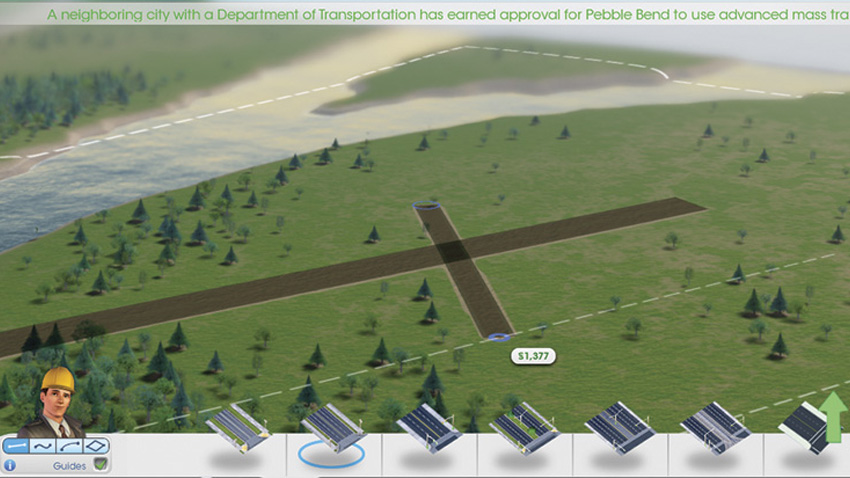
The white dotted road guides are helpful tools when creating new roads. Follow the guides to optimize spacing for zoning.
As you lay down roads, you’ll see white dotted lines appearing nearby. Hover the mouse over a road to make the guides appear. These lines are suggested guides for additional roads. Use them to help with spacing. Spacing is particularly important when zoning residential, commercial, and industrial areas.
If a zone is too cramped, there may not be enough room to build additional houses, shops, or factories within a block, resulting in empty unused space. It may not seem like much early on, but undeveloped space is essentially a wasted piece of land, generating no tax revenue for your city.
The better planned out your roads are, the more organized your city. Press ALT to toggle the guides on/off, or simply click on the Guides box below the road tools options.
Upgrading/Downgrading Roads
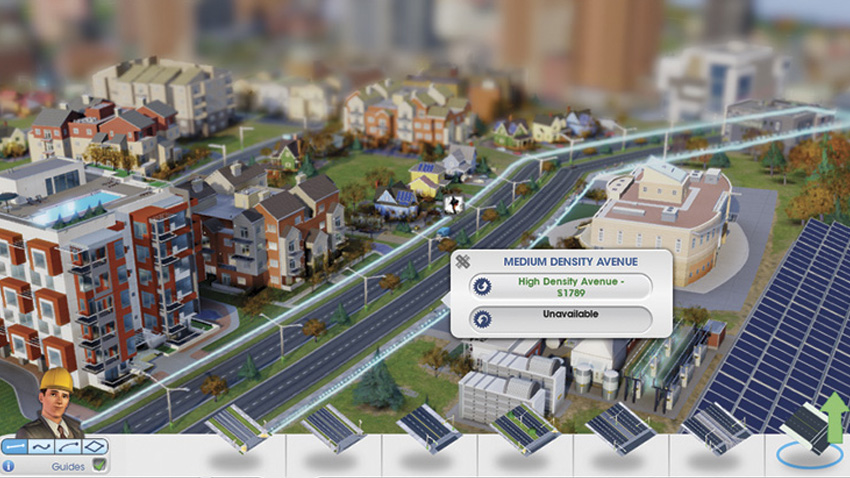
As traffic builds up, use the Road Selector tool to upgrade existing roads. There’s no need to bulldoze unless you want to replace a street with an avenue.
As your city grows, traffic increases along your road network, leading to congestion. Upgrading your roads is important because cluttered streets can cause problems, including slowing down fire or police services or delaying assistance from neighboring cities. Fortunately, you don’t have to bulldoze existing roads in order to upgrade or downgrade them.
By using the Road Selector tool, also available in the Roads menu, you can select any road segment and determine its density. Simply click on the Road Selector tool and then select any stretch of road you wish to upgrade or downgrade. A small window appears above the selected road giving you options to upgrade or downgrade.
Upgrades always cost more money, but downgrades are performed free of charge. Due to the difference in width, streets cannot be upgraded into avenues and avenues can’t be downgraded to streets. If you wish to replace a street with an avenue, you’ll need to bulldoze the existing street as well as any buildings that are in the way.
For this reason it’s a good idea to carefully plan the placement of your avenues, constructing them before you really need them. At the very least, set aside open land to construct avenues in the future. To avoid costly demolitions, make a habit of placing expensive buildings such as Hospitals, Bus Terminals, and landmarks next to avenues instead of streets. You can also use the Road Selector tool to upgrade bridges.
Traffic Jams
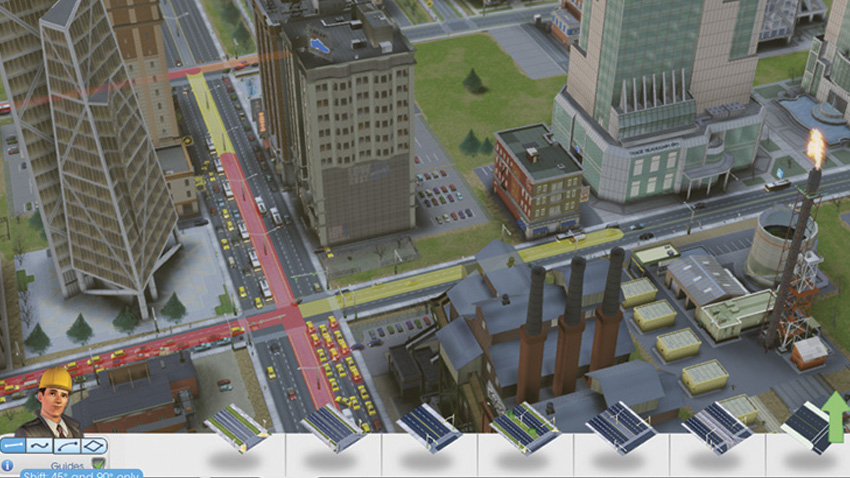
Look for flashing yellow and red road segments to identity areas of congestion. Perhaps it’s time to upgrade roads or roll out a mass transit solution?
If your road network is experiencing congestion, the Roads menu button will flash yellow or red, depending on the severity of the situation. Once the Roads menu is open, you can see certain segments of road in your city flashing yellow or red. Yellow segments indicate areas where congestion is becoming a problem.
Red segments show areas where traffic has reached a gridlock state, with little or no movement. Take these warnings as a cue to upgrade these road segments to better accommodate high volumes of traffic. But even upgrading your city’s roads may not be enough to completely eliminate congestion. As traffic increases along your road network, consider turning to mass transit options to reduce the number of vehicles on your roads.