
SimCity Guide Essentials Getting Started
Getting Started
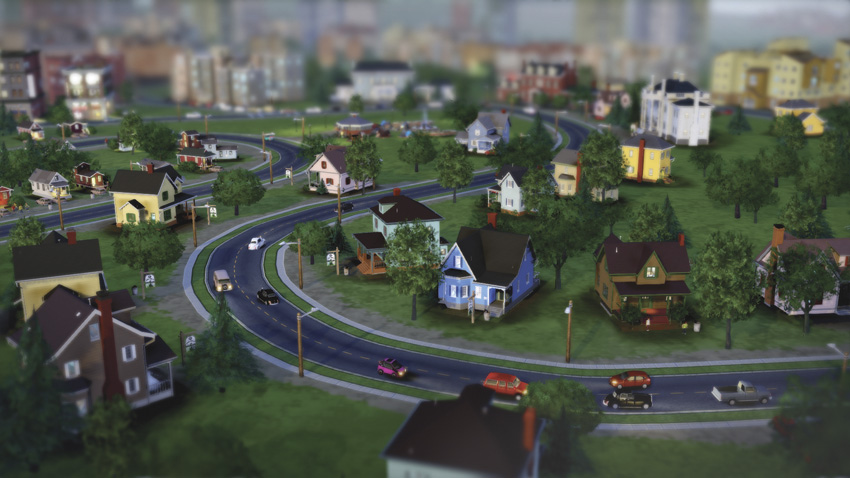
So Mayor, are you ready to start building a city?
Nurturing a small town to life and watching it grow into a bustling metropolis is just one of the many appeals of the SimCity experience. But before you start paving roads, plopping utilities, and laying out zones, it’s a good idea to establish a basic understanding of the interface and underlying gameplay mechanics.
Even if you’re a SimCity veteran there’s plenty of new material to learn, particularly when it comes to multi-city play—the new feature allowing you to share resources with other cities and players while working toward common goals.
Once you’ve grasped the basics, follow the easy ten-step tutorial on how to establish the basic infrastructure for any city, helping you get on the right track. Want to know how the developers play the game? Then flip ahead to the sample cities section to learn how the Maxis team creatively approaches different goals and overcomes challenges.
By learning how the developers play, you’ll see what’s possible, inspiring you to create your own imaginative cities. After all, there’s no right way or wrong way to play SimCity . So read up, and most importantly, have fun!
Interface
City View
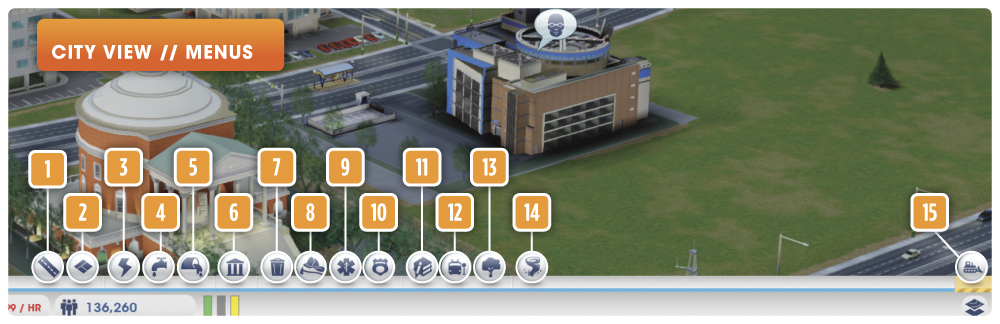
Menus
1 - Roads: Select from a variety of streets and avenues to create your road network. In addition to carrying traffic, roads also serve as the circulatory system of the simulation, responsible for conveying power, water, and sewage beneath the surface. All zones, structures, and even parks must be built adjacent to a road.
2 - Zones: Use the zoning tools to zone residential, commercial, and industrial zones within your city. Zones can be removed by using the Dezone tool.
3 - Power: How will you power your city? Choose from Wind, Coal, Oil, Solar, and Nuclear Power Plants. Once a power plant is constructed, power can be seen traveling along your road system, represented as a yellow line. When the Power menu is open you can also see how much power is being generated and consumed.
4 - Water: Whether you build a simple Water Tower or a Water Pumping Station, all cities require water. With a water source in place, water, represented by a blue line, flows along the city’s road network. When the Water menu is open you can see the pollution level as well as how much water is being produced and consumed.
5 - Sewage: Build a Sewage Outflow Pipe or Sewage Treatment Plant to deal with all the raw sewage building up in your city’s pipes. Sewage appears as brown blobs beneath the surface of your city’s road network—make sure it’s pumped to a proper disposal area before it leaches to the surface and creates ground pollution.
6 - Government: Access this menu to construct a Town Hall, Mayor’s House, and Mayor’s Mansion, as well as a number of departments. Departments must be placed adjacent to your Town/City Hall, so leave plenty of growing room.
7 - Waste Disposal: All buildings in the city generate garbage. If left unattended, garbage can accumulate, spreading germs, lowering land value, and increasing the risk of fires. Construct a Garbage Dump and/or Recycling Center to get a handle on your city’s perpetual garbage problem.
8 - Fire: The Fire Station and the Large Fire Station are your first lines of defense against small residential blazes and massive industrial hazmat infernos. Make sure your city has adequate fire coverage before the first fire breaks out—waiting to build a Fire Station until a fire spreads is risky and irresponsible.
9 - Health: Even in the healthiest, pollution-free cities, Sims still get sick and become injured. Build a Clinic or Hospital to treat ailing Sims, returning them to full health. After all, Sims who are sick or injured do not go to work, potentially having a ripple effect on the city economy.
10 - Police: If criminals have taken refuge in your city, building a Police Station or Police Precinct is the only way to get rid of them. Police actively pursue criminals immediately following a crime. Once jailed and rehabilitated, a criminal no longer poses a threat to your city. Deal with crime at its earliest, non-violent stages before it gets out of hand.
11 - Education: Investing in education is costly but has many benefits. By building Grade Schools, Public Libraries, High Schools, Community Colleges, and Universities, you not only keep kids off the streets, but you also increase education and tech levels, eventually opening the door for clean and high tech industry.
12 - Mass Transit: No matter how carefully you design your road network, it’s difficult to avoid gridlock caused by too many cars. Alleviate road congestion by investing in mass transit. Utilizing buses, streetcars, trains, boats, and planes, an efficient mass transit system gives Sims other alternatives for getting around the city or commuting to neighboring cities.
13 - Parks: Everybody wants to live next to a park. As a result, building parks immediately increases the surrounding land value, often attracting medium and high wealth Sims. Parks also help offset the negative affects of air pollution and increase the city’s attraction rating, helping lure tourists.
14 - Disasters: Choose from different disasters to unleash on your city. Disasters are not immediately available as they must be unlocked by completing specific achievements.
15 - Bulldoze: Access this menu to demolish unwanted buildings and roads. Bulldozing roads destroys connected buildings and removes zones.
HUD Elements
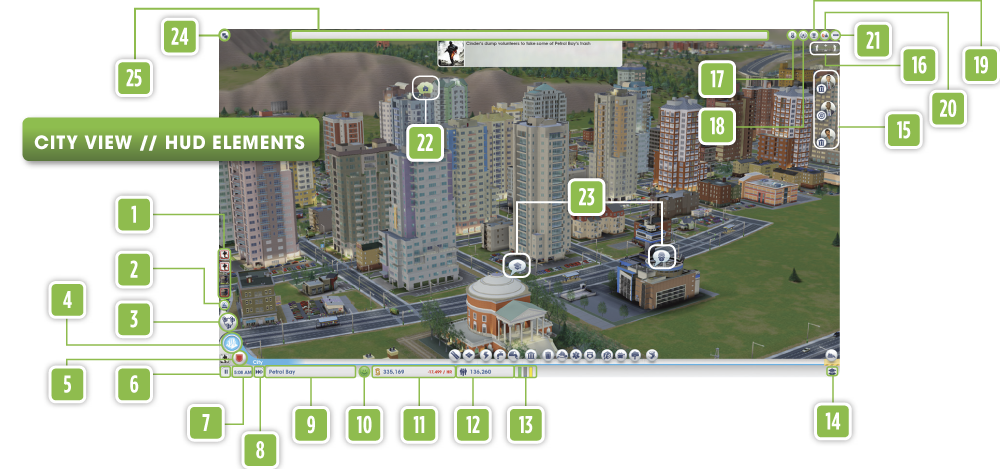
1 - Neighboring Cities: The icons on the left side of the HUD represent neighboring cities in the region—the icon shown is the Origin avatar of each city’s mayor. Click on these icons to view each corresponding city in the Region View.
2 - Great Works: Choose to build a Solar Farm, International Airport, Space Center, or Arcology. Great Works benefit all cities in the region.
3 - Region View: Switch to the Region View to see neighboring cities. From this interface you can also buy power, water, and sewage coverage from connected cities in the region. It’s also possible to volunteer vehicles like garbage trucks, police cars, fire trucks, and ambulances to neighboring cities.
4 - City View: When the Region View is open, click on the City View button to return to your city.
5 - City Specialization: Here you can choose from a variety of city specialization opportunities. Specialize your city with mining, drilling, trading, electronics, culture, or gambling.
6 - Pause/Play: Pausing the simulation stops time and all movement within your city. You can still construct, zone, and make other adjustments while the game is paused. If the game is paused, click on this toggle button again to resume the simulation at the currently selected speed.
7 - Time/Date: The current time is always shown here. Mouse over the time to reveal the current month and year.
8 - Simulation Speed: Toggle between Turtle, Llama, and Cheetah speeds to alter the passing of time—Turtle speed is the slowest, and Cheetah speed is the fastest.
9 - City Name: This is the name of your city. All cities have a default name, but names can be changed. Click on the city’s name to change its name.
10 - Mayor Rating: This colorful face icon represents the city’s overall happiness and how you’re doing as mayor—if the icon is a green happy face, you’re doing a great job! If the icon is any other color, your city has problems. Click on the face icon to open the Mayor Rating panel. Here you can get a better idea of what your Sims are complaining about.
11 - Budget Panel: This bar at the bottom of the HUD shows the amount of Simoleons in your city’s treasury as well as how much money the city is bringing in per hour. Click on this bar to open the more detailed Budget panel. From the Budget panel you can adjust tax rates as well as view all income and expenses. If your city is strapped for cash, you can even take out loans from three different lenders.
12 - Population Panel: This bar shows your city’s current population. For a more detailed report, click this bar to open the Population panel. Here you can track your population across demographics, ideal for seeing how many low, medium, and high wealth Sims are living in the city. This is also a great place to view how many filled and vacant jobs are available in your city.
13 - RCI Demand: These three green, blue, and yellow bars represent the current demand for residential, commercial, and industrial zoning—the higher the bar, the greater the demand. For greater detail on zoning demand, open the Zones menu.
14 - Data Map: Choose from a variety of data layers, each represented by a different icon within this pop-up box. Each data layer reveals a wealth of information about your city, including the locations of natural resources, land value, crime, air pollution, and much more. Use the information provided in these data layers to plan your city, identify problems, and seek out new opportunities.
15 - Mission Tracker: Missions are optional tasks that can be accepted and completed to earn rewards, paid in varying amounts of Simoleons. Current missions appear as icons on the right side of the HUD. Mouse over each mission icon to review their criteria and your progress toward completing them. You can only accept three missions at a time. Current missions can be canceled at any time in order to accept new missions in their place.
16 - Rotate/Zoom Controls: Use these controls in the top, right corner of the HUD to zoom and rotate the view of the city. Alternatively, you can use the mouse or keyboard to zoom and rotate your view.
17 - Achievements: Click here to see all available achievements.
18 - Challenges: Here you can see the current challenge available to the community.
19 - Leaderboards: This button offers quick access to the leaderboards. Sort through all 15 to see how you stack up against your friends or the entire community.
20 - Friends Lists: Here you’ll find a list of your Origin friends who also have SimCity —send them invites, asking them to join your region. If you don’t have any friends in your Origin friends’ list, you can search for new friends with SimCity here. But you must know their Origin user name.
21 - Options Menu: From this menu you can adjust the game’s settings, access the game manual, enter the Help Center, view achievements, replay the opening tutorial, view the game’s credits, return to the main menu, or exit the game.
22 - Thought Bubble: These bubbles project the citizens’ positive and negative thoughts, giving you a peek into the public’s attitude. Green bubbles are positive, orange bubbles are neutral, and red bubbles are negative.
23 - Request Bubble: These blue bubbles appear when a Sim, company, or organization directly appeals to the mayor’s office with a request.
24 - Region Wall: This window can be opened to chat with other mayors in your region. This is a great way to communicate when attempting to build Great Works or negotiating gifts from neighboring cities.
25 - SimCity Wire: All of the latest news for your city is displayed at the top of the screen. Events in the region are also reported, informing you when new mayors join the region or whenever a new government department module is constructed.
City Specialization
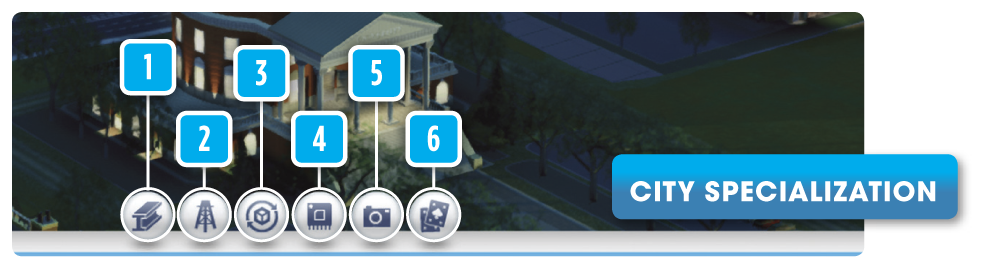
1 - Mining: Choose from the Coal Mine, Ore Mine, or Advanced Coal Mine to start extracting raw materials from the ground. By building the Metals HQ and Smelting Factory, you can then refine coal and ore into metal and alloy. Metal and alloy are necessary for building Great Works. Alternatively, coal, ore, metal, and alloy can also be sold to neighboring cities or the global market for a handsome profit.
2 - Drilling: If your city has large deposits of oil beneath the surface, build an Oil Well to extract crude oil. With the construction of a Petroleum HQ and Oil Refinery, crude oil can be converted into fuel or plastic. All three resources—crude oil, fuel, and plastic—can be traded to neighboring cities or sold on the global market.
3 - Trading: The Trade Depot is the central hub of all resources flowing in and out of your city. Here you can store, import, and export a variety of resources and freight—all imports and exports are carried by trucks. Building a Trade HQ and Trade Port allows you to import and export massive amounts of resources and freight carried by trains and cargo ships.
4 - Electronics: If your region already has a Community College or University and is producing a surplus of alloy and plastic, consider building a Processor Factory. A successful Processor Factory can lead to the creation of an Electronics HQ, which in turn unlocks the Consumer Electronics Factory, capable of producing TVs and computers.
5 - Culture: Cultural buildings like the Expo Center, Pro Stadium, and real-world landmarks (like the Arc De Triomphe and Empire State Building) provide happiness for your city’s Sims as well as attract tourists. Just make sure your city has plenty of mass transit options to accommodate the sudden influx of visitors. Surround these attractions with plenty of commercial buildings to encourage shopping by tourists.
6 - Gambling: Casinos offer a quick way to earn a lot of revenue, attracting tourists from the region and beyond. Start small with a Gambling Hall, but make sure your city has police coverage to counter the criminal element. A successful Gambling Hall can lead to the construction of a Gambling HQ, followed by more lavish gaming palaces like the Sleek, Sci-Fi, and Elegant Casinos. Like cultural buildings, a good mass transit system is essential for handling the heavy traffic around casinos. A constant and robust police presence is also very important.
Region View
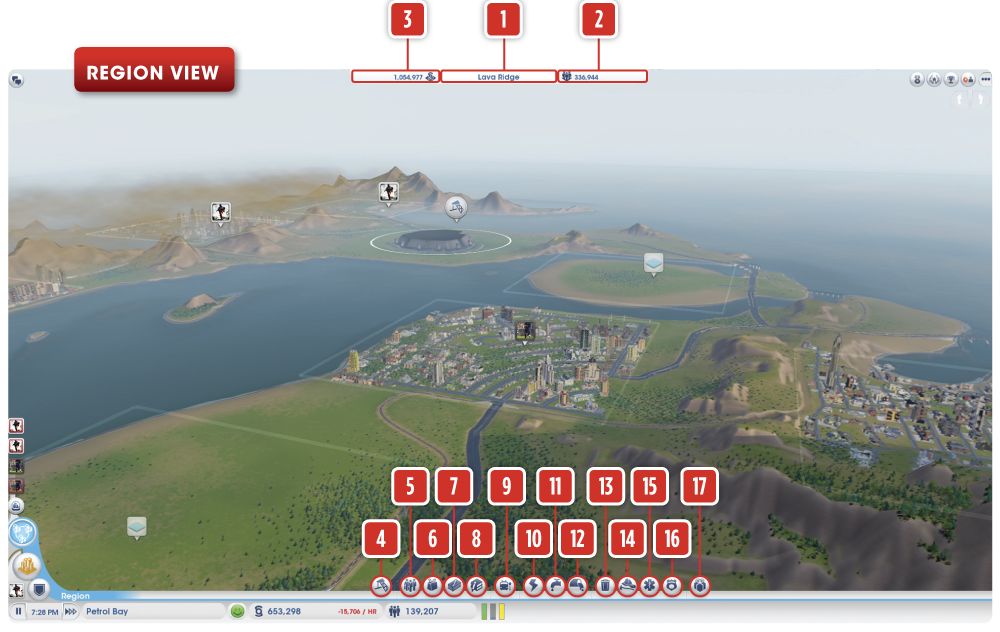
1 - Region Name: The name of the region. Once established, regions cannot be renamed.
2 - Region Population: This number represents the current population of the entire region, accounting for Sims in every city.
3 - Region Treasury: The total amount of available funds in the region, accounting for every Simoleon in each city’s treasury.
4 - Great Works: Choose to build a Solar Farm, International Airport, Space Center, or Arcology. Great Works benefit all cities connected to them by road. Airports have additional benefit to cities connected by rail.
5 - Workers: Shows the flow of workers commuting among the cities in the region. Unemployed Sims will look for work in neighboring cities. View the data maps to see total workers, total jobs, unemployed Sims, and open jobs.
6 - Shoppers: Shows the flow of shoppers traveling throughout the region. Shoppers will travel by car, bus, train, and ferry to shop in neighboring cities. View the data maps to see total shoppers, total goods, unsatisfied shoppers, and unsold goods.
7 - Freight: Shows the flow of freight throughout the region. Industrial businesses ship freight to commercial businesses in neighboring cities. View the data maps to see total freight, total freight orders, unsent freight, and unfilled freight orders.
8 - Students: Shows the flow of high school and college students moving throughout the region. Grade school students travel to High Schools in neighboring cities by bus. College students use cars, buses, trains, or ferries to reach Colleges in neighboring cities. View the data maps to see total students, total desks, uneducated Sims, and extra desks.
9 - Transport: Shows the flow and use of mass transit throughout the region. Sims travel between cities using buses, passenger trains, and ferries. View the data maps to see the number of passengers, number of passengers waiting at stops, and the number of stops.
10 - Power: Shows the flow of power traded between cities. You can also select a connected city and choose to buy power from it—the city requiring power must initiate the purchase. View the data maps to see power needed, power produced, power sold, and power deficits.
11 - Water: Shows the flow of water traded between cities. A city creating water makes its excess water available to connected cities for a fee. You can buy water from any neighboring city with a water surplus. View the data maps to see water produced, water needed, water sold, and water deficits.
12 - Sewage: Shows the flow of sewage traded between cities. A city providing sewage can take in sewage from connected cities. Select a neighboring city and buy sewage service. View the data maps to see sewage capacity, sewage produced, sewage treated, and sewage dumped.
13 - Waste Disposal: Expand waste disposal coverage by volunteering garbage and recycling trucks to other cities in the region. Cities receiving garbage coverage get the service for free from neighbors willing to volunteer trucks. The city providing the garbage coverage receives income for the garbage it collects. View the data maps to see total number of garbage and recycling trucks, total number of garbage cans, and total number of garbage cans not picked up.
14 - Fire: Expand fire coverage by volunteering fire trucks, hook & ladder trucks, hazmat tucks, fire marshals, and fire helicopters to neighboring cities. The city receiving the fire coverage gets it for free. The city providing the coverage receives income for each fire extinguished. View the data maps to see total fires, total fire trucks, fires extinguished, and unattended fires.
15 - Health: Expand health coverage by volunteering ambulances and wellness vans to neighboring cities. The city receiving health coverage gets it for free. The city providing health coverage receives income for the sick and injured Sims it treats. View the data maps to see total health vehicles, total health vehicles not giving services, total sick and injured, and total sick and injured not treated.
16 - Police: Expand police coverage by volunteering police cars, detective cars, crime prevention vans, and police helicopters to neighboring cities. The city receiving police coverage gets it for free. The city providing police coverage receives income for criminals it catches. View the data maps to see total crimes, police on the beat, criminals apprehended, and criminals at large.
17 - Gift: Cities can send resources and Simoleons to neighboring cities. To receive resources a city must have a place to store them. Resources are sent by truck, rail, or boat. Resources that can be gifted include alloy, coal, computers, processors, fuel, metal, crude oil, raw ore, plastic, and TVs.
HOTKEYS
| Command | Keys |
|---|---|
| Control camera | W/A/S/D/number keys/arrow keys |
| Rotate camera | Q/E |
| Zoom camera | Z/X |
| Tilt camera up/down | END/HOME |
| Camera zoom in/out | +/- or PAGE UP/PAGE DOWN |
| Back out of current menu or tool | ESC (while tool or menu is open) |
| Options menu | ESC (while no tool or menu is open) |
| Population Panel | F2 |
| Budget Panel | F3 |
| Approval Rating Information | F4 |
| Open chat/Region Wall | ENTER |
| Enter/Exit Region View | BACKSPACE |
| Screen capture | C |
| Video capture | V |
| Residential zoning tool | CTRL + R |
| Commercial zoning tool | CTRL + C |
| Industrial zoning tool | CTRL + I |
| Unzoning tool | CTRL + U |
| Upgrade road tool | R (Only works with Road Tool menu open) |
| Bulldoze tool | B |
| Leaderboards | L |
| Achievements | ; |
| CityLog | ‘ |
MENU CONTROLS
| Command | Keys |
|---|---|
| Disasters | SHIFT + X |
| Roads | SHIFT + R |
| Power | SHIFT + P |
| Water | SHIFT + W |
| Sewage | SHIFT + S |
| Garbage | SHIFT + D |
| Government | SHIFT + G |
| Fire | SHIFT + F |
| Health | SHIFT + H |
| Police/Crime | SHIFT + C |
| Education | SHIFT + E |
| Mass Transit | SHIFT + T |
| Parks and Culture | SHIFT + U |
| City Specialization | SHIFT + B |
| Next menu or sub-menu | TAB |
| Previous menu or sub-menu | SHIFT + TAB |
SANDBOX MODE
| Command | Keys |
|---|---|
| Sandbox ModeToggle Fire On/Off | ALT + F Toggle Crime On/Off ALT + C |
| Toggle Health Issues On/Off | ALT + M |
| Toggle Air Pollution On/Off | ALT + A |
| Toggle Ground Pollution On/Off | ALT + P |
| Toggle Homeless Sims On/ Off | ALT + H |
| Add §100,000 to City Budget | ALT + W |
| Toggle Sewage On/Off | ALT + S |
TIME CONTROLS
| Command | Keys |
|---|---|
| Pause | ~ |
| Turtle | 1 |
| Llama | 2 |
| Cheetah | 3 |
RESOURCE MAPS
| Command | Keys |
|---|---|
| Water map | 4 |
| Coal map | 5 |
| Ore map | 6 |
| Oil map | 7 |
DATA MAP CONTROLS
| Command | Keys |
|---|---|
| Population | F5 |
| Happiness | F6 |
| Land Value | F7 |
| Trade | F8 |
| Building Density | F9 |
| Residential System | F10 |
| Commercial System | F11 |
| Industrial System | F12 |
| Tab through associated data maps (when a menu is open) | / |
SimCity Terminology
- Approval Rating : This communicates how happy your Sims are with how you’re running the city.
- Building: This describes anything you can place (or “plop”), which includes buildings, modules, and things like Water Towers. It does not include zones, roads, or things that are painted onto the terrain.
- Challenge: This is a general term for the weekly/global challenges offered by the game.
- City Site: This is a selectable area of a region in which a player can choose to build a city, before a city is built. Once a city site is claimed, it is simply referred to as a city.
- City Specialty: This describes the way in which a city specializes, whether using city specialization (coal, tourism, ore) or a department of the government (education).
- Clean Industry: Refers to tech level 2 industrial (I) buildings.
- Dirty Industry: Refers to tech level 1 industrial (I) buildings.
- Edit Mode: The mode in which you edit a building to add/remove modules.
- Factory: This is what develops in industrial (I) zones, regardless of wealth level.
- Global Market: Resources can be imported and exported through a Trade Depot or Trade Port. Resources are bought and sold at the current market rate as determined by real-time supply and demand.
- Great Works: This is the term for the multi-city projects, including the Arcology, International Airport, Solar Farm, and Space Center.
- Great Works Site: The area in a region in which you can build Great Works.
- High Tech Industry: Refers to tech level 3 industrial (I) buildings.
- Highway: The main regional thoroughfare that connects neighboring cities within a region.
- House: This is what develops in residential (R) zones.
- Mission : This is an optional objective, requiring you to complete a specific task as mayor.
- Module : This is an additional structure/feature that can be added to a building to increase efficiency/output.
- Natural Resources: A resource that is extracted from the map, such as raw ore, crude oil, or coal.
- Power: The electricity or energy required to power buildings.
- RCI: Short for Residential, Commercial, and Industrial zones.
- Region: The area that contains your city, neighboring cities, and Great Works sites, connected by the regional highway.
- Resource: Refers to any product that can be traded or sold on the global market. Resources include alloy, coal, computers, processors, fuel, metal, crude oil, raw ore, plastic, and TVs.
- Sims: These are the citizens inhabiting each city in every region.
-
Simoleon:
The global currency of SimWorld, it is represented in the game with the
 symbol.
- Shop: This is what develops in commercial (C) zones, whether they are shops, offices, big box stores, or gas stations.
- Upgrade: The process used to change HQs (including Town/City Hall) or roads/bridges from one model to an improved version.