
Mario & Luigi: Dream Team Guide Welcome to Pi'illo Island Getting Started
Interface
Don’t let the sudden influx of tourists fool you—Pi’illo Island isn’t the carefree resort Broque Monsieur claims it to be. While the island has its fair share of beauty and natural wonder, something dark and sinister is afoot. Fortunately for the island, its inhabitants, and guests, Mario and Luigi have just arrived from the Mushroom Kingdom, ready to confront any challenge. Before your adventure begins, take a moment to review the gameplay fundamentals detailed in this chapter.
Interface
Game Screens
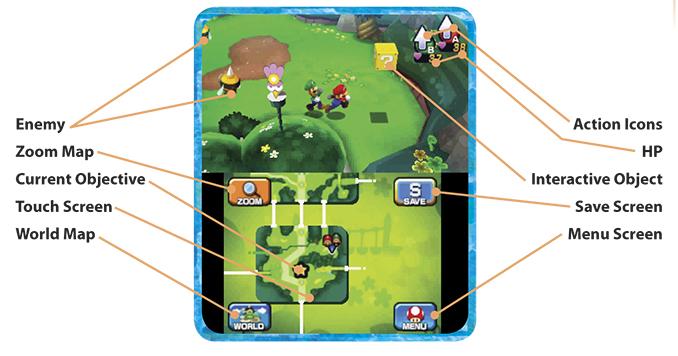
Field
-
Action Icons:
These are the current actions assigned to
 and
and
 . Cycle through other available actions by pressing
 . Press
 to return to the jump action.
- HP: These values represent Mario’s and Luigi’s Health Points, or HP.
- Enemy: Avoid contact with enemies until you’re ready to battle. At that point, jump on them or hit them with a hammer to perform a preemptive attack, triggering a battle.
- Interactive Objects: Blocks and other objects populate the real and dream worlds. Some contain items and others trigger events.
- Touch Screen Map: This small map provides a quick overview of Mario and Luigi’s current location.
- Objective: The current objective appears as a gold star on the Touch Screen map.
- Zoom: Select this option to toggle the zoom setting of the Touch Screen map.
- World: Open the World map, showing Pi’illo Island in its entirety.
- Save: Select to save your game at any point.
- Menu: This button opens the menu screen.
Battle
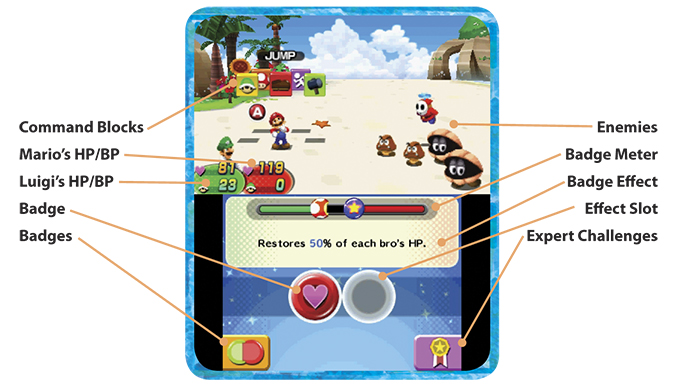
- Command Blocks: When it’s your turn, use the Circle Pad to cycle through these various Command Blocks, allowing you to attack, flee, or consume an item.
- Mario’s HP/BP: These two numbers represent Mario’s current Health Points (HP) and Bros. Points (BP).
- Luigi’s HP/BP: These two numbers represent Luigi’s current Health Points (HP) and Bros. Points (BP).
- Enemies: Foes always appear on the right side during a battle.
- Badge Meter: This meter fills little by little with each successful attack. Fill the meter completely to attain a badge effect.
- Badge Effect: This line describes the badge effect determined by the currently selected badge combo.
- Badge Effect Slot: Earned badge effects appear as icons in these two slots.
- Badges: Press this button to change badges during a battle. But note, changing badges causes the badge meter to reset.
- Expert Challenges: Review the available Expert Challenges along with point values and criteria for each.
Common Interactive Objects
| Image | Name | Description |
|---|---|---|

|
? Block | Strike these blocks from beneath to obtain coins, items, or gear. |

|
M Block | Only Mario can strike these blocks. They may contain coins, items, or gear. |

|
L Block | Only Luigi can strike these blocks. They may contain coins, items, or gear. |

|
Bros. Block | Upon striking this block, an M Block and L Block appears. Rapidly strike the M and L Blocks to gather coins. |

|
Random Block | After striking this block, use Mario to strike the red blocks and Luigi to strike the green blocks to obtain coins. |

|
Event Block | These blocks trigger a variety of events, often opening gates and other passages. |

|
Save Block | You can save your game by striking one of these blocks. |

|
Camera Block | These blocks contain shots that can be decrypted at Kylie Koopa’s in Wakeport. |

|
Red Coin Block | Eight Red Coins appear after striking this block. Collect all eight coins as quickly as possible (before they disappear) to trigger an event. Exclusive to dream world. |

|
Pi’illo | Interact with these objects to enter the dream world and rescue Pi’illos. |

|
Nightmare Chunk | Found only in dream worlds, smash these chunks to set Pi’illos free. |

|
Warp Pipe | These yellow pipes allow you to warp around the island, accessing different regions instantly. |
Touch Screen Map
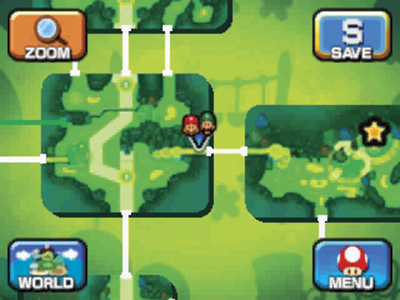
While traveling in the real world, this map always appears on the Touch Screen. This map can be zoomed by tapping the Zoom button in the top left corner. You can also pan the map around by dragging the stylus across the Touch Screen. The white lines indicate how the various areas connect within a region. The yellow lines indicate transitions from one region to the next. This map is also populated by several icons, showing the locations of shops, warp pipes, Save Blocks, and Attack Pieces—current objectives appear as gold stars. Similar maps are available in the dream world. But these maps aren’t always active—tap the Map button in the bottom-left corner of the Touch Screen to see the layout of each dream world. Dream worlds can be confusing places, so make use of these maps to find your way around.
World Map
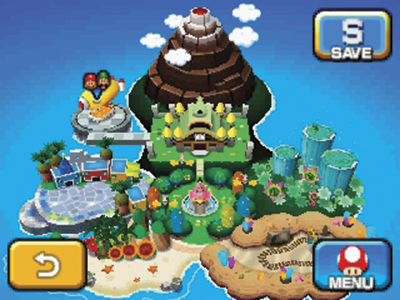
This is a top-down view of Pi’illo Island, showing all regions as well as Mario and Luigi’s current location. While this map lacks detail, it provides a broad overview of the island, helping you determine which direction to travel to reach your next destination.
Save Screen
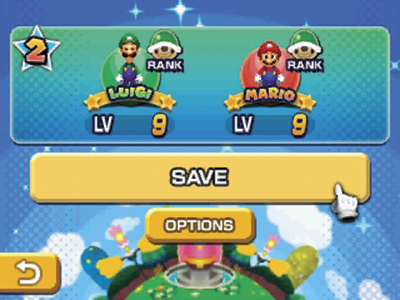
There are two ways to access this screen to save your game: strike a Save Block or simply select the Save button from the Touch Screen. It’s a good idea to save your game often—there are no auto-saves. Make a habit of saving your game before boss battles or when visiting new regions.
Menu Screens
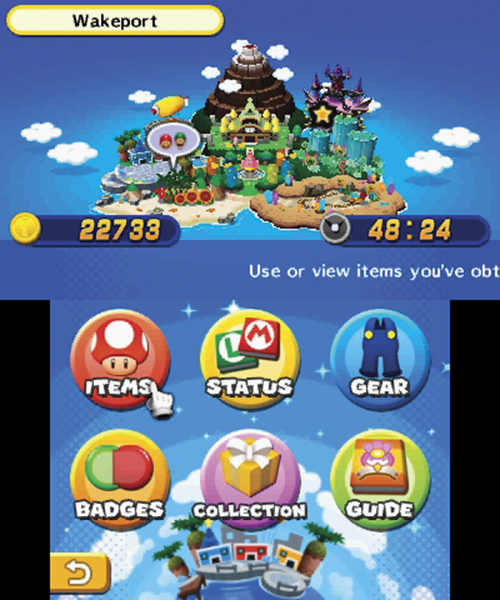
Have you received an item or a new piece of gear? These objects are stored in your inventory and must be consumed or equipped before you can benefit from them. At any point during the game, press
 to bring up the menu screen. Once the menu screen is open, the top screen shows your present location, how many coins you have, and how much time you’ve spent playing. The bottom screen features six icons, each leading to a different sub-menu. To select a sub-menu, move the hand cursor over the intended icon with the Circle Pad then press
to make your selection. Alternatively, you can simply tap the desired icon on the Touch Screen.
to bring up the menu screen. Once the menu screen is open, the top screen shows your present location, how many coins you have, and how much time you’ve spent playing. The bottom screen features six icons, each leading to a different sub-menu. To select a sub-menu, move the hand cursor over the intended icon with the Circle Pad then press
to make your selection. Alternatively, you can simply tap the desired icon on the Touch Screen.
Items
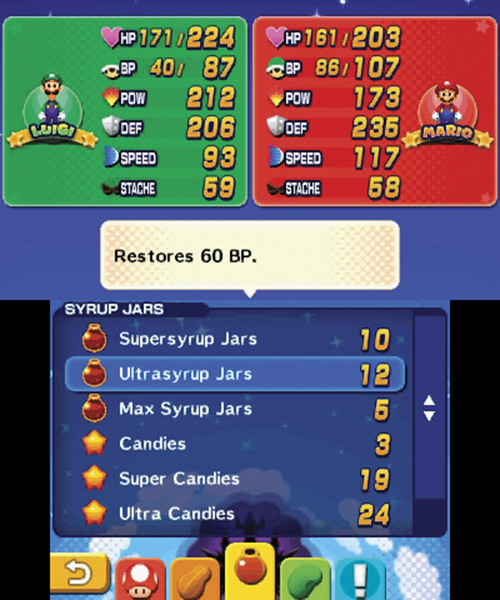
When you want to use something you’re carrying, choose items from the menu screen. This brings up a new screen showing the items in your inventory. Use the Circle Pad to scroll up and down the list of items—as you highlight each item, a box in the top screen explains what each item does. For instance, highlight a Mushroom to find out it restores 30 HP. Once you’ve selected the item you want to use, you need to choose who will use it: Mario or Luigi. At the bottom of the item screen are five colored tabs: Mushrooms, Nuts, Syrup Jars, Beans, and Battle Items. This allows you to sort items by type, making them easier to find. When you’re finished in the items menu (or any other menu), back out by pressing
.
Status
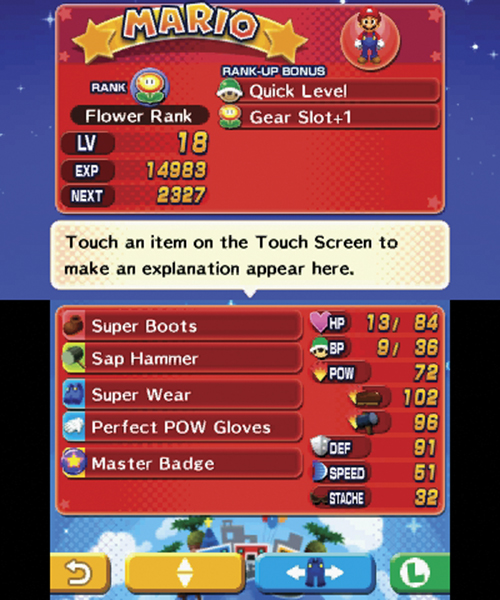
This screen offers an overall picture of Mario and Luigi’s current stats, including their level, rank, and equipped gear. But what do all these stats mean? Here’s a breakdown of each statistic shown for Mario and Luigi.
- HP: Health Points measure stamina. When HP reaches zero, the hero passes out. HP can be replenished by consuming Mushrooms and other items.
- BP: Each Bros. Attack and Luiginary Attack costs Bros. Points, or BP for short. BP can be replenished by consuming Syrup Jars and other items.
- POW: This is short for Power, which measures the strength of an attack. The higher the POW, the more HP the target potentially loses.
- DEF: Short for defense, DEF is what protects Mario and Luigi from attacks. The higher the DEF, the less damage an attack does.
- SPEED: Speed affects the order of turns in a battle. The higher the speed, the more likely the hero will go first in battle.
- STACHE: The higher this stat, the more likely the hero is to score a critical hit, which does extra damage.
Gear
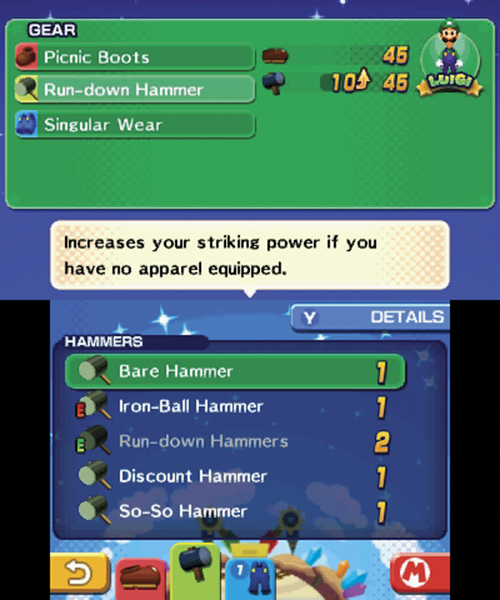
The gear menu looks a lot like the items menu, but instead of listing consumable items, it shows pieces of gear you can equip on Mario and Luigi. By default, Mario and Luigi have three gear slots: boots, hammer, and wear—tabs appear at the bottom of the screen, making it easy to sort through your inventory. But if you choose the Gear Slot +1 rank-up bonus, you can obtain an accessory equipment slot as well, allowing Mario and Luigi to equip extra pieces of gear like gloves and scarves. Such accessories provide a variety of buffs, often making Mario and Luigi more powerful in battles.
Scroll up and down the gear in your inventory and look at the top screen for an explanation of what each piece does. In addition, a number and arrow icon appears next to your character’s specific stats in the top screen. The arrow, pointing up or down, indicates whether the highlighted gear offers an improvement on your currently equipped gear. If the arrow is pointing up, it indicates a boost in stats—consider equipping gear that offers such improvements. But if the arrow is pointing down, it indicates a loss in stats if the highlighted gear is equipped. These up and down arrows make it easy to assess the various gear in your inventory as well as the gear sold in shops.
Badges

This is where you can check out all the badges Mario and Luigi have collected. Mario and Luigi can each wield one badge at any given time. When combined, two badges create a unique combo effect, useful in battles. Mario and Luigi each have six badge slots, resulting in 36 potential combos. Use
to select Mario’s badges and
to select Luigi’s badges. As the badges are rotated, new combos are formed, producing different badge effects. The more badges you acquire, the more combos you can make.
Before you can use badge effects, you must fill up the meter at the top of the Touch Screen, visible during battles. The meter fills up each time Mario and Luigi perform a successful attack—the red part is for Mario and the green part is for Luigi. An explanation of individual badge effects appears below the meter. Once the meter is full, the badge effect is stored in one of two slots, appearing as an icon on the Touch Screen—simply tap the icon twice to trigger the badge effect. Badge effects can be used during your turn in a battle, but don’t count as an action.
Collection

There are four different sub-menus within the collection screen, each pertaining to objects that can be collected during Mario and Luigi’s Pi’illo Island adventure.
- Pi’illos: Here you can see the number of Pi’illos in each region, including those you have saved and those you haven’t.
- Expert Challenges: Browse through a listing of Expert Challenges and study the criteria for each.
- Beans: Like Pi’illos, you can see the number of beans available in each region. Can you find them all?
- Key Items: Non-consumable items pertaining to the adventure are stored here. Sometimes it’s necessary to collect a series of items to complete certain quests.
Guide
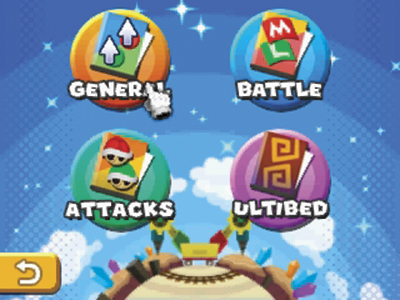
There are four more sub-menus within the guide screen. Here you can review any battle tutorials you’ve seen so far as well as read a summary of your adventure. You can also review the Attack Pieces you’ve collected thus far.
- General: This provides a quick synopsis of the storyline and details about your current objective.
- Battle: Review the different battle tutorials you’ve completed so far. If you need help with a certain battle technique, come here.
- Attacks: Here you can see your current Attack Pieces as well as practice different Bros. Attacks and Luiginary Attacks.
- Ultibed: Later in the adventure you can review the different parts necessary to construct the Ultibed.