
Dying Light Guide Controls and Gameplay
User Interface
Let’s look at the screen when you’re playing and explain what everything means. There is plenty of information available to you at all times..
Health
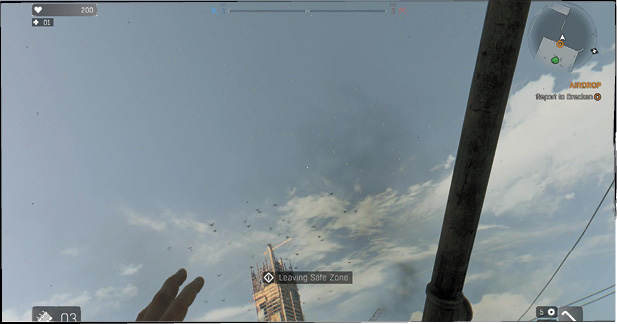
Your health and the number of Medkits that you’re carrying are shown in the upper-left. Health normally runs between 100 (full health) and 0 (you just died). But, you can get improvements to your character over the course of the game to increase your maximum health.
Agility and Power Experience
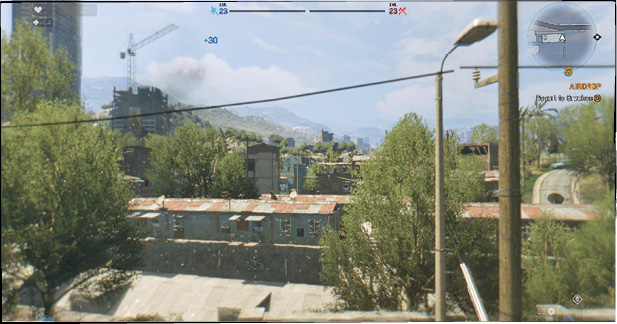
Your Experience is displayed in the top-center portion of the screen. Your Agility XP appears in blue and your Power XP is red. These systems help you become faster and more maneuverable (Agility) and deadlier against your enemies (Power). We’ll explain how you get XP just a bit later.
The Minimap
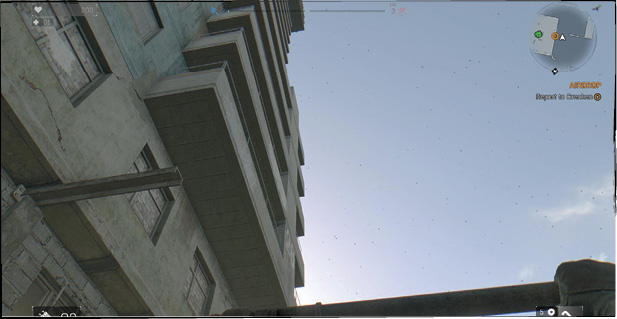
The minimap appears in the upper-right corner of the screen. It’s invaluable because it shows your character’s heading, the area nearby, any powerful Infected that are tracking you or patrolling there, and any icons that need to be present. Safe Zones, quest goals, and targets of opportunity all show up there, so always keep an eye on it!
The Quest Tracker
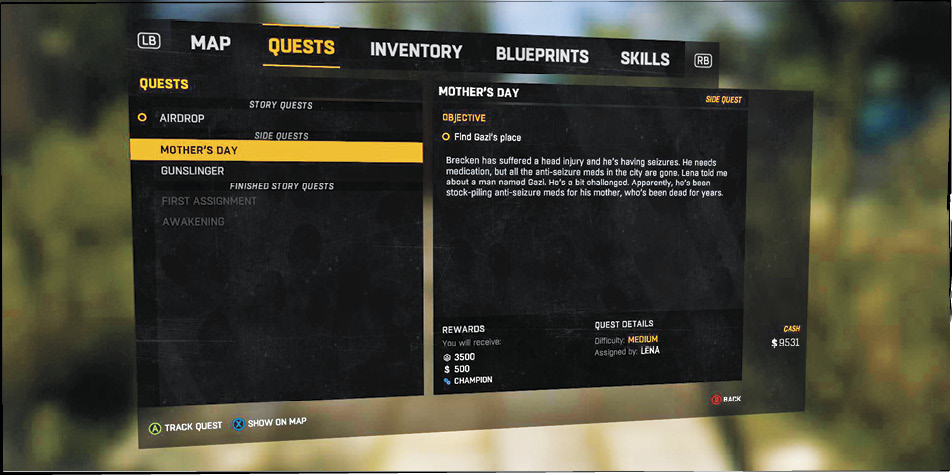
Below the minimap is your quest tracker. This follows either the main mission that you’re running or any side quests you select. Change the tracker by going into your Character Screen, selecting the Quest tab, and then grabbing the story or side quest that you want to follow.
Weapon Information
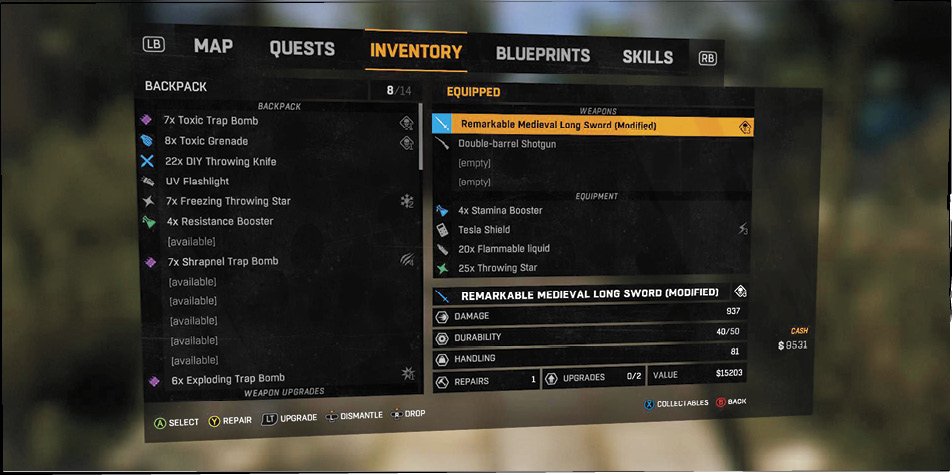
The lower-right is where you see your equipped weapon icon. It gives you a fast way to determine what you’re wielding and how badly damaged it is. If the icon turns red, it’s really time to repair your weapon before it breaks. The square around your weapon starts off full, but empties as you lose Durability on that item. This saves you from having to enter the Character Screen just to determine the condition of your weapons.
Melee weapons also show the amount of Metal Parts you’re carrying (for repairs), and the number of times you can still repair your current weapon. This prevents you from having something become worthless in the middle of a huge battle. Once your gear gets close to the end of its final repair, switch it out while you’re in a safe place.
Equipment Information
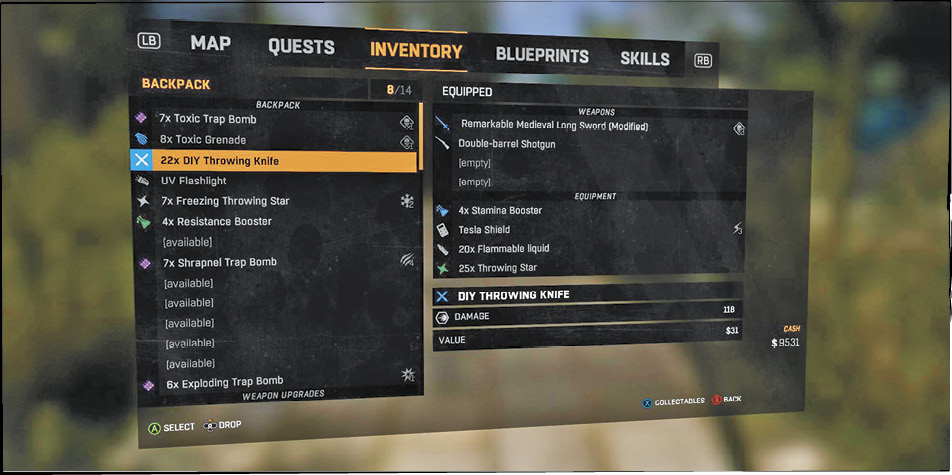
The lower-left has an icon for the equipment that you’re currently using. Thrown weapons, distractions, and various augmentations appear there. You can see the number of items for the type you’re carrying. This avoids situations where you think that you can rely on something, but then suddenly run out and get a tiny bit eaten.