
Assassin's Creed Unity Guide Primer
Viewpoints & Maps
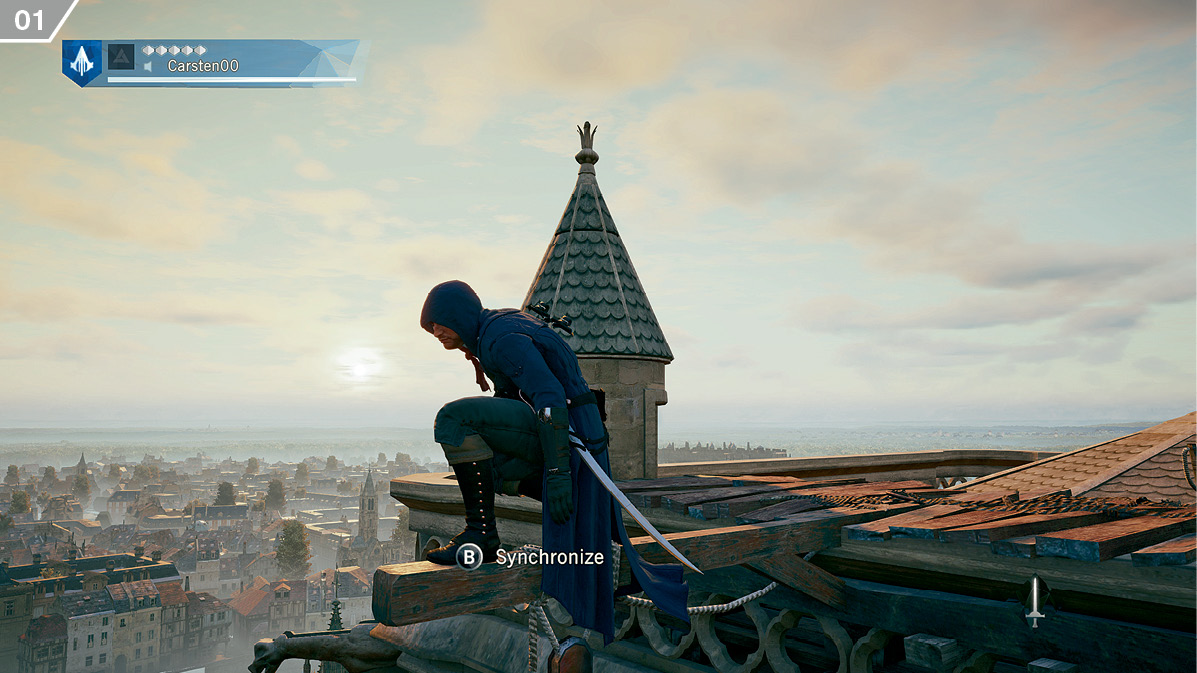
When you first arrive in a region, the entire map (and, by extension, mini-map) is blank. Fortunately, Paris is dotted with lofty vantages that Arno can scale, known as Viewpoints ( ) and marked with a distinctive icon (
 ). After reaching the appropriate summit or perch, you can press
  /
/ to “Synchronize” with the environment.
Synchronizing at a Viewpoint immediately reveals the surrounding terrain, including any points of interest in that vicinity, side quest start positions and other optional activities. Each Viewpoint that you synchronize also becomes a Fast Travel point, which enables you to significantly abbreviate journeys between locations.
Main Map
You can access the main map at any time during active play by clicking the Touchpad (PS4) or pressing  . Arno’s position is represented by the Assassin crest icon (
  ).
).
Use  to move around the map,
  to rotate the camera, and
  &
& /
/ &
& to control the zoom level. To see a description of any icon on the map, move the cursor over it. You can also press
  /
/ to bring up a complete legend for all icons used on the map. Press
  &
& /
/ &
& to cycle between filters in order to display icons by categories.
Mini-Map
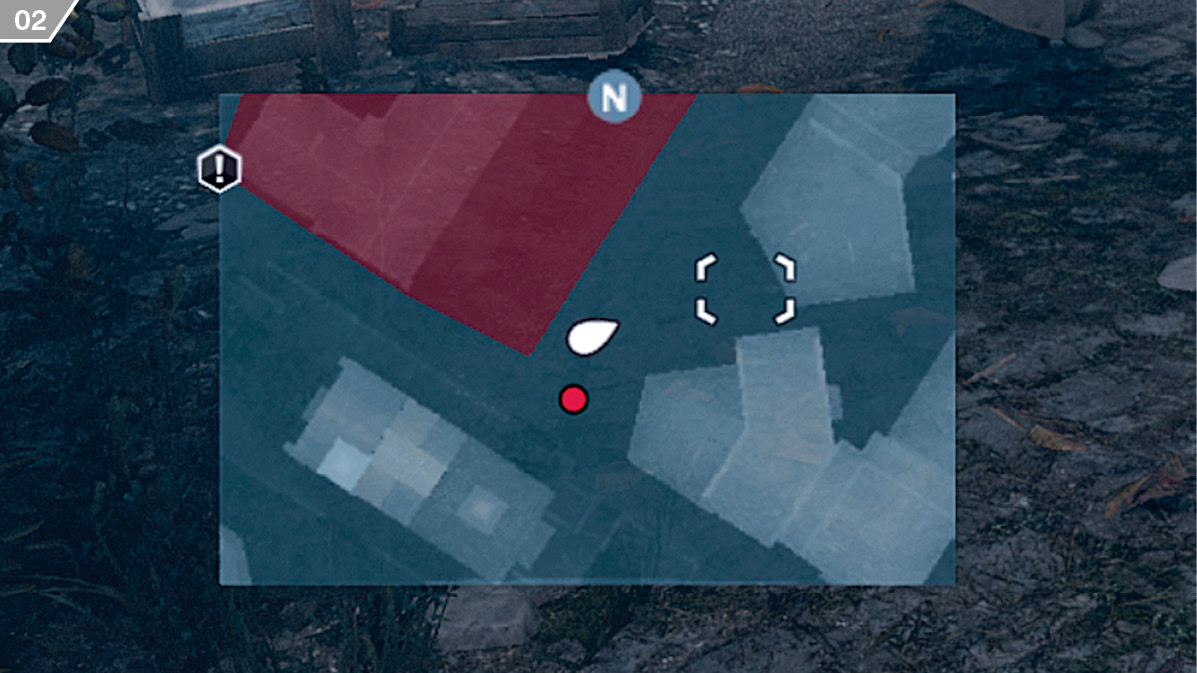
The mini-map shows a small portion of the main map ( . The N icon on the outer edge of the mini-map always points north. The white arrow in the center represents Arno.
All places of interest, points of interactivity and active waypoints within Synchronized areas are marked by icons on the mini-map, but disappear once out of the mini-map’s boundaries. Some icons, however, appear at all times. Memory Start locations for main story missions, objective-specific waypoints and Custom Markers (placed on the main map) are always clearly displayed. If these destinations lie outside of the current mini-map area, the icons will move to the outer rim of the mini-map to indicate their approximate location.
KEY MAP ICONS
|
|
Arno |
|
|
Main Story Mission |
|
|
Ally |
|
|
Target |
|
|
Destination |
|
|
Enemy |
|
|
Enemy Marksman |
|
|
Viewpoint |
|
|
Custom Marker |


