
Disney Infinity Originals Guide The Toy Box
Using Creativi-Toys in the Toy Box

Most of the toys in Disney Infinity 2.0: Disney Originals are straightforward in their use. You place them in the Toy Box World and there they are. Creativi-Toys, on the other hand, require a bit more effort, since you have to program them what to do. The key to understanding these toys is learning their two main functions. First, they can act as a trigger. Remember those “If (or when) and then” logic equations you might have learned in math? The trigger is the “when”. For example, when a player steps on this pad. Or it could be something like “when the elevator reaches the top of its path”. These triggers set the conditions for another action or behavior. That is the second function of a Creativi-Toy—to cause a behavior effect. This is the “then” part of the equation. It could be something like “then the door opens” or “the pad spawns a blaster”. A quick setup uses a trigger and a falling object generator. Select the trigger by pressing the connect button and choose a trigger action such as “stepped on”. Then select the falling object generator with the connect button and select a behavior such as “ESPN Soccer Ball”. Now if your character walks onto the trigger, a soccer ball will drop from the falling object generator.
Some Creativi-Toys can only be a trigger or an effect and some can be both. Let’s take a look at the different Creativi-Toys available in the Toy Box.
Trigger

The trigger is a pressure pad and one of the simplest Creativi-Toys. In order for it to have an effect, it must be connected to another toy. It sends a signal when it is either stepped on or stepped off. You can even determine what has to step on or off of the trigger in order to send the signal to another toy to cause a behavior.
Trigger Area
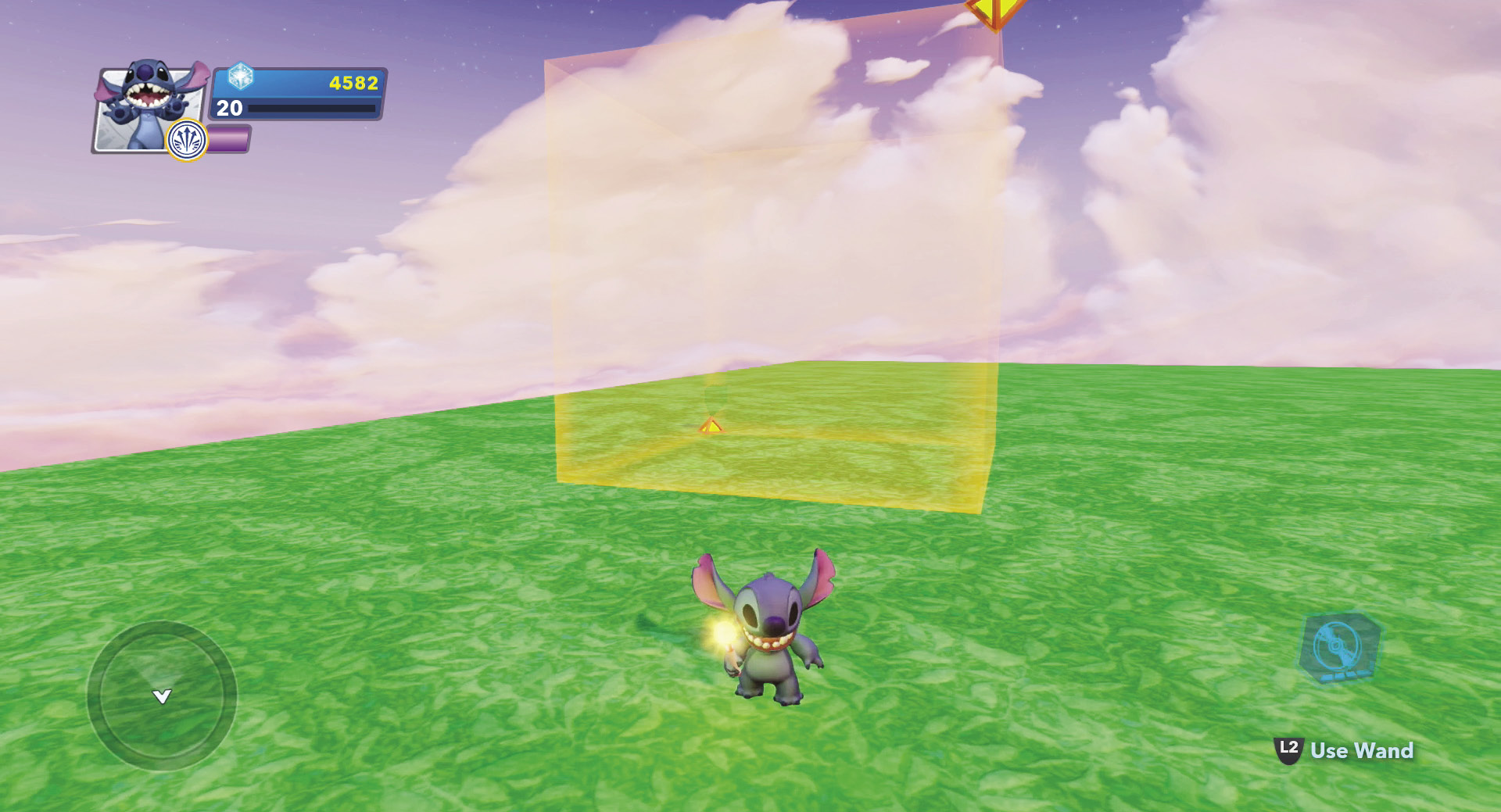
The trigger area acts like a trigger. However, instead of stepping on a pad, it triggers when something walks through an area that is invisible in the Toy Box World (but visible in the editor mode). There are several different ways you can set the trigger area, including for specific players. This works great when creating games to play against other players.
Action Button

The action button can be a trigger as well as a behavior. You could have another trigger cause the action button to be pressed as the behavior, so something else could trigger the action button to be pressed.
Target

This trigger device only activates when you shoot at it or throw a tool at it. Running into it or hitting it with a melee attack will not activate it. Use this for shooting games.
Power Switch

The power switch is a toggle. By stepping on the red side you turn it on. Step on the yellow side to turn it off. You can assign different triggers to both the on and off triggers. In addition, you can have it as a behavior in response to another trigger.
Dual Action Trigger

The dual action trigger requires two inputs in order to activate the trigger function. To use it, you would first select two different triggering actions and connect them to the Dual Action Trigger as input 1 and input 2. Then select the dual action trigger and select for what it will act as the trigger. An example of this could be you have to walk through a trigger area and hit a target, then the dual action trigger will cause a light to turn on.
Racing Gate

This is similar to a trigger area. However, the racing gate works better for tracks and is also visible so players can see a visual end or finish line to a race.
Collection Pen

This toy acts as a trigger. However, you can distinguish different triggers depending on what you put into the pen. For example, you could cause one counter to advance if an enemy is placed into the collection pen and another counter to advance when a friend is put into the pen. This can be a lot of fun for creating your own games.
Checkpoint

The checkpoint is a bit different than a trigger. It keeps track of the fact that it has been triggered and can only be used once. Use checkpoints for races or other games where you want a player to go to different spots and so they only get one point for each checkpoint. Once a checkpoint is activated, it cannot send out another trigger.
Object Generator

The object generator usually is the behavior as a result of another trigger. You can select from a variety of objects you want to appear on this toy. However, you can also use this as a trigger for when this toy spawns an object or for when an object that is spawned is destroyed. These can be fun for lots of different types of games.
Falling Object Generator

This toy drops balls or a puck down into your world. You can also set its behavior to destroy all of the objects it spawns as a behavior to a trigger. It can also act as a trigger if one of the objects it drops is killed.
Friend Generator

This is similar to the object generator except that it spawns friendly toys.
Enemy Generator

This functions just like the friend generator, but this spawns enemies. It also offers lots of options for the types of enemies you can spawn. Use this toy for combat games.
Vehicle Weapon Generator

Similar to the other generator toys, this spawns random vehicle weapons. Place these on your race tracks to add a battle element to races.
Party Cannon

The party cannon is usually used as a behavior for another toy’s trigger. However, you can also use this toy to trigger behaviors in other toys. Set these up at the end of a race or as a victory celebration at the end of a game.
Safety Dome

The safety dome is great to use as an objective to either try to destroy or to try to defend. It can be used as both a trigger and a behavior.
Marching Orders

This is a cool toy. It sets up an area. Any NPC or enemy that moves (or is thrown into) the area of the marching orders toy will begin walking in the direction the toy is pointing—even after they exit the toy area. You can position several of these toys around a world and set up patrol paths. While marching orders is visible in the editor, it cannot be seen out in the Toy Box World. This is a fun toy to play around with.
Enemy Trail Guide

While marching orders sends enemies who touch it moving in a specific direction, the enemy trail guide causes enemies to move towards it. You can set the speed of their movement and how focused they are on getting to this toy. Use this when you want enemies that can spawn at several different locations to move towards one or more of these toys.
Teleporter

Teleporters require two or more of this type of toy in order to work. They are a quick way to transport players around the Toy Box World. You can program them to go from one to another if you have more than two. Otherwise, they just teleport the player between the two teleporters.
Stopwatch

The stopwatch is a toy that, when activated, will stop all enemies and NPCs. You can hit the button to start and stop it or set it as either a trigger or a behavior.
Replayer

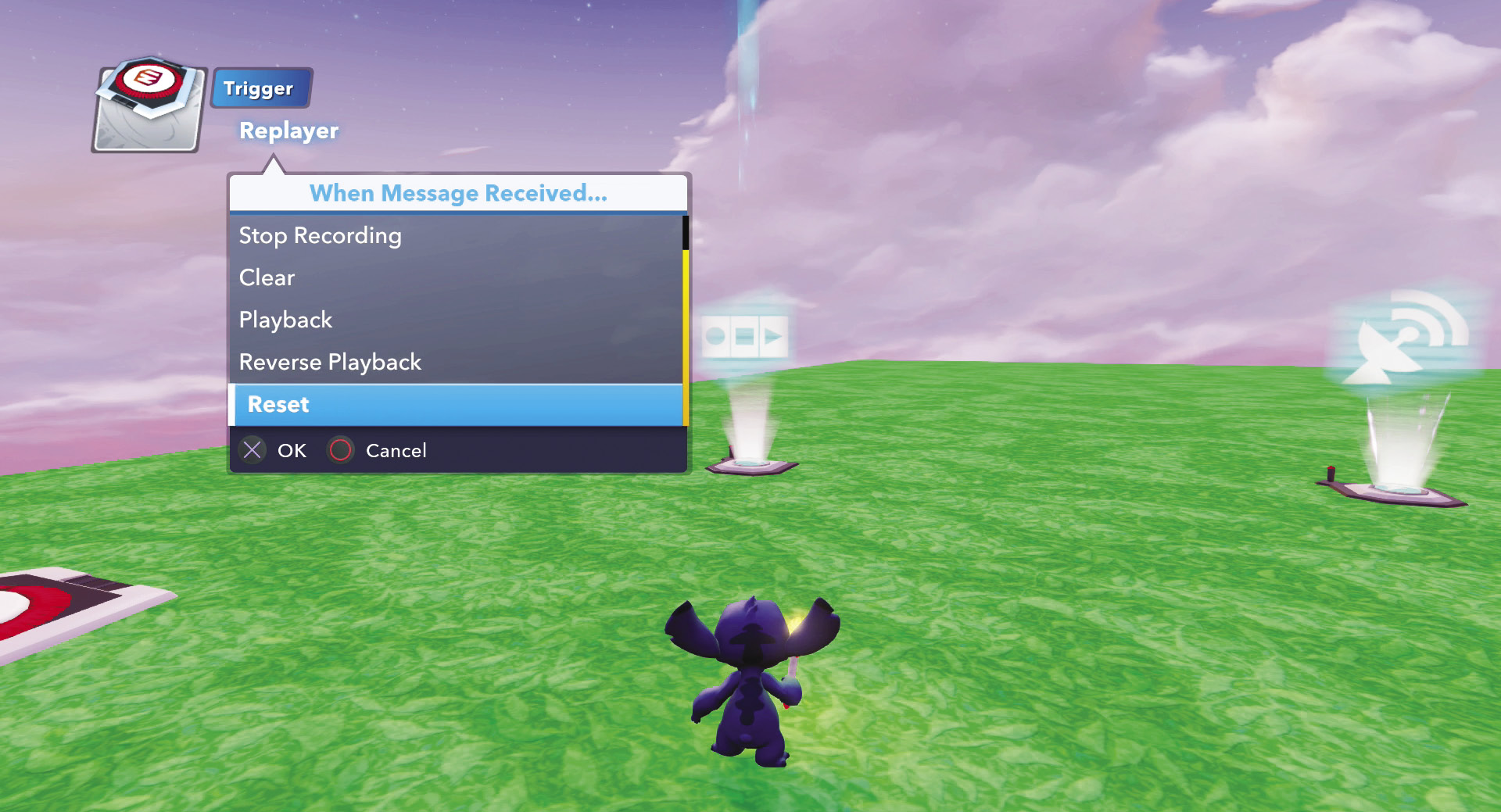
The replayer is one of the more powerful tools you can use in the Toy Box. An easy way to use it is to connect it to several triggers that you can then use as your buttons for recording, stopping, and playing back. When the replayer is recording, it will save all the actions you do in the editor, such as building things. Stop the recording after you exit the editor and then play. You will then see your building efforts appear right before you. The replayer can be used to actually create a game where the course appears before you as you move. Be sure to play around with it and you will be impressed with what you can do.
Repeater

The repeater is a toy you can use to make another toy do the same thing over and over. For example, connect it to a falling object generator and it will continue to drop objects. You can even adjust the amount of time between each trigger that the repeater sends out.
Time Delayer

If you want to create a series of behaviors from one trigger, but do not want them all to occur at the same time, use the time delayer. It lets you set a delay between the trigger and the behavior. Try this with a row of party cannons so they go off one at a time rather than all at once.
Timer

This toy actually creates a timer at the top of the screen when it is activated, so you can time players during a game. Connect it to one racing gate to start and another racing gate to stop. Or you can even set it to be a countdown timer.
Counter

Like the timer, this puts some numbers at the top of the screen. However, this time it counts signals from a trigger as its behavior. Connect this to a goal in the sports toys to keep track of how many goals you score.
Scoreboard

The scoreboard is a bit like a counter, except instead of counting just one action, it can keep track of scores for four different players.
Bird’s Eye Camera

When activated, the bird’s eye camera changes the view of the Toy Box to a top-down angle. This can be great for some types of games you can create to play against your friends.
Side-Step Camera

This functions just like the bird’s eye camera, except the view is from this side. Use this when making platforming-type games.
Angled Camera

This toy allows you to track character movement from an overhead angle with this camera. It works great for pinball games or for exploration games. You can set the camera to follow a character or focus on a location in the Toy Box World.
Target Camera

The target camera can be used to follow players through the game, or to keep watch on a certain location.
Area Light

This toy allows you to light up an area. It can be programmed to turn on, off, or toggle in response to a trigger, or even be a trigger itself.
Sound Effects

You can select from a variety of sounds that emanate from this toy as a behavior. For example, connect it to a goal for a sound effect when a player moves a ball into the goal. This just adds more fun to games.
Boom Box

This is similar to the sound effects toy. However, the boom box plays music instead of just sound effects. Some of the songs have to be unlocked by adding characters to your collection or in other ways.
Invulnerability Beacon

Normally your characters in the Toy Box Worlds are invulnerable. However, this toy can turn on a health bar that shows how much damage a character is taking and allows them to be defeated. This can be good for combat games where a defeat can be used for scoring or another reason.
Kill Switch

The kill switch is a way to get rid of something in the game. It can be a trigger, but its main function is a behavior. For example, you could set it to when a player enters a target area over a lava block, the player is defeated.
Team Activators

These four toys are a lot of fun. They can set players and enemies into four different teams. Set marching orders toys to move enemies into these team activators and create team fighting games. You can also link a team activator to an enemy generator or enemy wave generator so that enemies are automatically assigned to a team as soon as they spawn. If you have also walked through the activator, you will have a team color as well. Enemies on your team will not attack you. Instead they will attack players and other enemies on the opposing team. This is a lot of fun to try out.
Action Enforcer

This toy creates a behavior when it receives a signal. It then can have characters do a victory dance or other fun actions. For example, after a team scores a goal, you can connect the goal to the action enforcer so that the characters on the team perform an action. This toy can add some cool effects to make your games even more realistic.
Ballot Box

The ballot box is a way to tally the choices of all the players. You can set the properties to send different signals depending on if the A or B choice reached the desired number of votes, either choice had a majority of the votes, or even if the two choices tied.
Collectible Tracker

The collectible tracker is a must if you are making a game that requires players to collect objects. You can select the type of collectible to be tracked and whether the tracker sends a message to another toy such as a scoreboard when a collectible is collected or to reset the game when the final collectible is collected.
Confirmer

The confirmer asks players in your game if they’re sure about one of their actions. It can send signals when text is displayed as well as whether the player accepts or cancels the proposal. It is a good idea to use a confirmer if the player is about to make an important decision in a game for which there is no going back to ensure that the player understands the consequences.
Defeat Manager
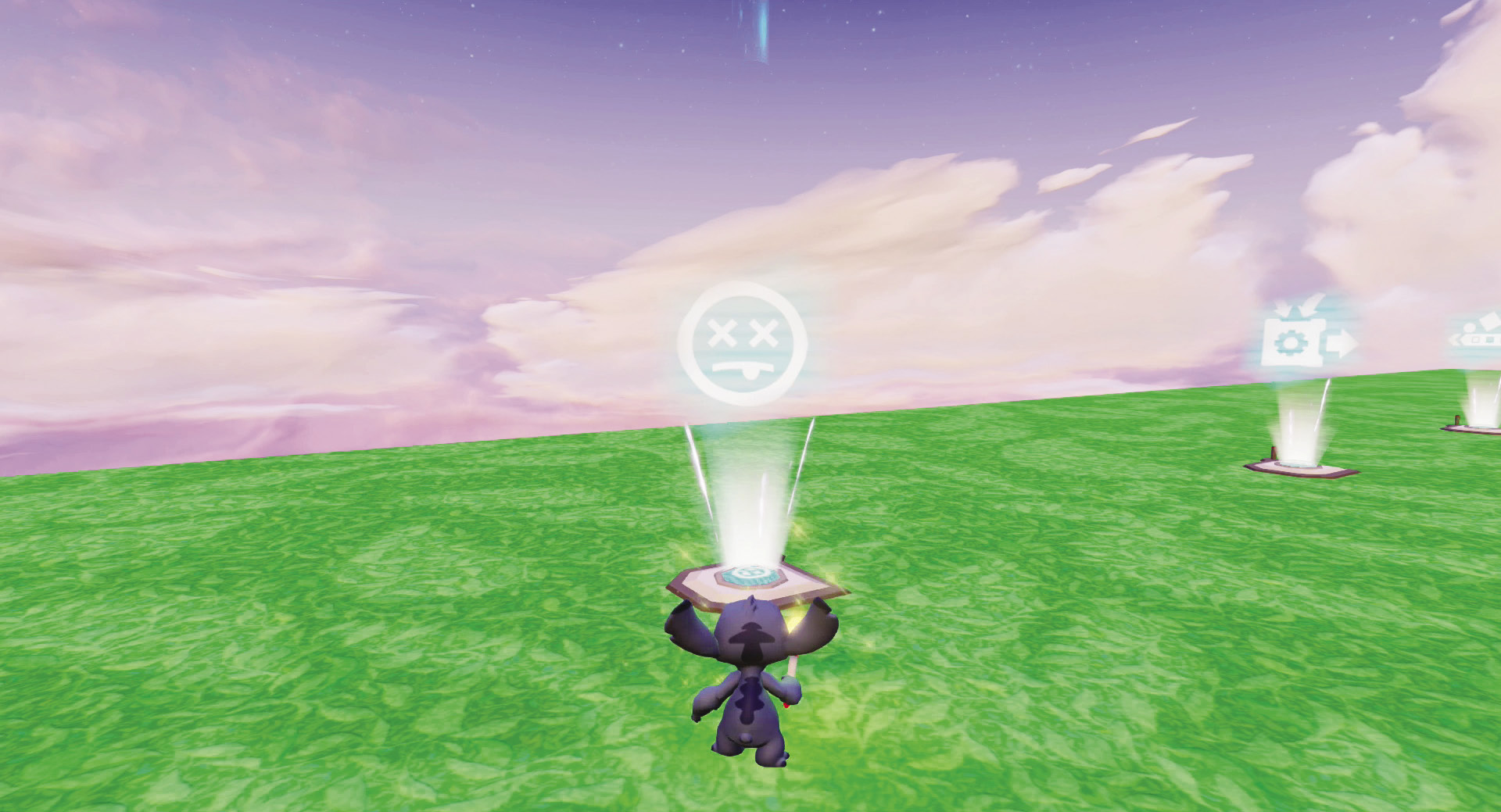
The defeat manager sets the rules of what occurs when a character is defeated. Use the Properties menu to define if the character can be revived, if currency is dropped, if the super meter is reset, and if the Power Disc meter is reset.
Editor Manager

Choose how and when to use the editor with the editor manager. For example, during a game such as a tower defense game, you may want to allow a player to access the editor in between enemy waves and add more defenses. The editor manager lets you determine when the player can use the editor.
Effects Generator

The effects generator allows you to create special effects during a game. Connect it to another toy, which acts as a trigger, and then the effects generator is the behavior. One of the nice features of this toy is the ability to link it to a locator so you can have the effects generator hidden somewhere and then have the effects take place at the designated location.
Enemy Wave Generator

This toy is more powerful than the enemy generator. The enemy wave generator lets you create a group of enemies that spawn at a location of your choice. You can select the types of enemies you want to include in the wave and even assign them to a team so you can determine who they attack and who they will help. Not only can you use this for a survivor type game where a player has to defeat all the enemies, but by assigning enemies to different teams—and players to those teams as well, you can have a team combat game where players have enemies that help them defeat the other players and their assigned enemy teammates.
Friendly Wave Generator

The friendly wave generator is similar in function to the enemy wave generator. However this toy spawns townspeople, cast members, mounts, and other toys rather than enemies. Use this for games where you have to collect townspeople and throw them through doors or put them into a collection pen.
Inventory Manager

The inventory manager lets you control the toys that players have and can use during a game. You can combine this with the editor manager so that when the player can access the editor, you have already decided the toys from which the players can select.
Level Starter
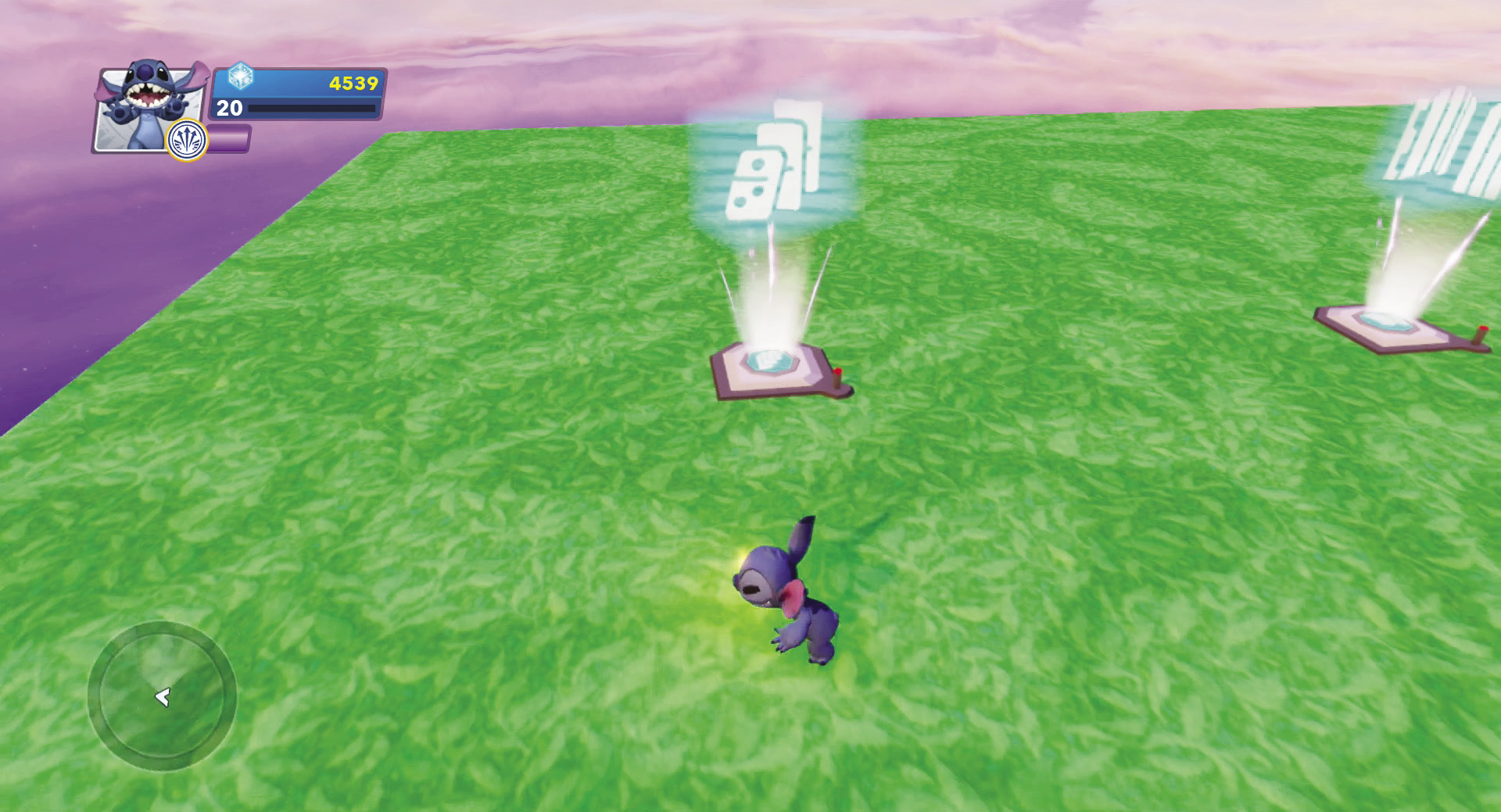
The level starter is a great toy that can reset a game when it is about to start. For example, if you are making a collection game, you may not want all the collectibles visible in the Toy Box World until the player starts the game. The level starter can be used to cause all of the collectibles to be placed out in the world when the game starts.
Logic Gate

The logic gate is an all-logic version of the power switch toy. Instead of a character having to step on a switch, you select another toy or action to act as the trigger, which then causes the logic gate to open or close, and this in turn can send a signal to another toy. Think of this toy as a guard that controls inputs and outputs for a game.
Loot Drop Manager

When an enemy is defeated in a game, the loot drop manager lets you determine what kind of loot is left behind as well as how much of it. This adds some depth to combat games and gives some instant gratification to players for defeating enemies. A powerful feature of this toy is the ability to have multiple loot pools. You can select specific types of enemies and then decide which loot they leave behind. For example, you may want more powerful enemies that are tougher to defeat to leave behind more loot than easier enemies.
Money Manager

In games in which you use some type of currency, the money manager lets you choose what type of object you use as money. It could be coins, gems, tokens, or even flowers. In addition, you can set a starting amount of money that the players receive. This toy works well with a storefront toy.
Packs and Tools Manager

While characters have their own attacks and some come with weapons or other items that they inherently carry, they can also use packs and tools. During one of your games, you can control which packs and tools players have by using the packs and tools manager. There are several from which to choose. This lets you give players items that can help them during the game while still maintaining control by limiting what they have.
Randomizer

The randomizer allows you to cause events to happen randomly. You can connect up to ten different toys to the randomizer. Then, when the randomizer receives a signal from a triggering toy, the randomizer sends a signal to one of the connected toys in a random decision. You can increase the probability of a specific toy being chosen by moving sliders. The sliders all start at 0 and by increasing the number, you increase the likelihood of that toy being sent a signal. For example, a toy with a 5 is five times more likely to get chosen than a toy with a 1. The randomizer is a fun toy to play around with and see what happens.
Ready Up Checker

In order for a game to begin, all players must be in place and ready when you use the ready up checker. For example, if there is more than one player in a Toy Box World, when a player decides to start a game on the challenge maker, the other players in the world have to also go to the challenge maker and get ready to play the game before the game can begin. This helps ensure all players start off in the correct spot and no one is surprised when the game begins.
Satellite Receiver

Since you can connect up to ten Toy Box Worlds, the satellite receiver is a great tool for connecting toys in different worlds. Players can do something in one world and use this toy to send a signal to open up secret rooms or portal doors in other worlds. For example, if a player finds a key in one world, it causes a barrier or door to open in another world as a reward for completing a task in the first world.
Storefront

The storefront allows you to sell specific toys to your players. You can also control prices and quantities with the help of the inventory manager and money manager toys.
Team Scoreboard

While the scoreboard just keeps track of individual scores for each player, the team scoreboard keeps track of the scores for a team. As with the scoreboard, you can determine when and how it tallies points.
Text Creator

The text creator allows you to create your own messages. Type in your own words, save them, and see them displayed on screen. You must sign into a Disney Account to unlock this toy. This is a great way to customize your games and provide instructions or storyline.
Text Displayer

The text displayer allows you to talk to your friends. Choose from over eighty different words and phrases. This toy does not require you to sign into a Disney Account.
Toy Box Game Maker

Use this toy to save your current Toy Box as a Toy Box Game. You can also set the rules of the magic wand, the camera controls, whether the player can edit toys, if hexagonal Power Discs can be used, and even the difficulty level of the enemies.
Victory Tracker

While this toy can seem complex, it is just a trigger that is activated by players being defeated, defeating other players, defeating enemies, or getting hit by something. You will usually connect this to a scoreboard or counter to keep track of the score.
Remote Controller

This toy allows you to remove your character from the game and control objects instead. This works by allowing you to link various buttons on your game controller to toys so that your controller is the trigger. In order to use the remote controller, a character can walk onto it and the player presses the indicated button or you can link the remote controller toy to other toys so that when a game begins, the character disappears and the player takes control of objects instead.
Rail Target Point

This toy is a holographic target that can be connected to other toys. However, it is specifically designed to be used in rail slide layouts where you can have players shoot at it in order to change a switch at a rail slide intersection and follow a different path of rails.
Reset-o-matic

This toy must be connected to another toy that acts as a trigger. Then when the reset-o-matic receives a signal, it can reset physics objects or physics blocks. These toys are blocks or objects that can be destroyed or fall because they are affected by gravity. The reset-o-matic puts them back in place in their original state.
Locator

The locator is a toy that is normally invisible unless a character is holding a magic wand. Connect locators to other toys to indicate a camera angle or a location where you want enemies to spawn, effects to take place, or other actions.
Podiums

There are four different podiums for first through fourth places. Use them to celebrate victories at the end of one of your games. Connect these podiums to the challenge maker toy and players will teleport to a specific podium depending on their place in the game.
Weather Vane

The weather vane allows you to create a wind. You can change the strength, direction, and other settings in the Properties menu.
Challenge Maker

The challenge maker allows you to make up your own rules. It is the heart of a game and can connect to scoreboards. It counts down during a game, controls the start and the finish of the game, and even can have a title and description included for players to read. By stepping onto a challenge maker, a player can begin playing a game to which it is connected.
Invisinator

This invention of Dr. Doofenshmirtz’s will make any character that walks over it temporarily invisible.
Ability Terminal

Many characters have certain abilities. By using the ability terminal, you can determine which character types can participate in a game. For example, maybe you have a collection game where the objects are floating up in the sky. Then an ability terminal would be useful to only allow characters with the flying ability to play.