
Civilization Beyond Earth Guide Starting a Game
Game Selections
Game Options
Before immediately jumping in, it is important to first learn about Civilization: Beyond Earth's options, hotkeys, setup, and Colonies. These features (with the exception of the Colonies) are similar close to earlier Civilization releases. Colonies are covered in subsequent sections.
First, load the game and look at the main menu. There are a few features here, and it is worth finding out what they all do.
Single Player is for creating or loading a game against the computer. A later section of this chapter will deal with the actual setup of a game.
Multiplayer is similar in setup, but it is important to understand if the game is to be set up locally (Hot Seat, using the same computer for all players) or across multiple computers (Standard). If playing with multiple computers is more suitable, there are two options. Games can be set up on the local network (which only allows computers connected to the same network) or through the Internet. Setup continues similarly to Single Player.
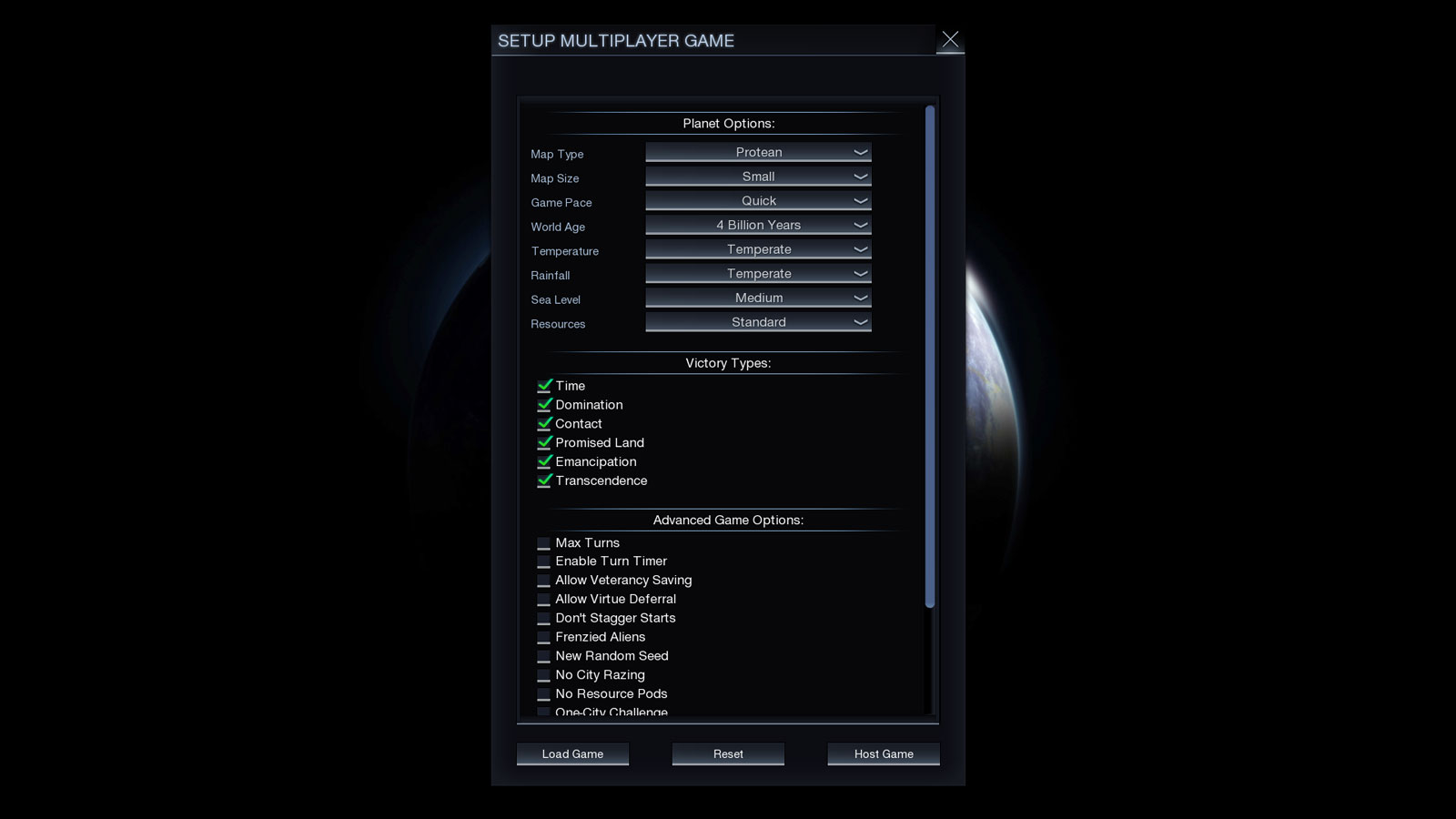
The Mods system allows the ability to control which game mods are used in upcoming games. This is not a major feature during the early weeks of the game's release, but it becomes more and more exciting as time goes on. People create all sorts of fun mods to play with that may feature different units, alter the rules, or generate new map challenges, scenarios, etc. Search online to find ongoing content and keep the game fresh for months (or years) to come!
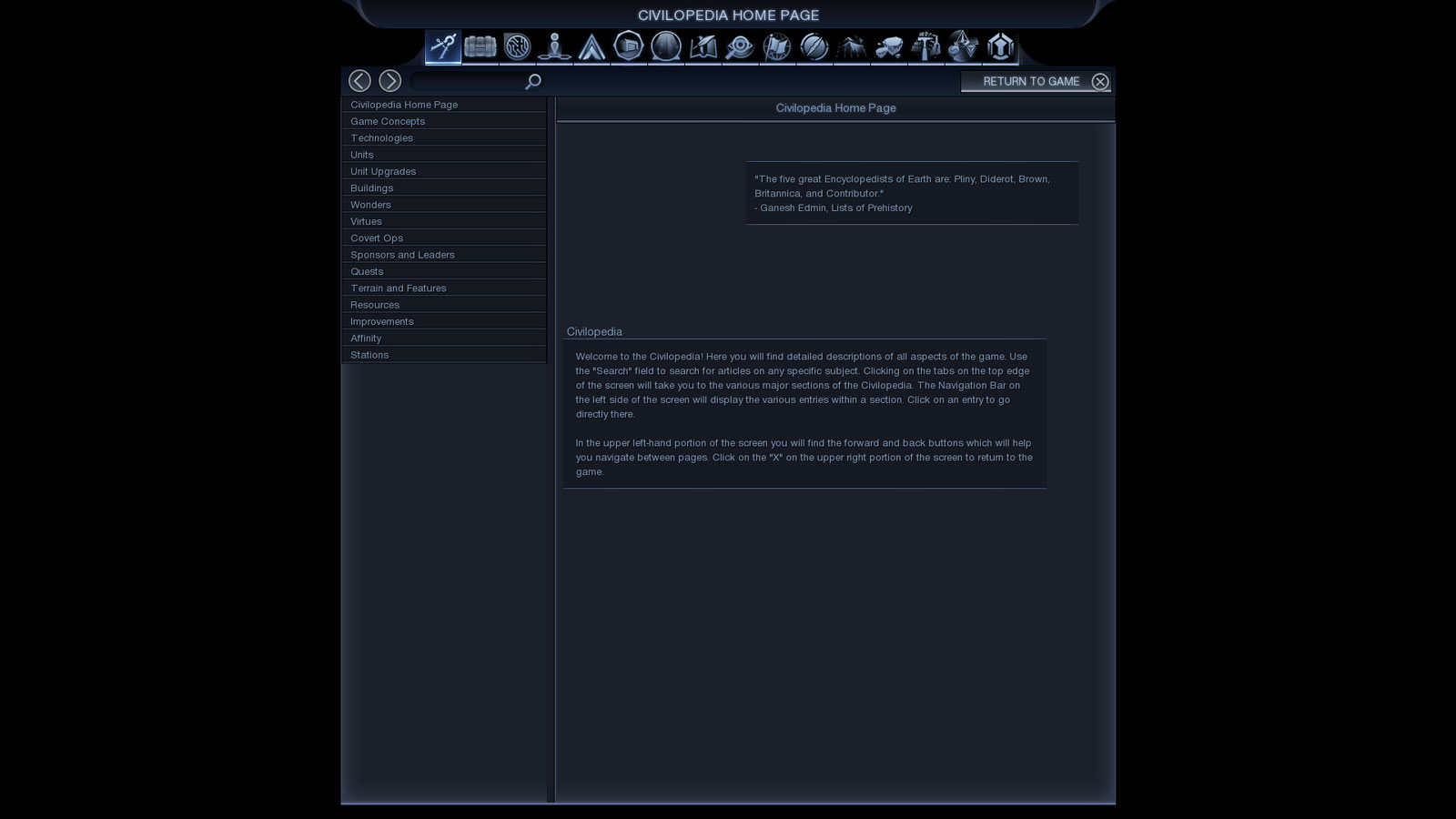
The Other selection on the menu gives several choices. Latest News provides information on any updates on the game and its continued development. The Civilopedia is a perfect source for fast information about units, buildings, concepts, and so forth. This guide covers everything that is in the Civilopedia, but it makes looking up basic stats quicker while in game.
The Hall of Fame keeps track of the player's best games; it lists the score, civilization, type of victory, settings, and time played. This is a good way to see which styles are the strongest. It is helpful for continued growth as a player. It is a good way to see what aspects and playstyles need to be worked or avoided.
View Replays reviews previous games to look through a stunning number of metrics. Use this system to learn where the best power spikes are so preparing for them in the future becomes easier. "Oh, I'm often strongest here and weakest at this point in the game." Knowing those things is wonderful for mitigating enemy attacks and maximizing forays.
View the Credits to see all of the people who put their time into this game.
Options was saved for last, as it hosts a number of interesting features that should be mentioned.
The Options Menu
The Options menu has multiple tabs. The Video and Audio Options let you control how the game is presented. That is mostly dictated by the computer setup and personal interests, so explore these settings to see which is the most comfortable.
Use Multiplayer Options to determine the name that appears when playing locally. This may not be too important, but can help when notifying other players which game to join.
The Interface Options start to get a bit more involved. If there are any problems with the system or more autosaves are needed this is the section that would prove most useful. This tab also allows the Spoken Language, Mouse settings, and the Map Drag Speed to be changed.
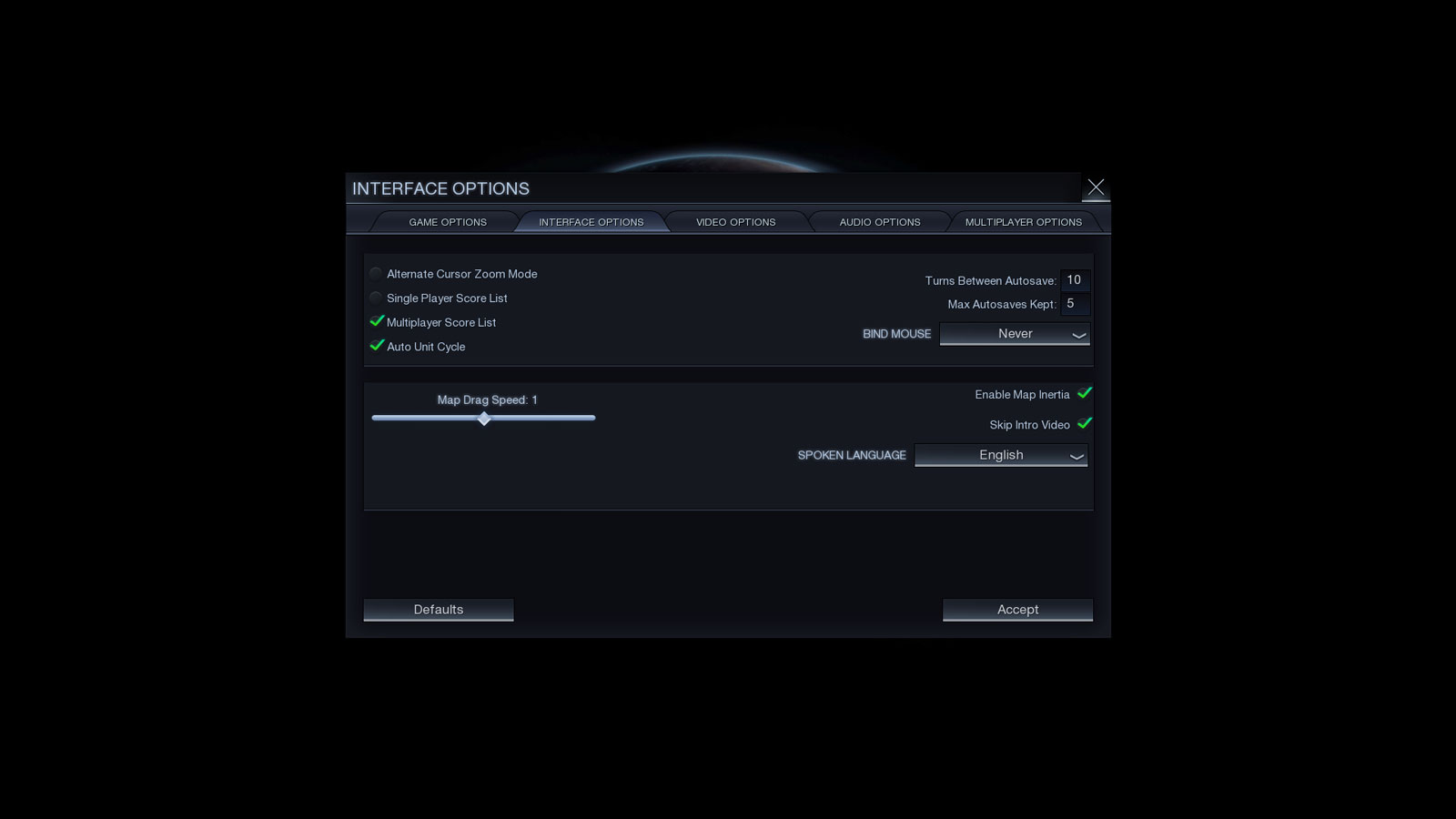
The Score Lists in the Interface Options tab are useful, too. By default, the game keeps the score in the Diplomacy menu during single-player use. Players have the option to toggle the score list on, making it easier to view in game without opening the Diplomacy menu. This is helpful for keeping tabs on opponents. Seeing their scores all the time allows players to view any changes that are occurring.
Game Options has even more settings to explore. It may be a good idea to check both options that limit automated workers. In not checking these, workers may end up doing the complete opposite of what the player may consider beneficial, if not watched closely.
To speed up the game by a huge margin, use quick combat and quick movement in single-player and multiplayer games. Cutting off these animations reduces the cinematic nature of the game, but it shaves many minutes off of playtimes.
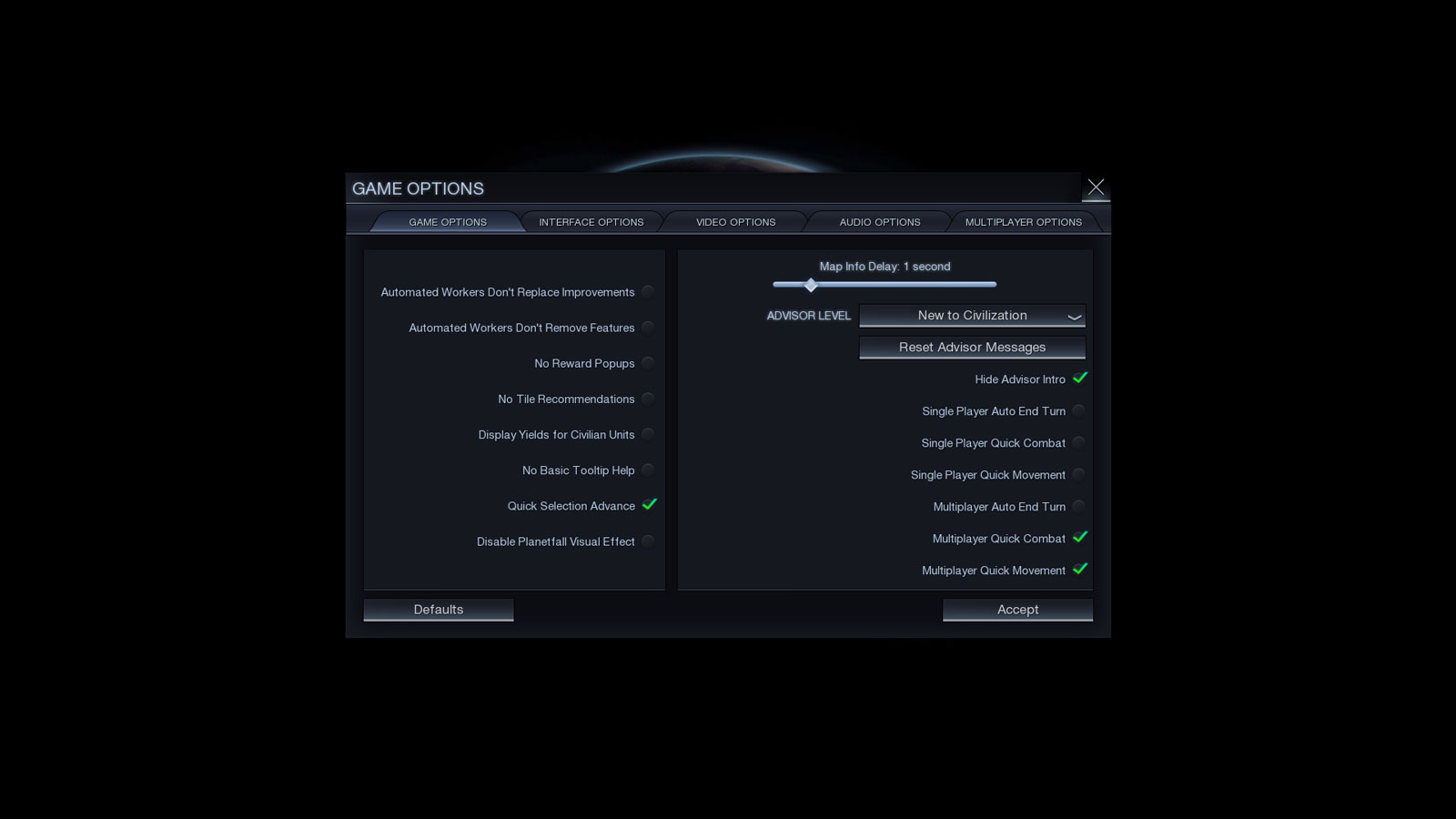
The Advisor Level is used to determine how much help a player may need. Each level pertains to different degrees of help. For example, New to Civilization would be perfect for a player who has never played any Civilization games. Players can turn this off once they know the game well.