
The Sims 3 Guide Essentials Creating A Sim
A New You
How long have you been you? Throughout your whole life, you’ve played one role, occupied one skin, and seen through one set of eyes. And while this life is indeed what you make of it, there is always an inherent human curiosity about what this world must look, taste, sound, and feel like to everybody else.
In the simple town of Sunset Valley, you have the chance to indulge that curiosity. Actually, you have a million chances: to become a world-class chef, to build a magnificent home, to light up the stage as a pop singer, or just to finally bake the perfect batch of cookies. After all, dreams can come in any size. Sometimes the happiest moments in your life are the smallest victories.
But you cannot start on this alternate life without first creating a new Sim. Sims are the people that live inside this game; they are the vessels in which you live out a secondary life (or as many as you can successfully juggle).
The Sims 3 has a very powerful Create a Sim toolkit for developing and sculpting a variety of people of all shapes and sizes. You aren’t just assigning hairstyles and shirts here, though. The Create a Sim process lets you really tinker with what makes your Sim tick by assigning traits.
These different traits—and there are plenty to choose from—allow you to craft wonderfully unique personalities, all with their own life goals, wants, and needs.
That’s not to minimize the simple fun of picking out the right pair of shoes, though. Remember…the smallest victories are sometimes the best.
A New You
To some painters, a blank canvas is the most terrifying thing in the world. But to others, it represents nothing but opportunity and hope.
Let’s hope you approach the Create a Sim toolkit with the latter thinking. When you choose the Create a Sim tool, you are taken to a modest dressing room complete with a full-length mirror and a little sunlight.
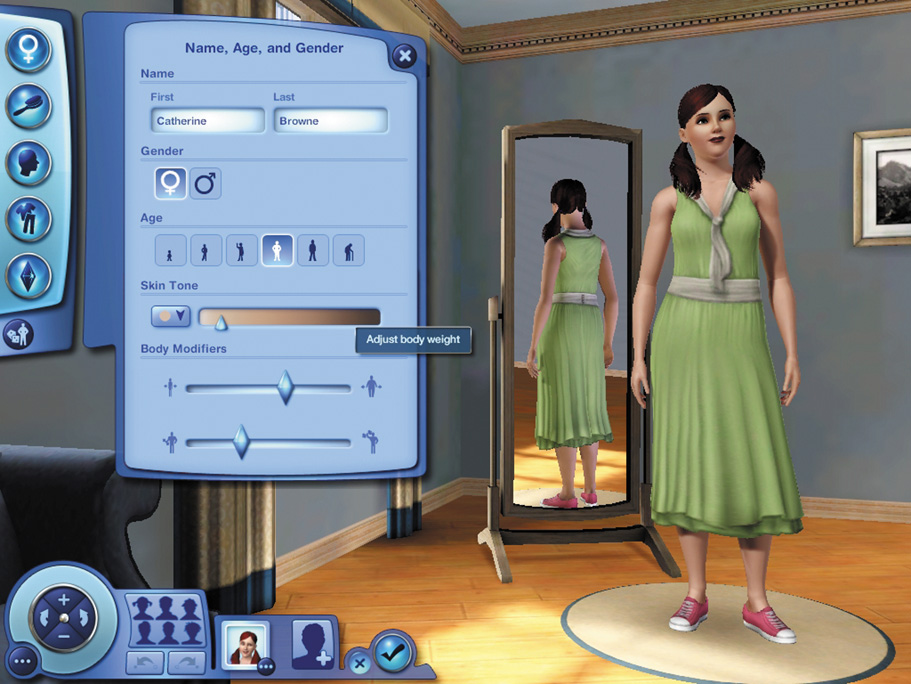
The Create a Sim springboard. From here, you can create zillions of Sims to your own liking. All that limits you is your imagination.
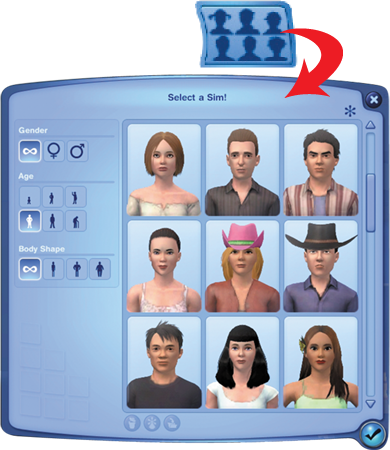
When you first dig into Create a Sim, you already have a Sim waiting for you, but this is just molding clay. You can accept this Sim if you like. You can also browse a collection of pre-made Sims by clicking on this button.
You do not have to use these pre-made Sims as-is. You can drop one into the toolkit and then start shaping it to your liking. Maybe change those pajamas or put on a few pounds?
You can choose pre-made Sims of all ages, from toddler to elder, to create a bona fide insta-family.
To start tinkering with your soon-to-be-new Sim, use the five buttons on the left side of the screen to alter and adjust different facets of the Sim. Each button opens up a tab from which you can start making your changes. No change is permanent as long as you are inside the Create a Sim toolkit. Here are the five buttons/tabs and their functions:
 Basics:
This tab lets you name your Sim and change its gender, skin tone, and age.
Basics:
This tab lets you name your Sim and change its gender, skin tone, and age.
 Hair:
Use this tab to change your Sim’s hairstyle, which includes adding headgear.
Hair:
Use this tab to change your Sim’s hairstyle, which includes adding headgear.
 Looks:
Go here to change the general appearance of your Sim’s head and face, including making adjustments to chin, nose, eyes, and cheeks.
Looks:
Go here to change the general appearance of your Sim’s head and face, including making adjustments to chin, nose, eyes, and cheeks.
 Clothes:
Select your Sim’s basic wardrobe from this tab, including everyday wear, athletic garb, and formal clothes.
Clothes:
Select your Sim’s basic wardrobe from this tab, including everyday wear, athletic garb, and formal clothes.
 Personality:
This tab lets you assign specific traits to your Sim, choose personal favorites (food, music, and color), and select a Lifetime Wish.
Personality:
This tab lets you assign specific traits to your Sim, choose personal favorites (food, music, and color), and select a Lifetime Wish.
Basics
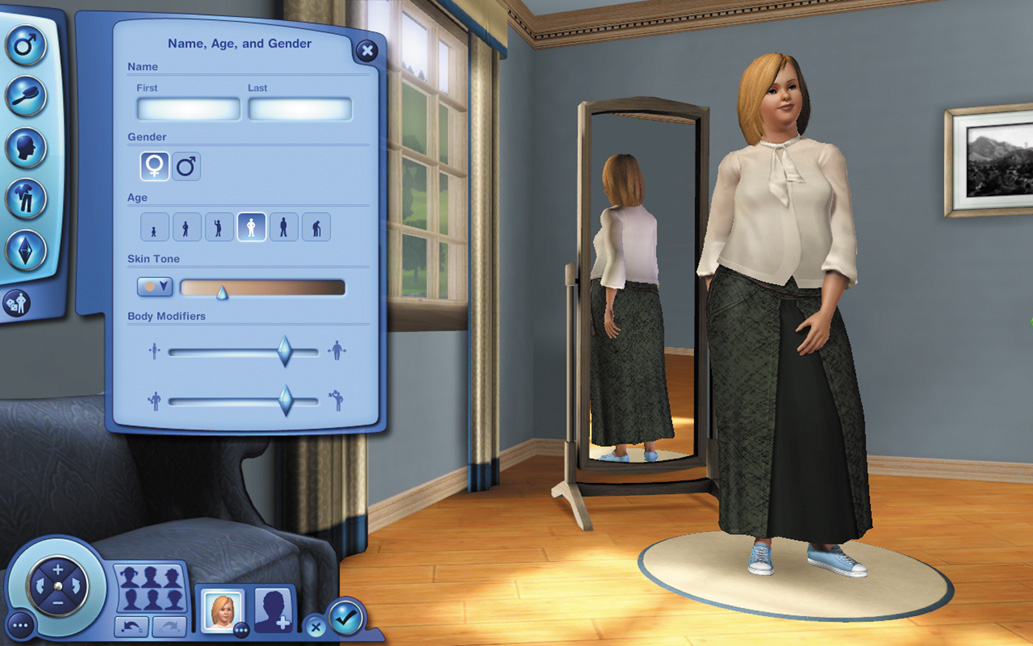
If you are going to fashion a Sim from the ground up, you always start at the first tab of the Create a Sim toolkit: Basics. This includes your Sim’s name, age, and gender. From this tab, you can immediately name your Sim—but you can also wait to name your Sim until the end of the process. (Sometimes a Liz just doesn’t look like a Liz by the time you’ve selected hair, eyes, and whatnot.)
Here, you also choose your Sim’s gender and age. Gender has zero effect on your Sim’s traits—just physical appearance and initial wardrobe. You can select your Sim’s starting age from six different periods: toddler, child, teen, young adult, adult, and elder.
You can also alter the general look of your Sim here, too. Skin tone is pretty self-explanatory. The body modifiers, however, let you change the overall shape of your Sim. The top slider bar controls weight. With just a swipe of your mouse, you can go from heavy in the drivers to lithe. Sliding the bottom bar adjusts muscle mass.
If you move it to the right, you get some pretty impressive pythons. Sliding it to the left, though, turns the studly into the scrawny.
Hair
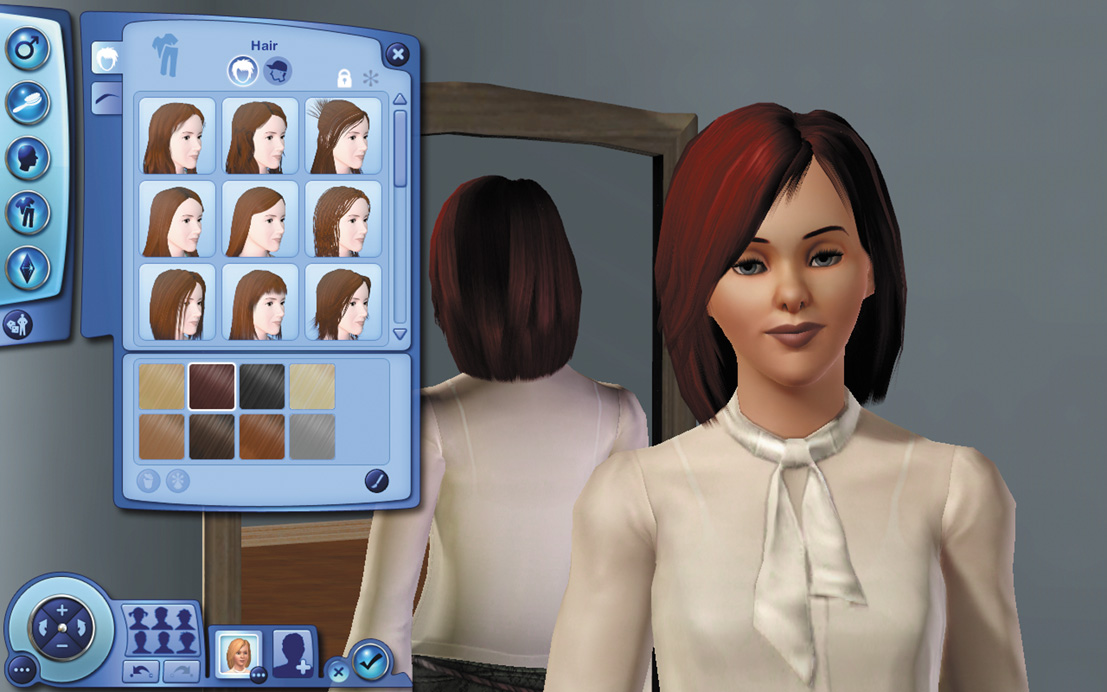
There are very few things we humans are more vain about than hair. In the Hair tab, you can select from a number of different hairstyles or opt for a hat. If you are creating a female Sim, you have a few extra options, such as working with long hair and different accessories like flowers or berets.
After settling on a hairstyle, you select the color. The Sims 3 comes fully loaded with lots of super-customizers, so if you aren’t satisfied with normal hair colors, you can dive into a dye scheme and go wild. Give your Sim that purple dye job your folks told you would have you banished from the house when you were a freshman in high school.
After selecting a hairstyle, move on to the eyes—more specifically, eyebrows and eyelashes. There are a number of pre-created eyebrows that you can match to your hair. Using the slider at the bottom of the tab, you adjust the length of your eyelashes.
The farther to the right you move the slider, the longer your lashes.
Looks
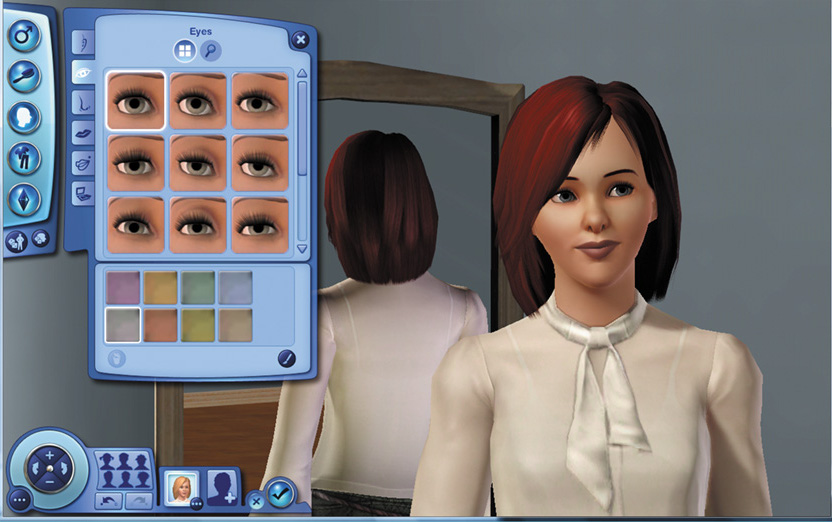
It’s been said that the eyes are the windows into the soul. If that’s true, then here’s where you really do some soul-searching.
The Looks tab is essentially a painless plastic surgery shop where you select eyes, noses, mouths, and everything else that makes up the human face. There are multiple sub-tabs inside the Looks tab.
Each of these sub-tabs opens up a toolset for altering a specific part of the face: head shape, ears, eyes, nose, mouth, topical details (freckles, etc.), and make-up.
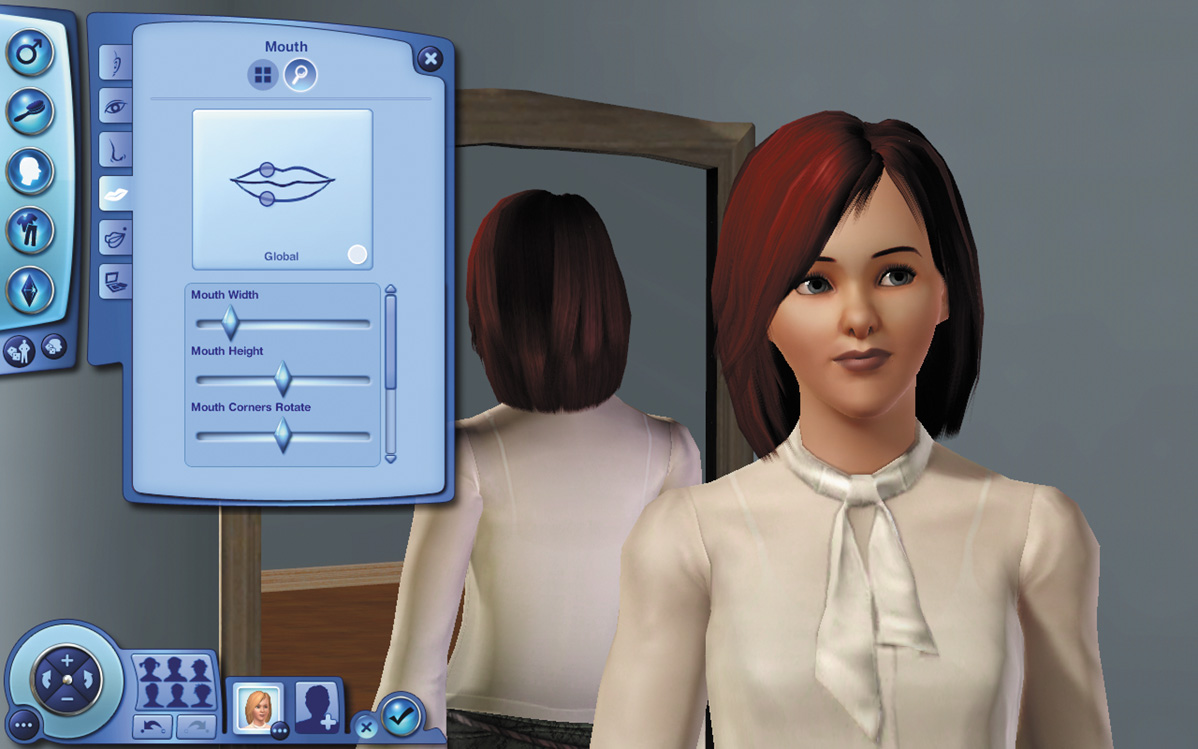
This tab is loaded with pre-made features to place on your Sim’s digital mug, but you can also tweak many of these features via a series of slider bars. For example, after picking a set of lips for your Sim, you can adjust the widths and thickness of both the upper and lower lip.
Clothes
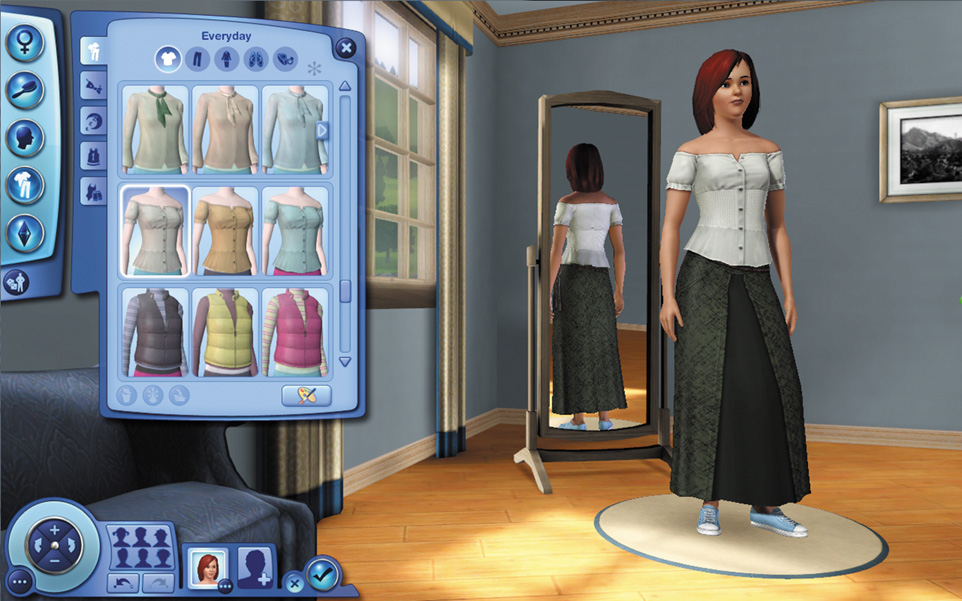
Do clothes truly make the (wo)man? If so, then you can make and remake your Sim five times over in the clothing tab of the Create a Sim toolset. Grown Sims get five different sets of clothes: everyday, formal, sleepwear, athletic, and swimwear.
Depending on the gender and age of your Sim, your choices change in this tab. The everyday clothing is what your Sim will wear normally when just living life during normal waking hours. You can select individual tops and bottoms or zero in on a complete outfit.
The other clothing sets are used for specific occasions. Formal is good for dates or high society get-togethers. Sleepwear is what your Sim automatically switches into at bedtime. Athletic is good for lounge wear or when you are participating in a sporting activity.
Swimwear is for, well, swimming. You set a default outfit for each of these categories from the available choices, but you can easily change the outfit colors.
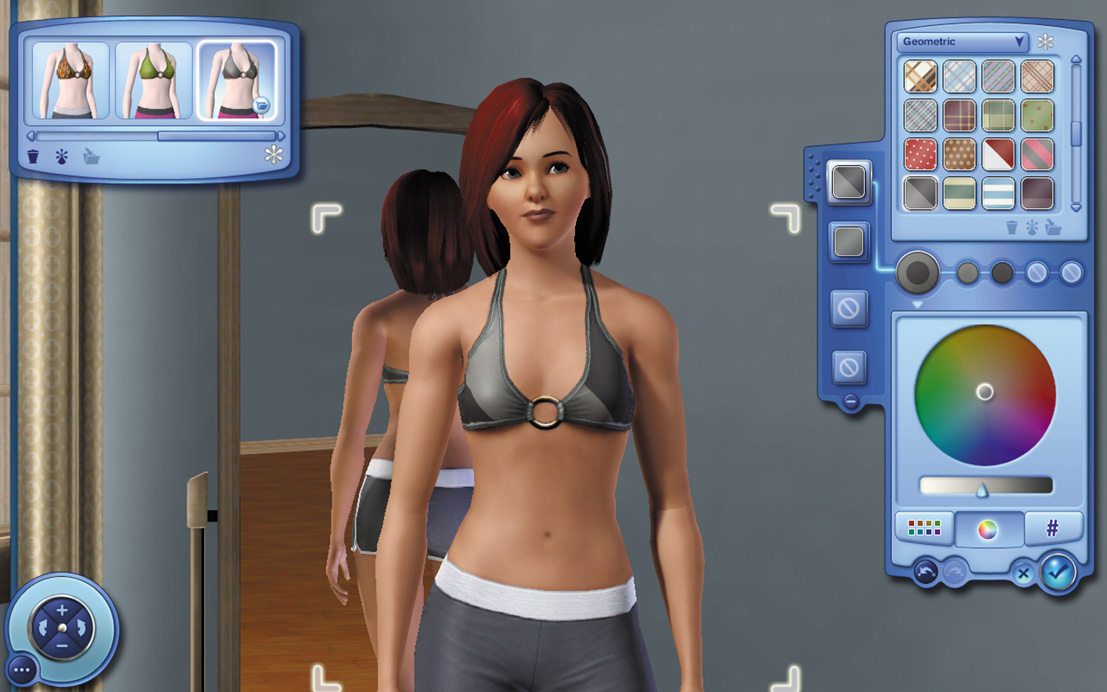
Check out how you can dig down and really customize something like this bikini. You can select patterns, different colors, or even import your own textures.
Create a Style
Truly, there are few limits in The Sims 3 save for your imagination, and the Create a Style tool is proof of that. You are not limited to just the fashions in the initial wardrobe, although it’s easy just to pick from them and get right into the game.
But if you click on the little paint palette after selecting an outfit, you can really turn on your inner fashion designer and stitch together an individual look for your Sim.
You can apply various patterns to an article of clothing, from geometric shapes to different fabric textures like denim. And you can also change the colors, targeting sleeves, collars, and the main body of the piece of clothing.
Here’s how the Create a Style tool breaks down:
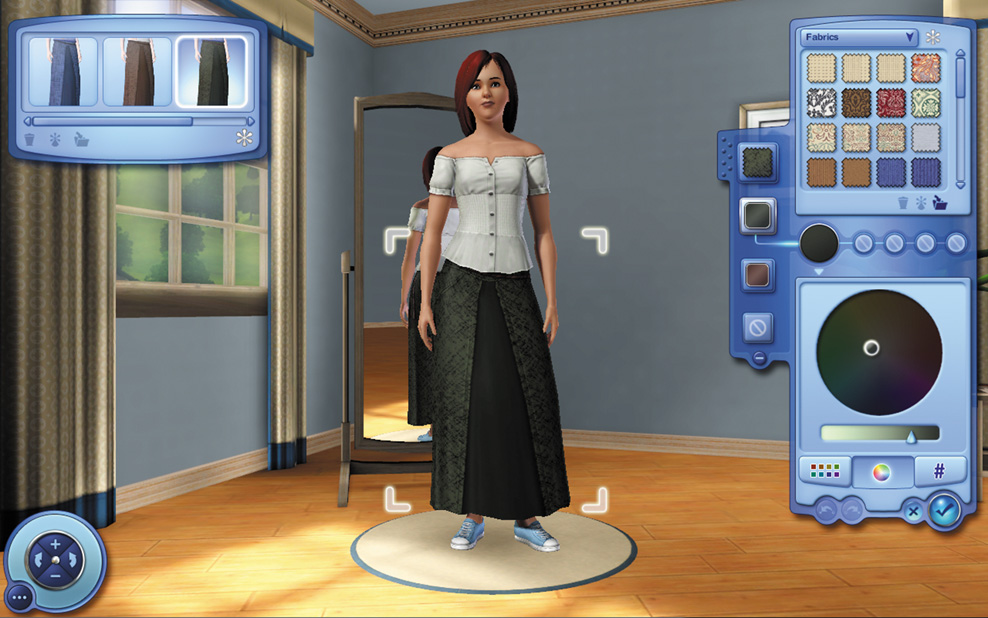
Patterns: Use the pull-down menu to select from different pattern categories, such as abstract and geometric.
Elements of Pattern: These color circles are individual parts of the pattern. Click a circle to change the color of that part of the pattern or texture.
Colors: Depending on how you choose to look at colors, they appear here. Clicking on the different colors changes the selected element.
Color Palette: View individual colors in small boxes.
Color Wheel: View colors on a wheel to see how they blend together
Color Numbers: Use hex values to assign colors to elements of your outfits.
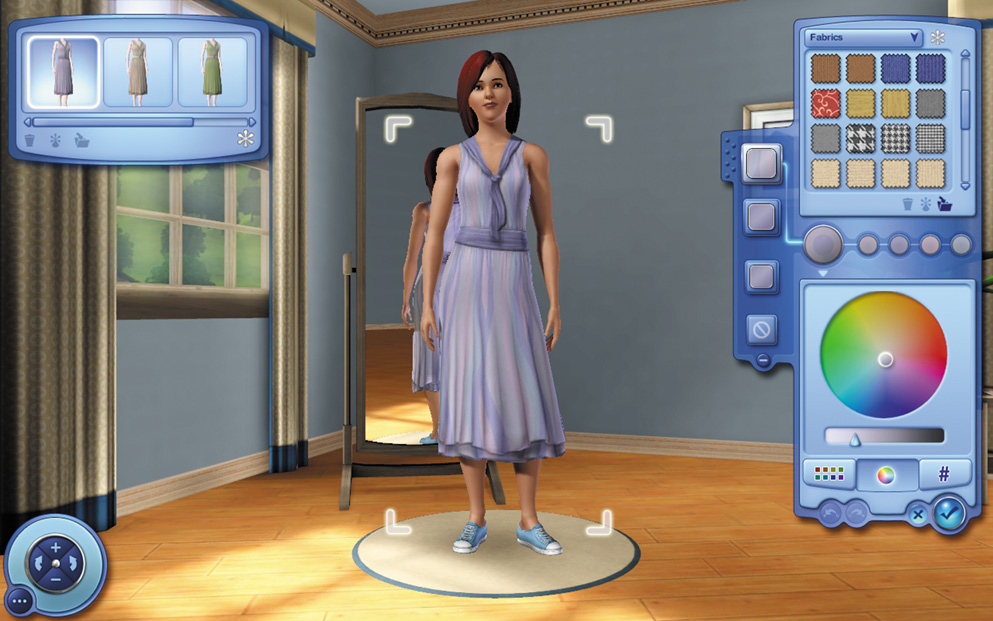
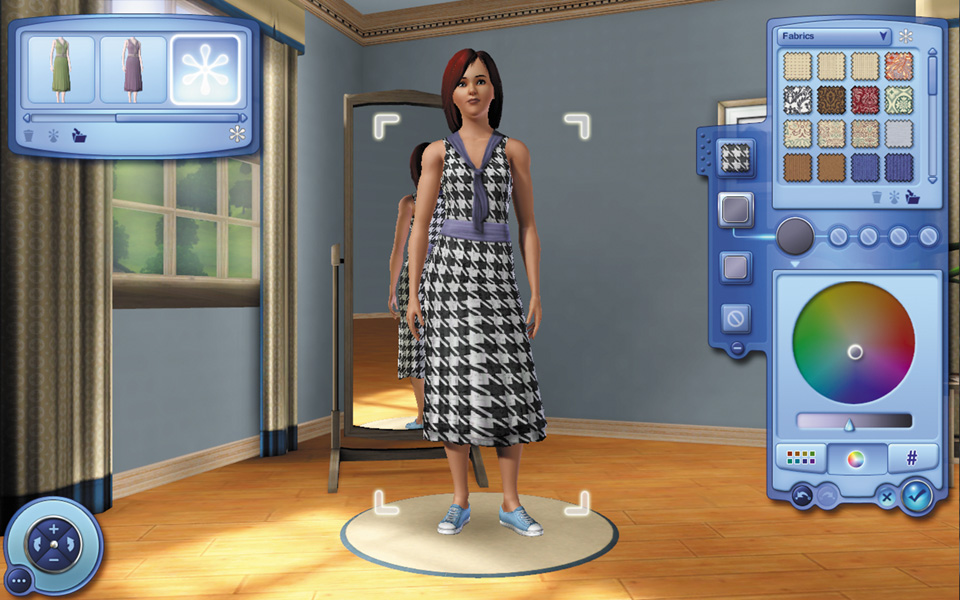
Let’s turn this regular summer dress into a houndstooth classic.
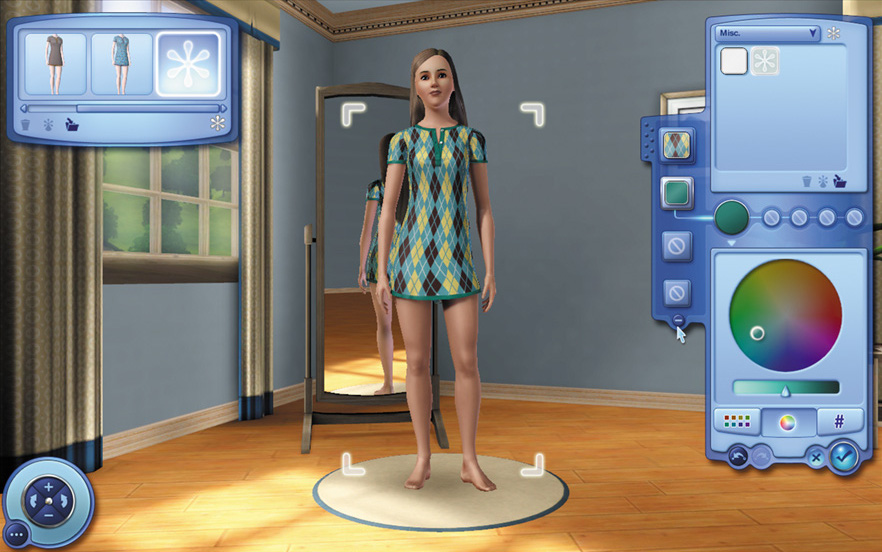
A plain nightie becomes a unique piece of sleepwear if you choose a pattern for the main body and then use the color wheel to make some matching trim.