
The Sims 3 Guide Essentials Creating a House
Building Basics
Building a house is easy and intuitive with The Sims 3 toolsets. With just two tool bars, you can construct a house. The first tool is Build Mode, selectable by clicking on this icon or pressing F3:

The other is Buy Mode. Click on this icon or press F2 to enter Buy Mode:

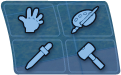 Each of these icons expands a toolbar with a shared interactive menu of construction options and a specialized catalog of purchasable items, depending on which mode you selected. Build Mode grants access to the materials for assembling a house, such as laying a foundation and erecting walls.
Build Mode also lets you select outdoor features, like trees and landscaping tools. Buy Mode is where you purchase objects to fill your house, such as bathtubs and couches.
A universal set of tools applies to both Build Mode and Buy Mode. Use these buttons to manipulate on-screen construction and purchases, as well as make interface adjustments that will help you with building and object placement. Here is the function of each button, as well as the keyboard shortcut for each:
 Hand Tool H: The Hand tool is used to move objects around your house or property. To grab an object, left-click on it. To drop the object, left-click again. To rotate an object, click and hold the left mouse button on the object and move the mouse around. The object will spin to face the cursor as you drag the mouse.
 Create a Style R: This tool enters the Create a Style menu, which allows you to customize objects. Personalize objects with new colors and textures. The Create a Style tool is fully explained later in this chapter.
 Eyedropper Tool E: The Eyedropper tool copies the color or texture of an object so you can easily place it on another object. You can also use this tool to copy decorations, such as wallpaper. Click on the tool and then click on the object/surface you want to replicate. Then, click on the object/surface you want to copy the texture or color set to.
 Sledgehammer Tool K: Want to destroy an object, wall, or floor? Click on the Sledgehammer tool. Once the cursor turns into a hammer, click on an object to immediately destroy it. Simoleons are instantly returned to your bank, minus any depreciation.
 Day/Night Toggle L: Want to see how a room or outdoor setting will look at night? This toggle instantly snuffs out the sun or toggles it right back on. Use this tool when placing lights around your property to see if you are casting the right amount of illumination on your stuff.
 Indoor Grid Placement G: The Indoor Grid is useful for placing objects inside a room or planning your wall layout. Clicking on this button drops a white grid over your property. To remove it, just click the button again.
 Undo C + Z / Redo C + Y: To undo or redo your previous design decisions, use these buttons. There is no penalty for undoing an object placement. However, once you exit either Build Mode or Buy Mode, you can no longer undo your previous choices.
Build Mode

| 1 Foundation | 2 Floor Covering |
| 3 Walls | 4 Wall Covering |
| 5 Door | 6 Windows |
| 7 Roof | 8 Stairs |
| 9 Arches | 10 Columns |
| 11 Fences | 12 Gates |
| 13 Pool | 14 Fireplaces |
| 15 Trees/Flowers/Shrubs/Rocks | 16 Terrain Tools |
| 17 Water Tool | 18 Terrain Paints |
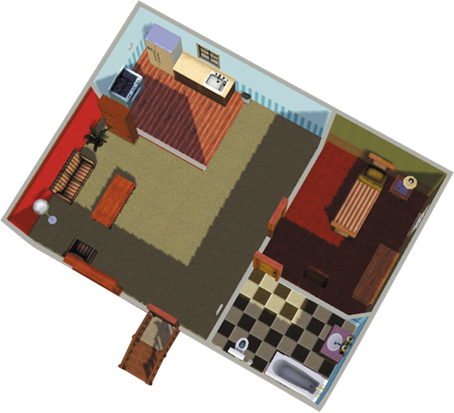
Build Mode is how you physically construct a house or make changes to your property. Use Build Mode to lay down a foundation, build walls, and place a roof on your house.
Want to add a window or wallpaper? Head to Build Mode. You can also buy doors and windows in Build Mode. Landscaping tools are available from the Build Mode tab, such as the ability to physically manipulate terrain.
Buy Mode

| 1 Show Room | 8 Living Room |
| 2 Sort by Room | 9 Dining Room |
| 3 Household Inventory | 10 Study |
| 4 Object Buy Field | 11 Kids Room |
| 5 Kitchen | 12 Outdoor |
| 6 Bathroom | 13 Objects |
| 7 Bedroom |
|
Outfit your new digs with the latest furniture and gadgetry in Buy Mode. You can view this object catalog either by room or by object function. To view by rooms, click on the small room icon in the upper-left corner.
To sort by function, click the chair icon. (To view your current household inventory, click on the box.) Once you choose how to view the catalog of objects, just click on individual items to see a close-up view of the object, a short description, price, and any functions or pertinent properties.