
Medal of Honor Guide Essentials Basic Training
Dynamic HUD
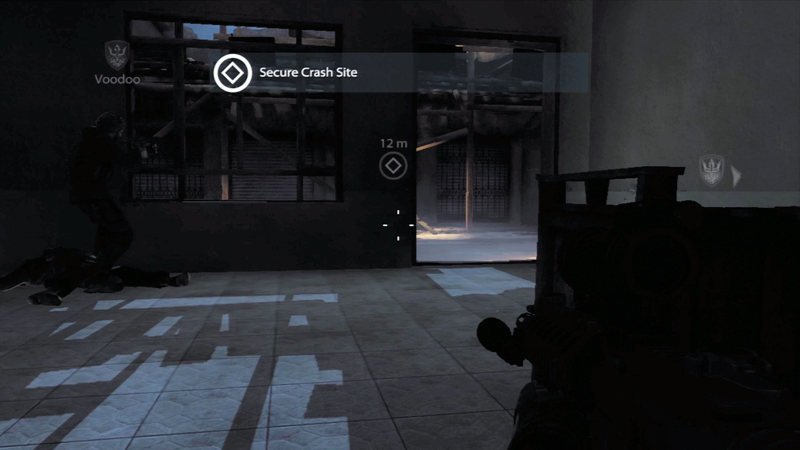
Information appears on the screen as it applies, such as when you change stance, fire a weapon, receive a new objective, or press the Dynamic HUD button.
Medal of Honor features a dynamic HUD that lets you focus on the action rather than constant on-screen information. Objective information appears in the top center of the screen. As you change stance, your current stance appears momentarily in the lower left corner of the screen.
In the right corner, you can see how many rounds are in your current magazine as well as the total number of rounds you have on your person.
In addition to the standard info you might find in this type of game, you can also bring up your head's up display by pressing the dynamic HUD button. This will display an icon showing you the direction of your current objective as well as the distance to the objective.
Icons will also show you the location of your teammates. If you are not sure where to go or where your teammates have gone, press the dynamic HUD button so you can get back on track.
Tips and icons appear at the bottom center of the screen in order to help you get through the mission. The icons inform you about special types of actions that you must perform at a spot or when you have performed a headshot special kill.
The following table shows the various icons that will appear during the game.
HUD Icons
| Icon | Name |
|---|---|

|
Objective |

|
Objective Complete |

|
Mount ATV |

|
Get aboad helicopter |

|
Breach the Door |

|
Head shot |

|
Plant an explosive charge |

|
Buddy boost |

|
Use machine gun |

|
Destroy fuse box |

|
Place beacon |
|
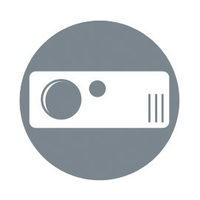
Use SOFLAM |

|
Supress the enemy |