
Assassin's Creed: Revelations Guide Essentials Primer
Maps
Using the Map & Mini-Map
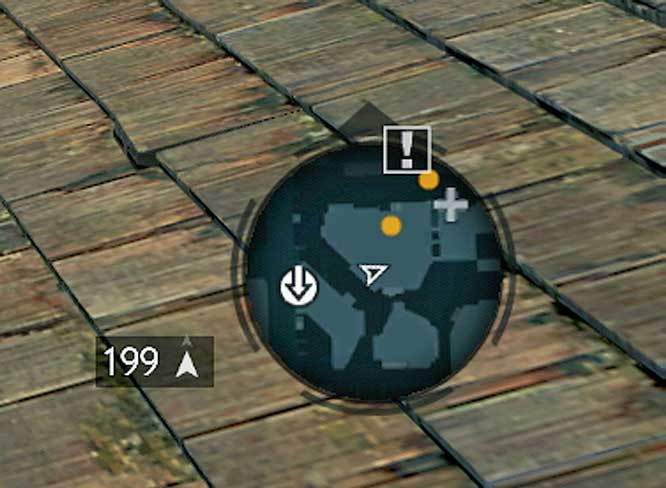
All places of interest, points of interactivity and active waypoints are marked by icons on the main Map screen and mini-map ( 01).
If you are unsure of what a particular symbol represents, visit the main Map screen – press the Map button (Back/Select) or select the equivalent pause menu option – and move the cursor over the icon in question. You can view a complete legend by pressing LB/L2.
When you arrive in Constantinople, details on both the main Map screen and mini-map are obscured until you reach and Synchronize with local Viewpoints. This feature is introduced at a very specific point in the story, so we’ll return to this subject in the Walkthrough chapter.
As a general rule, main streets and alleys appear as a dark gray; surrounding buildings are a lighter gray.
Icons situated at a different elevation to Ezio (such as rooftop sentries stationed above a street as he runs beneath) appear slightly faded on the mini-map.
Many icons on the mini-map only appear when relevant. For example, hiding places are not shown unless Ezio is in active combat. Others, such as those representing shops, shrink and disappear from view as Ezio moves away from them. Active waypoints or Memory Start locations are always clearly displayed.
The main Map screen enables you to place a Custom Marker with the Legs button (A/X). This is an incredibly useful tool for navigating the circuitous streets and alleyways of Constantinople, and is often an efficient way to plot an escape route if you need to make a swift departure.
Later in the story, the Map screen can be overwhelmed by a huge number of symbols. Press the Primary Attack button and use the pop-up menu that appears to activate and disable individual categories of icons.
Key Map Icons
|
Memory Start |
Objective |
Target |
Destination |
Guard/Potential Enemy (Red = Byzantine, Orange = Ottoman) |
Hiding Spot |
Viewpoint |
|---|---|---|---|---|---|---|

|

|

|

|

|

|

|