
The Wonderful 101 Guide Primer CENTINELS Basic Training Manual
CENTINELS Basic Training Manual
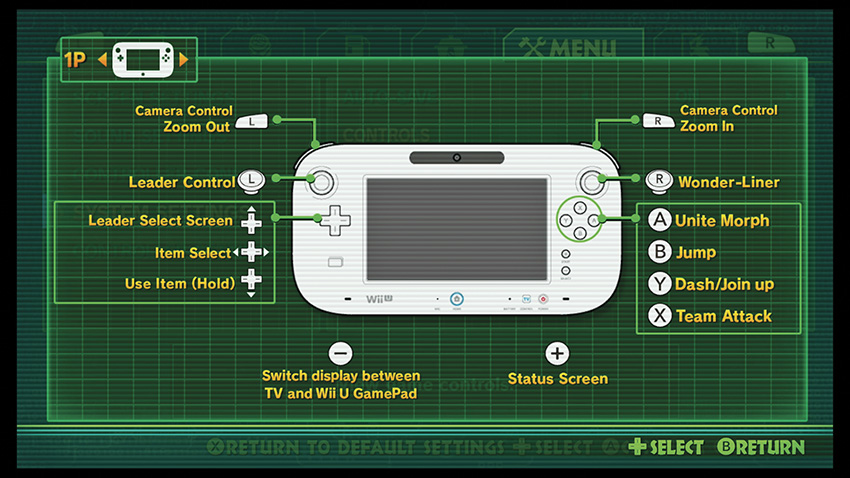
To surpass the greatest challenges The Wonderful 101 has to offer, you have to know what you’re capable of at all times so that with practice you can respond correctly to any given situation. The basic controls are described after the diagram below. The Wonderful 101 uses the Wii U GamePad as its primary interface, but the game can be played with the Wii U Pro Controller, which is also a necessity for additional players to enjoy the multiplayer missions. The following controls are the default settings; however, there are options in-game to change the control settings.
Leader Control: Running
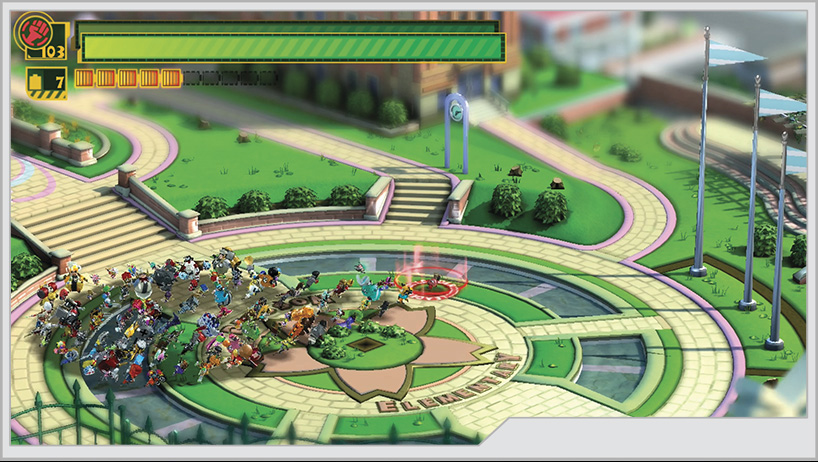
Moving your team of heroes around always occurs at a brisk run. Whomever you have selected as the group leader will generally be at the front of the pack. Be careful while running, as being out in front means you’re out in the open and vulnerable to all kinds of attacks. Whenever your team is attacked, you don’t actually take damage unless the leader takes a direct hit. There are ways to minimize the risk to your leader that we’ll go into later.
Dash
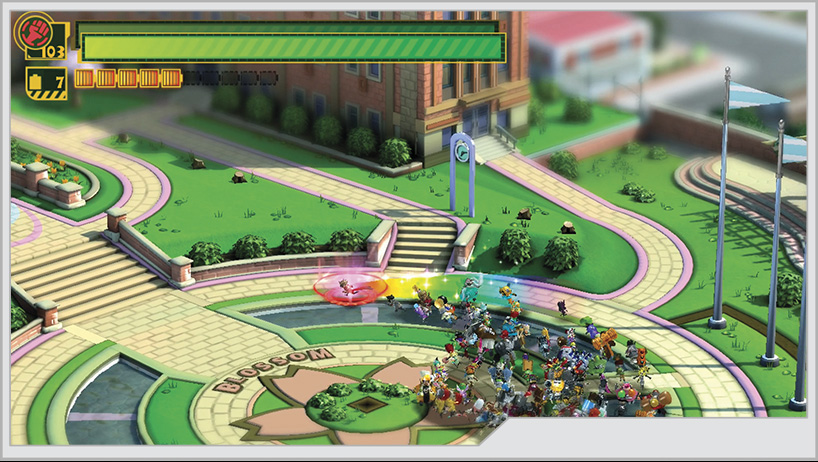
While running, tapping the Dash button causes you to dash, trailing a rainbow behind you as you enjoy a fairly large boost in speed. You’ll be in Dash mode until you stop moving, so you don’t have to hold down the Dash button. Dashing lets you make longer jumps and allows you to get your leader into position faster to attack the enemy from a vulnerable angle; however, just as with running, it puts your leader so far ahead of the pack that they are vulnerable to incoming attacks.
Unite Spring
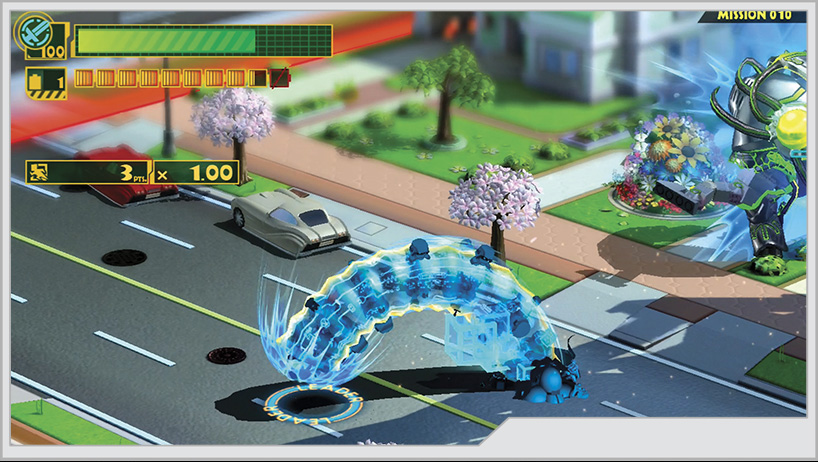
One of the abilities available from purchase at the Wonderful Mart is Unite Spring, and it gets a dedicated trigger button on the GamePad. Unite Spring is one of the most important abilities you’ll get in the entire game, allowing you to evade around or over any attacks this ability can clear. It provides a very brief window of temporary invincibility and can be upgraded in a variety of ways to help keep you safe. You definitely don’t want to get this particular trigger button mixed up with the button for Unite Guts. For more details on this Unite Morph check out the Training section.
Unite Guts
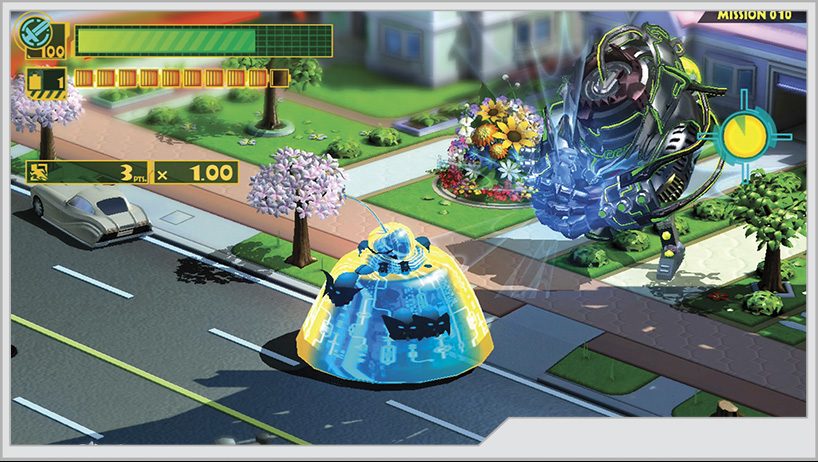
The other crucial ability is Unite Guts; it, too, has a button dedicated to its use and is available for purchase at the start of the game. Acting as a defensive shield, Unite Guts can block many enemy attacks; in fact, you will use this in many boss battles, so know where this button is and be able to use it immediately. You don’t want to get Unite Guts and Unite Spring mixed up, particularly on higher difficulty settings! For more details on this Unite Morph check out the Training section.
Unite Tombstone
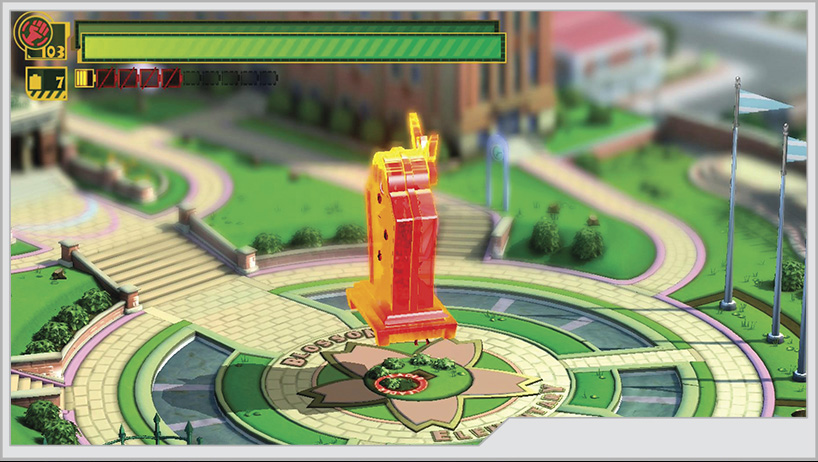
Pressing the Unite Guts and Unite Spring buttons simultaneously activates the Unite Tombstone ability (after you purchase it from the Wonderful Mart). For more details on this Unite Morph check out the Training section.
Wonder-Liner
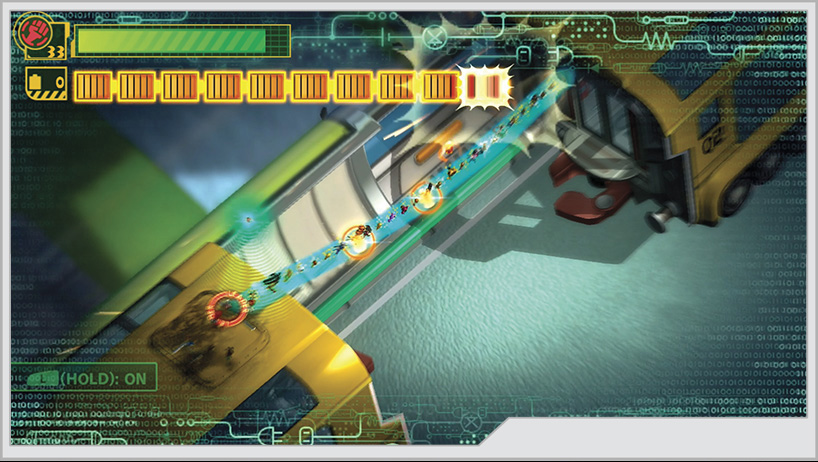
You can send the Wonder-Liner out with the Right Stick or you can draw it more precisely with the touch screen. Sending out your team in single file, the Wonder-Liner is a versatile tool. You can:
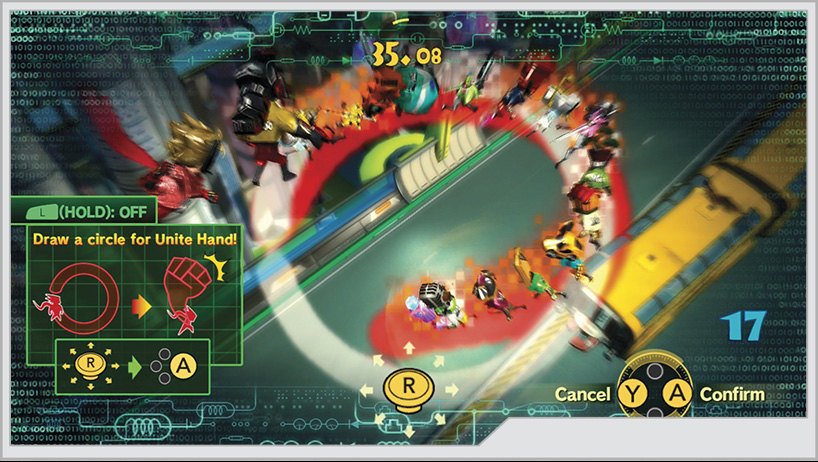
The Wonder-Liner is also used in events during cutscenes or boss battles, where you’re expected to draw a specific shape in order to successfully complete the event. During these moments, you have a limited amount of time to get it right.
Jump
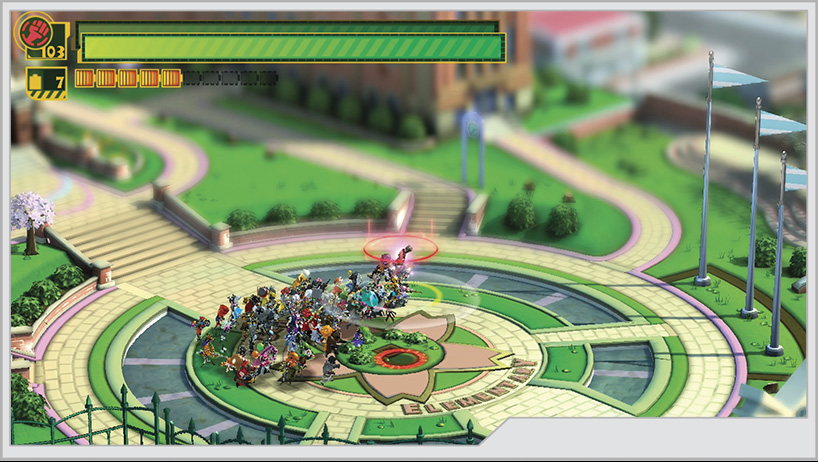
Jumping will help you get to high ledges or help you continue combos after you have launched an opponent. It’s also possible to double-jump, and combined with certain attacks, you can reach great heights.
Join Up
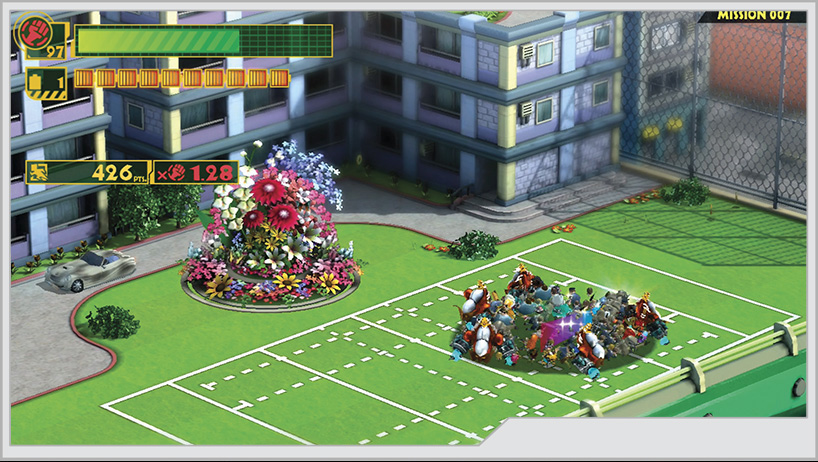
On the default settings, holding down the Dash button will join the team around your leader while the group is at a standstill. You can also dash while joined up, but you will move a little slower being packed so tightly together. In addition, Join Up acts to cancel any Unite Morph commands you draw on the touch screen or the Right Stick.
Join Up is actually an important tactical move to make during a fight. While running or dashing, the team of heroes tends to get stretched out, making the leader vulnerable. It also makes you work harder if a large attack suddenly knocks out the heroes who have lagged far behind, forcing you to cover more distance to pick up the fallen teammates to restore your combat potential. You can Join Up midjump to help the whole team clear an attack, and you can also tap the Join Up button to make sure there are bodies standing between the leader and an incoming ranged attack.
Team Attack
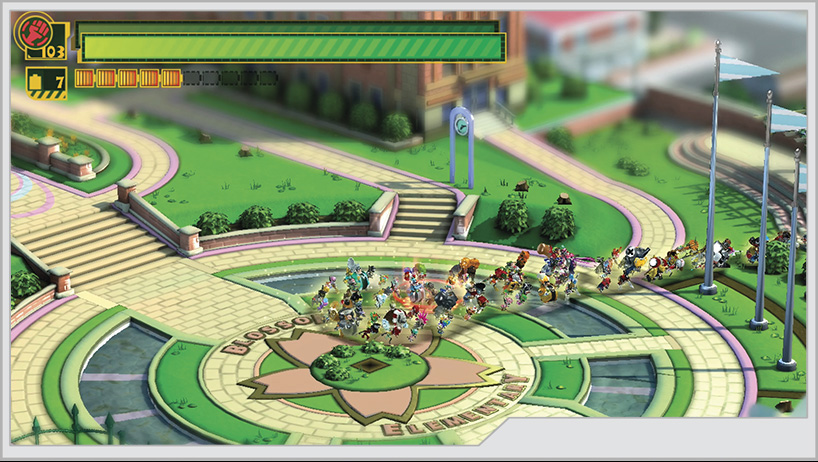
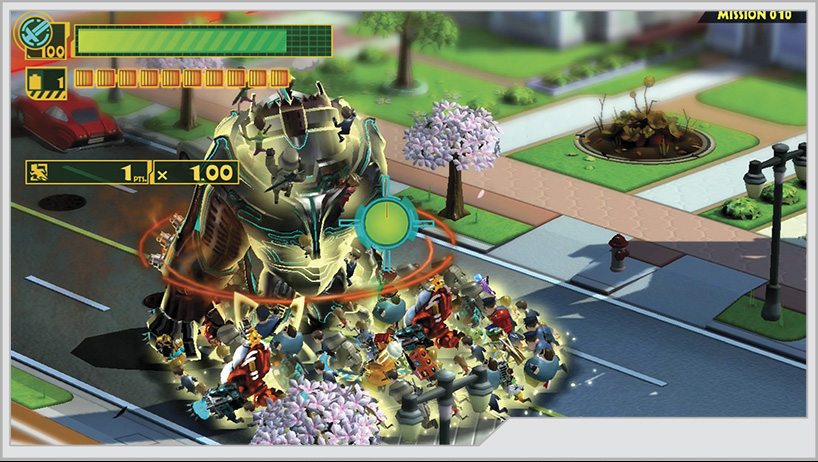
The Team Attack sends your gathered Wonderful Ones and recruited civilians surging forward, causing light damage to enemies. More importantly, the Team Attack will cause the heroes at the front of the charge to latch on to the stricken enemy (or at least, cause them to try) and execute the Climb Attack, where they will start attacking them with their weapon of choice. The Team Attack is one of the more important abilities in your arsenal. If you can get enough heroes clinging to an enemy, they can stun your target and make it vulnerable to any attacks that launch enemies skyward. Enemies with heroes clinging to them will take continuous damage that increases for every hero attached and will also take more damage overall from your other attacks.
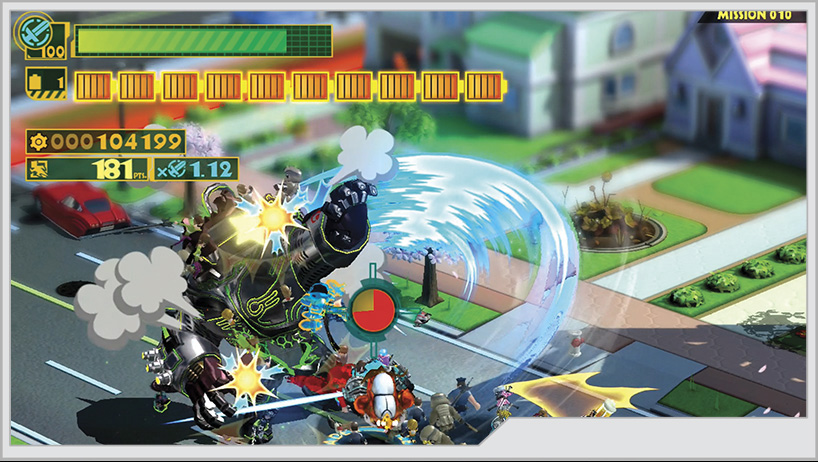
The other major function of the Team Attack is to trigger a Multi Unite Morph. When you draw a Unite Morph formation on the touch screen or with the Right Stick and then press the Team Attack button, a member of your team will use the indicated Unite Morph on any nearby enemies for a few seconds before the ability fades out, returning all involved heroes back to the main group. Use this to extend your combos significantly, and if you want to reach the highest ratings for the greatest rewards, you will have to know how to use Multi Unite Morphs to boost your combo multipliers. Information on the Scoring System can be found in the Training section.
Uniiiiiiiiiiiiiiiiiiiite MORPH!
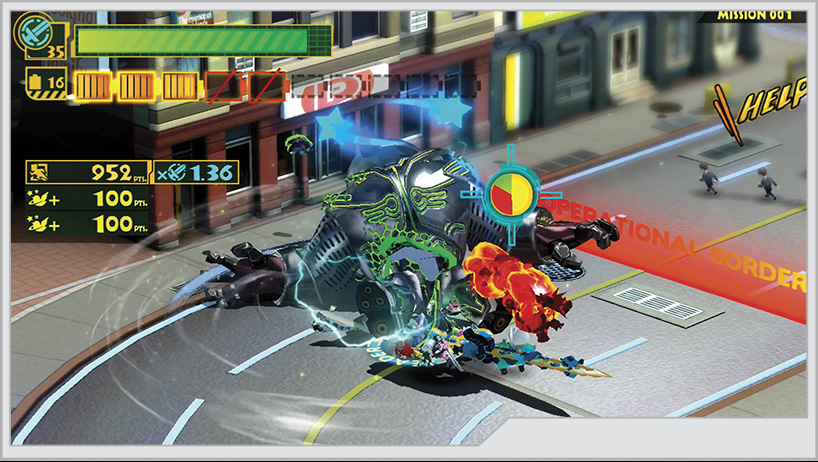
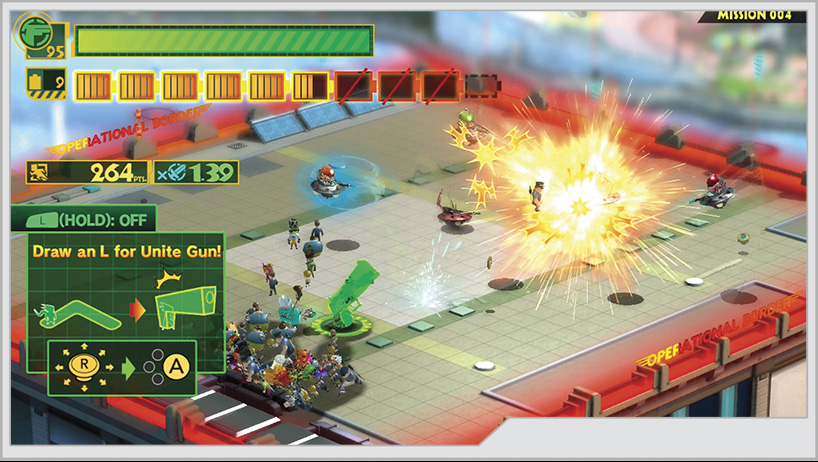
Depending on the ability you’ve triggered with the Wonder-Liner, the Unite Morph button will use the Wonderful Ones inside the Wonder-Liner as components for the Unite Morph. The game introduces you to Unite Hand and Unite Sword early on, but you gain access to more Unite Morphs as the story progresses. Check out the “CENTINELS Personnel Information” chapter for more detailed information on the various Unite Morph abilities at your disposal.
You can use a Unite Morph alongside a Multi Unite Morph so long as you’ve got Wonderful Ones available in sufficient numbers to create a Unite Morph. This can lead to some extensive and crazy powerful combos, but you’ll have to manage your troops well in order to make the most of this ability.
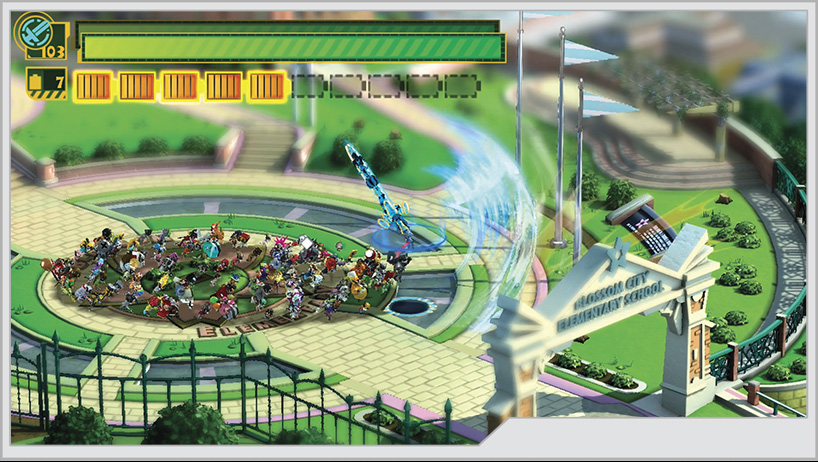
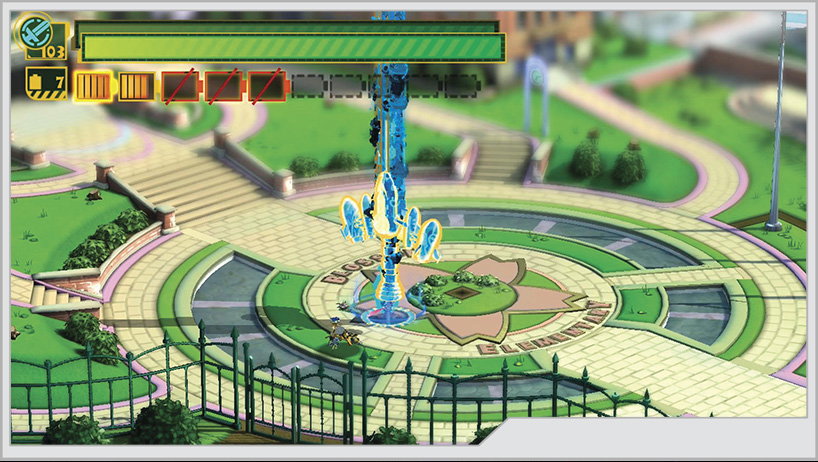
Small-Size Unite Sword
High-Powered Unite Sword
Note that the Wonder-Liner’s size corresponds to the size of the Unite Morph you’re attempting to build. You need at least ten heroes for a Unite Morph to trigger, but Unite Morphs will grow in size and power the more people you have on your team. You decide if you want to use the whole team at once for a single Unite Morph or to switch between multiple Unite Morphs rapidly for extended combos.
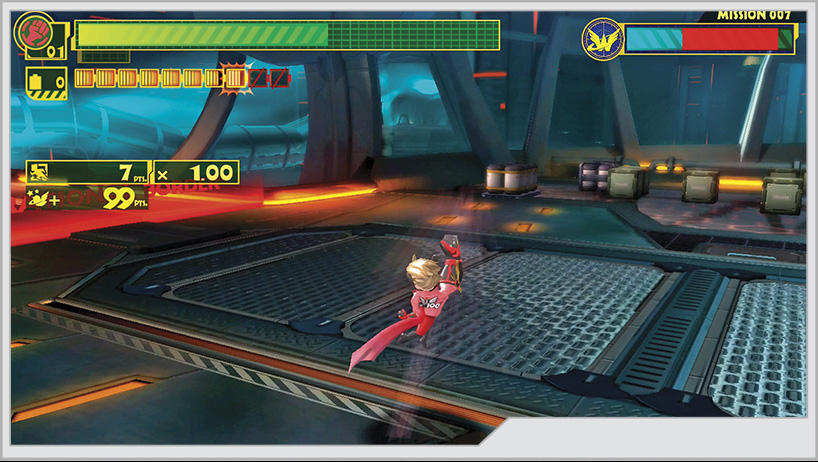
If you do not have any allies available or are out of energy in the Unite Gauge, the Unite Morph button will trigger a basic attack with your chosen leader character. This is not a particularly powerful attack compared to a Unite Morph, but there will be times when it is necessary to use or when it’s the only thing you can use.
Switch Display
An interesting feature, the Switch Display lets you show the action from your TV on the GamePad’s touch screen, while the radar that is normally displayed there is shown on the TV. This can be useful if the TV isn’t available, but it does have the side effect of showing gameplay sequences that take place on the GamePad screen on your TV instead.
Status Screen
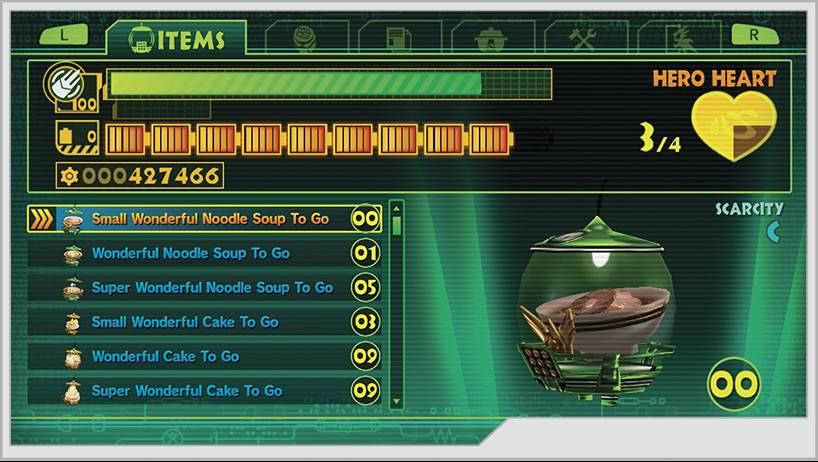
The Status screen is your multipurpose pause menu. It allows you to use your various items without fumbling for them in the middle of combat, switch between your various Custom Blocks, check out the collectibles or achievements you have unlocked, read information about all of your abilities, and even turn off abilities that you don’t want to accidentally trigger. This guide will go over all of this information in detail in later chapters.
Touch Screen
The GamePad touch screen typically shows your radar. Certain puzzles require you to draw very specific shapes on the touch screen. You can draw Unite Morph shapes on the radar display to set up attacks, and you can access your various food items in the middle of combat or even select which heroes you want to lead the creation of specific Unite Morphs. If you use the Switch Display button, the action on the TV screen will be displayed here. You will play certain sections of the game on the touch screen, and you’ll have to move the GamePad around to change your camera angle in order to see where you’re going.
Leader Select
Pressing up on the +Control Pad will display the Leader Select screen on the touch screen. This function allows you to change who will lead a specific Unite Morph. Certain heroes that you unlock while playing the game have special effects added to their Unite Morph ability, or they might hit harder, so you may want them to be the leader of a Unite Morph over your default selection.
Select Item/Use Item
Pressing left or right on the +Control Pad lets you switch between your various usable items. The touch screen will show three at once, but you can scroll through your entire inventory. The item at the center of the three on display is the one that will be used when you press and hold down on the +Control Pad.
The CENTINELS Combat Information Display System
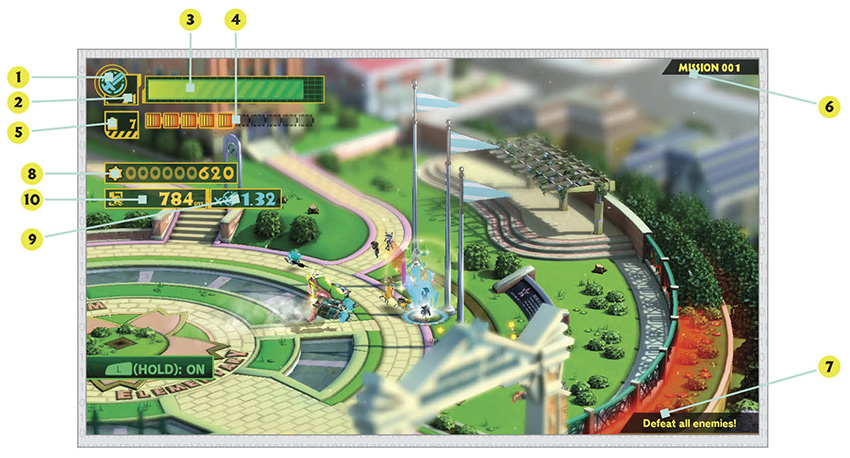
1. Currently Active Unite Morph: This icon will change based on which Unite Morph you currently have available on your selected leader.
2. Total Number of Heroes: You begin the game with 20 heroes on your team, but this number can increase, both through recruiting temporary additions from the civilians you rescue or by reuniting with other Wonderful Ones. You need a minimum of 10 heroes to trigger a Unite Morph, and Unite Morphs become more powerful with more heroes.
3. Vitality Gauge: This is a measurement of your entire team’s health. Should it become depleted, the hero absorbing the final blow will have their CENTINEL suit destroyed, and you’ll be forced to use a continue to stay in the fight!
4. Unite Gauge: The Unite Gauge consists of ten segments that act as a measurement of energy you have to dedicate toward your Unite Morph abilities. However, you only have access to five segments at the start of every Operation. Collect Wonderful Batteries to boost your gauge by one segment. However, certain situations may call for your team leader to authorize the use of Unlimited Form, which unlocks the full Unite Gauge immediately.
5. Wonderful Battery Count: This tracks the number of Wonderful Batteries you’ve collected. Batteries come in different sizes, which are worth different amounts. It takes 20 Wonderful Batteries to gain one segment of Unite Gauge.
6. Current Mission: This tells you what mission you are on in a given Operation.
7. Mission Objective: Your current objective for a given mission is always displayed here.
8. O-Parts Count: Any time you collect O-Parts, this HUD element will appear, telling you your current O-Parts total.
9. Combo Multiplier: With every attack landed, your Combo Multiplier will increase. So long as this HUD element is active during combat, you are gaining bonus O-Parts.
10. Combo Point Total: This shows the current total points your combo is worth, before applying the Combo Multiplier. Bonus point notifications also scroll underneath the Combo Point Total, showing off various bonuses that can be earned during combat.