
Metroid: Samus Returns Guide How to Play
Basics
Movement
The basics of the basics. In order to run, you’ve got to walk. In order to walk, you’ve got to learn how the Circle Pad works.
Moving
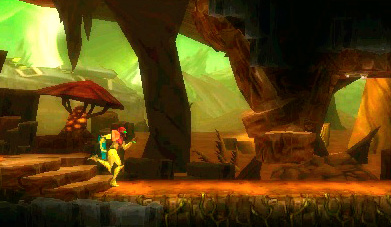
Samus moves left and right almost exclusively, not including jumps and use of Power Suit upgrades. Holding Left on the Circle Pad moves Samus to the left, while holding Right on the Circle Pad moves her to the right. She doesn’t walk, so expect the same movement speed for the entire game.

Jumping
Jumping in Metroid: Samus Returns is just as vital as regular movement. Plenty of tall corridors filled with platforms and handholds are only accessible via jumping. Jumping over enemies and their attacks is also useful.
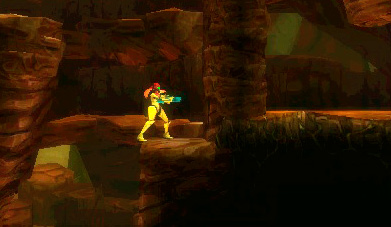
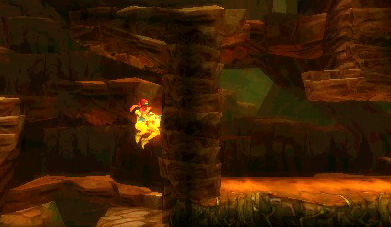
There are two types of jumps when you start the game: Standing Jumps and Spin Jumps. Perform Standing Jump by pressing the Jump button without holding the Circle Pad left or right. You have limited movement in the air, but more control over the trajectory of your jump.

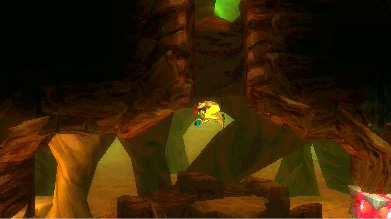
In contrast, to perform a Spin Jump, press the Jump button while holding the Circle Pad left or right. Samus begins spinning in the air. The action is a bit unwieldy, but it’s the only way to move significantly left and right in the air. Firing your weapon forces you into a Standing Jump position, which doesn’t have much effect early in the game, but it becomes important later on, so keep it in mind.
Free Aim
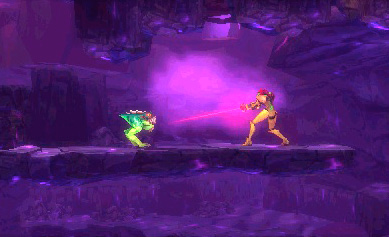
Hold Up, Left, or Right to aim in that direction. For times when more precision is required, use the Free Aim mechanic by pressing the L button. When you hold L, Samus enters an aiming stance, which lets you aim in a full 360-degree motion. This is useful during Metroid fights and for enemies you want to keep your distance from while retaining the ability to fight.
Combat
So now you’ve got the basic movements down, but Samus’ mission requires more. Next you must learn how to use the weapons available in your arsenal.
Switching Weapons
To switch weapons, press one of the icons on the right side of the bottom screen. There is no limit to how frequently you can switch weapons, so flip on the fly if a situation demands it—there are plenty of situations that do.

Using Missiles
To fire a missile, hold R, then press the Attack button. You can also fire missiles while Free Aiming. Hold down the L and R buttons, then aim and fire!
Switching Secondary Weapons
Switching secondary weapons works the same way as switching your primary weapon, with one caveat. To display your secondary weapons on the bottom screen, you must hold R. From there, click the one you want and you’re good to go. Once you pick a secondary, you can use it in the same way you fire missiles.

Melee Counters
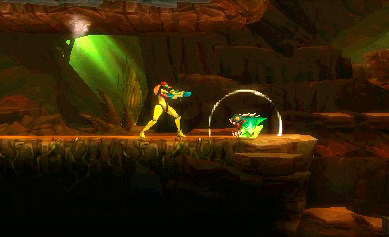
The Melee Counter mechanic is one of the most useful in the game. Whenever you see white rings flash around an enemy’s mouth and hear a clicking sound, hit the Y button to perform a Melee Counter. This temporarily stuns the enemy. After successfully performing a Melee Counter, DON’T MOVE! If you press Fire immediately following the Melee Counter, Samus shoots at the enemy automatically and deals extra damage. If you move, the enemy remains stunned but doesn’t take the bonus damage, and you have to aim manually.
Charge Beam
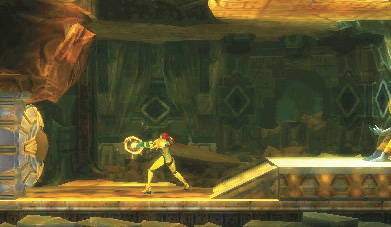
The Charge Beam is a Power Suit upgrade Samus picks up during her mission. A weapon upgrade rather than a whole new weapon, it allows you to charge up your primary beam weapon and the Ice Beam to deal more damage and release a bigger projectile. Hold the Attack button to charge up the shot; release the button to fire it.
The Touchscreen
The bottom screen contains all sorts of useful information and features vital to your success. Read on to learn what it does and how to use it.
 Energy (Health)
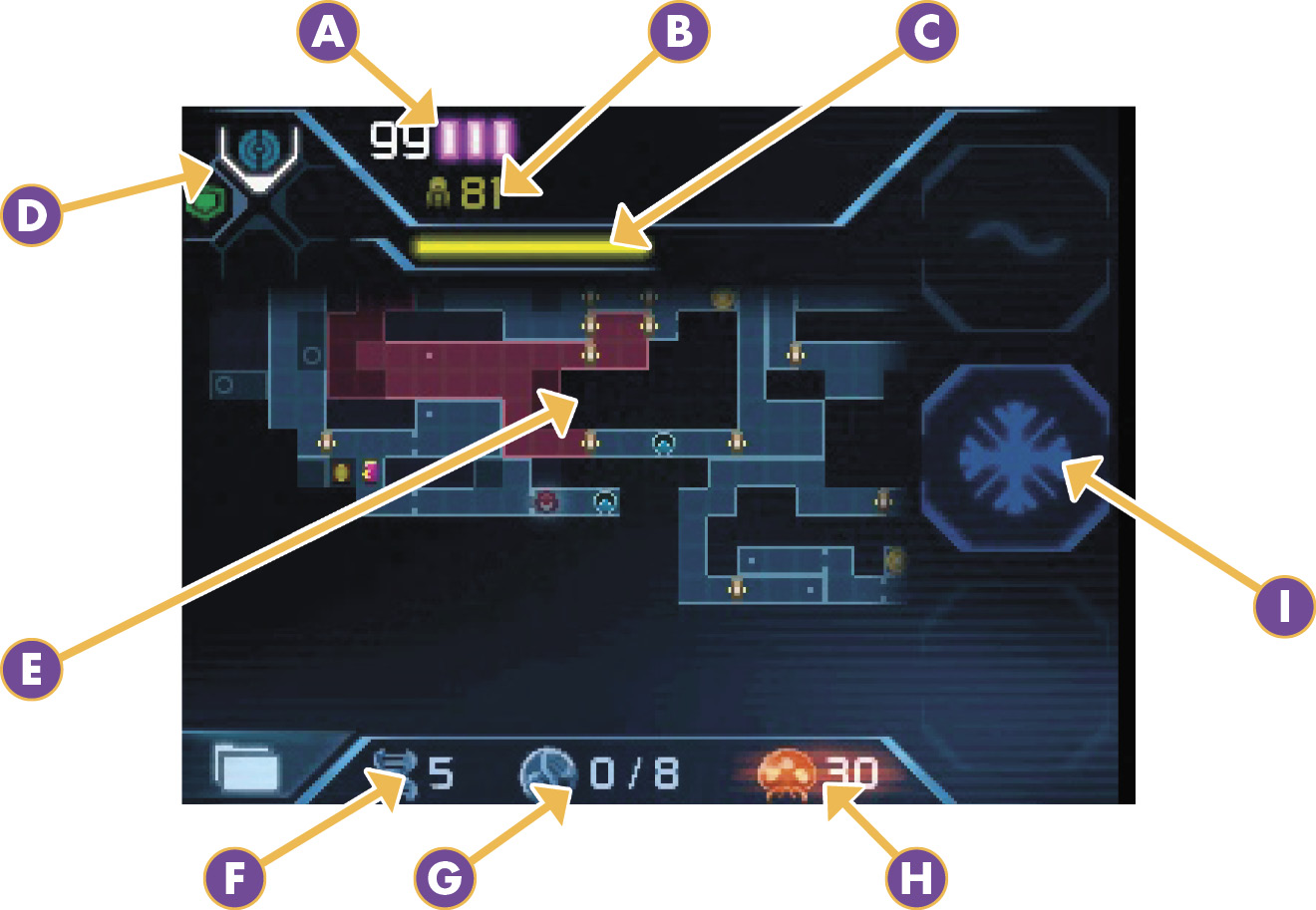
The purple bars at the top of your bottom screen represent Samus’ health. As you accumulate Energy Tanks, the number of bars increases. Keep in mind that Energy Points never exceed 99, but this number should not be read as your total health. When those 99 points drain, one of the Energy Tanks drains, and health jumps back to 99. When viewing your health, think of it as 99 plus the total number of purple bars that are still full. This gives you an idea of exactly how much health you have left. If all of your tanks empty and your health hits zero, it’s Game Over.
 Ammunition
The gold number below Samus’ Energy Points represents how much ammo you have for each of your secondary weapons. If that number is reduced to zero, you lose the ability to use the corresponding secondary weapon until you pick up more ammunition, either dropped by enemies or obtained from an Ammo Recharge Station.
 Aeion Energy
The yellow bar below Samus’ Energy Points and ammunition total is her Aeion Energy bar. Aeion Energy is expended every time you employ an Aeion Ability such as Scan Pulse. When the bar empties, you can’t use Aeion Abilities until you refill the bar at least partway. Do this by grabbing yellow orbs dropped by enemies, or by retrieving Big Aeion Orbs, which are displayed on your in-game map as yellow circles, and marked as B on our guide maps.
 Aeion Abilities
The top-left corner of the bottom screen displays all of your currently held Aeion Abilities. Press the +Control Pad in the direction of one of the Aeion Ability icons to select it. From there, activate it as normal and you’re good to go.
 Map
Map
The bottom screen’s primary job is to display your map. Item tank locations are marked with circle icons. Uncovered item tanks appear as specific item icons, revealing their identities. If you collect an item tank, its location is marked with a dot on the map.
 Currently Held DNA
The DNA icon on the bottom middle of the bottom screen shows how many Metroid DNA strands you’ve acquired.
 Required DNA
The icon to the right of the DNA icon is the Required DNA icon. This is the number of DNA strands you need to obtain in this area, but can also be viewed as the number of DNA strands required for the most recent Chozo Seal you interacted with.
 Metroid Radar
The Metroid icon on the right side of the bottom-middle panel is your Metroid Radar. It displays the total remaining Metroids on the planet and signals if one is near. If that icon begins flashing, a Metroid is close by.
 Weapon Select
The three icons on the right of the bottom screen are the primary weapon options you currently possess. Tap one to select it as your primary weapon.
Pause Menu
Pressing the Start button pauses the game and offers you more bottom-screen functionality. Read on to learn about these additional features.
Map
While the game is paused, use the stylus to scroll around the map and see a fuller picture.
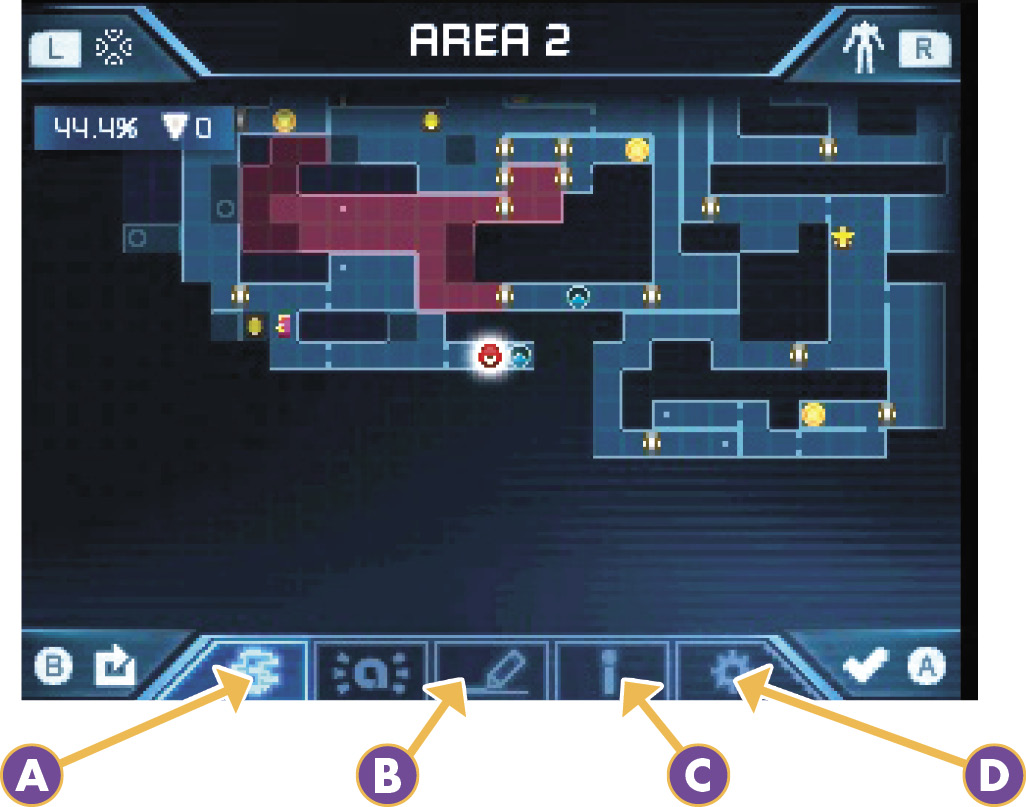
 Map of SR388
Click the jagged-shape icon on the left side of the bottom-middle panel to be taken to all the areas you’ve visited on SR388 so far. A displayed percentage marks how many item tanks you’ve collected in that area.

 Map Pins
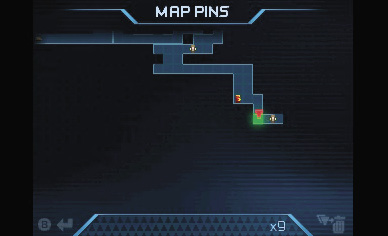
If something in an area grabs your attention, pause the game, hit the pencil icon on the bottom of the bottom screen, then drag one of the multi-colored pins to that location as a reminder for later.
 Map Icons
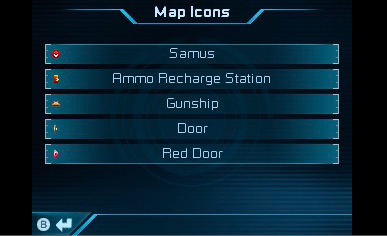
If you ever find yourself looking at an icon on the in-game map and wondering what it is, click the “i” icon on the bottom of the bottom screen to view a legend of every icon you’ve encountered up to that point.
 Settings
Click the gear on the bottom of the bottom screen to access the game’s Options menu. You can adjust all sorts of settings for the game from this menu.
Aeion Abilities
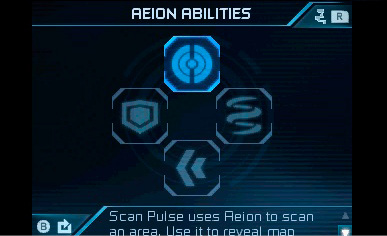
Press the L button from the Pause screen to access the Aeion Abilities screen. Here, all your current Aeion Abilities are detailed, explained, and selectable. If your memory is a little fuzzy on how a specific ability works, you can always come back here and read the description for a refresher.
Samus’ Gear
Press R while the game is paused to reach a screen detailing all of Samus’ current gear. Scroll through each item for a short but detailed summary of what each piece of equipment does and how to use it.