
The Gallery
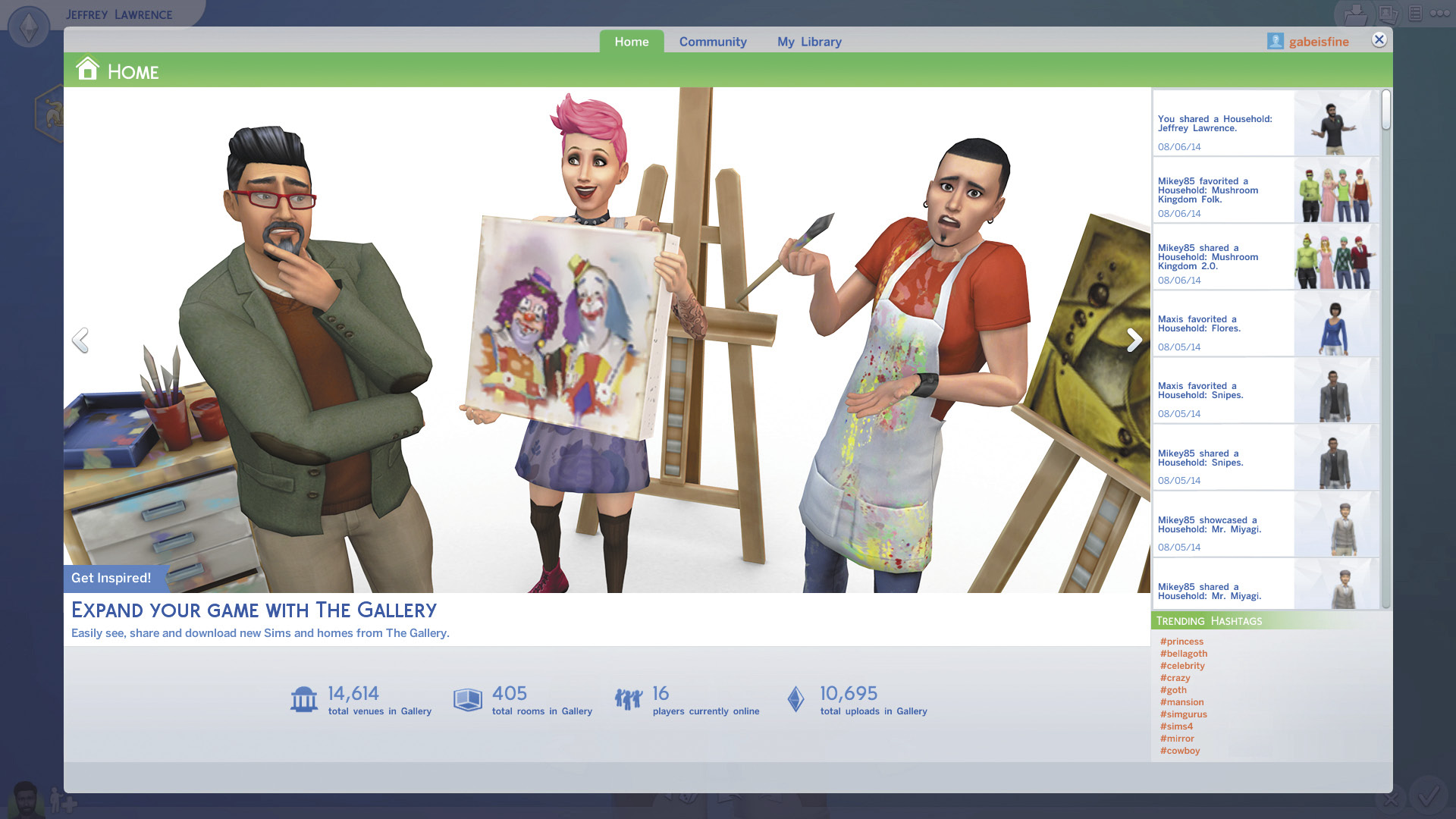
The Gallery: where you save, share, and discover The Sims 4 creations.
The Gallery is like an evolving portfolio of households, lots and rooms by The Sims 4 community. You can save and share your creations, or discover creations by other The Sims 4 players. It can be accessed throughout the game from the icon that looks like a couple of photos in the screen’s upper right corner.
The Gallery has four distinct sections:
- The first section is the Home screen, which is a summary of Gallery activity since the last time you visited. It features an activity feed, which will show your recent activity, trending hashtags, which will show you what’s hot in the community, plus cool stats about the Gallery.
- The second section is Community. This is where you will see all creations by The Sims 4 community, and where other players will find everything you have shared.
- The third section is My Library. This is where you will find any creations you have saved, either from in the game or from the Community section.
- The fourth section is your Player Profile. Your profile page is what other players see when they find you on the gallery. You can use this area to talk to other players or tell other people about yourself.
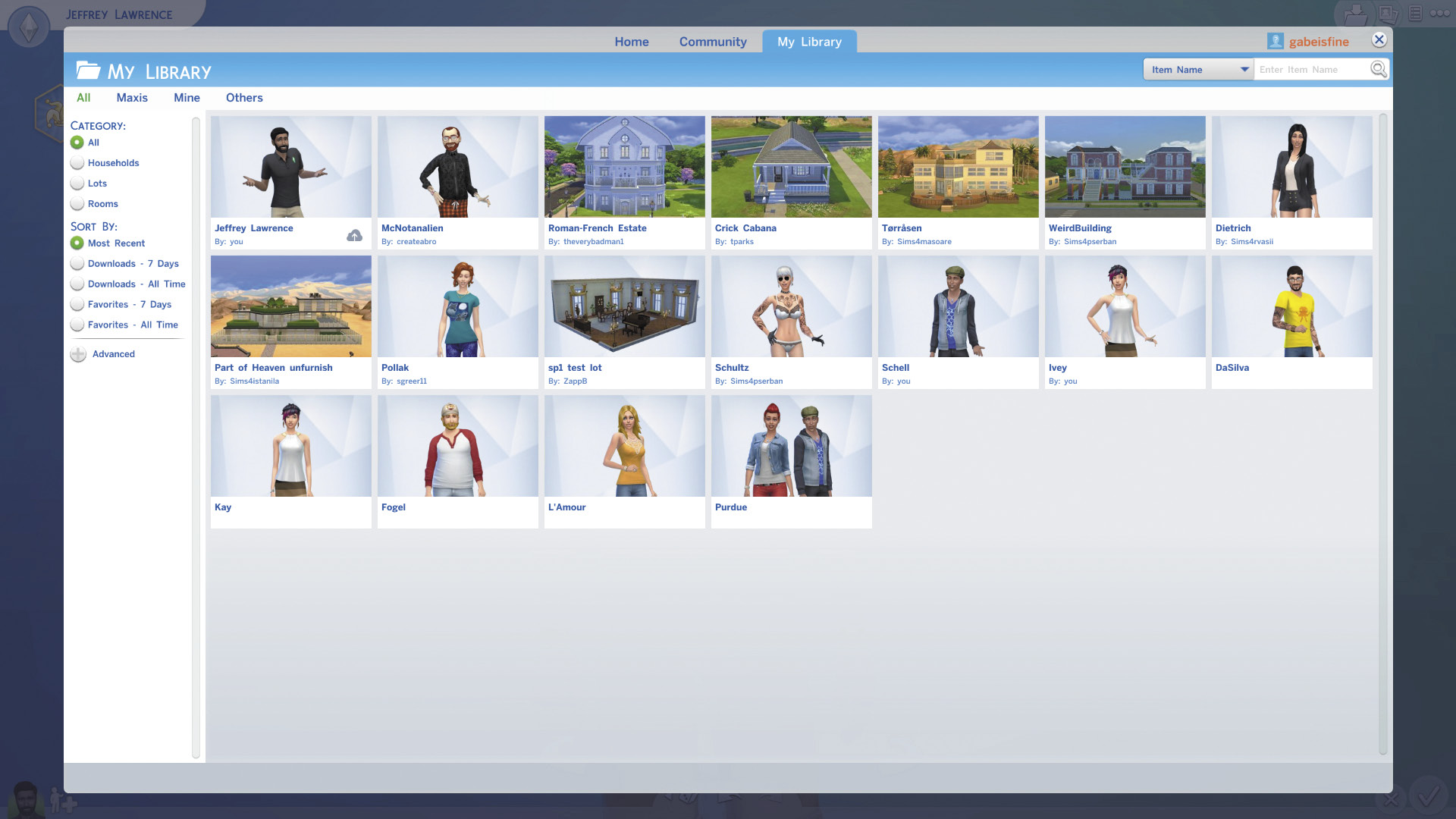
You can find all saved creations— your own or from other players—in My Library.
Saving to My Library
When you are in Create a Sim or Build Mode, you can save your household, your current lot or even one of your rooms by clicking the Save icon in the upper right corner that looks like a file folder. A window opens up that allows you to name and to type in some information about your creation.
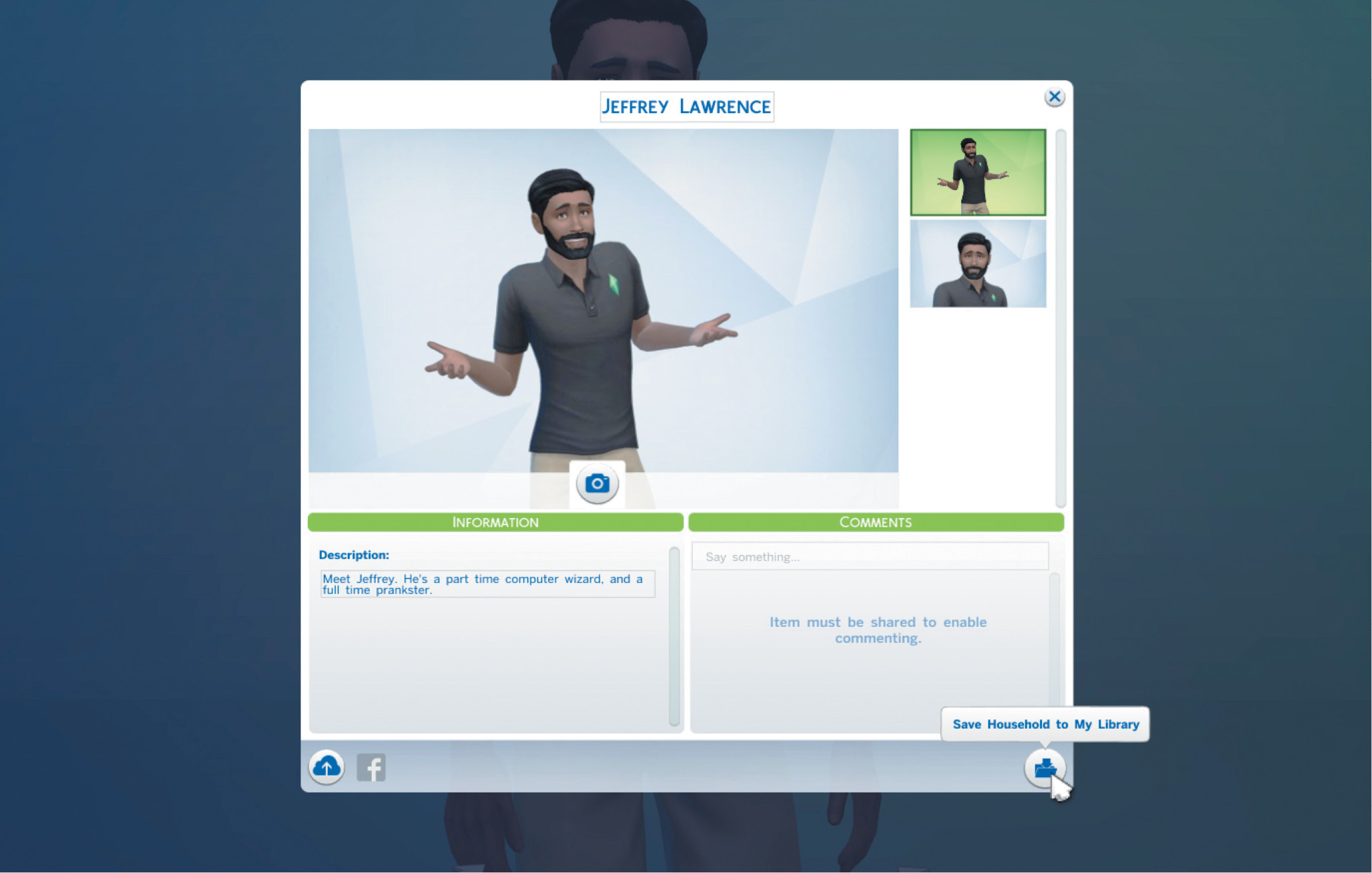
You can also share your household or lot when you save it to My Library.
To save creations by other players, go to the Community page in the Gallery. There you can browse through all of the creations, divided into various categories. See something you like? Click on it and save it to your My Library so you can then apply it and play with it.
Applying from the Gallery
If you are creating a household and want to add a new Sim, just click on the Gallery icon while in Create a Sim. You can either select one of the households you have previously saved in My Library, or you can grab something new from the Community section. Then you can apply it and choose to merge with or replace the existing household. It is that easy.
You can also apply a lot—furnished or unfurnished—to a different location. While in Build Mode, open the Gallery and find your new lot. Make sure it isn’t bigger than your existing lot, then simply apply it. This will replace whatever is on the existing lot with whatever is on the new lot. This allows you to create a great house and then move it to another larger lot if you want to make it even bigger. You could even apply a new room to your existing house.
Sharing to the Gallery
Sharing your creations with the community is also easy. Go to My Library in the Gallery and select a household, lot, or room you’ve created. When the window for that creation opens up, notice a button in the lower left corner. The icon is a cloud with an arrow on it. Click on this button to share the current creation. Be sure to name and write a short description of your creation in the provided box. Now other players can view your creation and use it in their own games.
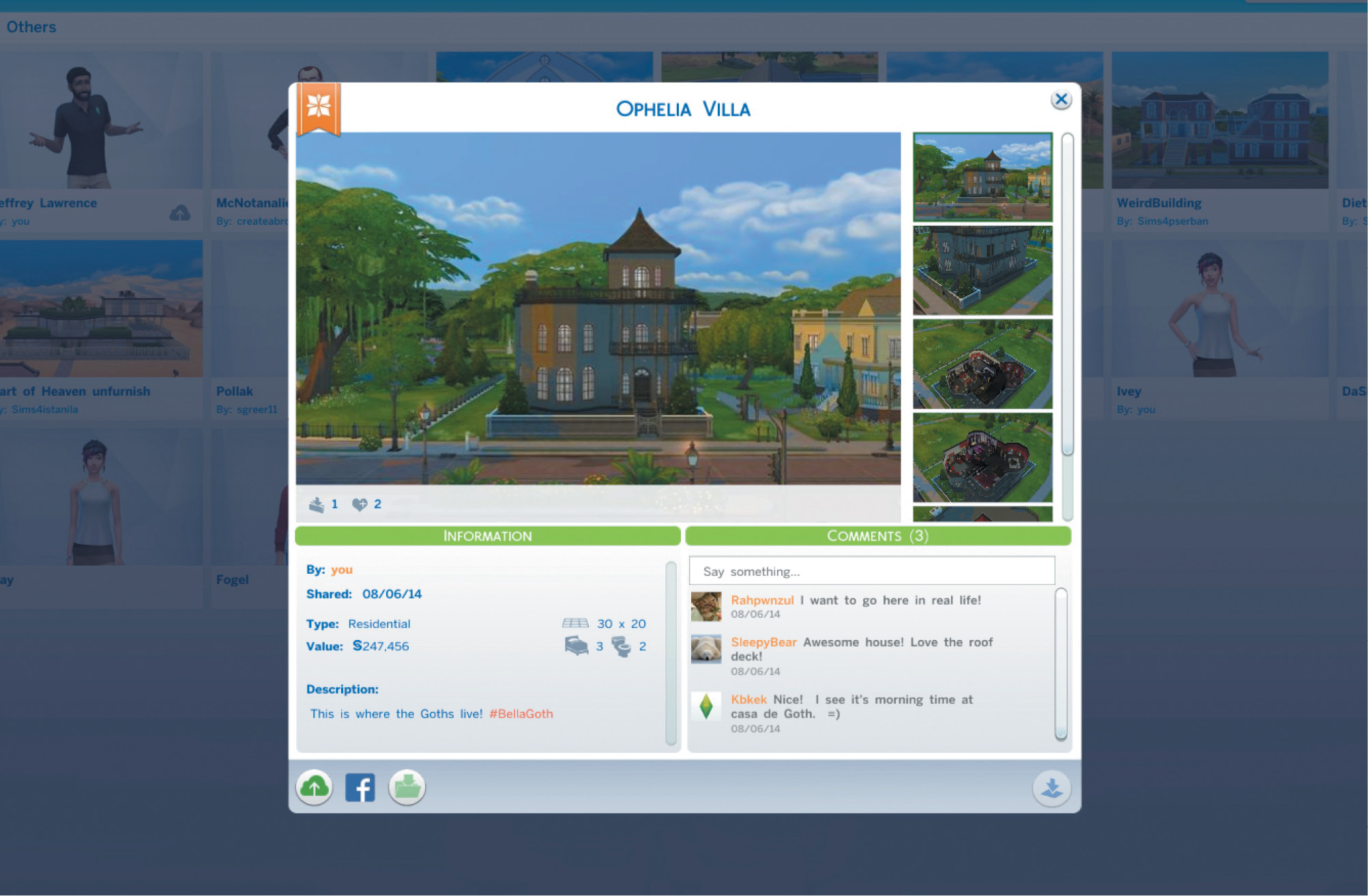
Sharing your items enables commenting!