
The Sims 4 Guide Architecture and Design
Build Mode
There are two different modes when you start a game of The Sims 4. Live Mode is where you spend a lot of time during the game as your Sims go about their daily lives. However, if you click on the large Hammer and Wrench icon in the screen’s upper right corner, Live Mode pauses, and you enter Build Mode.
Tools
Build Mode is easy to use and quite intuitive. Veterans of previous Sims games may find many similarities as well as a few differences. When you enter Build Mode, a toolbar appears at the top of the screen. Clicking on the four icons on the left side of the toolbar changes the cursor to the desired tool.
With the Select tool, you can manipulate things. Click on a wall or a room to open a control menu that allows you to rotate a room or drag walls or parts of the room to change its dimensions. If you click on an object, you select it. Then drag the mouse to move it around or right click to rotate the object into the right position.
Build Mode is where you can build a home from scratch, renovate your existing home, or just change the furnishings and decorations.
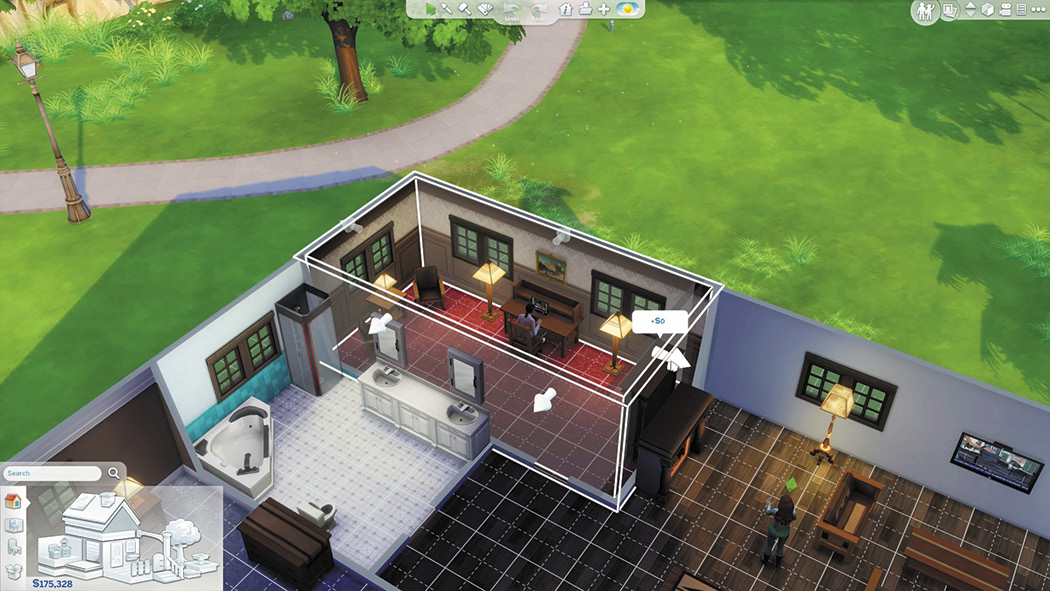
The Eyedropper tool is a copy tool that lets you click on an object or wall/floor pattern and create a copy of it. After selecting something with the Eyedropper, a copy of that item appears under the cursor and the object catalog opens to the appropriate category.
Need to get rid of a wall or an object? Select the Sledgehammer tool and what- ever you click on will be deleted. While using the Sledgehammer tool, the item the cursor is over will be highlighted to let you know exactly what is getting deleted.
Use the Design tool to change the design or color of objects. Select it and then click on an object. If it has more than one design, a menu showing the choices appears and allows you to see the various options for that object. This is an easy way to change the color scheme of several objects in a room without actually changing the objects themselves.
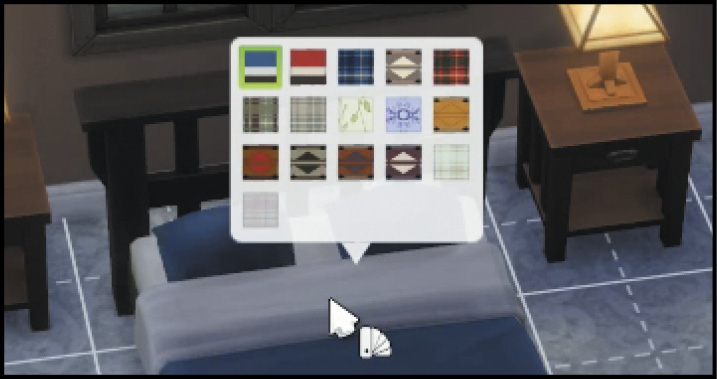
The Design Tool lets you change the design or color of objects that you have already placed in your home.
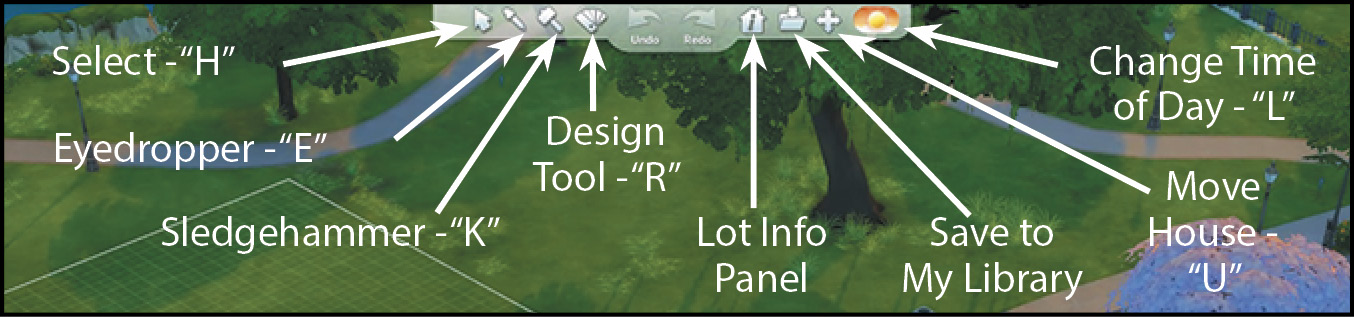
Many of the selections on the Build Mode toolbar have hotkeys which you can use to quickly access these functions.
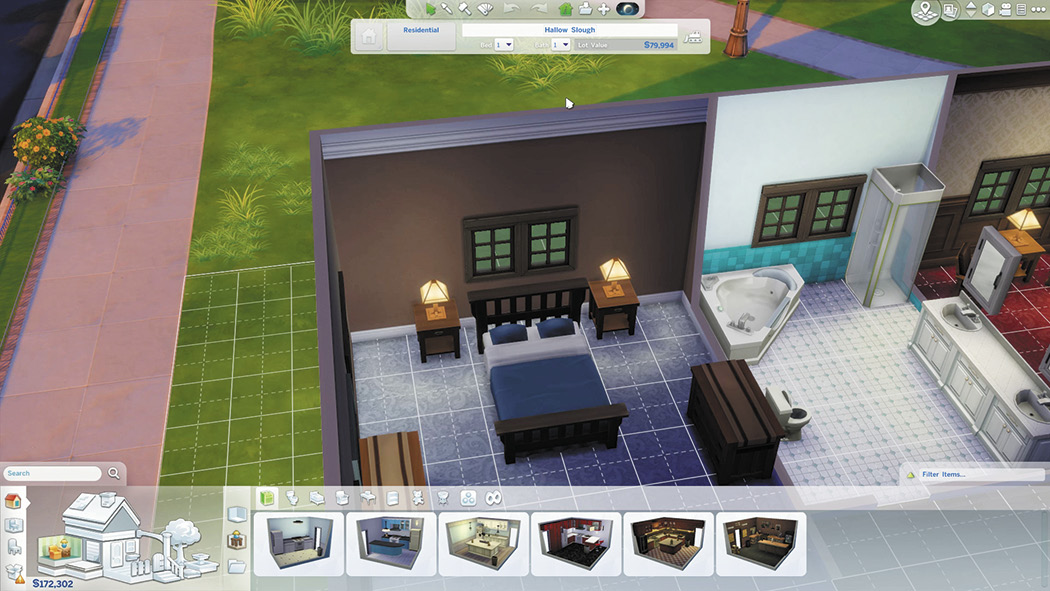
On the right side of the Build Mode toolbar, you can find some other useful choices. The Lot Info Panel button opens up this panel where you can input information about the lot that will appear on the community map. You can choose to change the name of the lot and designate how many bedrooms and bathrooms the house contains. This panel also shows you the Lot Value for the lot which includes the cost of the lot itself as well as the home and all of the furnishings you have included. This is the price Sims would have to pay to buy the house as is. If you want to clear off an existing structure (and everything else) from a lot and start from scratch, the Lot Info Panel also has a button to Bulldoze Lot. That will do the job for you.
Once you’ve finished customizing your house, you can save it to your Gallery. This lets you put this house onto that same lot if you start a new game. You can also share your lots with friends and the community if you choose to do so from your Gallery. With the “Save to My Gallery” option on the tool bar, you can save your entire home or even just a single room of which you are especially proud. Sometimes you get your house just how you like it, but need to move it a bit so something else will fit on the lot. Not to worry. Click on the Move House icon and then you can move the entire house all at once. Be sure to click on the roof or a room when moving a house. Finally, the Time of Day button lets you cycle through different natural lighting at morning, afternoon, evening, and night. Select night to see if you have enough lights both in your home as well as on the exterior.
Build Catalog
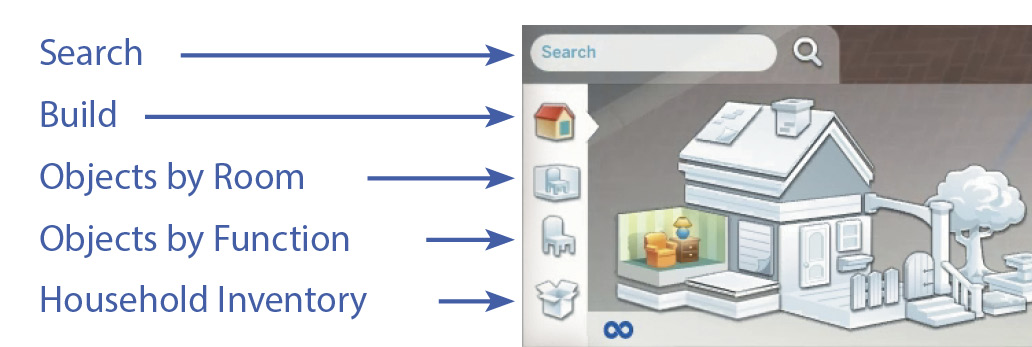
In addition to the toolbar, Build Mode also features a slick build catalog to help you navigate through Build features and Objects. In the lower left corner of the screen you will find Search, Build, Objects By Room, Objects By Function, and Household Inventory. You can search for a specific type of object by typing a name or word in the search box. Build lets you choose features by selecting different components of the diagram of the house. This is the main function you will use in constructing a house. You can also select objects by room which is useful for furnishing. Or you can choose objects by function. Finally, the household inventory is where you can store items you have purchased, collected, or earned as rewards; you can also sell items from here.