
Assassin's Creed: Brotherhood Guide Essentials Primer
OSD and Button Definitions
Onscreen Display
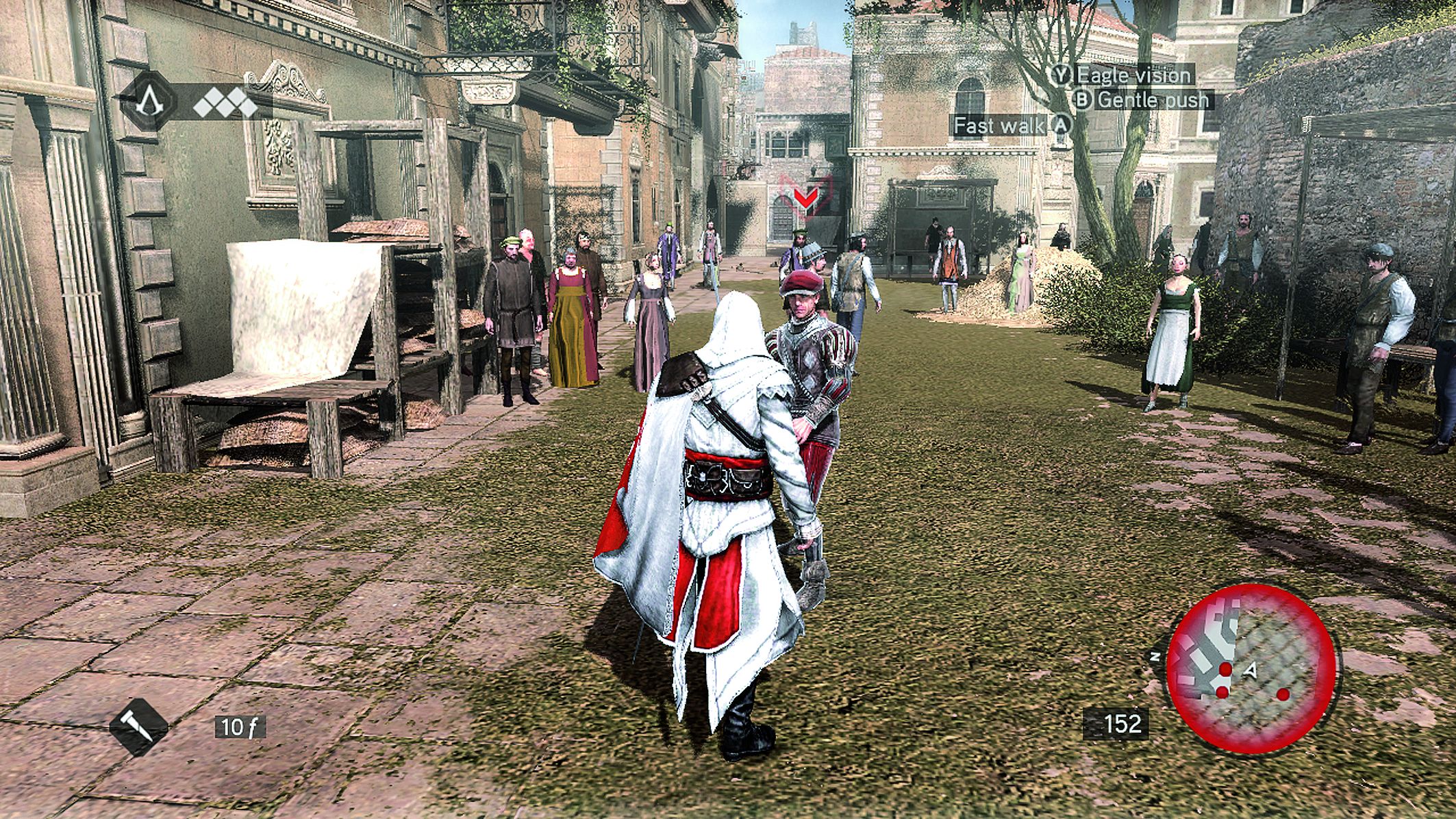
Notoriety Gauge:
As in Assassin's Creed II, certain deeds and indiscretions (or, if you are so inclined, acts of outright thuggery) will raise awareness of Ezio's presence in the city.
Once the outer bar fills, Ezio becomes Notorious – and, therefore, a target for local soldiers and other prospective antagonists.
This gauge serves no function during early missions, and does not become active until a set point in the main story.
Health Meter:
Strictly speaking a representation of Desmond's Synchronization with his ancestor's memories as he interacts with them via the Animus, this is – high concept aside – a common-or-garden life gauge.
If it is depleted to zero blocks, you will be sent to a previous checkpoint or, if not engaged in a mission, a nearby landmark.
Controls HUD:
This offers a contextual, ever-updating display of actions that can be performed with your controller's face buttons (or equivalent keystrokes in the PC version), based on Ezio's current stance and proximity to points of interactivity.
Equipment:
The item or weapon currently set for use.
Currency:
The sum of florins in Ezio's possession.
Compass:
This pointer always faces north.
Mini-Map's Outer Edge:
This offers a simple indication of Ezio's current combat status – red when opponents are actively seeking to engage him in battle, green when he is safely concealed in a suitable hiding place, and white when he is incognito or unseen by hostile eyes.
Detection Meter:
Animated icons appear above potential and actual adversaries whenever they are paying close attention to Ezio.
If the individuals in question are currently off screen, the icons are displayed at the border of the display in a position that indicates their approximate location.
There are three stages: detection (yellow), investigation (yellow and red), and full alert (red). These broadly correspond to the color code used for the Mini-Map's outer ring.
Distance Meter:
Provides a numerical indication of the distance to the next active waypoint.
Using the Mini-Map
-
All places of interest, points of interactivity and active waypoints are marked by icons. The key icons you need to know to find your way from one mission to the next are detailed in the table on the right. If you are unsure of what a particular symbol represents, visit the main Map screen (
 /
/
 ), or via the Pause menu option) and move the cursor over the icon in question. You even have access to a complete legend by pressing
 /
/
 .
.
- As a general rule, main streets and alleys appear as a dark gray; surrounding buildings are a lighter gray.
- Icons situated at a different elevation to Ezio (such as rooftop sentries stationed above a street as he runs beneath) appear faded.
- Many icons appear only when relevant. For example, if Ezio is not in combat or attempting to escape aggressors, hiding places (marked as blue circles) are not shown. Others, such as those representing shops, shrink and disappear from view as Ezio moves away from them. Active waypoints or mission starting points are always clearly displayed.
Button Definitions
As Xbox 360, PS3 and PC players own different control devices, we use the standardized terms presented in the table below to refer to each button or key in many areas of the guide.
These should be easy to recognize, but you can refer back here if you need to refresh your memory at any point.
Note that this is not exhaustive list of controls and commands for Assassin's Creed Brotherhood, but simply a handy recap of all functions available during the opening stages of the game.
You will find all additional features introduced during the Walkthough chapter, and a complete moves overview in the Referance & Analysis chapter.
| XBOX 360 | PS3 |
BUTTON DEFINITION |
SUMMARY |
|---|---|---|---|

|
|
Movement Stick |
Used for basic movement; also employed for blocking during combat. |

|
|
Camera Stick |
Camera control; can also be employed to switch between targets during combat. |

|
|
Quick Select Buttons |
Used to instantly equip weapons and items; note that Medicine is used immediately. You can customize the four available slots at the Weapon Select radial menu. |

|

|
Legs Button |
Appears in Controls HUD; used to perform context-specific actions, but principally used in High Profile mode to sprint, initiate a climb and perform free running. |

|

|
Empty Hand Button |
Appears in Controls HUD; used for releasing or grasping for a hand-hold while climbing, as well as for a wide variety of context-specific actions. |

|

|
Head Button |
Appears in Controls HUD; mostly used for Eagle Vision and actions such as speaking, shopping and interacting with switches or levers. |

|

|
Weapon Hand Button |
Appears in Controls HUD; primarily used for attacks in conjunction with the High Profile button. |

|

|
High Profile Button |
Switches to High Profile mode, which enables activities such as faster movement, combat, free running and climbing. Also used to block/deflect incoming attacks. |

|

|
Weapon Select Button |
Opens a radial menu; used to pick weapons or special equipment. Highlight an item and press a direction on the Quick Select Buttons to assign it to one of the four available shortcuts. |

|

|
Target Lock Button |
Activates Fight Mode when aggressors are nearby, causing Ezio to orient his body and "lock on" to targets; otherwise fixes the game camera to the nearest individual in the direction faced. |
|
|
|
Call Assassins Button |
Calls Assassins. |

|

|
First-Person Button |
Activates a first-person camera view. |

|

|
Center Camera Button |
Forces the game camera to face directly ahead. |

|

|
Pause Button |
Enter the Animus Desktop. |
|
|
|
Map Button |
Enter the Map screen; can also be used to access Database entries when an onscreen prompt appears. |