
How To Fix Stutters and Low Frame Rate in Valor Mortis
Bye Bye Stutters


Valor Mortis suffers from significant stuttering issues. Whenever you enter a new area, the game can stutter heavily, even if your PC can otherwise run it at a decent frame rate.
The developers have released fixes to address these issues, but the stuttering persists for some players. Until it’s fully resolved, here are a few things you can try to make the game run more smoothly.
1. Turn Off Ray Tracing
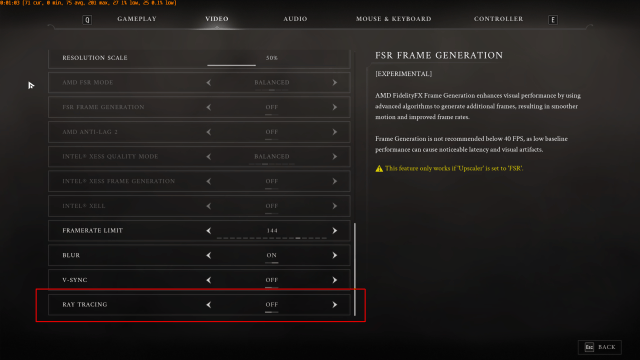
Ray tracing can increase the rendering workload, and some players have reported that disabling it improves performance in Valor Mortis.
Open the game’s Video or Graphics settings and turn Ray Tracing off. Apply the changes and test the game in an area where you previously experienced frame drops.
This is worth trying if you’re using an older graphics card or struggling to maintain a stable frame rate. However, results vary between systems, so test it on your own PC to see whether it helps.
2. Update Valor Mortis and Your GPU Drivers
First, make sure Valor Mortis and your graphics drivers are up to date. Outdated GPU drivers can cause performance and stability issues, so installing the latest available version is a good place to start.
- NVIDIA: Open the NVIDIA App and check for available driver updates.
- AMD: Open AMD Software: Adrenalin Edition and check for updates.
- Intel: Use Intel’s driver update utility to check for a newer graphics driver.
If the issue persists, consider performing a clean driver installation. NVIDIA, AMD, and Intel provide tools and instructions to help remove and reinstall their graphics drivers.
Once you’ve updated your drivers, restart your PC, launch Valor Mortis, and check whether the stuttering persists.
3. Delete Your Old Valor Mortis Configuration File
If you played the Valor Mortis demo or playtest before purchasing the full game, your old configuration file could be contributing to the stuttering.
The developers have recommended deleting the GameUserSettings.ini file for players who carried over settings from the demo or playtest. The file isn’t located in the game’s installation folder. Here’s how to find it.
- Close Valor Mortis.
- Press
Win + Rand enter%LOCALAPPDATA%. - Look for the
ValorMortisfolder. - Navigate to
ValorMortis > Saved > Config > Windows. - Find
GameUserSettings.iniand delete it.
Consider making a backup of the file before deleting it. The game should generate a fresh configuration file when needed, but you’ll have to configure your graphics settings again.
This recommendation comes directly from the developers, although it isn’t guaranteed to fix every instance of stuttering.
4. Verify the Game Files
Corrupted or missing game files can cause crashes and unexpected behavior. If you’ve tried the previous fixes without success, verify Valor Mortis’s files through Steam.
- Open Steam and navigate to your Library.
- Right-click Valor Mortis and select Properties.
- Open the Installed Files section.
- Select Verify integrity of game files.
- Wait for Steam to finish checking the installation.
If you are playing through the Xbox app, follow these steps.
- Launch the Xbox App
- Go to your Library
- Right-click on Valor Mortis and select Manage
- Then, select Files from the top, and click on Verify and Repair
This will replace any files it identifies as missing or damaged. Once the process finishes, launch the game and test its performance again.
5. Check Your Shader Cache
One of Valor Mortis’s main stuttering issues appears to be related to shader compilation. If the game stutters when you encounter new effects or enter unfamiliar areas, shader compilation could be contributing to the problem.
First, make sure your GPU drivers are up to date, and that shader caching is enabled in your graphics software. Avoid repeatedly clearing the shader cache as a first troubleshooting step, since rebuilding it can temporarily introduce more stuttering.
Another option is SCSkiller, a third-party tool that reportedly pre-compiles the game’s shaders before you launch it. Some players have reported that this helps reduce stuttering.
If you decide to try SCSkiller, download it only from a source you trust. Select Valor Mortis from the list of supported games and start the compilation process. The tool may ask for an AES key. You can Google it, but make sure to get it from a trusted source like NexusMods, for example.
Shader compilation can take 30 to 60 minutes, depending on your system. Once the process finishes, launch the game and check whether performance has improved.
Final Thoughts
If Valor Mortis is stuttering on your PC, start by updating the game and your GPU drivers. If you played the demo or playtest, deleting the old GameUserSettings.ini file is particularly worth trying because the developers specifically recommended it.
After that, turn off Ray Tracing, verify your game files, and check whether shader compilation is causing the stutters. These steps can help narrow down the cause, but they won’t guarantee a fix for every system.
Valor Mortis is still receiving post-launch fixes, so keep an eye on the official patch notes if the stuttering persists despite your troubleshooting.


