
Best Settings For Valor Mortis
Smoother gameplay


Valor Mortis is a breath of fresh air for the Soulslike genre. However, it still has its fair share of flaws, and one of the biggest is performance. The game isn’t particularly well-optimized, so you’re likely to run into issues such as stuttering and low frame rates.
Fortunately, tweaking your settings can help improve performance. By lowering a few options, you can get a noticeable boost in performance without sacrificing too much visual fidelity.
Here are three sets of recommended settings for Valor Mortis, depending on your system and priorities:
- Quality-First: Minor tweaks with barely noticeable visual differences. Best for high-end systems.
- Balanced: A good balance between performance and visual quality.
- Performance: Prioritizes performance, with a more noticeable decrease in visual fidelity.
Valor Mortis: Best Settings
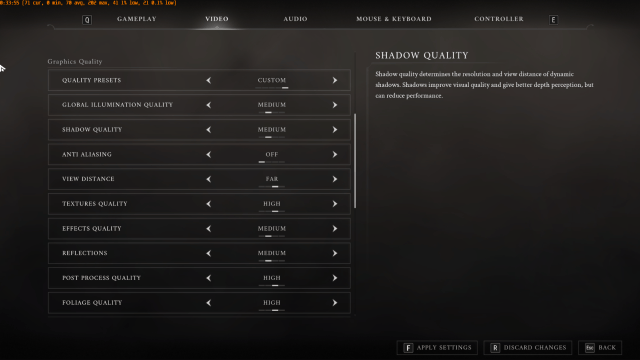
Try all three presets to see which works best for your system.
| Settings | Quality-First | Balanced | Performance |
|---|---|---|---|
| Global Illumination Quality | High | Medium | Medium |
| Shadow Quality | Medium | Medium | Low/Medium |
| View Distance | Far | Far | Medium |
| Textures Quality | Epic | High | High (lower if you have limited VRAM) |
| Effects Quality | High | Medium | Low |
| Reflections | High | Medium | Low |
| Post Process Quality | Epic | High | Medium |
| Foliage Quality | Epic | Epic | Epic |
| Shading Quality | High | High | High/Medium |
| Landscape Quality | Epic | High | Medium |
| Upscaler | DLSS for NVIDIA, FSR for AMD (Quality) | DLSS for NVIDIA, FSR for AMD (Balanced) | DLSS for NVIDIA, FSR for AMD (Performance) |
| Ray Tracing | Off | Off | Off |
| Framerate Limit | Match your monitor’s refresh rate | Match your monitor’s refresh rate | Match your monitor’s refresh rate |
| Blur | Off | Off | Off |
| V-Sync | Off | Off | Off |
Note: Ray tracing has been known to cause performance issues. Until these issues are addressed, we recommend keeping it off.
How to Improve Performance in Valor Mortis
One of the main performance issues in Valor Mortis is shader compilation, which can cause stuttering. If you’re still experiencing stutters, we recommend increasing the shader cache size through your GPU software, if the option is available.
The Reflections and Shading Quality settings can also behave inconsistently across different systems. Experiment with these options to see which combination delivers the best performance on your PC.
Post Process Quality is another setting worth tweaking. At Epic, the game applies additional visual effects, including depth of field and other post-processing effects. If you prefer a cleaner image, try lowering this setting to Low, which disables some of these effects.
Some Quality-of-Life Tweaks
These settings don’t necessarily improve performance, but they can make the game feel better to play.
First, turn off Camera Shake in the Gameplay tab. While you’re there, increase the FOV to your preference for a wider view of your surroundings.
You should also turn off Controller Vibration in the Controller tab if you prefer playing without vibration.
Final Thoughts
These Valor Mortis settings are a good starting point if you want to improve performance without sacrificing too much visual quality. Keep textures and environmental details high where your hardware allows, use DLSS or FSR with the appropriate preset, and leave Ray Tracing off.
Your ideal settings will depend on your hardware and preferred resolution, so make small adjustments and test them in-game. Consistent frame rates and clear combat visuals should take priority over maxing out every setting.


