
How To Unlock the Final Fantasy 7 Rebirth Framerate on PC
and adjust the FOV and disable vignette!

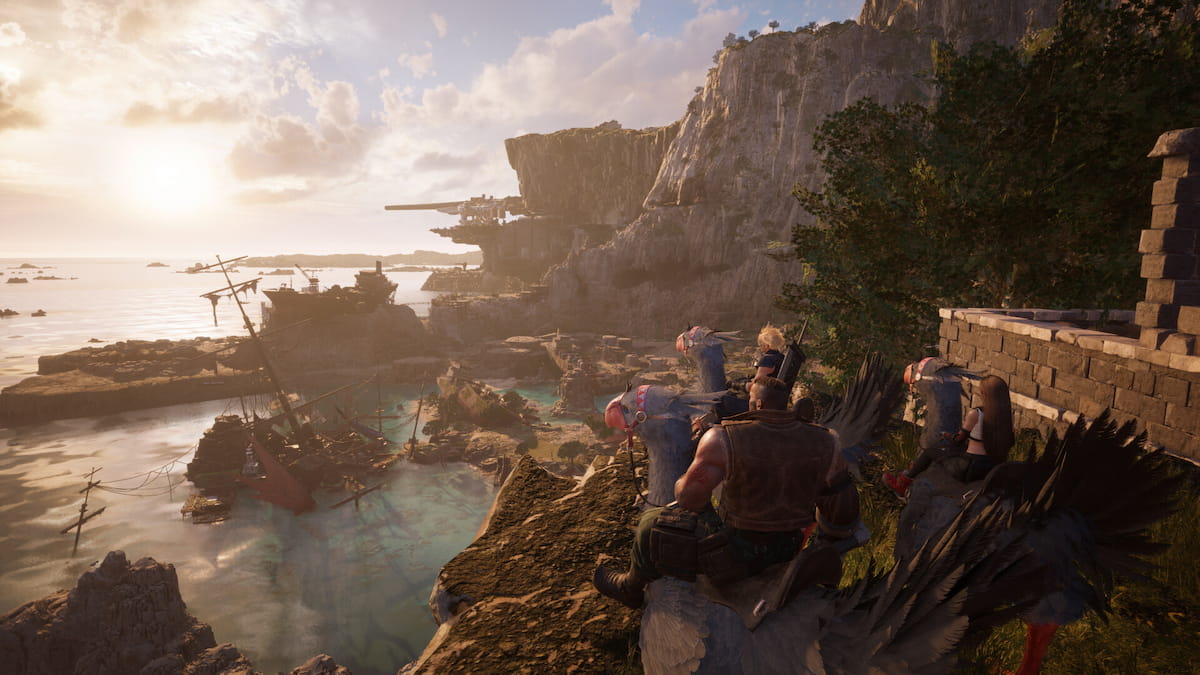
Final Fantasy 7 Rebirth has finally landed on PC, almost a year after its PS5 release, and it’s a stunning port that looks fantastic. It comes packed with plenty of graphics settings to adjust, although a few key options are notably absent from the menu. Players with capable hardware and high-refresh monitors can’t go beyond 120 FPS, which is a shame as the motion clarity improves the higher the framerate is. Thankfully, Lyall from the modding community has already removed that FPS cap from Final Fantasy 7 Rebirth with their dedicated fix for the title.
Unlock the Final Fantasy 7 Rebirth Framerate
Lyall’s patch initially addressed the lack of ultrawide support in Final Fantasy 7 Rebirth, but after plenty of requests from the community, they’ve since added support for custom FPS in their patch as well.
- Make sure Final Fantasy 7 Rebirth isn’t running
- Head over to the following GitHub link and select the most recent release (0.0.4 as of writing)
- Download the patch file by clicking the FF7RebirthFix_v0.0.4.zip under assets
- Extract the zip file in the game’s installation folder. The default Steam address is the following:
steamapps\common\FINAL FANTASY VII REBIRTH
- Now, navigate to the following location and open the FF7RebirthFix.ini file using a text editor like Notepad and Notepad++
- Here, under General > [Framerate] set the value of FPS to whatever you want. We recommend inputting something that you can hit for the most part so it’s a consistent experience.


- Save the file (Ctrl + S) and exit out
Once you launch the game, a new FPS cap will be applied instead of the default higher 120 FPS.
Adjust Final Fantasy 7 Rebirth FOV
Similarly, players can use the same patch to adjust the FOV as well.
- Set the value of “Multiplier” under [Gameplay FOV] in the same FF7RebirthFix.ini file. The default value is 1, and if you want a 20% increase, set it to 1.2.
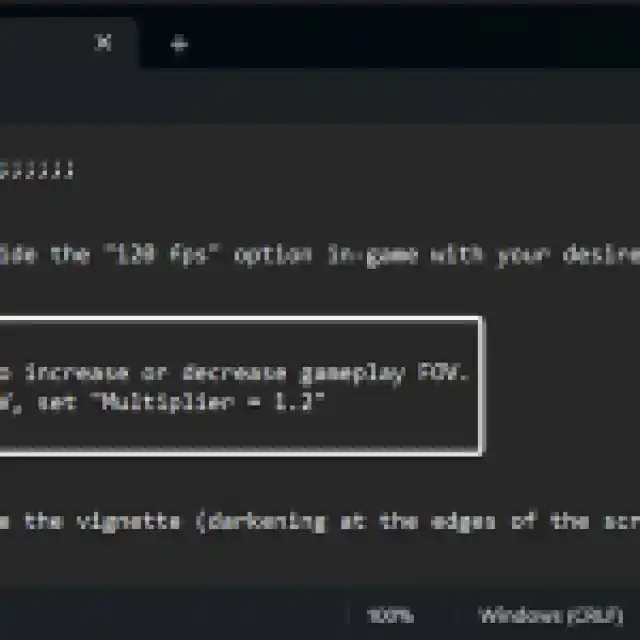

- Save the file (Ctrl + S) and exit out
Disable Final Fantasy 7 Vignette
Apart from the array of ultrawide fixes, players can also disable the vignette effect in Final Fantasy 7 Rebirth and improve the visibility of the presentation.
- Just like the last two settings, set the value of “Disabled” to “true” under the [Vignette] heading in the FF7RebirthFix.ini file.
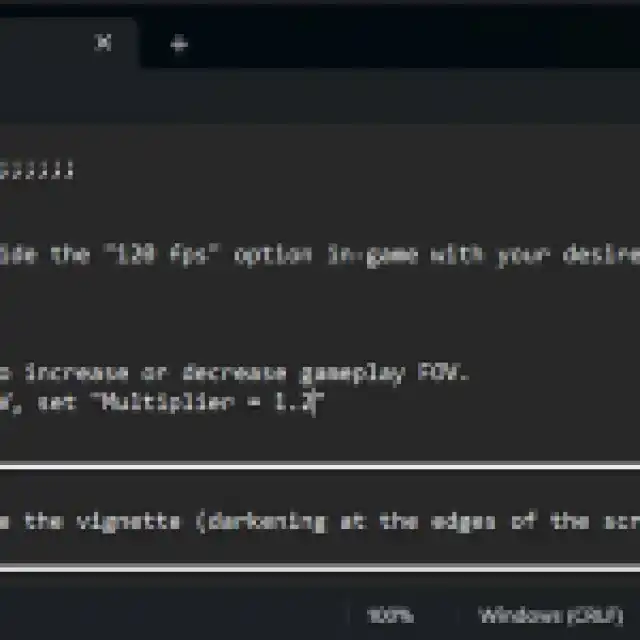

- Save the file (Ctrl + S) and exit out
You can always edit the FF7RebirthFix.ini file to fine-tune these effects and features.
All credits go to Lyall for creating and testing the patch. Their work is incredibly useful, especially with recent releases like Thank Goodness You’re Here, Shin Megami Tensei V: Vengeance, and Ghost of Tsushima: Director’s Cut.
For more on Final Fantasy 7 Rebirth, make sure to check out where the local save files are located, and how you can change the resolution in-game, which is a bit confusing.


