
How To Change the Resolution in Final Fantasy 7 Rebirth PC
It should be simple, right? RIGHT?


Final Fantasy 7 Rebirth is finally available on PC after less than a year of its PS5 release. The PC version is developed on Unreal Engine and is in much better shape than Final Fantasy 7 Rebith, both technically and in terms of stability. While it’s mostly an improvement with plenty of settings to adjust, there are a few confusing graphics settings. If you can’t change the resolution in Final Fantasy 7 Rebirth PC, here is how that works.
Changing the Resolution in Final Fantasy 7 Rebirth PC
Final Fantasy 7 Rebirth only has “Windowed” and “Borderless Full Screen” modes in its display settings. It also doesn’t allow players to change the resolution in “Borderless Full Screen” mode and will default to either the desktop resolution or an incorrect one.
- To change the resolution, navigate to the “Graphics” section of settings.
- Here, the first option lets you switch the display mode.
- Switch to “Windowed” mode, and select the desired resolution.

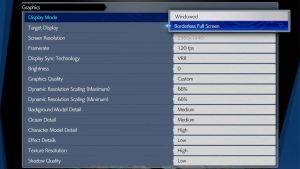
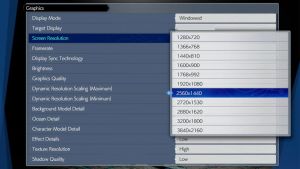
Once the setting has been made, switch back to “Borderless Full Screen” mode, and it should be the correct one now. We’re unsure why users can’t change the resolution in borderless fullscreen mode and hope it’s addressed in a patch soon.
Apart from this, Final Fantasy 7 Rebirth has an extensive graphics menu, including the following customizable settings:
- Display Mode
- Target Display
- Screen Resolution (Only available in Windowed Mode)
- Framerate
- 30 FPS, 60 FPS, 90 FPS, or 120 FPS
- Display Sync Technology
- VRR or v-sync
- Brightness
- Graphics Quality (Preset)
- Low, medium, or high
- Dynamic Resolution Scaling (Maximum)
- Dynamic Resolution Scaling (Minimum)
- Background Model Detail
- Ocean Detail
- Character Model Detail
- Effect Details
- Texture Resolution
- Shadow Quality
- Fog Quality
- Anti-Aliasing Method
- Characters Displayed
- Character Shadow Display Distance
- Low-Resolution Font
Thankfully, unlike the first entry, Rebirth is a much better port and while you’ll run into the usual Unreal Engine stutters here and there, it’s a fairly scalable experience that runs quite well on mid-end GPUs as well. We recommend giving the system requirements a look to see what you can expect from your system. The game is also Steam Deck verified, but we don’t really recommend playing it on the system as the visuals and framerate are completely obliterated, and it simply isn’t ideal.


