




Hollow Knight: Silksong is a visual treat that looks stunning regardless of the platform you play on. On PC, it supports ultrawide monitors, but only up to the 21:9 aspect ratio. If you have a monitor with a 32:9 aspect ratio, you will have to deal with black bars.
Thankfully, these restrictions have been removed by modders within a day of release, and you can enjoy Hollow Knight: Silksong at proper 32:9 using this simple mod.
Add 32:9 Ultrawide Support to Hollow Knight Silksong
The mod from michael-y03 on GitHub adds 32:9 aspect ratio support to Hollow Knight: Silksong, effectively removing the black bars from its presentation when you’re playing it at that resolution. It works with Steam, Game Pass, and GOG versions because it replaces a DLL file in the respective directories. Here is how you can install it:
- First, head over to where Hollow Knight: Silksong is installed on your PC and navigate to the following folder:
\Hollow Knight Silksong\Hollow Knight Silksong_Data\Managed
- Here, back up a copy of the Assembly-CSharp.dll file. This is important.
- Now, head over to the following link and download the latest release (Assembly-CSharp.dll).
- Replace the original Assembly-CSharp.dll with the one from this page.

That’s all you need to do, and the next time you launch Hollow Knight: Silksong, it will render properly in 32:9. Here is a screenshot provided by the mod author to show the game in action at that aspect ratio:
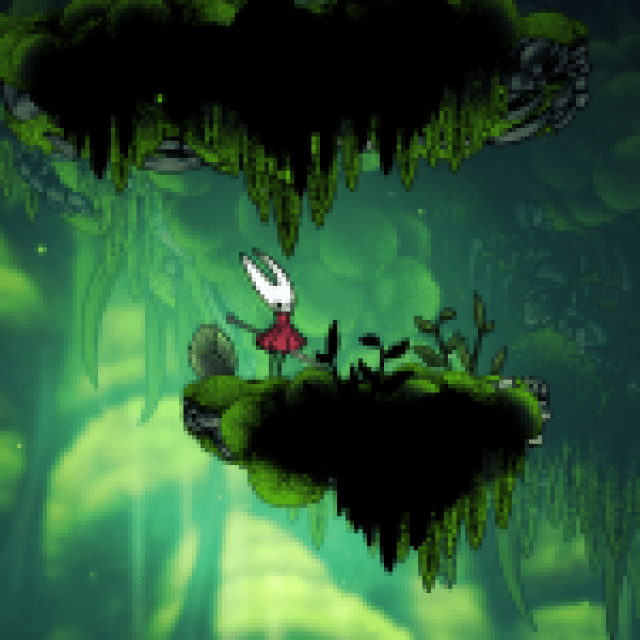

Now, as you can see, this does expose a bit of the vignette already present in the game’s presentation, but it’s still much better than the thick black bars. If you want to remove that, you can use the No Vignette Mod or Luma Framework, which also adds HDR support, something the game lacks too unfortunately.
If, for whatever reason, you don’t want to keep using this mod, you can simply replace the DLL file with the original or verify game files through Steam to download the original. That said, even with the vignette, I find that this solution works pretty well and is much better than the current lack of support.
I hope that the developers consider extending ultrawide support to 32:9 through an update, but for now, this patch is your best bet.
If you’d like to see more helpful guides, news, or features from Prima Games, please consider adding us to your preferred sources (available to users in the US or India).




Published: Sep 5, 2025 04:48 am