
The Sims 3 Generations Guide Essentials New Connections
Sharing the Narative
The narratives that you create for (and with) your Sims do not exist in a vacuum. They are real, evolving stories that you are personally invested in enriching.
The Sims 3 Generations now offers the freedom to share these elaborate, funny, and heartbreaking narratives with the world.
With new Facebook integration, your wall can now serve as a creative outlet for sharing memories created within Generations, either through automatic snapshots or use of the new Capture This Moment feature that lets you freeze priceless moments in pixels and post them on Facebook.
Memories are also stored in your new Scrapbook, which serves as a growing tapestry of life stories for all members of a household.
Sharing the Narrative
Generations introduces a wealth of Facebook functionality to The Sims 3. Now, players can post photos and stories from their town to their Facebook walls, keeping friends updated on the latest in their Sim adventures.

You have multiple ways to share memories via Facebook. The Sim panel now has a new button for creating a memory snapshot, called Capture This Moment. These are not like the screenshots you take with C.
Those are saved to the Screenshots folder of the Sims directory on your hard drive. Snapshots taken with this new tool are instead directed to both Facebook and the all-new Scrapbook feature.
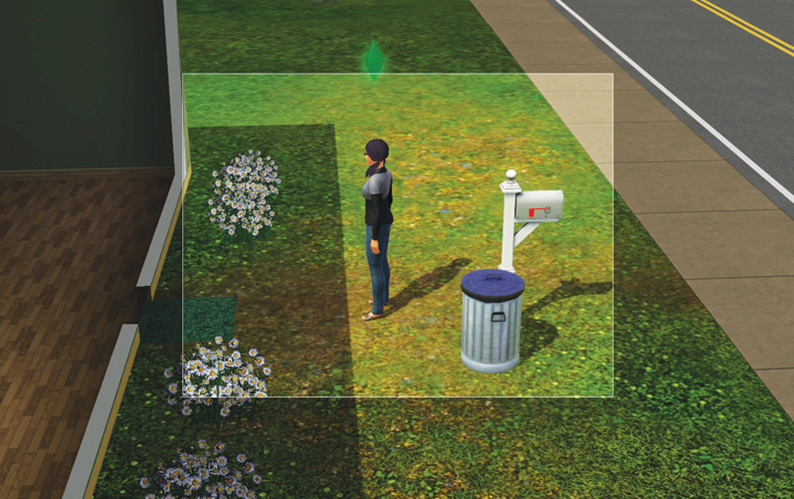
When you click on the purple camera button, a frame appears on-screen. Use Z and X (or your mouse scroll wheel) to zoom in and out of the action, and move the mouse to perfectly frame your shot. Once you have the photo arranged to your liking, tap C to snap the photo.
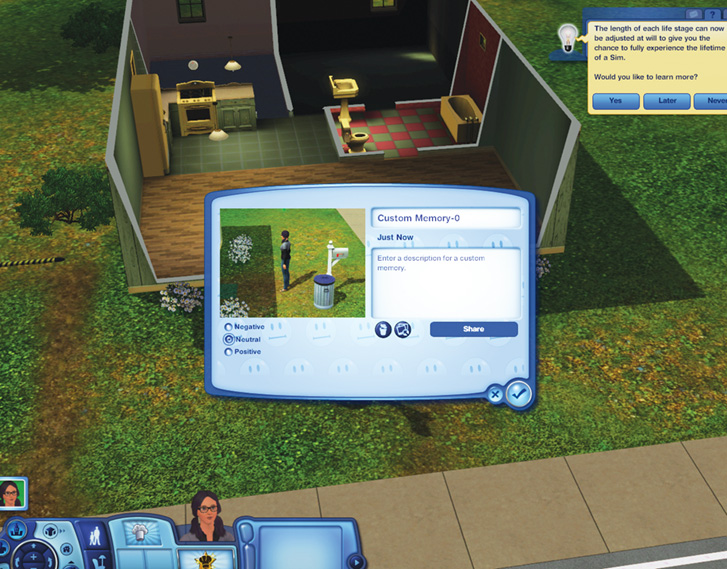
The photo now appears in a window. Within this window, you can title the memory and write a short description. (Keep in mind both of these will appear on your wall, so be mindful of what you type here.)
Then, give a “tone” to the memory: positive, neutral, or negative. Once these have all been decided, click on the “Share” button to post it to your Facebook wall.
If you’d rather not post the memory on your Facebook wall, you can still save it to your Scrapbook. Click on the checkmark to save the memory.
The title and description you assigned to the memory will appear when you thumb through the Scrapbook, which we’ll get to in just a moment.
In addition to the memories you purposefully capture with this new tool, The Sims 3 Generations also alerts you when life events take place, whether its the advancement of a skill or the first time a Sim picks up his child.
When one of these determined memories happens, Generations automatically takes a memory snapshot. In the screen’s upper-right corner, a message appears telling you about the memory and offering the chance to share it on your Facebook wall.
You can, of course, decline and just save it to your Scrapbook.
Scrapbook
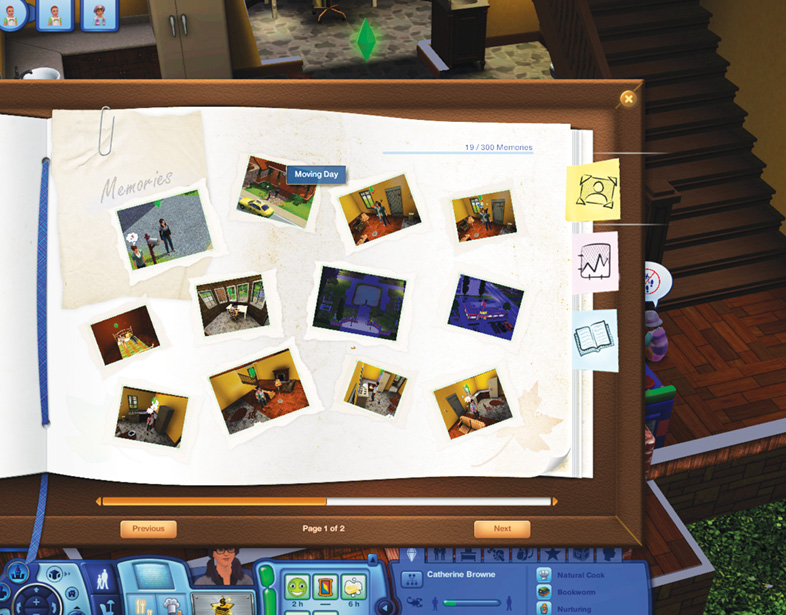
Although it’s fun to share memories on Facebook, sometimes you just want to keep things to yourself. The new Scrapbook allows you to browse through saved memory snapshots and review the story of your Sims’ lives.
The Scrapbook actually looks like a real-life scrapbook, complete with photos artfully arranged on each page. When you mouse over a memory, you see information about it. Clicking on a memory enlarges it, letting you view the scene in greater detail.
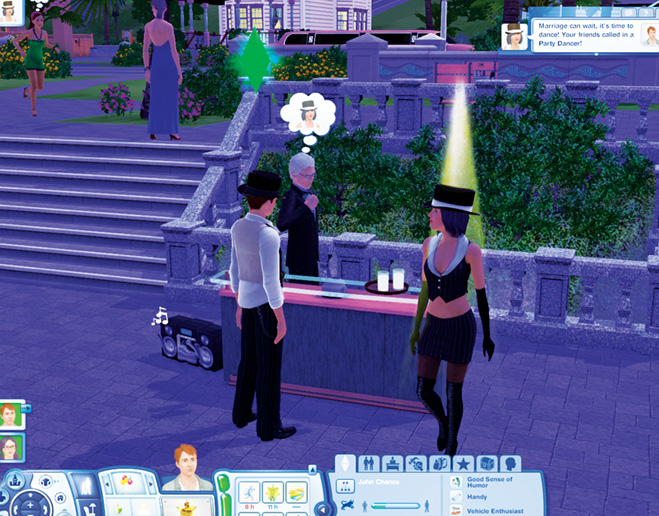
The Scrapbook is accessed via the Sim Panel’s Simology tab. (It’s next to Favorites.) When launched, the action pauses and the Scrapbook opens.
You can store up to 300 memories in the Scrapbook (feel free to delete unwanted memories—there are usually things a Sim would rather forget).
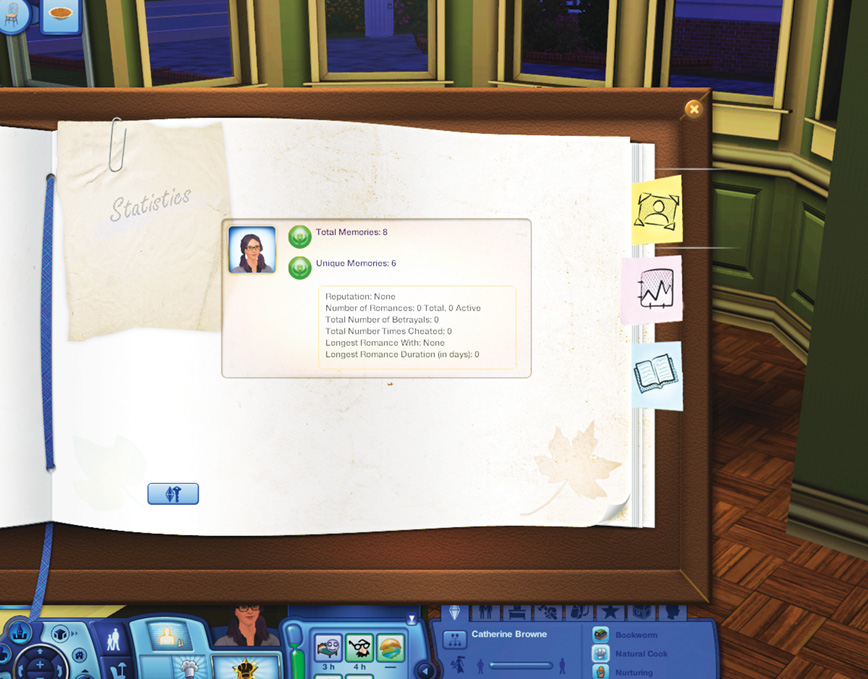
There are two additional tabs in the Scrapbook. The Statistics tab tracks the number of memories each Sim in the household has. The current reputation is tracked, as are the general stats regarding the Sim’s love life.
The third tab is Biography. Here, you can write a new biography for your Sim and attach it to the Scrapbook.
The Scrapbook can be shared if you log in to The Sims 3 community and link it.
Video Cameras
Inside The Sims 3 Generations, there is a new object your Sims can use to record memories: a video camera. Purchase a video camera from Buy Mode (it’s in the Electronics collection) and then place it either on the lot in a central place or in a Sim’s personal inventory.
When you want to capture an activity on tape, select the video camera and choose to record. Your Sim pulls out the video camera and then the screen switches to a view finder.
Use your mouse to focus on the desired activity and then press C to start recording. When the red light is blinking in the screen’s lower-right corner, the camera is recording.
You have just several seconds of recording space, so be mindful of your time.
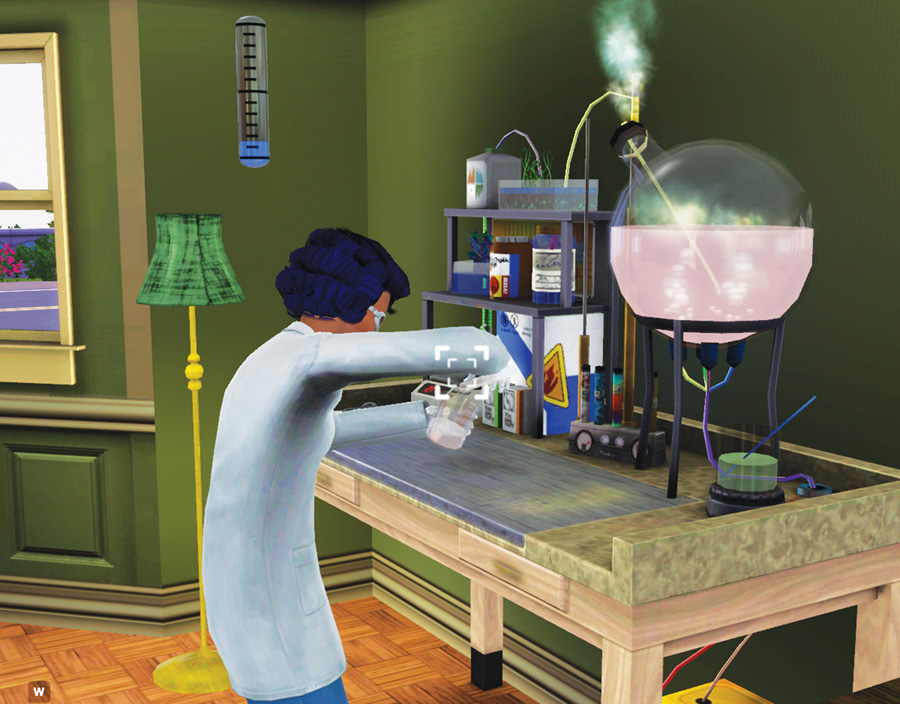
When you stop recording, a disc is placed in your Sim’s personal inventory as a Home Movie. Rename the disc so you know the subject of the recording.
You can either leave the disc in your Sim’s inventory, place it on a surface, or purchase a Data Disc Storage Tower from Buy Mode to hold all of your discs.
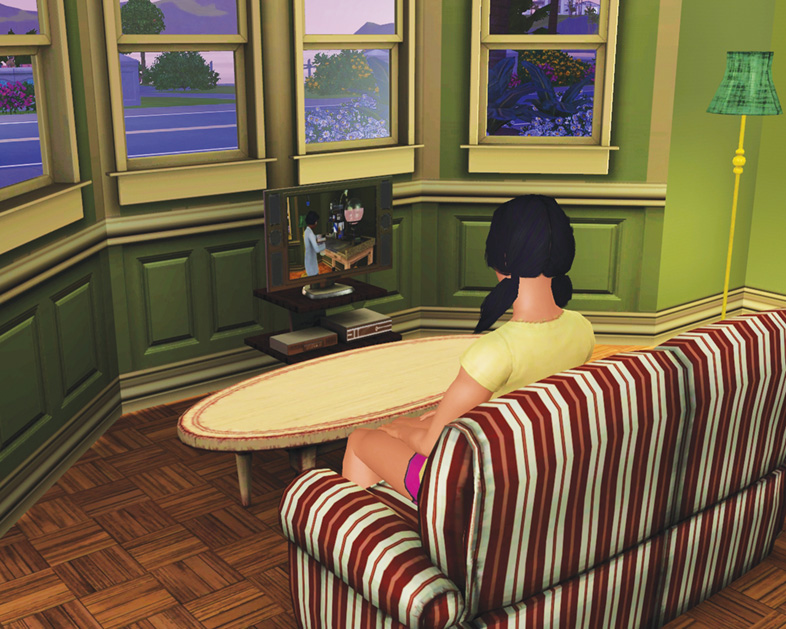
So, what do you do with a home movie? Your Sims can watch these movies on a flat-screen television (it has to be a high-end TV). Just click on the disc and choose to watch it or click on the TV and select the desired home movie from your collection.
In a few seconds, the home movie will appear on the TV. You can direct your Sim to sit down and watch or just leave it running on a loop while you pursue other activities in the household.