
Lego Indiana Jones 2: The Adventure Continues Guide Essentials Creator
Creator
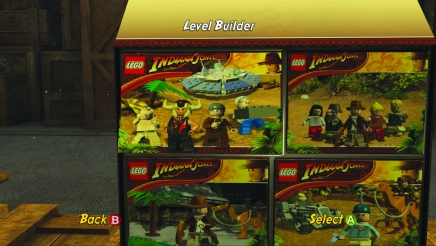
The Creator is new to the LEGO games and allows you to customize several different things in the game and even create your own levels to play. Creator is divided into four different areas: Level Builder, Character Creator, Build Your Own Adventure, and Quick Play. Level Builder lets you take existing levels from those you have already played within the six play sets and make modifications and additions to them.
You can also create a new level from scratch. The Character Creator allows you to make your own custom characters using many different pieces and then save them to use in your custom levels. Build Your Own Adventure lets you take an existing or custom level and add cutscenes to the start and end to turn a level into a complete adventure.
Finally, Quick Play lets you play an existing or custom level with your choice of two characters - either those included in the game or those you have created.
Level Builder
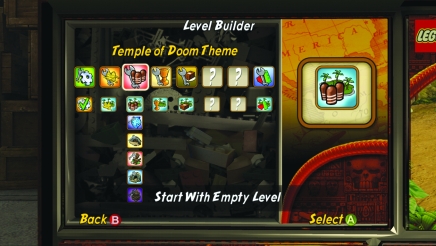
Level Builder is the main tool for creating or modifying levels. You first select a theme from the six play sets and the super bonus levels. Themes contain the characters, objects, pieces, and so forth, that are used to create the levels within that play set. Then within a theme, you can pick from one of the five bonus levels in that play set or start off with an empty level.
The Tutorials
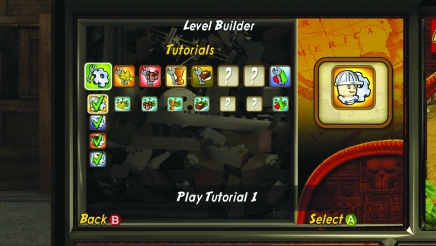
When you are first getting started, it is a good idea to try out the tutorials. There are four of these levels in which you learn about the four Creator characters and what each can do.
Tutorial 1
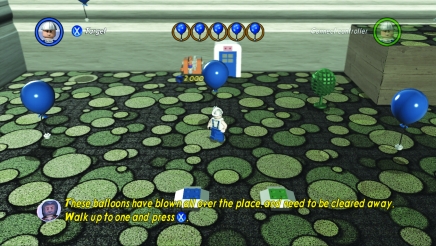
This first tutorial puts you in control of the construction worker character. He is responsible for all of the objects in a level. The first task is to learn how to delete objects from the level. Follow the directions to remove five balloons from this level.
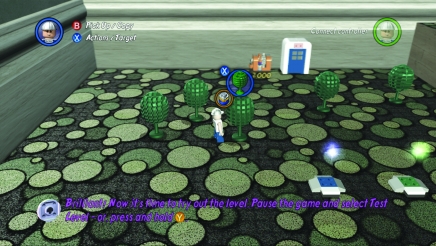
Next you must plant some trees. Place five of them in the level and then test out the level.
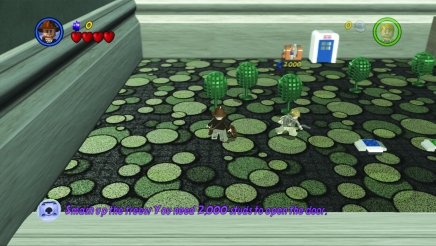
During the test, you have to collect 2,000 studs. Since there are not enough trees to smash, you must add more objects to break up so that during a test of the level, you can get 2,000 studs to open the door to exit the level.
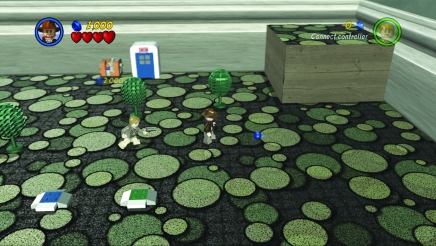
Now you can add other objects in addition to trees, including individual studs. Place more objects and then test out the level. Once you have 2,000 studs, exit through the open door to complete this tutorial.
Tutorial 2
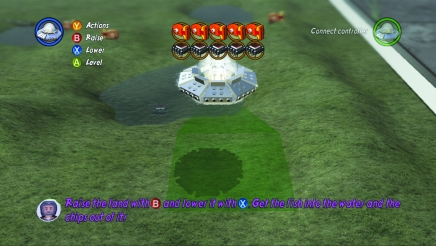
The second tutorial teaches you how to raise and lower the landforms in the level. Use the Interdimensional Being in the UFO to fly around the area, and press the appropriate buttons to either raise or lower the elevation of the land.
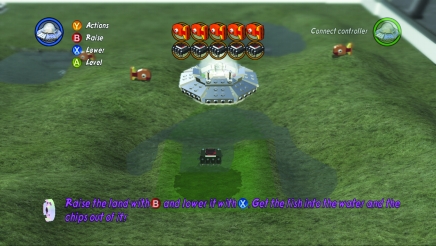
The task for this tutorial is to lower the land near the fish so they end up underwater and to raise the land around the computer chips to get them out of the water.
Tutorial 3
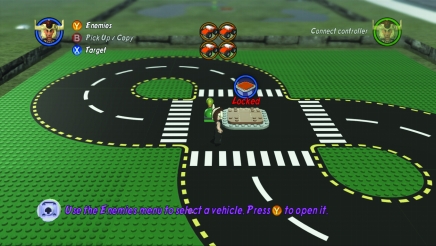
Mola Ram is the character you will use to place enemies, including vehicles. There are four pressure plates in this level that must have a vehicle sitting on them in order to turn on an adjacent lightbulb.
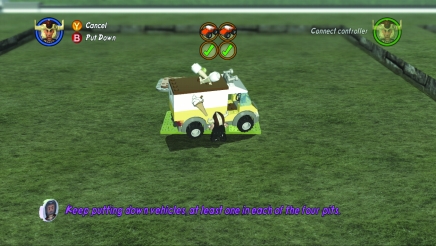
Follow the onscreen directions to select vehicles, and then place them in each of the four sections of the level.
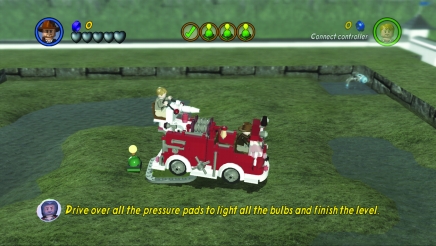
Now test the level and hop into the vehicles so you can drive over the pressure plates and light all the bulbs to complete the level.
Tutorial 4
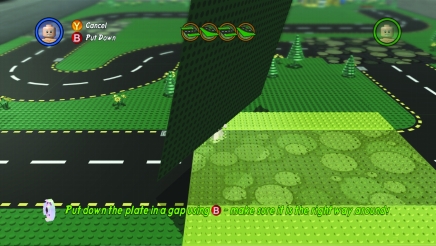
In the last tutorial, your task is to select and place baseplates to connect the road. You use the Enemy Boxer to set down baseplates. Select the correct plate from the menu, and then turn the character as needed so the baseplate is facing the way you want it before setting it down.
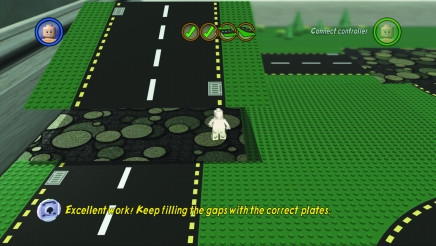
You must correctly place four baseplates to complete the first part of this level.
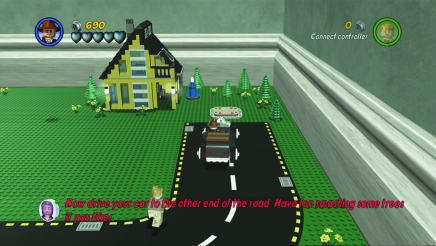
When you get to test the level, drive the Hotrod along the streets to the pressure plate by the house to complete this level.
Objects: The Construction Worker
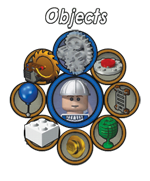
The Objects mode uses the Construction Worker character to place objects around the level. The menu has eight different choices.
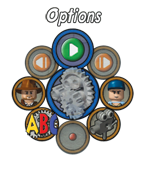
Select Options when you want to test the level, choose which characters will be used by players 1 and 2, name the level, and change the camera level and angle. You can also undo or redo previous actions. The objects available to you include the following:
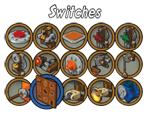
Switches: This lets you choose from 15 different switches that you can place in the level to activate triggers. These objects require players to interact with them.
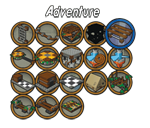
Adventure Objects: These include platforms, ladders, checkered tiles, and other objects that players must interact with to reach different places in the level.
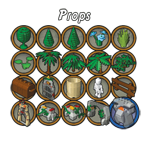
Props: These include trees, flowers, gates, fences, and some statues. These are there primarily for looks.
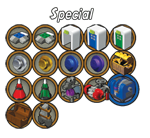
Special: This is where you can find studs, generators, artifacts, doors, and the starting locations for the two players.
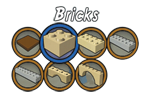
Bricks: You can pick from several different types of bricks, which come in a few different colors. Even after you place a brick down, you can change its color to suit your fancy.
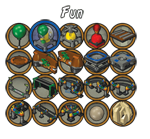
Fun Objects: These are usually not necessary to complete a level, but they do add color and excitement to the level.
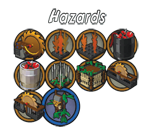
Hazards: If you want to add some danger to the level, then select from a variety of hazards that the players must avoid.
Baseplates: Enemy Boxer
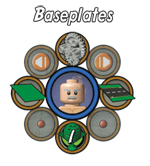
The Enemy Boxer is the one who can set down a variety of baseplates. There are three different categories of baseplates: roads, blank, and complex.
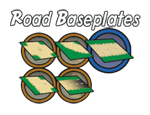
If you want your level to include roads, there are five different types of road shapes from which you can select.

You can also choose from different colors of blank baseplates.
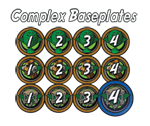
Try out the complex baseplates as well. These come with objects already on them.
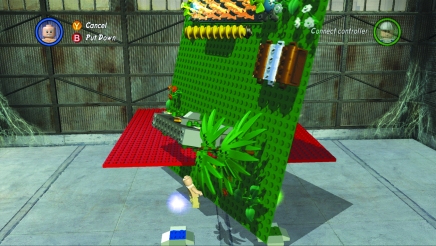
Complex plates are a fun way to put a lot down all at once. Then you can still modify the objects on the plate as desired.
Enemies: Mola Ram
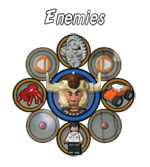
There are three different categories of enemies: vehicles, characters, and creatures.
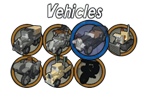
Though not really enemies, vehicles are included under this category.
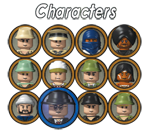
Characters can be placed in the level from this menu as well. They will all act hostile toward the players.
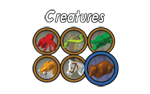
Creatures are a fun way to add something to the level. Some creatures, such as horses, can be ridden while others just act as a threat.
Landscape: Interdimensional Being
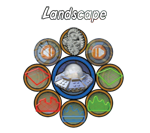
Landscape allows you to raise or lower the elevation of the land and select which shapes those changes will take. There are five different options: Shape Cliffs, Shape Smooth, Random Hills, Random Cliffs, and Flatten Landscape. Shape Cliffs raises or lowers land in a square shape for making vertical walls and pillars, while Shape Smooth creates rolling hills. Both of these tools allow you to select the size of the area you will be manipulating.

Random Hills and Random Cliffs will randomly create hills and pillars throughout the level. If you want to just start over, select Flatten Landscape.
Using Sockets
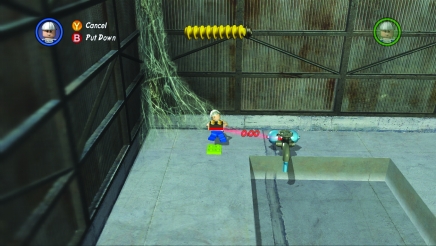
All interactive items have an attached socket. For example, a player used the landscape tools to lower cliffs into the level to create a pool. The Construction Worker placed a water pump to fill this pool. Notice the red socket. These need to be triggered by a switch.
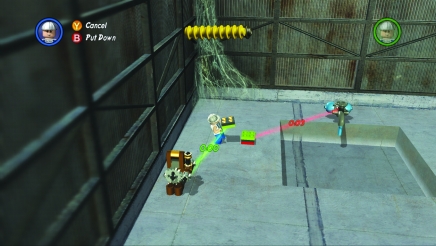
The Construction Worker now places a lever which is a switch into the level. Note that the socket is green; this means it is a switch. The Construction Worker places the green socket onto the red socket to connect the lever to the water pump.
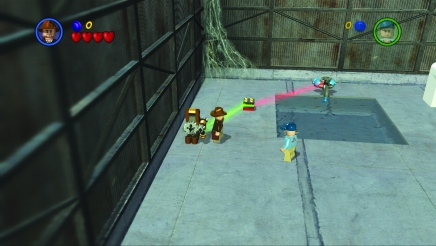
When the level is tested, Indy walks over and pulls the lever. This causes the water pump to fill the pool. Since levers can only be used once, the pool stays full.
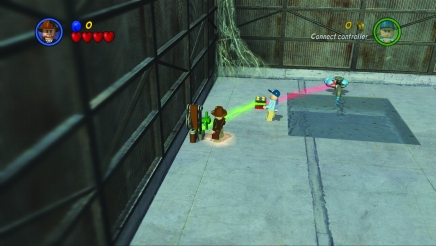
However, if the lever is changed to a wheel, which can be activated and deactivated, turning the wheel once fills the pool and turning the wheel again empties it. Sockets are a powerful tool for creating impressive levels. Experiment with different switches and other interactive items to practice and see how they work together.
Character Creator
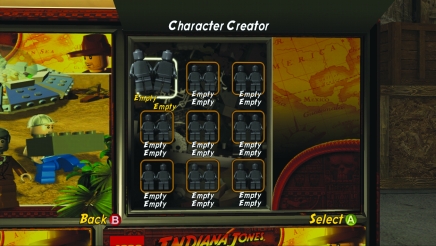
The Character Creator is quite simple and easy to use. You create and save characters in pairs.
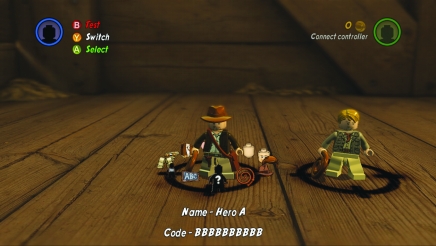
Here you can adjust all the pieces of a character, including their hat, hair, shirt, sleeves, hands, pants, face, and so on. You can even choose which weapon or equipment they carry, and you can give them a new name.
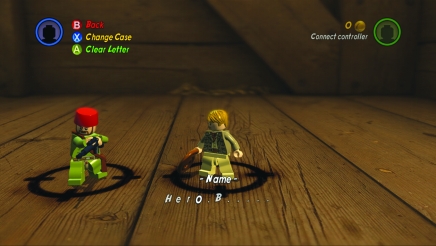
Once you create a character, you can then test them out inside the crate in which you build them. Save your pair of characters; then you can use them in other created levels.
Build Your Own Adventure
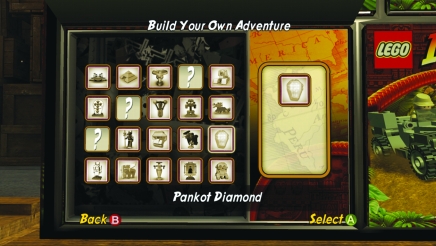
When building an adventure, you start off by selecting an objective for the characters to get.
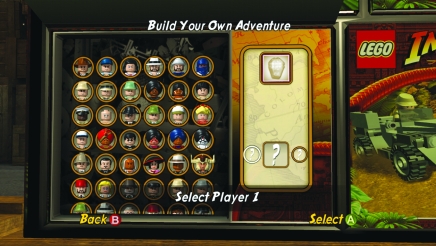
You can then select from all of the characters you have unlocked or created for players 1 and 2.
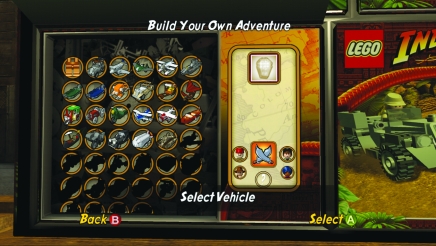
You can even select a vehicle for your character to arrive at the level in during the opening cutscene. Finally, choose a story, treasure, or bonus level from the game or a level you have created.
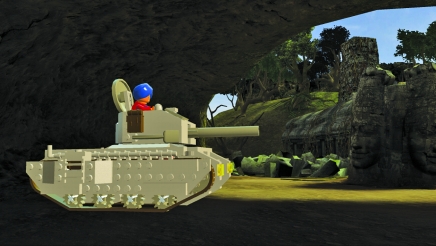
When you then play the adventure, your characters will arrive on the scene driving the selected vehicle. Once they get the artifact or other ending requirement, a new cutscene will play as an end to the adventure.
Quick Play
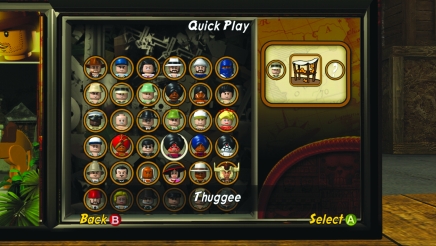
The last option in Creator is Quick Play. This is for when you just want to get in and do some playing but want to select your characters.
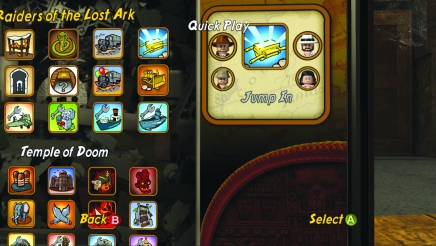
Select characters for players 1 and 2, then choose one of the story, treasure, or bonus levels or one you created. Once you have made your decisions, select Jump In to get the level started.