
Hyper Light Breaker Complete Controls for PC and Controller
Real Breakers play with a controller!


Hyper Light Breaker is the latest title from Heart Machine set in the Hyper Light universe. The early access release is a mixed bag in its current state, but the developers are taking feedback and we hope to see improvements soon. The game offers support for multiple inputs, but the developers recommend playing on a controller. If you need a reference for the default scheme, here are the complete controls for Hyper Light Breaker for controllers and the keyboard and mouse.
Hyper Light Breaker Complete Controls for Controller
Here are the default controls for Hyper Light Breaker when you’re playing on a controller.
| Action | Xbox | PlayStation |
|---|---|---|
| Use Kit | D-pad Up | D-pad Up |
| Ping | D-pad Right | D-pad Right |
| Reload (While Aiming) | (L2) + X | (L2) + Square |
| Aim | L2 | LT |
| Shoot (While Aiming) | (L2) R2 | (L2) RT |
| Light Attack | Square | X |
| Flash Step | R2 + Square | RT + X |
| Ultimate | L1 | LB |
| Dash | R2 | RT |
| Interact | R1 | RB |
| Parry | Circle | B |
| Target Lock | RS | R3 |
| Jump | A | X |
| Blade Special | Y | Triangle |
Hyper Light Breaker Complete Controls for Keyboard and Mouse
Here are the default controls for Hyper Light Breaker when playing on a keyboard and mouse.
| Action | Input |
|---|---|
| Use Kit | C |
| Ping | Middle Mouse Button |
| Reload (While Aiming) | (Right Mouse Button) + R |
| Aim | Right Click |
| Shoot (While Aiming) | (Right Mouse Button) + Left Mouse Button |
| Light Attack | Left Mouse Button |
| Flash Step | Shift + Left Mouse Button |
| Ultimate | 1 |
| Dash | Shift |
| Interact | F |
| Parry | Q |
| Target Lock | Z |
| Jump | Space bar |
| Blade Special | E |
Hyper Light Breaker Controller Support on PC
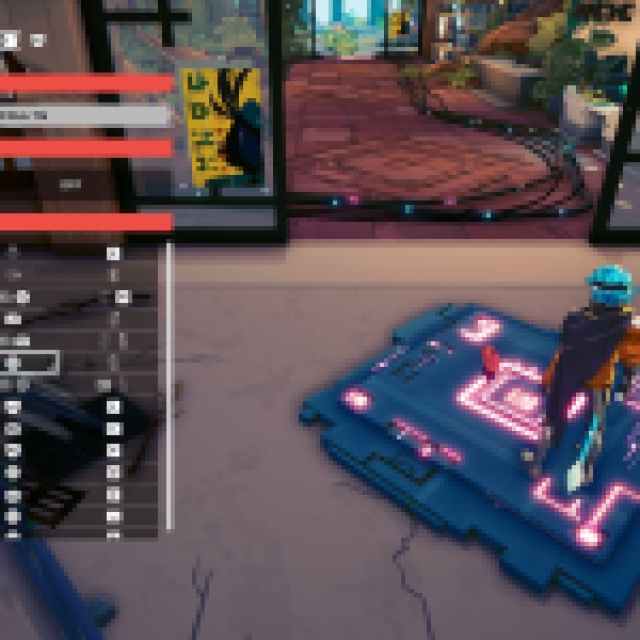
Hyper Light Breaker has native support for PlayStation and Xbox controllers. This means that you can safely disable Steam Input to ensure you’re using the profiles set up by the developers. I have tested the Xbox Series X controller, as well as the DualShock 4, and both work perfectly fine with proper in-game prompts as well.
Fixing Hyper Light Breaker Controller Issues
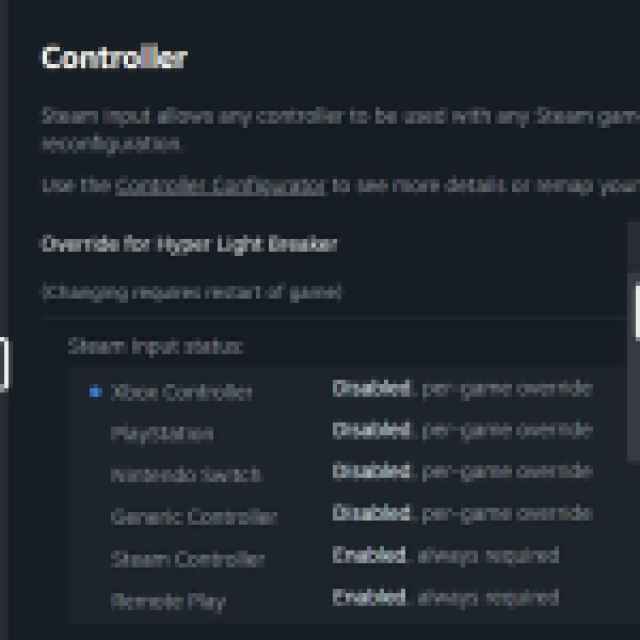
If you run into controller issues while playing Hyper Light Breaker, you need to disable Steam Input so the game uses the correct controller profiles.
- Make sure Hyper Light Breaker isn’t running
- Open Steam and navigate to your library
- Here, right-click on Hyper Light Breaker and select Properties
- In the Controller tab, select the Enable Steam Input option under Override for Hyper Light Breaker

Can you Remap Controls in Hyper Light Breaker?
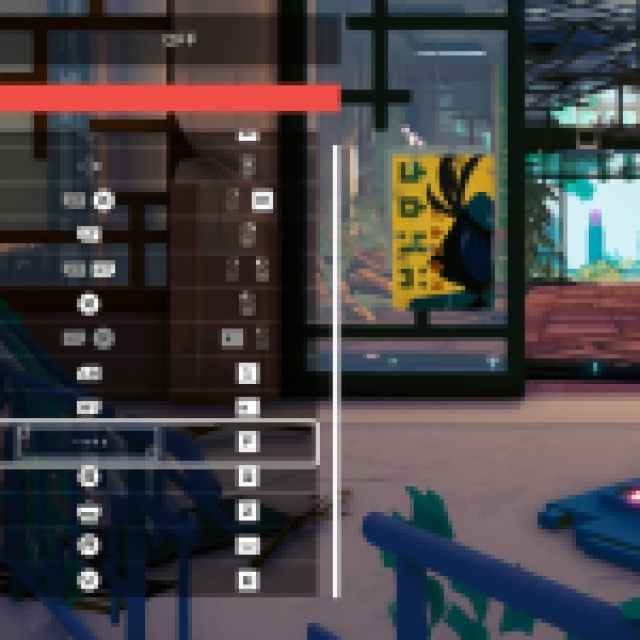
Yes, you can remap the controls in Hyper Light Breaker. Some of these are locked, but most controls can be edited in the Controls section of the Settings menu.

Once you’re comfortable with the controls, make sure to learn how to properly parry and unlock Medkits. The early hours of Hyper Light Breaker are incredibly challenging, and you’ll need all the help you can get.


