
How to Transfer Employees to Other Properties in Schedule 1
One property, one product.

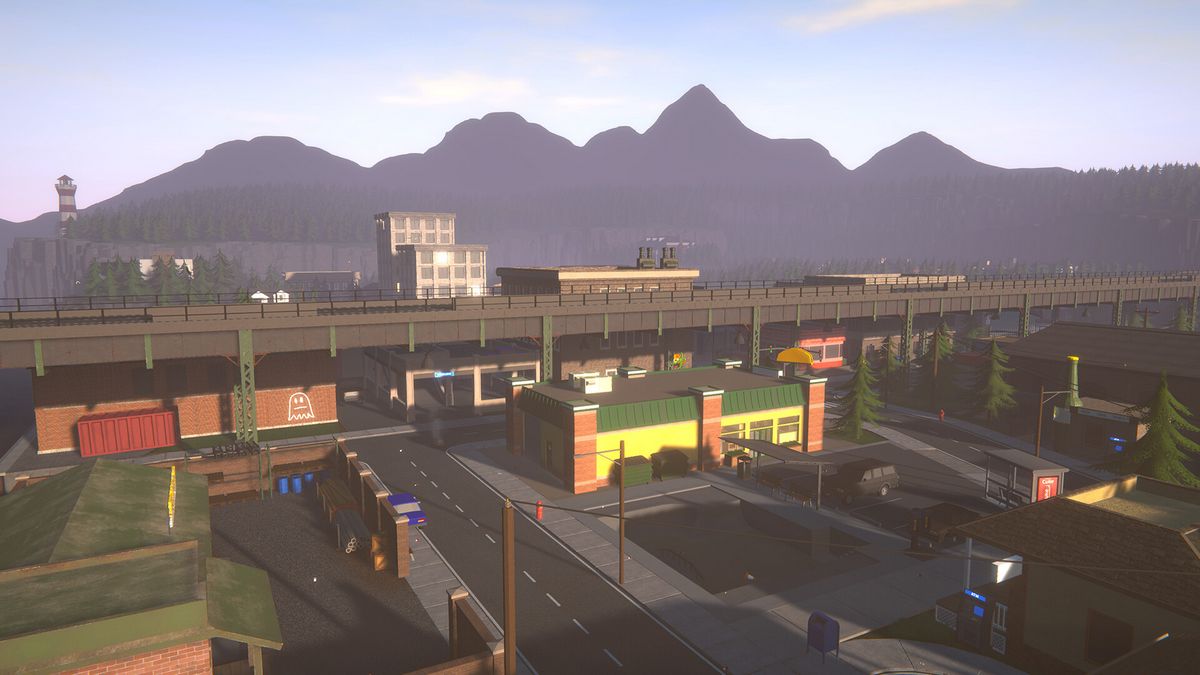
When running the biggest empire in Schedule 1, you want to take advantage of every property you own. That means having a well-oiled machine producing products at every location.
You’ll need employees to do that; in some cases, you’ll want to transfer them to your other properties for efficiency. Here’s how to assign and transfer your employees to your other properties in Schedule 1.
How to Transfer Your Employees to Your Other Properties in Schedule 1


Once you have hired your employees, you’ll notice they always hang around your parking bay areas. If your property doesn’t have one, you can see them outside. However, if your employees have tasks, they’ll immediately go inside your property and do what they are told to do.
To transfer employees from one place to another, equip your clipboard first. You’ll immediately get one in your inventory slot once you have hired your first employee from the warehouse.
While holding the clipboard, you have to physically go to the specific employee you want to transfer and talk to them. You’ll see the option “I need to transfer you to another property.”
You’ll see all your available properties, and you’ll also notice that the number of employees per property is limited.
Select the property to which you want to transfer the employee, and ensure space is available. Once you have transferred the employee, go to the respective property and set up a locker for him.
Your employees will not work until they are fully paid, so you must assign them a locker and put money in it for them to start working.
After doing all that, they should start working normally. You can transfer your employees as many times as you like, so feel free to switch properties whenever needed.
Once you reach the Farm or the Warehouse, you can transfer specific employees to a particular hub for certain products.
For example, if you just started discovering the powdered or liquid product in the warehouse, you can save some space by transferring chemists to your previous properties, like the Bungalow, and make the property produce one product that chemists can work on.
Think of ways to make your places more efficient since space is very limited.


