
How To Increase the LOD in Indiana Jones and the Great Circle on PC
Fix that pop-in!

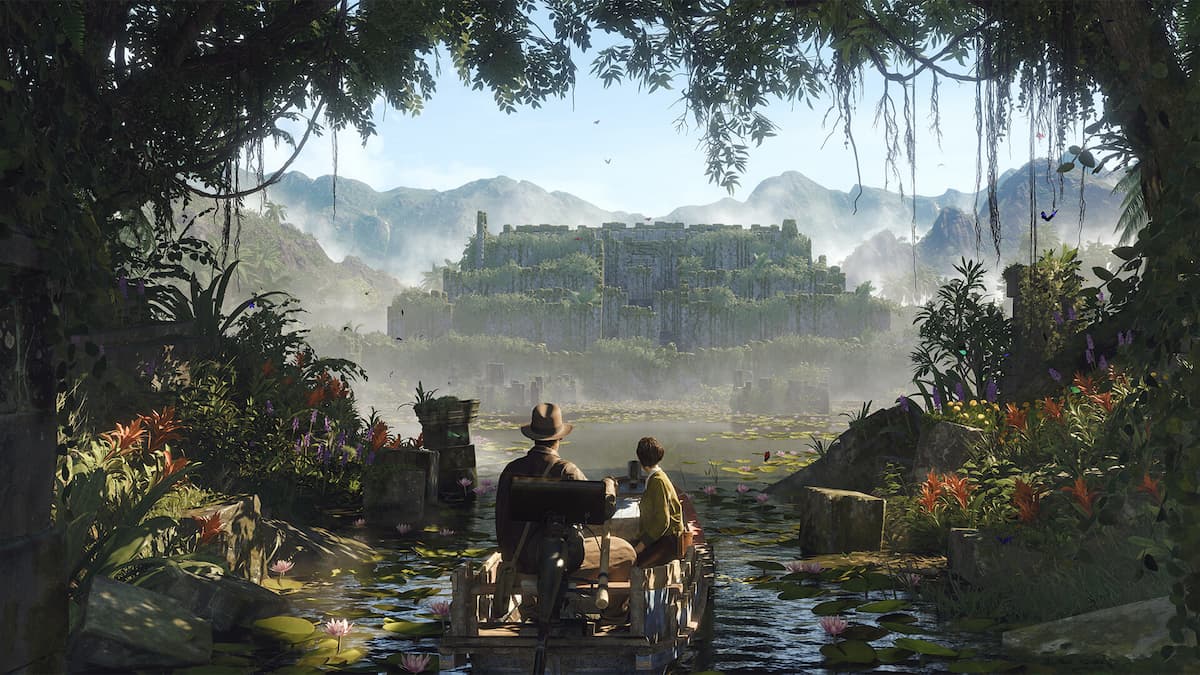
Indiana Jones and the Great Circle is one of the best PC releases of the year and showcases the power of id Tech 7. It runs great on a variety of hardware and now has support for Path Tracing as well, which pushes the visuals even further at a major performance cost. Great optimization aside, there are a few issues and visual limitations including LOD and shadow draw distance being very short. Here is how you can adjust the LOD in Indiana Jones and the Great Circle.
Increase the LOD in Indiana Jones and the Great Circle
The in-game settings don’t allow players to adjust the LOD distance in Indiana Jones and the Great Circle, which means you’ll see plenty of pop-ins while moving around the world. This can be a bit distracting but is likely implemented to maintain higher performance. Thankfully, the game allows players to access the developer console, and from there, we can adjust the LOD draw distance to a higher value.
- Launch Indiana Jones and the Great Circle, and load up your save
- Now, hit the ~ key to open up the developer console
- Here, input the following command:
r_lodScale 4
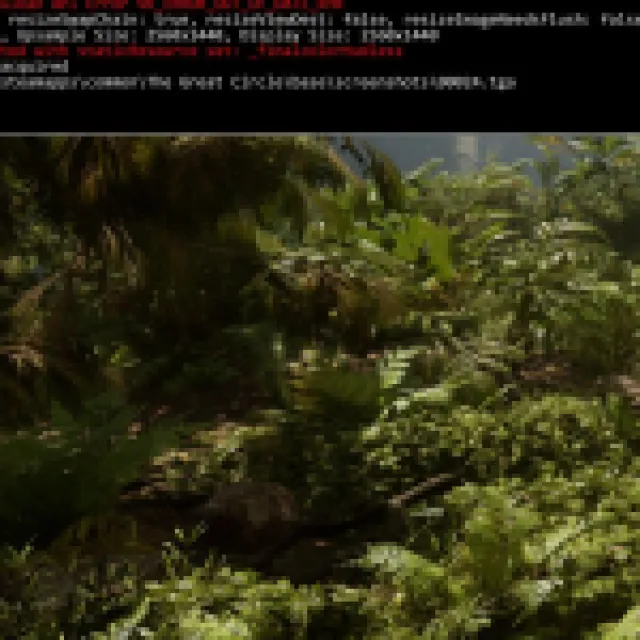
- You can set the value to anything from 1 (default) to 10, but we found 4 to be the sweet spot in our testing that doesn’t push the GPU too far, nor introduce flickering.
- Hit enter, and the LOD will be adjusted dynamically.
Here is a comparison of the default LOD and LOD with the value set to 4 using the developer console. I have also uploaded the full-resolution images on imgsli so you can see the impact on the entire scene.


When it comes to performance cost, my average FPS in the scene went from 94 FPS to 85 FPS.
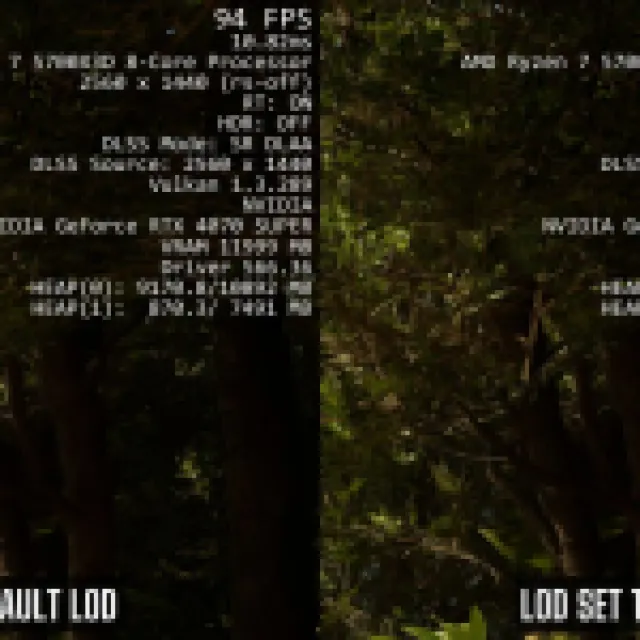
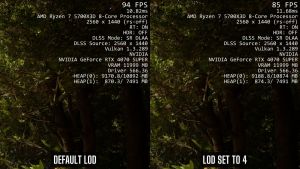
This is to be expected, and setting it to 5 or beyond will further reduce the average FPS. Additionally, this command has to be inputted every time you load up the save file. Thankfully, you can simply press the up key, and the last command will show up. This is the only caveat with this console command as it resets on each launch.
Ideally, the developers will add a slider for this and mention the performance impact of the setting, but for now, this is the only way to adjust it. Depending on the scene and the density of objects, it can be pretty demanding.
To further improve your journey, here is how you can skip the intro videos in Indiana Jones and the Great Circle and fix any crashing or black screens.


