
Final Fantasy Resonance Save File Location and How to Fix Demo Progress Not Transferring
No need to worry if your demo save data isn't showing up on Steam


Final Fantasy Resonance is finally out, and if you’ve already spent several hours exploring Chapter 1 in the demo, you’ll naturally want to carry that progress over to the full release. While the transfer is supposed to happen automatically, that wasn’t the case for me when I launched the full version on Steam.
If you’re experiencing the same issue, here’s where to find your Final Fantasy Resonance save files on PC, how to transfer them manually, and an important save file limitation for Nintendo Switch and Switch 2 players.
Final Fantasy Resonance Save File Location on PC
Final Fantasy Resonance stores its save files in the AppData folder on Windows. However, the demo and full game use separate directories, which may explain why your demo progress isn’t showing up automatically.
Here is the save file location for the Final Fantasy Resonance demo on Steam:
C:\Users\<username>\AppData\Local\FFRS_DEMO\Steam\<SteamID>\
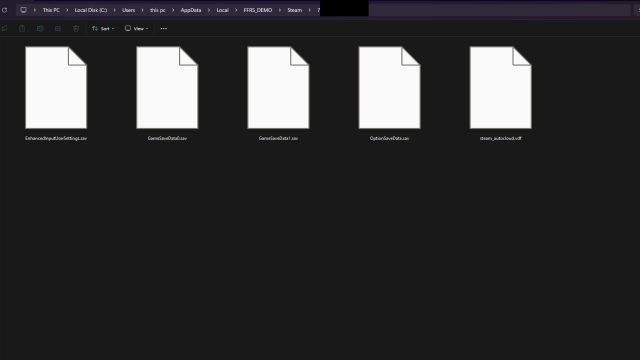
And here is the save file location for the full version of Final Fantasy Resonance:
C:\Users\<username>\AppData\Local\FFRS\Steam\<SteamID>\
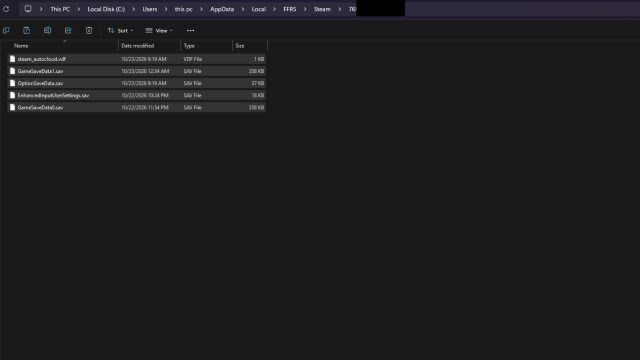
Replace <username> with your Windows username. The Steam ID folder will be a long string of numbers associated with your account.
If you’re having trouble finding AppData, press Windows + R, enter %LOCALAPPDATA%, and press Enter. From here, open either the FFRS_DEMO or FFRS folder, followed by Steam and your Steam ID.
The save folder contains several files, including:
GameSaveData0.savGameSaveData1.savOptionSaveData.savEnhancedInputUserSettings.sav
The numbered GameSaveData files correspond to your save slots, while the other files contain settings and input configurations. You may have more or fewer numbered save files depending on how many slots you’ve used.
How to Fix Final Fantasy Resonance Demo Save Not Transferring on PC
The Steam version is supposed to automatically detect your demo save data, but if that isn’t happening, you can try copying the files manually. This worked for me, and the process is fairly straightforward.
Before doing anything, back up your existing save files from both folders, especially if you’ve already started playing the full game. Copying files with the same names can overwrite your progress.
- Close Final Fantasy Resonance and its demo if either is running.
- Navigate to
C:\Users\<username>\AppData\Local\FFRS_DEMO\Steam\<SteamID>\. - Copy your
GameSaveData0.sav,GameSaveData1.sav, or any other numbered save files you want to transfer. - Open
C:\Users\<username>\AppData\Local\FFRS\Steam\<SteamID>\. - Paste the copied save files into this folder. If Windows asks to replace existing files, make sure you’ve backed them up first.
- Launch Final Fantasy Resonance again and check whether your demo progress appears.
In my case, both save slots appeared immediately after relaunching the game, and I could continue playing from where I left off in the demo.
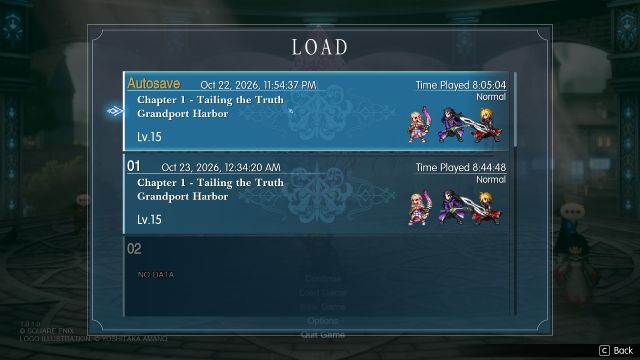
You shouldn’t need to copy OptionSaveData.sav or EnhancedInputUserSettings.sav just to restore your progress, since these are related to game settings and not your save files. But, it doesn’t hurt to transfer any custom settings.
This is a manual workaround rather than an officially documented transfer method, but it’s worth trying if the full game refuses to recognize your existing saves.
Final Fantasy Resonance Switch and Switch 2 Save Transfer Limitations
Unfortunately, Nintendo Switch players have another problem to watch out for, and this one can’t be fixed by moving files around.
Final Fantasy Resonance save data isn’t compatible between the Nintendo Switch and native Nintendo Switch 2 versions of the game.
So, even if you played the original Switch demo on a Switch 2 console, your progress won’t transfer to the Switch 2 full game release.
Here’s how compatibility works:
| Demo Version | Full Game Version | Save Transfer |
|---|---|---|
| Nintendo Switch | Nintendo Switch | Supported |
| Nintendo Switch 2 | Nintendo Switch 2 | Supported |
| Nintendo Switch | Nintendo Switch 2 | Not supported |
| Nintendo Switch 2 | Nintendo Switch | Not supported |
The confusion comes from the fact that Switch 2 can also run the original Switch version of the game, so it’s possible to download and complete the wrong demo without realizing it.
To check which version you’ve installed, highlight Final Fantasy Resonance on the Nintendo Switch HOME Menu and press the + button. The software information will indicate whether you’re using the Nintendo Switch or Nintendo Switch 2 version.
If the versions don’t match, there currently isn’t a supported method for transferring your progress between them. If you’ve already finished the Switch demo and bought the native Switch 2 game, you’ll unfortunately have to start over or play the corresponding Switch version instead.
If you’ve just started the game be sure to check out our full chapter 1 checklist for all items/enemies and pick the best difficulty settings for you.


