
PowerWash Simulator 2 Save File Location on PC
PowerWashed files!


PowerWash Simulator 2 is now available on PC and consoles, and just like the original, it’s a relaxing and highly entertaining simulator with plenty to clean. It runs on Unity, and the PC version performs quite well overall, despite a few occasional bugs that can get in the way.
Although the game supports cloud saves, if you’re looking for your local progress data, here is the save file location for PowerWash Simulator 2.
PowerWash Simulator 2 Save File Location
| Client | Save File Location |
|---|---|
| Steam | C:\Users\[Windows UIsername]\AppData\LocalLow\FuturLab\PowerWash Simulator 2\PC_Steam\SaveData |
Inside the SaveData folder, you’ll find folders for each job, containing a save file for their timelapse as well, along with your overall data. For ease, I recommend backing up the entire PowerWash Simulator 2 folder, so you don’t have to worry about all the additional folders inside it.
Here is a shortcut address for the same location, which you can enter in Windows Run or Explorer:
%USERPROFILE%/AppData/LocalLow/FuturLab/PowerWash Simulator 2/PC_Steam
Does PowerWash Simulator 2 Have Multiple Save Slots?
No, you can only have one active progress profile in PowerWash Simulator 2.
How To Reset Progress in PowerWash Simulator 2
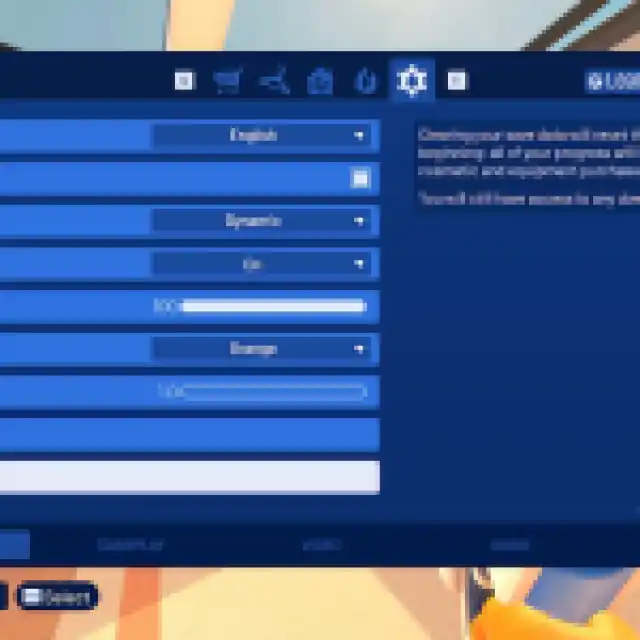
If you want to start over after you’ve finished everything in PowerWash Simulator 2’s career mode, then you can always reset the progress from the settings.
In the General tab of Settings, scroll down to the bottom, and you’ll see the “Clear Save Data” option, which will reset your progress completely as if you’ve started the game for the first time.
I really hope they consider adding the ability to change profiles in an update.
PowerWash Simulator 2 Steam Features
PowerWash Simulator 2 has the following features on Steam:
- Steam Cloud: If you’re playing on multiple devices, your progress will be automatically carried over between them through Steam Cloud.
- Steam Family Sharing: If you own a copy of PowerWash Simulator 2, members of your Steam family can access it in their libraries.
- Steam Input: While the game has native support for multiple controllers, you can always use Steam Input to get third-party controllers to work without much trouble.
The game isn’t verified for the Steam Deck, but you can get a playable experience on the handheld. You’ll have to mess around with the button layout and download something from the community, but it’s an alright experience.
If you’d like to see more helpful guides, news, or features from Prima Games, please consider adding us to your preferred sources.


